

What you’ll build
A voucher is an offer whose Type is Voucher - Triggered. It gives the customer a bonus, never money off. Because the type is a triggered one, the flow decides who gets it. The Activity event then passes on each customer who got a voucher, so the push only reaches them.Settings
Check the campaign’s dates
The flow, the voucher and the push all have to fall inside the campaign’s dates. So give the campaign dates that cover the whole time you want to give out birthday vouchers, such as a full year. See Create a campaign.Find tomorrow’s birthdays
Open the campaign’s Orchestration view, in Design mode. From Segment in the Block library, add a Member segment and double-click it. In Create member segment, choose From Scratch. On Add Segment details, give it a Member segment name, such as Birthday tomorrow. Then open Segment attributes. Open Membership and add Days to birthday. Keep Equal and enter 1. Days to birthday never reads 0. On a customer’s birthday, it already counts the days to their next one, so a rule of 0 finds nobody. With 1, the flow finds customers the day before, and their voucher is ready on the day.Run it every day
Go back to Add Segment details. The schedule panel is at the bottom, named after the flow, such as Schedule - Flow 1.
Select Save. Each customer has one birthday a year, so a daily run gives each customer one voucher a year. Schedule a campaign and check its results shows the schedule step by step.
Add the voucher
From Activity, add an Offer. Connect the Member segment to it first, then double-click the Offer and choose From Scratch. Connecting it first means the Type list shows only the types a flow can hand out, and the form leaves out Segmentation. Fill in the offer as described in Create an offer. These settings make it a birthday voucher.- In Details, set Type to Voucher - Triggered before anything else. That switches on Pre-activated. Leave it on, so the voucher works without the customer activating it in the app.
- Set Validity period to how many days the customer has to use it, such as 14. The days count from when the flow gives it out. A voucher never lasts past the offer’s end date, so set the offer’s dates to cover the whole campaign.
- In Discount, pick Basket Discount or Product Discount. Then pick Bonus Amount or Bonus Percent as the Offer type. See Discount types.
- In Content, write the Offer title and Description customers see in the app.
Add a push
From Trigger, add an Activity event and connect the Offer to it. It reads Assigned, the one event an offer has. From Activity, add a Push and connect the Activity event to it. Double-click the Push and write your message, as described in Push notifications. Its Segmentation already reads Custom, so each customer who gets a voucher gets the push. Publish the push from its form, too. A push that isn’t published when the flow reaches it doesn’t go out, and isn’t sent later. See When a triggered communication acts.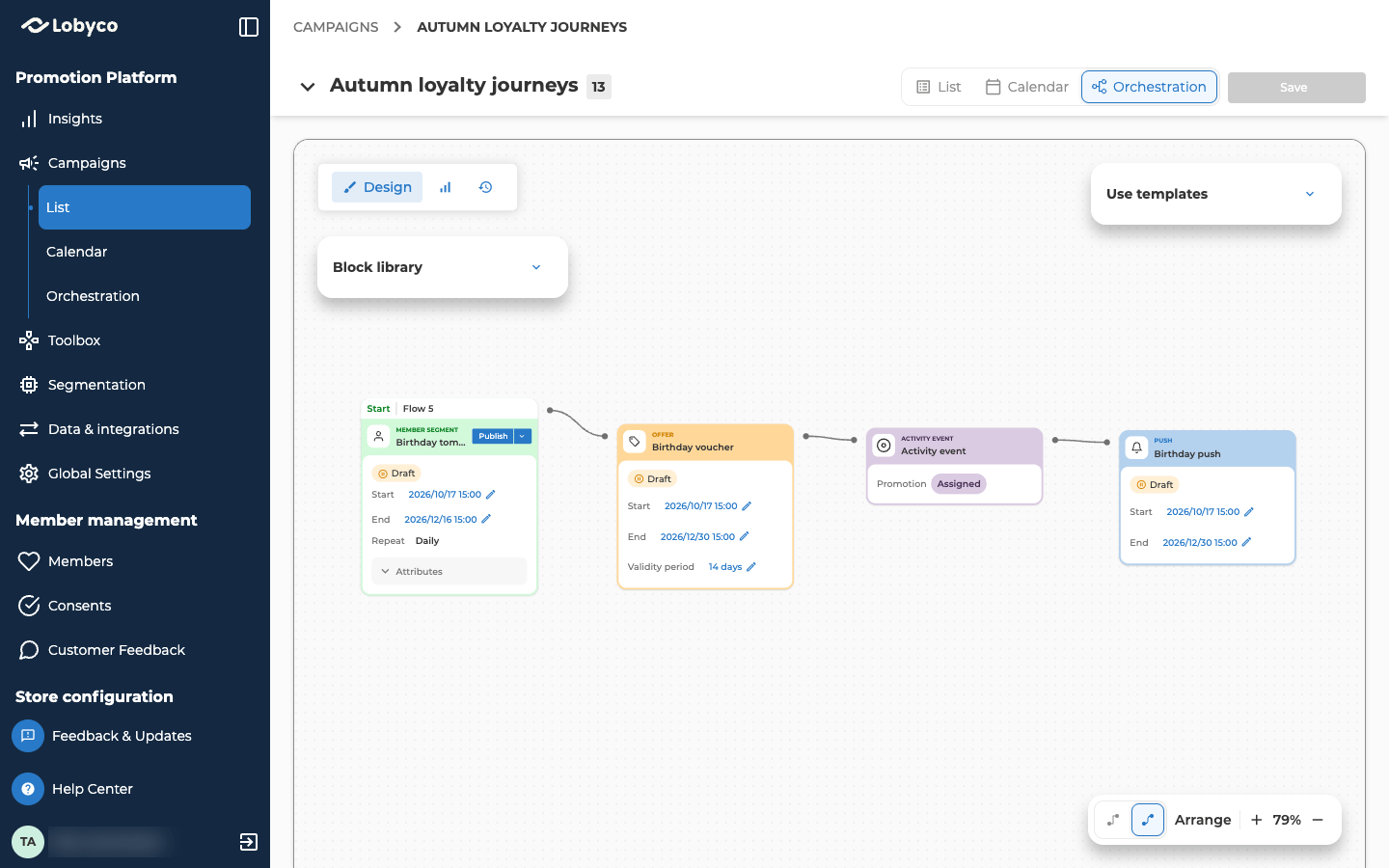
Save and publish the flow
Select Save at the top right of the canvas. Then select Publish on the Member segment, the block with the Start tab, and confirm. The schedule starts, and the flow runs every day from its start date. To see how many customers the next run would find, open the chevron beside Publish and choose Count. It doesn’t give out vouchers or send anything.Check the result
The day after the first run, check these three things.- Open History on the canvas. Each day has a run card started by Scheduled, with the status Done.
- Select a run, then the Member segment. Its Count is how many customers had a birthday the next day.
- Find one of those customers in Members and open their Coupons tab. The voucher is there, with its Valid from and Valid to dates.
Variation: greet each customer by name
The push after an Activity event can only use the details the event carries. To add a customer’s details, such as their first name, build the push in a second flow, with an Enrich block.- To reuse the first segment’s rules, open it and choose Save as template from the arrow beside Save. Add a second Member segment with From Template. Give it a daily schedule that starts later than the first flow’s, for example an hour after. The two flows run separately, so the later start gives the first flow time to hand out the vouchers before the push goes.
- Add an Enrich and connect the new segment to it. In Select elements, tick the Membership table and its First name column. Tick Do not remove member without result, so customers with no first name on file still get the push.
- Connect the Enrich to a Push. In its Title or Message, type
{and pick the first name from the list. Write the message so it still reads well for a customer with no first name on file. - Remove the Activity event and the Push from the first flow, so customers don’t get two pushes.
Related
- Offer types explains Voucher - Triggered and the other reward types.
- Create an offer covers every field on the offer form.
- Schedule and run a campaign describes every schedule field, and running a flow by hand.
- Block reference describes the Member segment, Activity event and Enrich blocks in full.
- Welcome new customers builds the same offer-and-push flow, started by each sign-up, with a Gift coupon.