

What you’ll build
On the campaign’s canvas, a Member segment block picks out the customers. The block after it, such as a Push or an Offer, decides what they get. Every example on this page uses these two blocks. Only the rules in the Member segment change.Segment rules
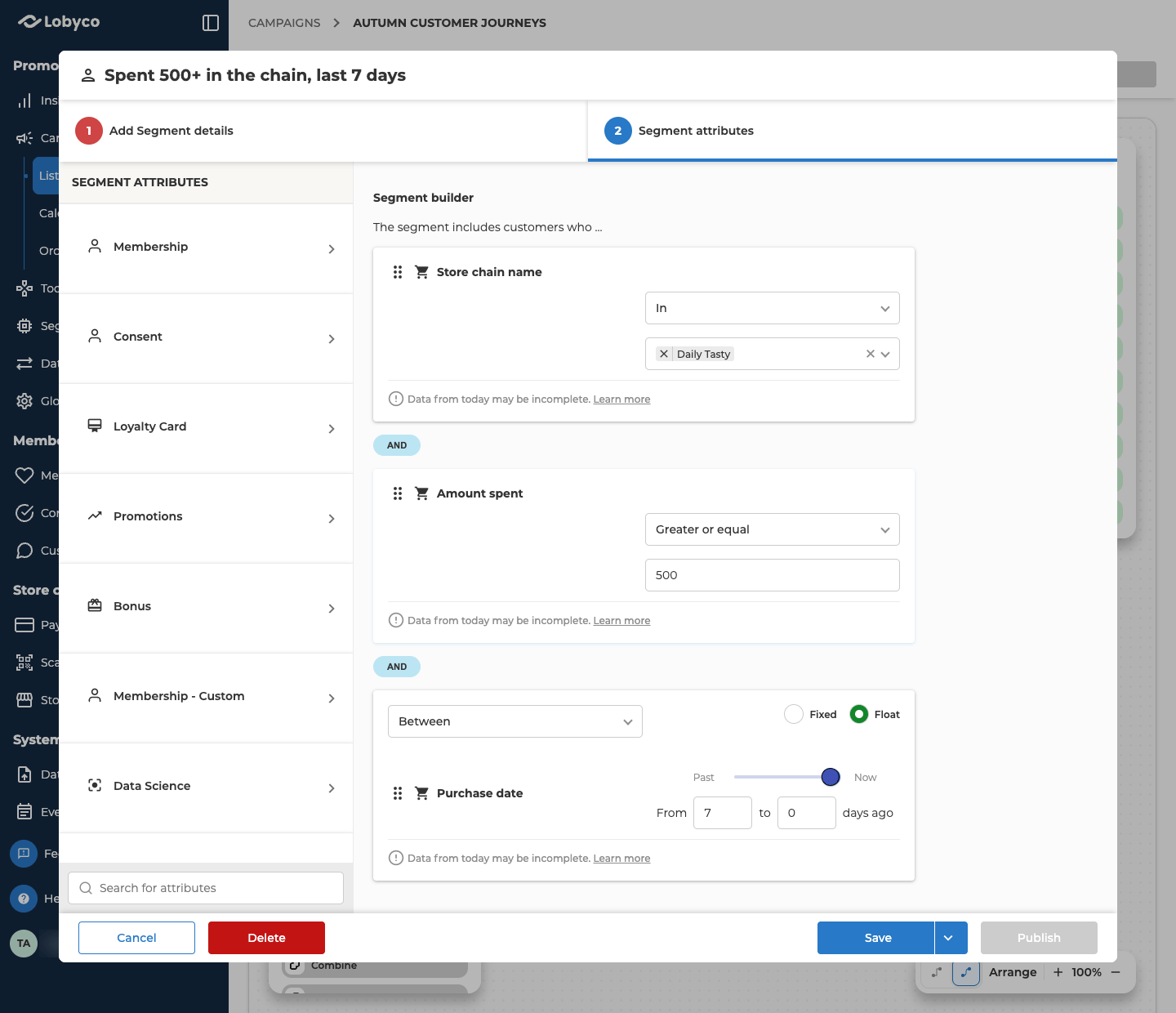
Joined by AND, the three rules look at the same purchases. So Amount spent adds up only what the customer spent in that chain, in those 7 days.
Add a Member segment
- Open the campaign’s Orchestration view. To start a new campaign there, see Create a campaign.
- From Segment in the Block library, drag Member segment onto the canvas.
- Double-click the block, then choose From Scratch.
- On Add Segment details, enter a Member segment name, such as Spent 500+ in the chain, last 7 days.
Add the rules
Open Segment attributes. All three attributes are in the Purchase category.- Double-click Store chain name. Choose In, then pick the chain from the list.
- Double-click Amount spent. Choose Greater or equal and enter 500.
- Double-click Purchase date. Choose Between, then Float, and set From 7 and to 0.
- Leave the rules joined by AND.
- Select Save.
Connect a push or an offer
From Activity, drag the block that acts on the audience, such as a Push. Then connect the Member segment to it. To give them an offer instead, connect the segment to an Offer block before you open it. Its Type list then shows only the types a flow can hand out, such as Gift. See Offer types and Orchestration canvas. Don’t publish the flow yet. Count it first.Check the result
- Open the chevron beside Publish on the Member segment and choose Count. It saves the canvas, then counts the customers at each segment and operator block. Nothing is sent and no one gets an offer.
- The canvas switches to History, with the run selected. Wait for it to show Done.
- Select the Member segment block. Its Count is the number of customers who spent 500 or more in the chain in the last 7 days.
More examples
Each example uses the same blocks and steps as the worked example. Only the segment’s name and its rules change, in Add the rules.Buyers of a product
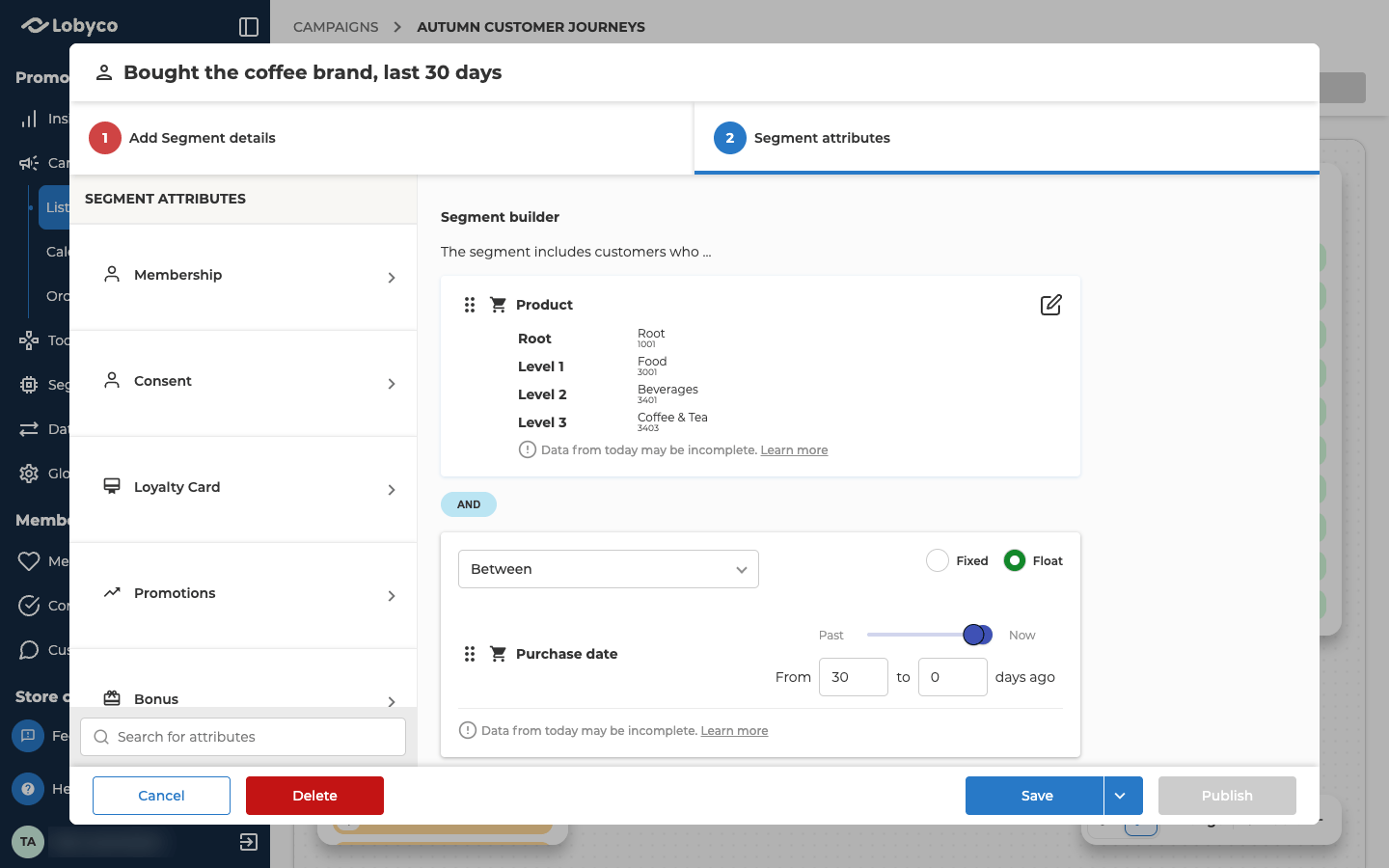
This one finds customers who bought a coffee brand in the last 30 days. Name the segment something like Bought the coffee brand, last 30 days.
Without a Purchase date rule, Product looks at the last 90 days. So for a 90-day window, Product on its own is enough.
Add the rules like this:
- In the Purchase category, double-click Product. The Product picker opens.
- Search or browse for the brand. Tick its product group, or tick single products in the column furthest to the right. Then select Add criteria.
- Double-click Purchase date. Choose Between, then Float, and set From 30 and to 0.
- Leave the rules joined by AND.
- Select Save.
Items bought in a store
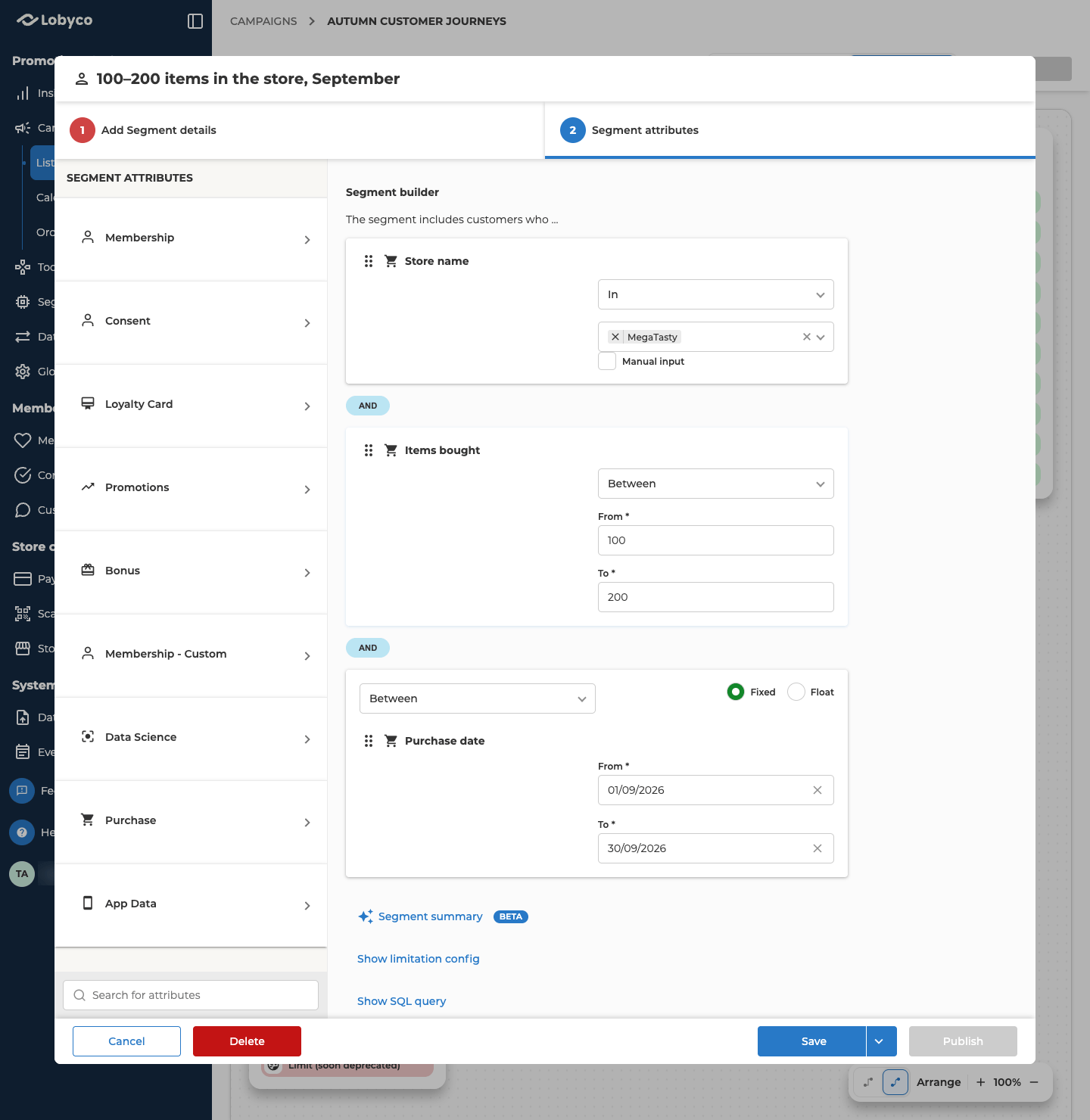
This one looks at how many items customers bought, not which ones. It finds customers who bought between 100 and 200 items in one store during September. Name the segment something like 100–200 items in the store, September.
Joined by AND, the three rules look at the same purchases, as in the worked example. So Items bought counts only the items bought in that store, in September.
Items bought counts items, not purchases. A customer who bought 120 items in 3 visits has an Items bought of 120 and a Receipt count of 3. To find customers by how often they shop, see Frequent shoppers by profile.
Add the rules like this. All three attributes are in the Purchase category.
- Double-click Store name. Choose In, then pick the store from the list.
- Double-click Items bought. Choose Between, then enter 100 in From and 200 in To.
- Double-click Purchase date. Choose Between, then Fixed, and pick 1 September as the start and 30 September as the end.
- Leave the rules joined by AND.
- Select Save.
Frequent shoppers by profile
A profile attribute on its own rarely makes a good audience. Combined with how often customers shop, it does. This one finds women who made 5 or more purchases in the last 30 days. Name the segment something like Women, 5+ purchases, last 30 days.
Lobyco Nexus keeps profile attributes, such as Gender and Age, in the Membership category. A Membership attribute isn’t about purchases, so the date rule doesn’t apply to it. Receipt count and Purchase date are Purchase attributes, so together they count the purchases made in the last 30 days.
Receipt count counts purchases, not items. A customer who made 5 visits and bought 40 items has a Receipt count of 5. To find customers by how many items they buy, see Items bought in a store.
Add the rules like this:
- In the Membership category, double-click Gender. Choose Equal, then pick the gender from the list.
- In the Purchase category, double-click Receipt count. Choose Greater or equal and enter 5.
- Double-click Purchase date. Choose Between, then Float, and set From 30 and to 0.
- Leave the rules joined by AND.
- Select Save.
Variations
Each variation changes, adds or removes one rule. The example’s other rules stay as they are.Related
- Create a segment — the segment builder, the Product picker, Fixed and Float date windows, and joining rules with AND and OR
- Segment attributes — every attribute and its operators, and why most Purchase attributes look back 90 days
- Split a segment into groups — giving parts of one audience different treatment
- Reuse a saved segment — saving a segment once and using it in every campaign
- Schedule a campaign and check its results — publishing the flow on a daily schedule