

At a glance
Each attribute offers only the operators that make sense for it, so the list you see can differ from the one here. Operators explains what each one finds.
Number
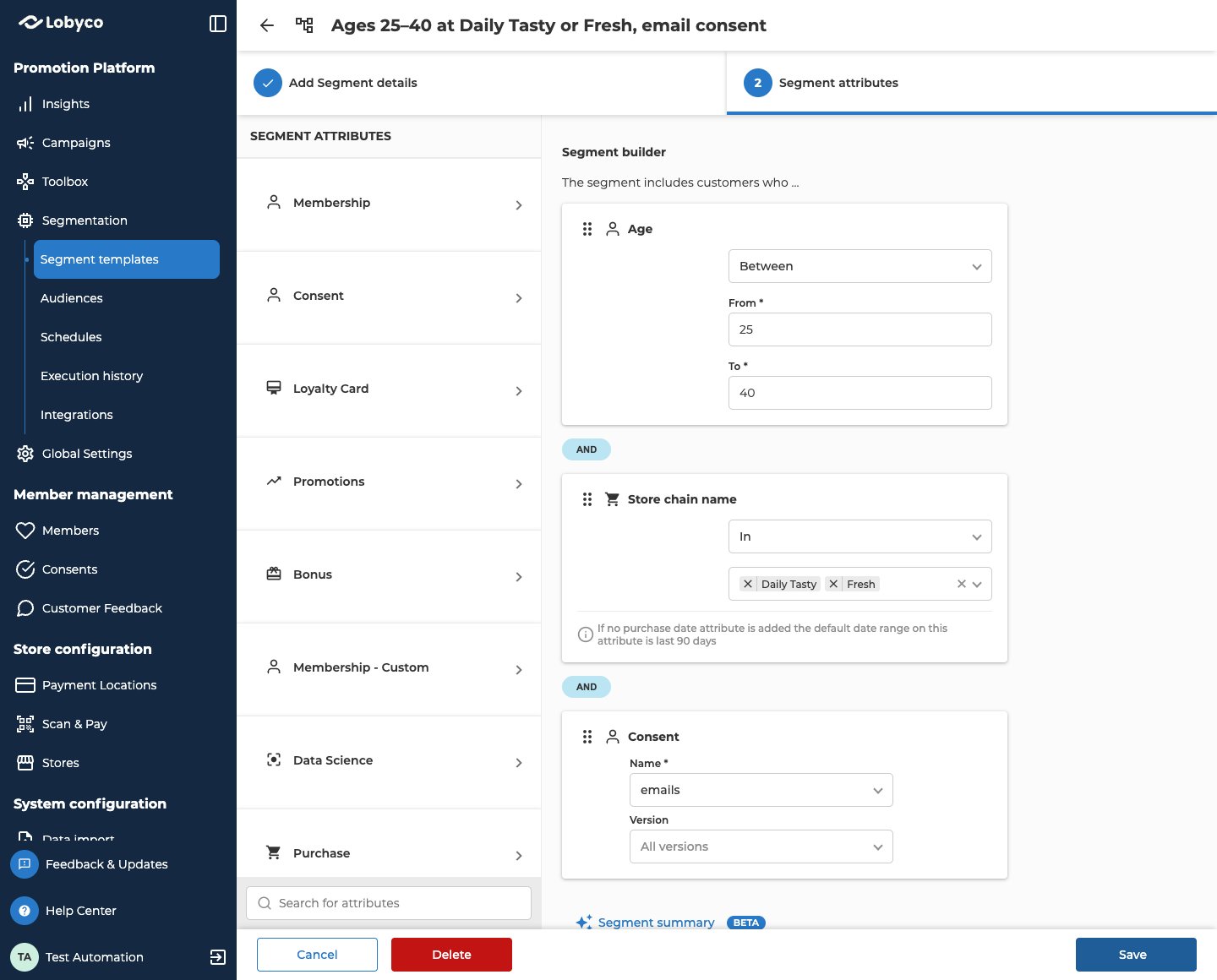
A number attribute takes a number, such as an age or an amount spent. You can’t type a negative number.- Between shows a From box and a To box. To can’t be lower than From.
- In takes several numbers in one box. Separate them with commas, semicolons or spaces.
- A few number attributes also take Matches file and Not matches file. Match against a file explains how.
Yes or no
A yes-or-no attribute has no operator. You pick Yes or No. Your organisation’s own attributes are often this kind. For example, a custom attribute such as Premium Member with Yes finds your premium members.List
A list attribute takes values from a list, such as a gender or a store chain. Type in the box to filter the list. Equal and Not equal take one value. In and Not in take several. Some list attributes, such as Store id and Coupon selection, also have a Manual input box when you pick In or Not in. Tick it to type the values instead of picking them. Separate them with commas, semicolons or spaces. For example, Store chain name with In and two chains picked finds customers who shopped in either chain in the last 90 days. Store chain name is a Purchase attribute, so that window applies unless the segment has a Purchase date rule.Date
A date attribute takes a date, such as a birthday or the day of a purchase. Less than means before the date, and Greater than means after it. With Between, you choose Fixed or Float:- Fixed uses the start and end dates you pick.
- Float is a rolling window, counted in days before today. It moves forward every time the segment runs. Set it with the slider, or type the number of days ago in From and to.
Text
A text attribute takes text you type, such as a zip code or a membership number.- Contains finds customers whose value includes the text you type anywhere in it.
- In and Not in take several values in one box. Separate them with commas, semicolons or spaces. A space always starts a new value, so for a value with a space in it, use Equal or Contains instead.
Consent
Consent has no operator. It has two boxes instead.- In Name, pick the consent, such as the one for emails.
- In Version, pick the versions that count. Leave it on All versions to count every version. The box is greyed out until you pick a name, and stays greyed out for a consent that has no versions.
Product
Product has no operator. It opens the Product picker instead. Search or browse your product catalogue, tick the products or product groups you want, then select Add criteria. To change the products later, select the edit icon on the rule. Product is in the Purchase category, so it looks at the last 90 days unless the segment has a Purchase date rule. Create a segment covers the picker step by step.Operators
Not equal and Not in leave out customers who have nothing recorded for the attribute. For example, Zip code with Not equal and one zip code doesn’t find customers who have no zip code.
A few attributes let you leave the value empty. The rule then finds the customers who have nothing recorded for that attribute.
Match against a file
Use Matches file or Not matches file when your list of values is too long to type, such as thousands of product codes.- Pick Matches file or Not matches file.
- Drop a
.csvfile on the box, or choose select file. The file can be up to 30 MB. - Check the line under the file, such as 950 of 1000 records matched. It says how many of the values in your file were found in your data.
Attribute categories
The SEGMENT ATTRIBUTES list groups the attributes into categories. Open a category to see its attributes, or type part of a name in Search for attributes. Lobyco sets up the list for your organisation, starting from the standard categories below. Your list can rename them, leave some out or add others.
Most Purchase attributes look at the last 90 days unless the segment has a Purchase date rule. The builder reminds you under the rule.
Counts in Bonus, Promotions and App Data have a date attribute of their own that sets their time window. For example, Coupon redemption date range sets the window for Count of redeemed coupons, the way Purchase date does for purchases.
Recency Frequency M. Value puts each customer in a group by how recently, how often and how much they shop. Lobyco works the groups out with a machine-learned model. It’s a list attribute, so you pick a group such as Loyals, Lapsing or Churned.
Membership - Custom only shows when your organisation has added attributes of its own. They can be text, numbers, dates or yes-or-no, and work like any other attribute. Your developers add them through the Members API.
Related
- Create a segment — add attributes to the builder, join the rules and save the segment.
- Why does my segment show a missing data warning? — what the warnings under a rule mean.
- Use your own customer list — when you already have the list of customers to reach.
- Find customers by what they buy — a worked example that combines a spend rule, a chain rule and a date rule.