

Start a new audience
- Go to Segmentation → Audiences. The list opens on the Active tab.
- Select Create audience.
Fill in the audience details
An activity only lists the audiences that have its destination, or that are set to Select all. The destinations you see depend on what your setup uses. These are the common ones:
Add the customers
Under Member list, add a .csv file of customer IDs. Drag it onto the box, or choose select file. Set the file out like this:- One customer ID per row, in the first column.
- A heading row is fine if it’s called
MemberIdorCustomerId. - The file can be up to 30 MB.
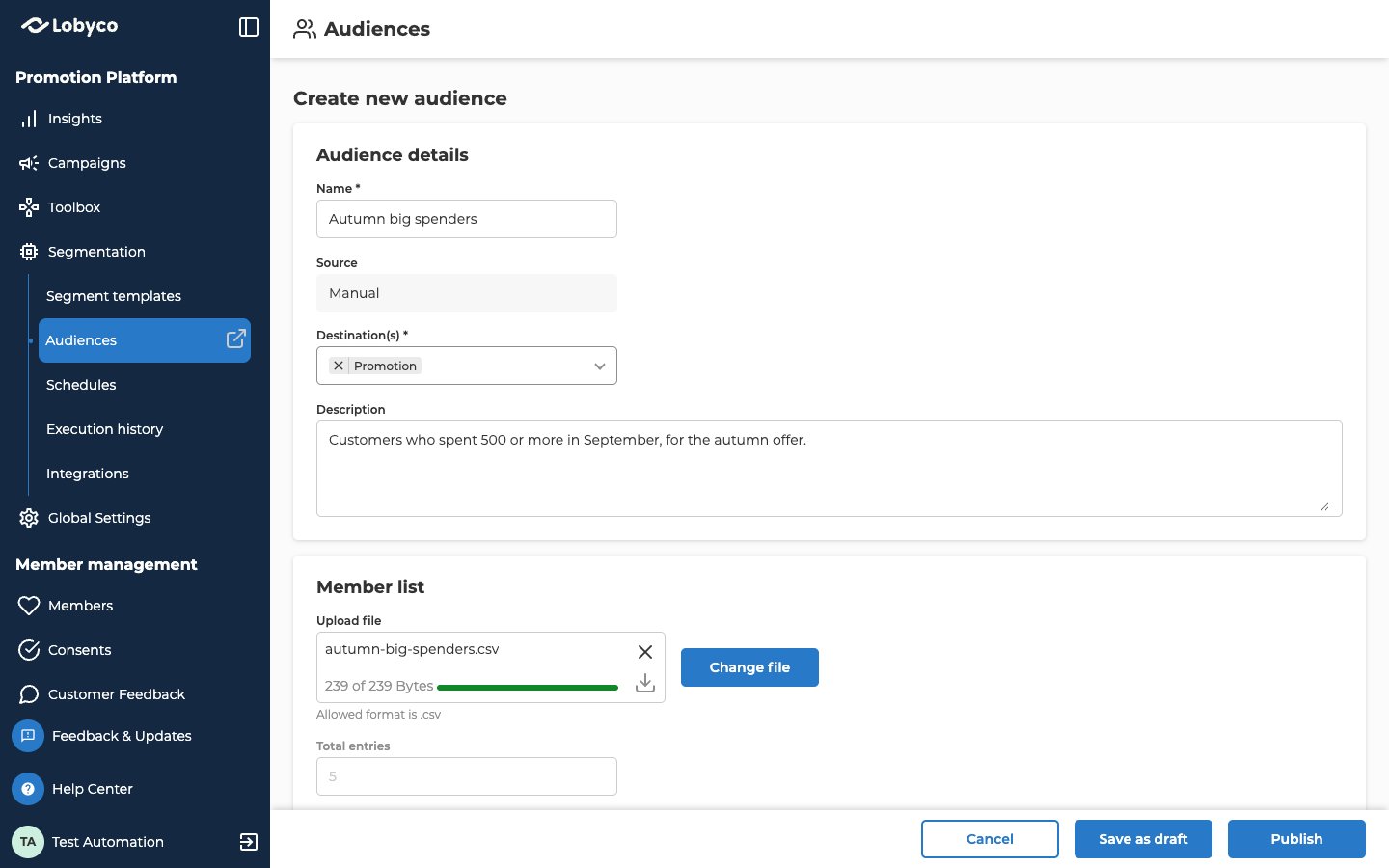
Save as draft or publish
Both stay greyed out until the audience has a Name and at least one Destination(s). After you save, you go back to the list, on the tab the audience is now on. To leave without saving, select Cancel.
You can’t delete an audience once it’s published. You can only disable it. So if you’re not sure yet, save it as a draft first. Edit, snapshot or disable an audience covers both.
Fill an audience from a campaign
A campaign can put a segment’s customers into an audience every time it runs. This is how you get an audience from rules, such as everyone who spent more than 500 last month. First save the segment, as Create a segment shows. Then, in the campaign:- Add a Member segment block with your segment.
- Connect a Channel block after it, and double-click it to open Configure channel.
- Under Location, pick Audience.
- Select Select from list to pick an audience, or Create new audience to make one. A new one has no file, because the campaign fills it. It’s published as soon as you create it.
- Save the block, then save the campaign.
Use the audience in an activity
In an offer, bonus, game, challenge or message, go to where you choose who it’s for. Choose Select Audience, then select Select from list and pick your audience. Only active audiences with that activity’s destination, or with Select all, show up. Select Snapshots picks a snapshot instead. A snapshot is a copy of the audience at one moment, so its customers don’t change after that. Edit, snapshot or disable an audience shows how to take one. You can also make an audience right there with Create new audience. It opens the same form, with the activity’s destination already picked. It’s published as soon as you select Create, so it needs a file.Troubleshooting
Why does the upload say 'File is empty'?
Why does the upload say 'File is empty'?
Lobyco found no customer IDs in the file. Put the IDs in the first column, one per row, and save the file as .csv.
Why is the audience's Size smaller than Total entries?
Why is the audience's Size smaller than Total entries?
Total entries counts every row in the file. When the audience is saved, Lobyco keeps each customer ID only once. So if an ID appears twice in the file, Size comes out lower.
Related
- Edit, snapshot or disable an audience — change who’s in an audience, keep a copy that doesn’t change, or take it out of use.
- Create a segment — build the rules a campaign uses to fill an audience.
- Block reference — the Channel block, which sends a campaign’s customers to an audience.