

Find a segment
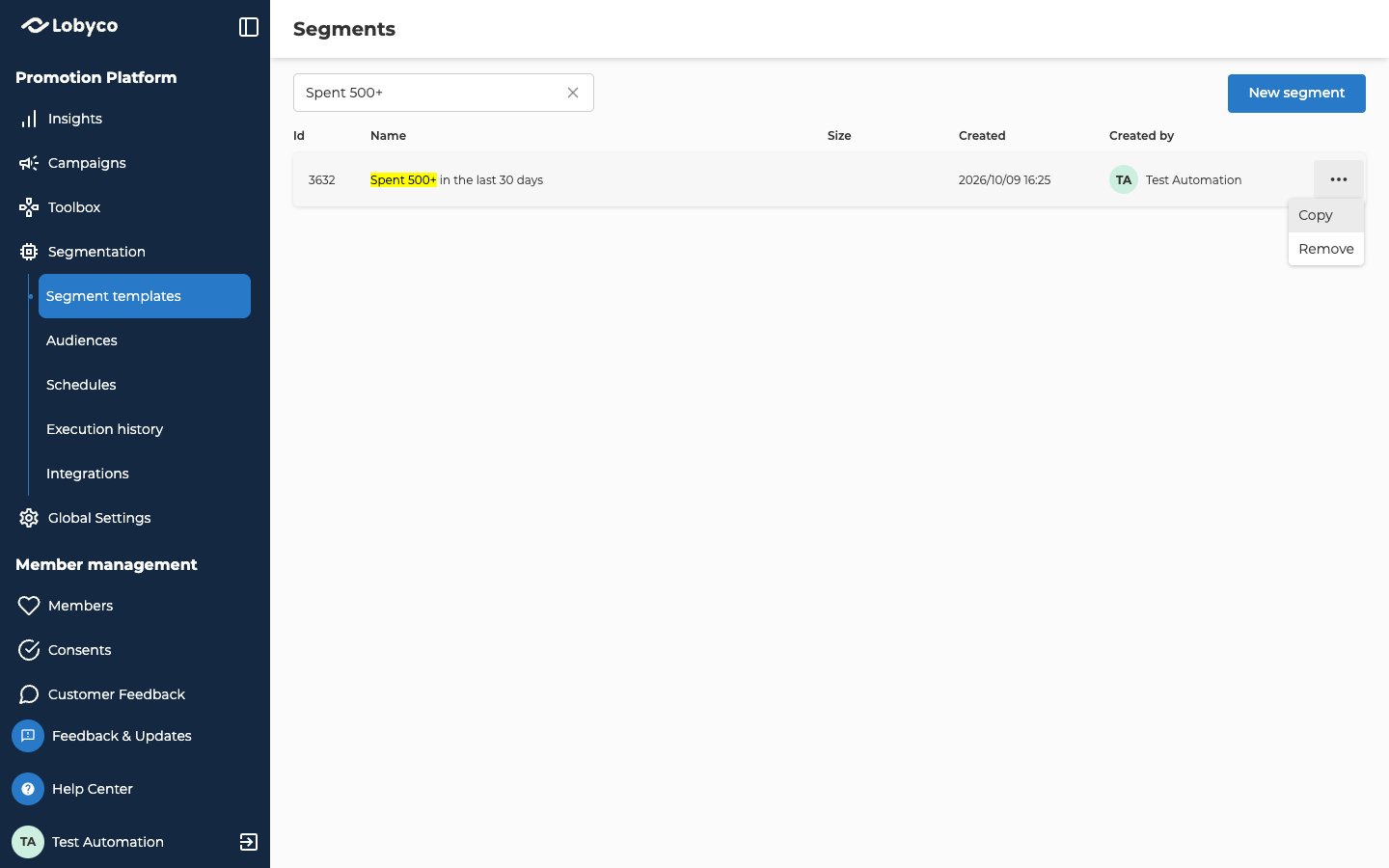
Go to Segmentation → Segment templates. The page that opens is called Segments. It lists every Public segment, the Restricted ones shared with your department, and your own Private ones. Admins see them all. Create a segment explains the three Permissions. The newest segments are at the top. Scroll down to load more.
To find a segment, type part of its name in Search for segments. The list then shows the segments whose name contains what you typed, from A to Z. Capitals don’t matter. The search looks at names only.
To sort the list, select Name, Size or Created at the top of the column. Select it again to change the direction.
Change a segment
- Select the segment’s row. It opens on the same two tabs you used to create it.
- Change the details or the rules. Create a segment covers the builder.
- Select Save. You go back to the Segments list.
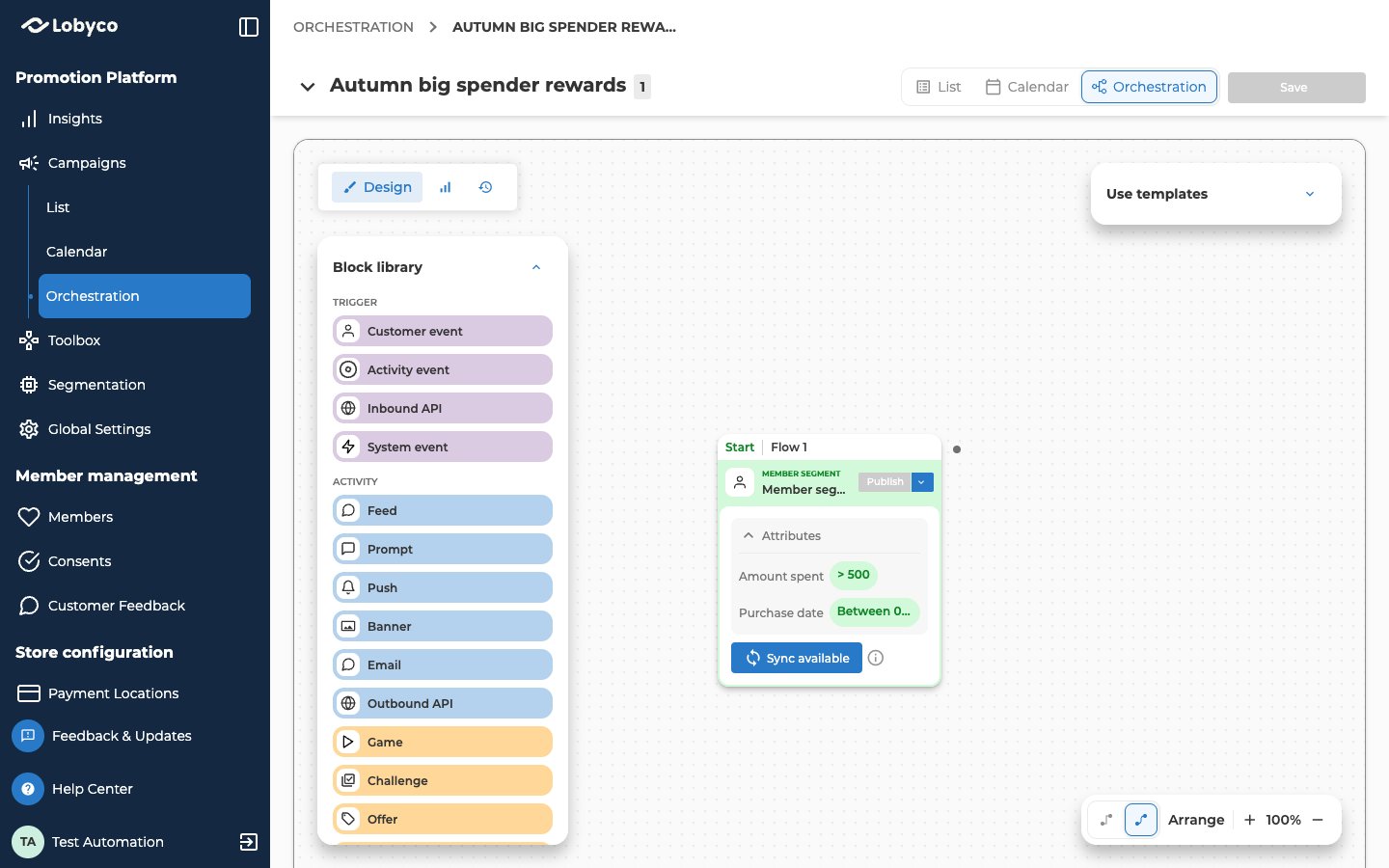
Campaigns that already use the segment keep their old rules until someone syncs them.
Copy a segment
A copy is the quickest way to make a variant of a segment, for example the same rules for a different store.- Open the row’s ⋯ menu, then select Copy.
- The copy is saved straight away, and it opens. Its name is the original’s with (copy) at the end, and you’re its creator. It keeps the original’s description, rules and permissions.
- Rename it, change what you need, then select Save.
Remove a segment
- Open the row’s ⋯ menu, then select Remove. You can also open the segment and select Delete.
- Remove segment asks you to confirm. Select Delete.
Troubleshooting
Why doesn't Size match the number in my campaign?
Why doesn't Size match the number in my campaign?
Size comes from the last campaign that ran with the segment, whichever campaign that was. If another campaign ran after yours, Size shows its number. Hover Size to see when that run was.
Why can't I find a segment a colleague made?
Why can't I find a segment a colleague made?
It’s set to Private, or it’s Restricted to another department. Ask your colleague to change its Permissions. Also check the name you’re searching for, because the search looks at names only.
Related
- Create a segment — build a segment’s rules and save it.
- Segment attributes — every attribute category, and which operators each kind of attribute takes.
- Block reference — the Member segment block, and how it links to a saved segment.
- Reuse a saved segment — a worked example, from saving a segment to using it in a campaign.