This page shows how to change an audience you’ve already made. You can add or remove customers, take a snapshot that keeps its customers fixed, copy the audience, or take it out of use.

Open the audience

  1. Go to Segmentation → Audiences.
  2. Pick the tab the audience is on: Active, Draft or Disabled.
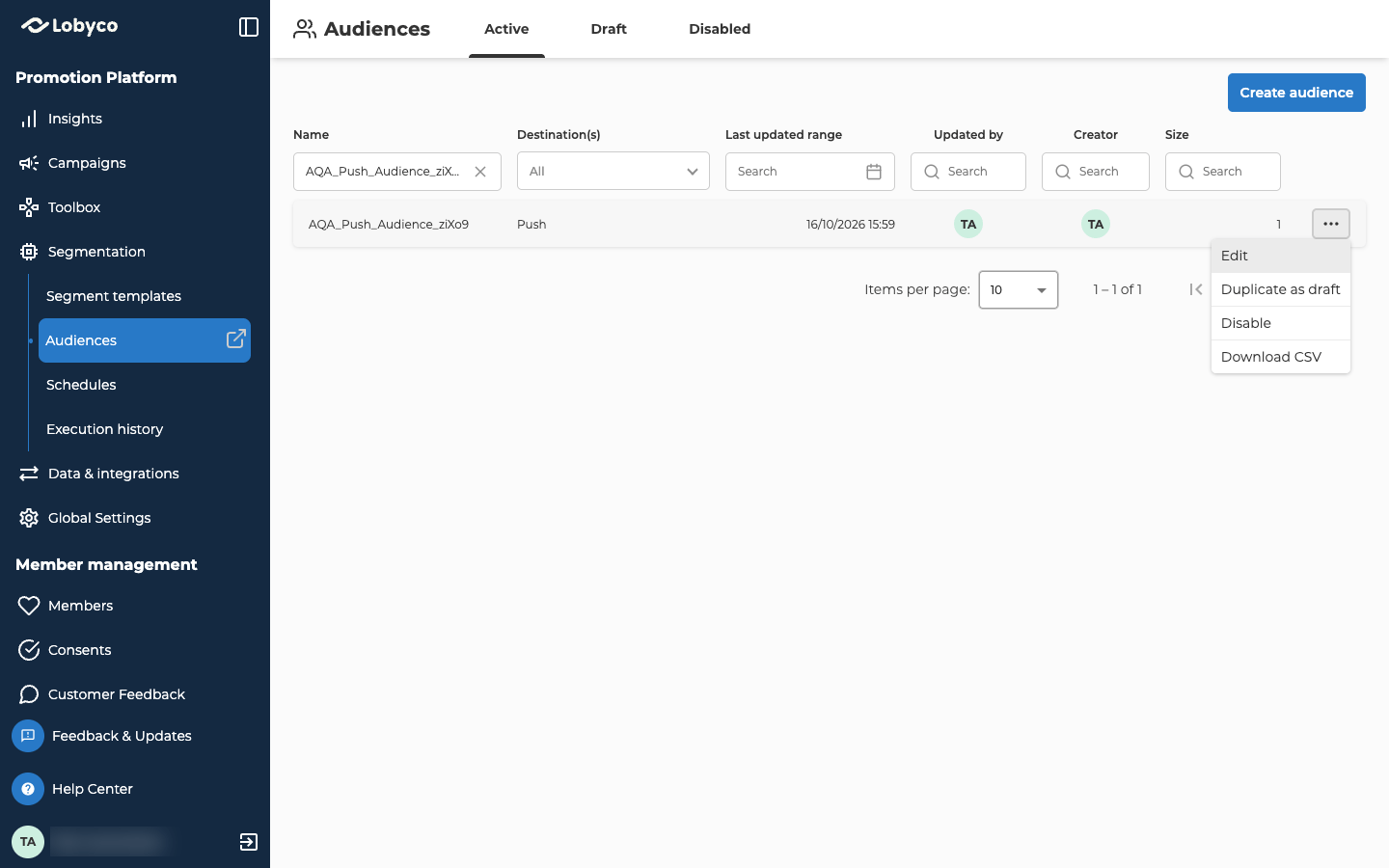
  3. Select the audience. You can also select … on its row and choose Edit. For a disabled audience, it reads View.
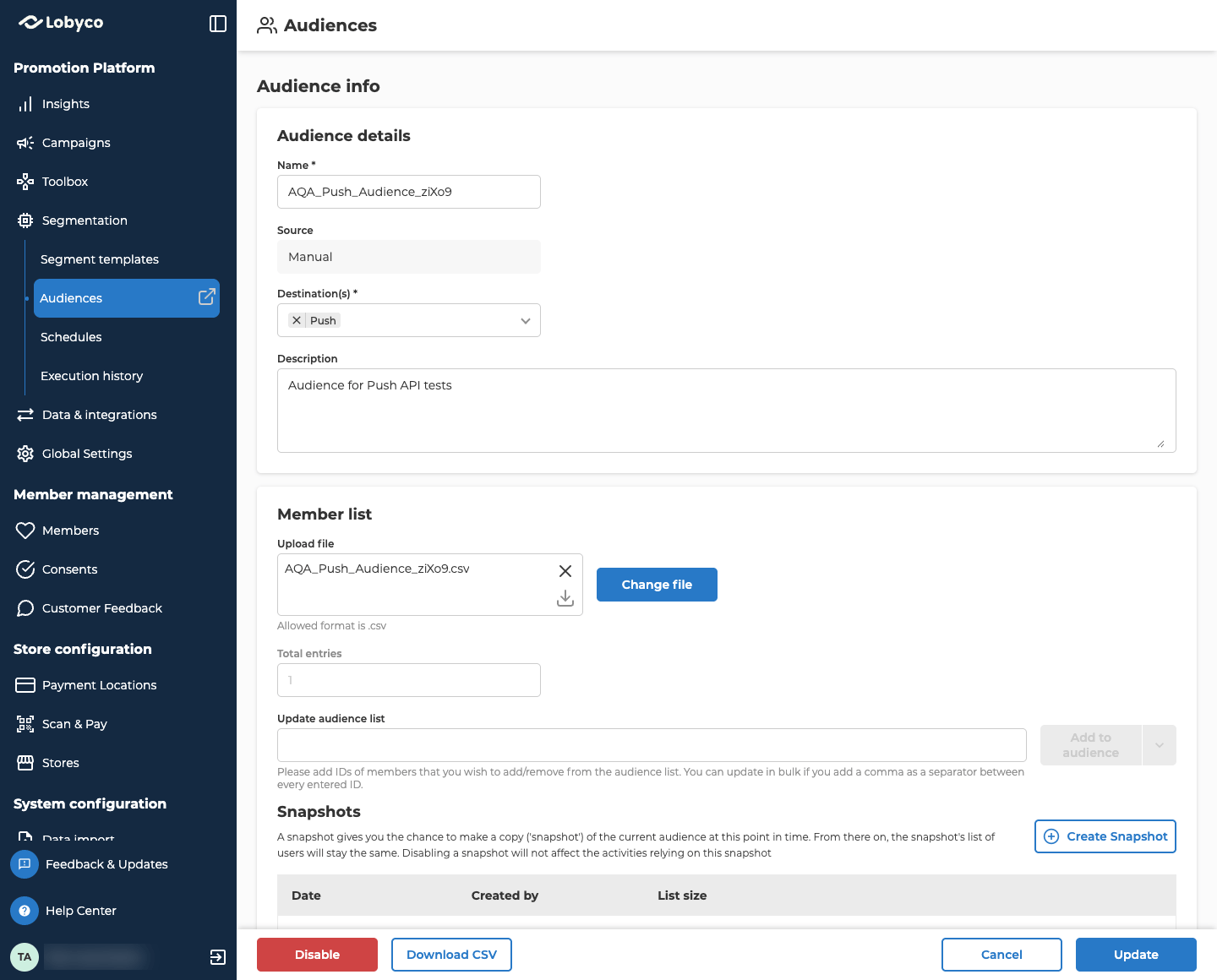
The page that opens is called Audience info. What you can do there depends on the tab the audience is on: Audience info for an active audience. Under Audience details, Name reads AQA_Push_Audience_ziXo9, Source reads Manual, Destination(s) holds Push, and Description reads Audience for Push API tests. Under Member list, the file AQA_Push_Audience_ziXo9.csv is uploaded, with Change file beside it, Total entries 1 below, and an empty Update audience list field with Add to audience greyed out. The top of Snapshots shows Create Snapshot and the Date, Created by and List size columns. Disable, Download CSV, Cancel and Update are at the bottom. Audience info for an active audience

Change the details

You can change the Name, Destination(s) and Description of a draft or active audience. They work the same as when you create an audience. Source is filled in for you.

Add or remove customers

There are two ways to change who’s in the audience. To add or remove a few customers, use Update audience list:
  1. Type one or more customer IDs. Put a comma between IDs.
  2. Select Add to audience. To remove them instead, select the arrow next to it and choose Remove.
  3. Repeat for any other changes.
Each change is listed under Member IDs, with Add or Remove under Planned update. To drop a change before you save, select the bin icon on its row. Nothing changes in the audience until you save. To replace everyone, select Change file under Member list and add a new .csv file. The new file replaces the whole list. Set it out the same way as when you add the customers to a new audience. Update audience list only shows when the audience has customers and isn’t disabled. To add customers to an empty audience, add a .csv file under Member list. If a campaign fills the audience, each run replaces everyone in it. So your changes last only until the campaign runs again. To change who’s in it for good, change the campaign’s segment instead. To keep customers fixed, take a snapshot. Fill an audience from a campaign explains how that works.

Save your changes

An update to an active audience goes live straight away. Every offer, bonus, game, challenge or message that uses the audience reaches the new list from that moment. After you save, you go back to the list. To leave without saving, select Cancel.

Take a snapshot

A snapshot is a copy of the audience’s customers at one moment. It never changes after that, even when the audience does. Use one when an activity has to keep exactly the customers it started with, for example while a campaign keeps refreshing the audience. The Snapshots section only shows on an active or disabled audience that has customers. A draft doesn’t have one.
  1. Open an active audience that has customers.
  2. Under Snapshots, select Create Snapshot.
  3. The new snapshot shows as Pending while Lobyco copies the customers. Select the refresh button next to it until it shows a Date and List size.
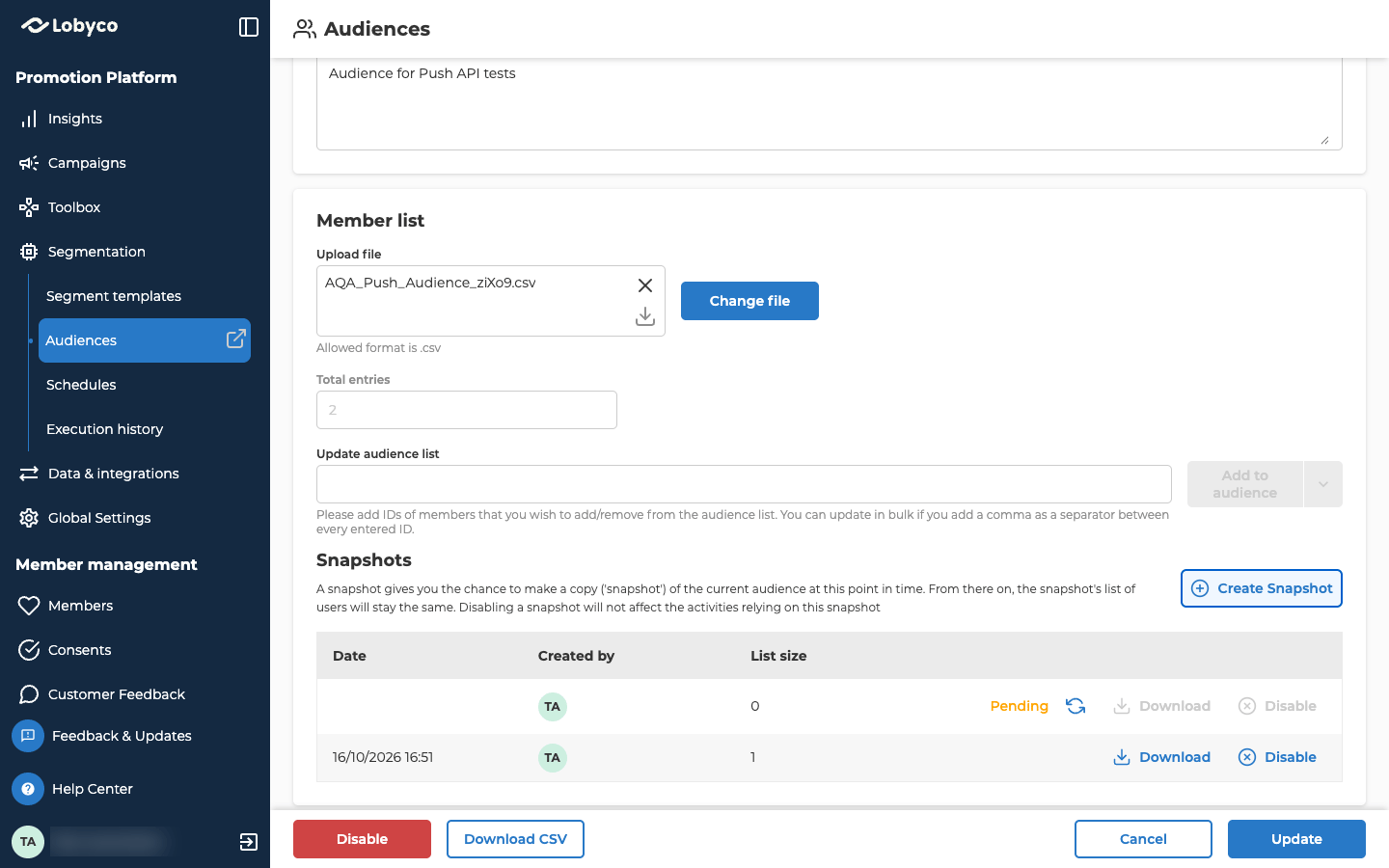
You can only take a snapshot of an active audience. If the customers haven’t changed since your last snapshot, Lobyco won’t take another one, and a warning says so. Use that snapshot, or disable it and take a new one. If the audience’s customers are still loading, a warning says that instead. Wait until they’ve loaded, then try again. To use a snapshot in an activity, choose Select Snapshots where you pick the activity’s audience. Use the audience in an activity shows where that is. Each snapshot has two buttons: The Snapshots section of an active audience, below Member list with Total entries 2. Create Snapshot is at the right, above a table with the columns Date, Created by and List size. The first row is a new snapshot with no date, TA, list size 0 and Pending in orange, with the refresh button beside it and Download and Disable greyed out. The second row reads 16/10/2026 16:51, TA and 1, with Download and Disable. Disable, Download CSV, Cancel and Update are at the bottom. A new snapshot, still pending, above an older one

Download the customer list

Select Download CSV at the bottom of Audience info, or choose it from the … menu on the list. You get a .csv file of the audience’s customer IDs, named after the audience. It’s there for active and disabled audiences, but not for drafts.

Copy an audience

Duplicate as draft makes a new draft with the same customers, destinations and description. It works from any tab, including Disabled.
  1. On the list, select … on the audience’s row and choose Duplicate as draft.
  2. A confirmation opens. Select Duplicate as draft.
The copy is called Copy of followed by the original name, and it opens on the Draft tab. Snapshots aren’t copied. Rename the copy and publish it when it’s ready.

Disable or delete an audience

What you can do depends on whether the audience has been published. Both buttons are at the bottom of Audience info, and in the … menu on the list. A disabled audience no longer shows up when you pick an audience for an activity. Activities that already use it keep its customers. Its snapshots are disabled at the same time. You can’t turn a disabled audience back on, and you can’t delete it. To use the same customers again, copy the audience and publish the copy. Its name can be the same as the disabled one. The Active tab of Audiences, with the Name filter holding AQA_Push_Audience_ziXo9 and Create audience at the top right. The list has the columns Name, Destination(s), Last updated range, Updated by, Creator and Size, and one row: AQA_Push_Audience_ziXo9, Push, 16/10/2026 15:59, TA, TA and 1. The row’s ⋯ menu is open, with Edit, Duplicate as draft, Disable and Download CSV. The Active tab, with a row’s ⋯ menu open
Last modified on October 21, 2026