

Only a flow that starts with a Member segment or Seed has a schedule. Decide what starts each flow explains how other flows run.
Open the flow’s starter
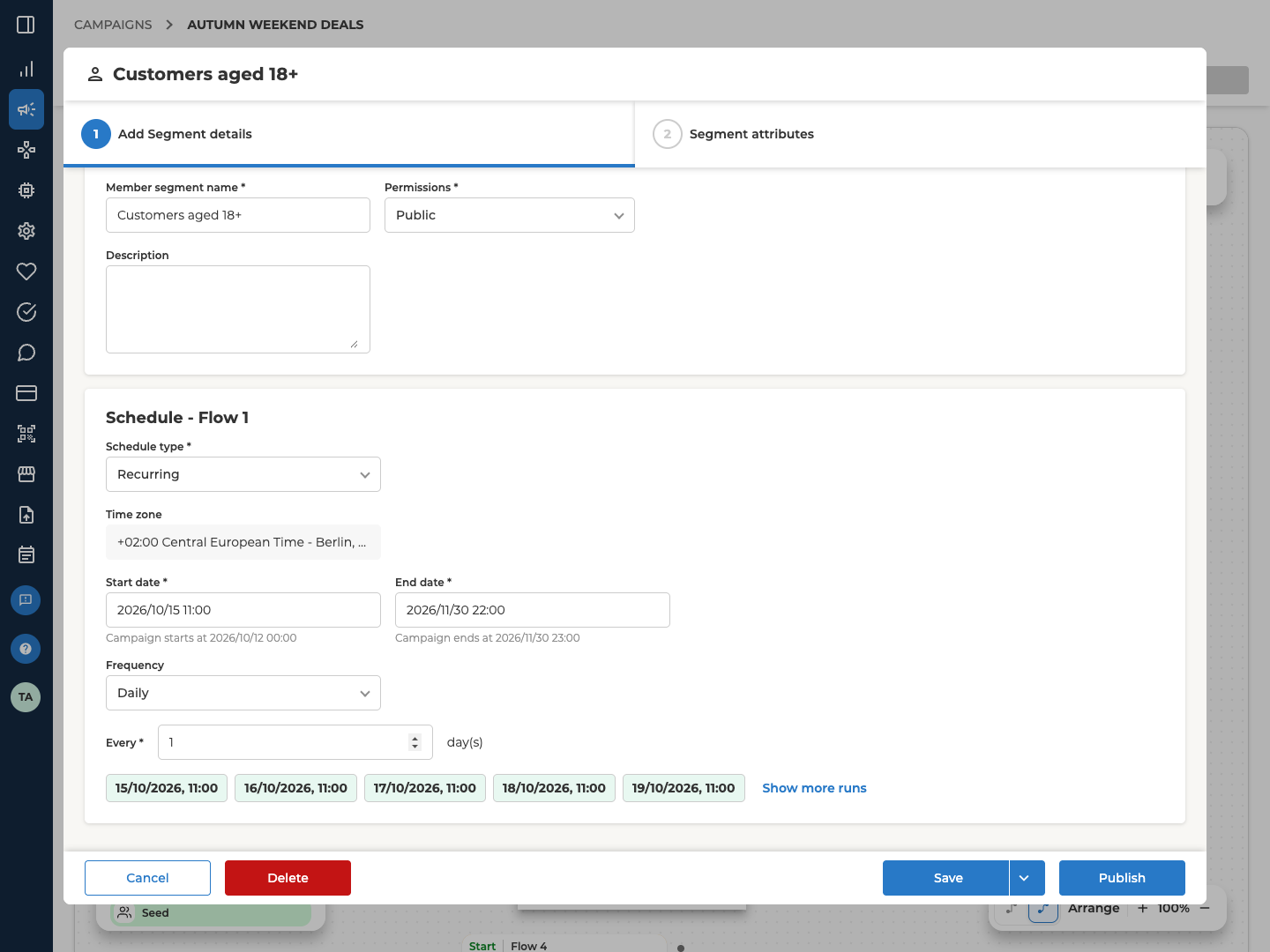
Here’s the whole path, from setting the schedule to reading each run in History. In Lobyco Nexus, open the campaign’s Orchestration view in Design mode. It’s the first mode on the switcher at the top left. Find the flow’s first block, the one with a Start tab, and double-click it. The schedule panel is at the bottom of the dialog’s first tab. It’s named after the flow, such as Schedule - Flow 1. When several Member segment or Seed blocks feed one flow, they share its schedule. You can only change it in the block with the Start tab.Set the schedule
Choose a Schedule type, then fill in the fields it shows.
If the campaign has dates, both schedule dates have to fall inside them. The fields show the campaign’s dates beneath them.
To schedule in a different time zone, set your computer to it before you choose the Schedule type. On an existing schedule, switch Schedule type to the other option and back after changing it. That clears the End date and the frequency, so fill them in again.
What each frequency asks for next
Once the frequency is complete, the panel shows the next run times. Check them before you save. A schedule can read correctly and still run at the wrong time.
An older flow can still have more than one schedule, and the block then says so. You can’t publish it until you delete the extra schedules, with the bin button on each schedule panel.
Save it
Select Save at the bottom of the dialog. Saving doesn’t publish the flow. A flow in Draft keeps its new schedule but doesn’t run yet.Publish it
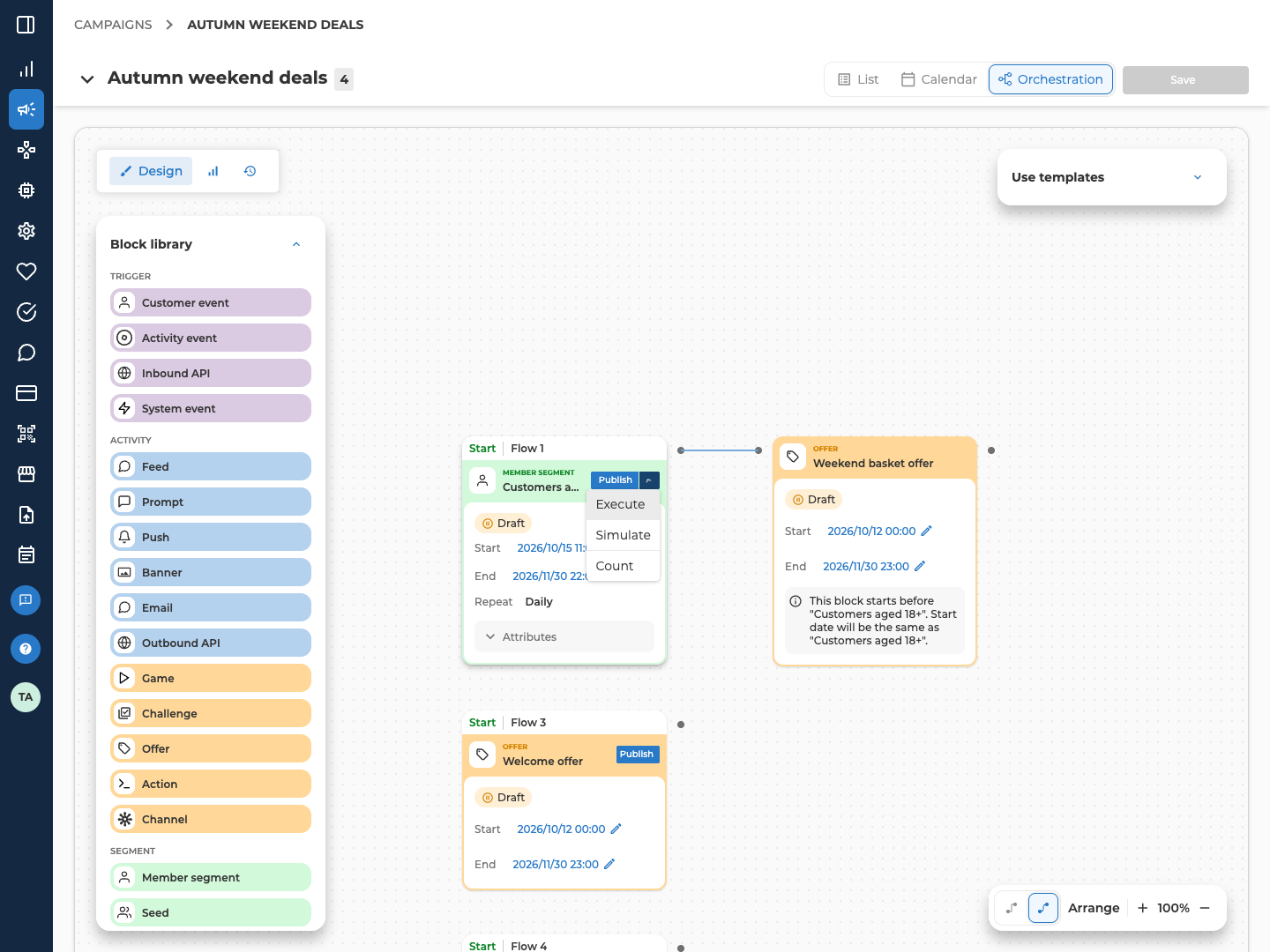
Select Publish, in the dialog’s footer or on the starter block itself, and confirm. The flow goes live straight away, or on its start date if that’s still ahead. Publish then changes to Unpublish. The starter’s status reads Scheduled until the start date, Active until the end date, and Expired after that. A one-time schedule goes straight from Scheduled to Expired once its start time has passed. The starter block shows the schedule’s dates, each with a pencil beside it. Use the pencil to change a date without reopening the dialog. The change is saved straight away. It doesn’t change the time a recurring schedule runs at. To move that, double-click the block and change Start date in the dialog. Publish each activity from its own form.Or run it now
The chevron beside the starter’s Publish button opens Execute, Simulate and Count. Each one runs the flow once, straight away, whether or not the flow is published. Any unsaved changes on the canvas are saved first.
In a Simulate run, an Outbound API block still calls its system. A Channel set to Export to CSV still writes its file, unless your administrator has set that export to skip simulations. Count and Simulate runs don’t change the numbers in Live stats.
Execute asks you to confirm, then runs for real. Simulate and Count start straight away.
Stop it
Select Unpublish on the starter, or in its dialog, and confirm. This stops the schedule, so no new customers enter the flow. Activities the flow already reached keep running. To stop one of them too, unpublish it from its own form. To stop a run that’s already in progress, use Stop on the run itself. See Follow each run in History.Follow each run in History
When you start a run, the canvas switches to History, with the newest run selected. You can also open History yourself from the mode switcher at the top left of the canvas. The History panel lists every run of the campaign, newest first. Each card shows these details.- The flow’s name and run number, such as Flow 1 Run 3, and when the run started.
- The job type. It’s Regular, Count or Simulation, or Event for a run an event started.
- The run’s status, explained in the table below.
- How the run started, such as Scheduled or Manual. Delayed is a run that carried on after a Delay block.
- How many warnings and errors it reported.
Before you run a failed flow again, check which blocks finished. Select the run’s card and each block on the canvas shows its own status. A failure only stops the blocks after it, so blocks before it may already have sent a message or given an offer. Running the flow again runs every block again, from the starter. Customers who got something the first time can get it twice, and the campaign’s numbers count them twice.
To see the flow’s numbers instead, switch to Live stats. It shows the same diagram, read-only, with counts on its blocks. It refreshes every minute.
To look across every campaign at once, Segmentation → Schedules lists each flow’s schedule. Segmentation → Execution history lists every run.
Troubleshooting
Why didn't my flow run on schedule?
Why didn't my flow run on schedule?
Check the starter’s status on the canvas, not the campaign’s status on the list. Draft means the flow was saved but never published. Select Publish to fix it. If History shows the run as Failed, open it with View more to see the step that failed.The campaign’s status on the list comes from the campaign’s dates alone. It doesn’t tell you whether any flow is published or has run.
Why is Publish greyed out?
Why is Publish greyed out?
The schedule isn’t complete. A one-time schedule needs a Start date. A recurring one needs a Start date, an End date and a Frequency. A flow with more than one schedule can’t be published until only one is left.
Why does Publish say Missing configuration?
Why does Publish say Missing configuration?
Something in the flow isn’t set up yet. A segment has no rules, a Seed has no file, or a Seed that takes a campaign result has no campaign. The message names what’s missing. Add it, then publish again.Running the flow by hand shows the same message. There, you can go ahead with Continue, but the run won’t return any results.
Why does Missing Data Detected appear when I run it?
Why does Missing Data Detected appear when I run it?
Some of the data the segment uses is out of date. There are two versions.
- The warning lets you Proceed anyway, with that data left out. So a segment can pick different customers than you expect.
- The error stops you. Fix the segment criteria or the date range, then start the run again.
Why did it run but nobody got anything?
Why did it run but nobody got anything?
Check that the activity blocks are published. Publishing the flow’s starter doesn’t publish them, and an activity still in Draft reaches nobody. Then open the run in History. If it reads Done with warning, View more shows what it reported.
Why can't I stop a run?
Why can't I stop a run?
Stop only shows while the run is In progress. It never shows on a run an event started. You also can’t stop the part of a run that carries on after a Delay block. To stop customers waiting in a Delay, delete the block and choose Delete, remove from flow.
Why does an activity warn that its dates don't line up?
Why does an activity warn that its dates don't line up?
An activity that starts after the flow feeding it, or ends before it, leaves some customers out. The flow’s dates are its schedule’s dates. Adjust the activity’s dates or the schedule’s so they overlap.
Related
- Orchestration canvas — building the flow, and what can start one
- Block reference — every block, and what each one needs
- Create a campaign — the campaign whose dates bound every schedule
- Find and manage campaigns — finding a campaign again and reading its status