

Open the campaign list
In Lobyco Nexus, go to Campaigns → List in the left menu. Each row is one campaign.
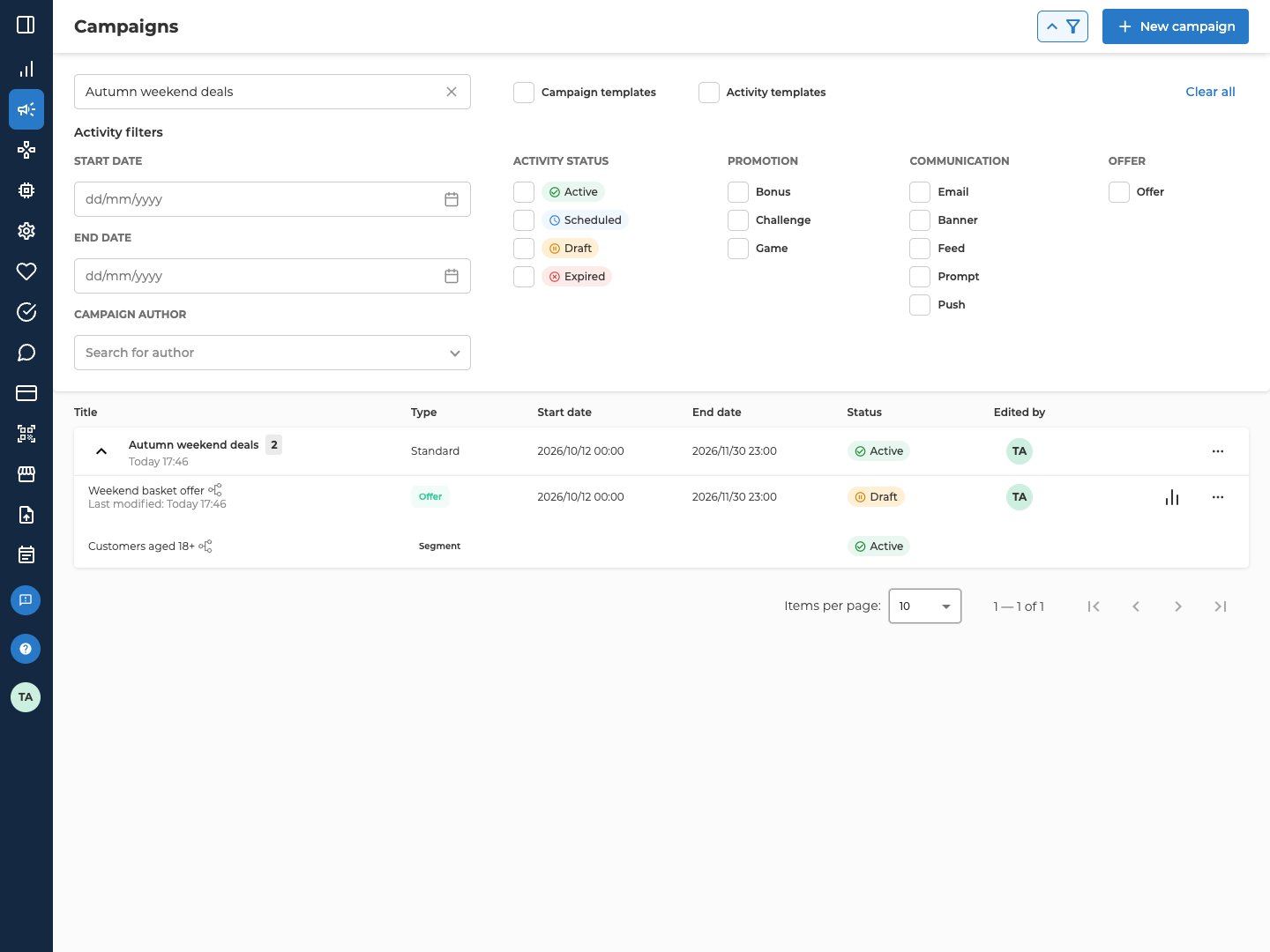
The newest start date comes first. Select Title, Start date or End date to sort by it instead.
The count beside a campaign’s name includes every block on its orchestration canvas, not only its activities. So it’s often higher than the number of rows underneath. Member segment blocks show up as rows of type Segment. The other blocks are counted but not listed.
A campaign’s status changes by itself when one of its dates passes.
Draft only appears on activity rows, for an activity that hasn’t been published yet.
Filter the list
There’s no separate search box. You search in the filter panel, which opens with the funnel button beside New campaign.
Most filters check activities, not campaigns. A campaign is listed when at least one of its activities matches, and its row then lists only those activities. When the name box finds a campaign by its own name, its row keeps every activity that passes the other filters. Select the arrow beside a campaign’s name to show them.
Your filters stay set until you clear them, even days later. The list and the calendar share them, and they’re saved in this browser. The funnel button stays blue while any filter is on. Clear all removes every filter at once.
Check the calendar
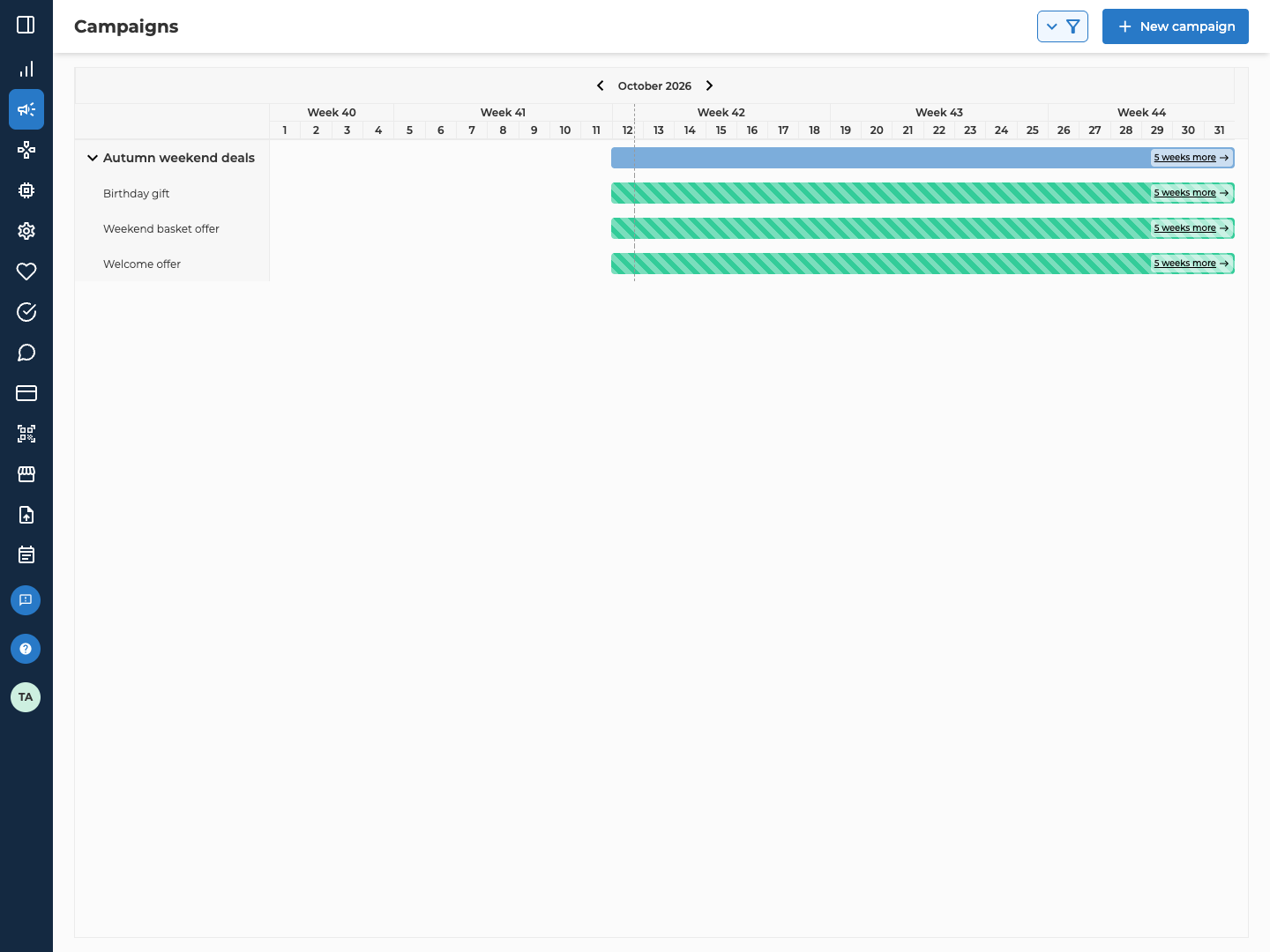
Open Campaigns → Calendar. It has the same filter panel as the list, with the same filters already applied. The calendar shows one month at a time, and a dashed line marks the current moment. Each campaign gets a row, with its activities beneath it. A striped bar is a draft activity.- An activity only gets a bar when it has both a start date and an end date.
- A campaign with a missing date borrows it from the activities that match your filters. So a filter can move a campaign’s bar. If there’s no date to borrow, the campaign has a row but no bar.
Open a campaign
Select a campaign’s row. A campaign with blocks in it opens on its own activity list. An empty campaign opens on Start building your campaign, which Create a campaign covers. The campaign’s name runs across the top. The arrow before it opens the campaign’s details, such as its ID and dates. Edit is there too. A locked campaign has no Edit, because it was marked read-only outside the portal. The same bar switches between the campaign’s List, Calendar and Orchestration views. Orchestration is the canvas where the campaign is built and run. See Orchestration canvas. In List and Calendar, the bar also has Add activity, which is greyed out once the campaign’s end date has passed.Edit a campaign
Open the three-dot menu at the end of the campaign’s row and select Edit. You can also select Edit in the campaign’s details. The Edit campaign form holds the fields you filled in when you created the campaign. Fill in the campaign explains each one. Select Save to keep your changes.Save a campaign as a template
Open the three-dot menu at the end of the campaign’s row and select Save as template. The row then shows a Template badge. The campaign is offered when you start a new campaign with From Template, and Campaign templates finds it in the list. To undo it, select Remove from templates in the same menu. To reuse a single activity instead, see Reuse with templates.Delete a campaign
Delete stays greyed out until the campaign is empty. Its tooltip only mentions activities, but every block on the canvas counts. Delete becomes available when the count beside the campaign’s name on the list reads 0. To empty the campaign, open its Orchestration view. You can only delete a block while it’s in Draft. So first unpublish each flow from its starter block, and set each activity back to draft. Then delete every block and select Save. Deleting an activity’s block deletes the activity too. An activity you can’t set back to draft keeps the campaign from being deleted. See Orchestration canvas. Then open the three-dot menu at the end of the campaign’s row, select Delete, and confirm. A deleted campaign can’t be brought back. The confirmation doesn’t name the campaign, so check that you opened the menu on the right row.Troubleshooting
Why isn't a campaign I know exists in the list?
Why isn't a campaign I know exists in the list?
Check the filter button first. If it’s blue, a filter is still set. It could be one you set days ago, because filters are saved in your browser. Select Clear all to remove it.If the campaign is still missing, check whether you have access to it. You don’t see a campaign that someone else set to Private, or one that’s Restricted to a department you’re not in. Ask the person who created it to change its Permissions. Fill in the campaign explains the access levels.
Why does the calendar show a different status from the list?
Why does the calendar show a different status from the list?
The campaign is missing a start date or an end date of its own. The list treats a missing start date as started, and a missing end date as never ending. The calendar borrows the missing date from the activities that match your filters instead. So the calendar can read Expired once the last of them has ended, while the list reads Active.Give the campaign both dates in Edit campaign, and the two agree.
Why is something missing from the calendar?
Why is something missing from the calendar?
An activity needs both a start date and an end date to appear at all. A campaign always has a row, but the calendar only loads a limited batch of campaigns, newest start date first. If it says Only the first N of M campaigns are displayed, narrow the filters until the campaign you want is inside the batch.
Related
- Create a campaign — the fields the Edit campaign form holds, and the access levels that decide who sees a campaign
- Schedule and run a campaign — when a campaign runs, and what each run did
- Reuse with templates — the templates Activity templates filters for
- Orchestration canvas — the blocks the count beside a campaign’s name includes