

Save an activity as a template
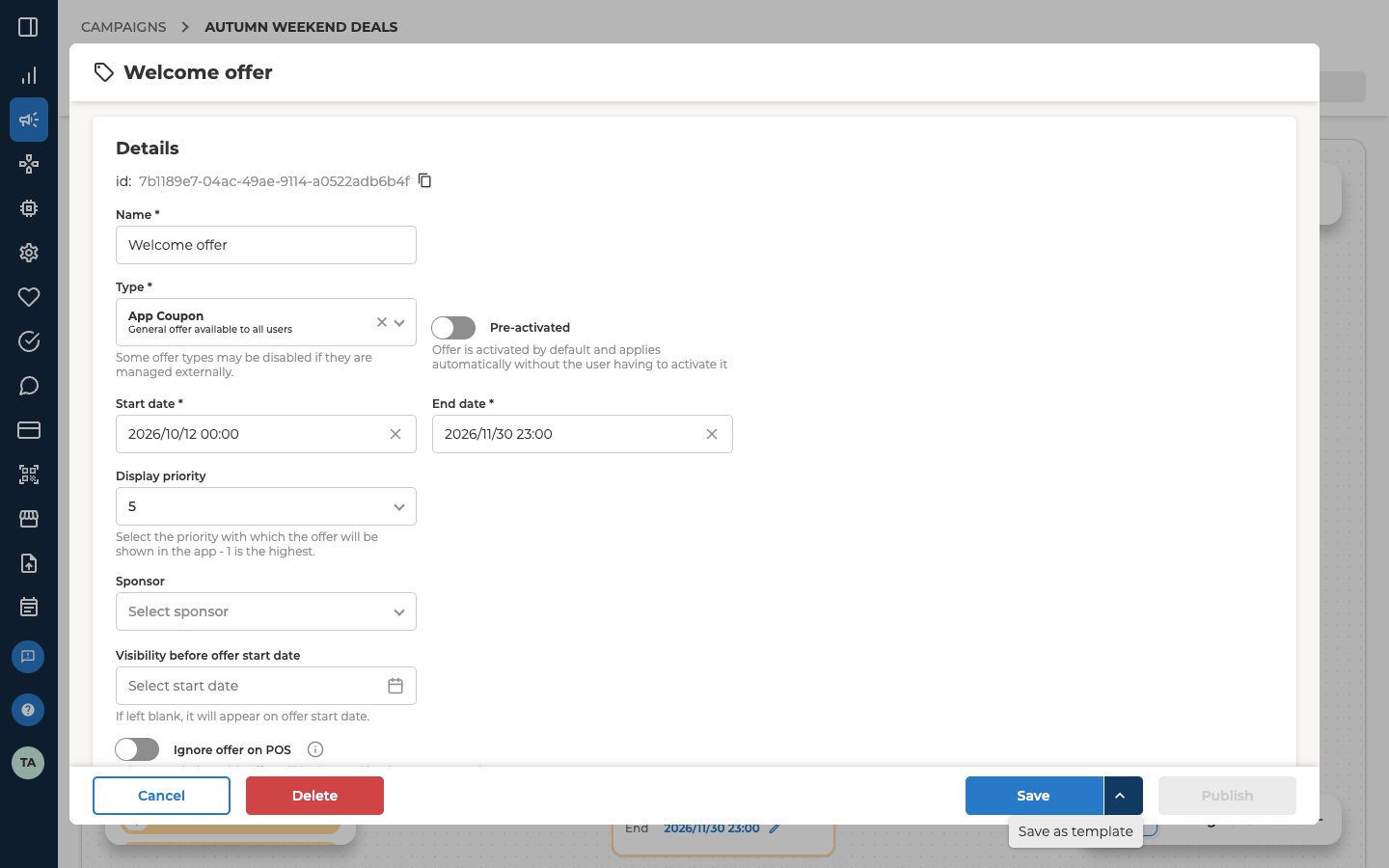
A template is a flag on an activity you already have, not a separate copy. The activity stays exactly as it was, with the same dates, status and audience. It’s only added to the list you pick from when you create a new activity of that type. Nine activity types can be templates. They’re Offer, Bonus, Challenge, Game, Email, Banner, Feed, Prompt and Push. The activity has to be saved first, and it has to sit in a campaign. You can then flag it from either of two places.
The flag is set straight away, with no dialog. It doesn’t save anything else. If you’ve changed something in the form, you still need to select Save.
Find the templates you already have
When you add an activity from a template, the Activity selector lists the templates of that type. See Pick the template. To see the templates of every type at once, filter the campaign list with Activity templates. Filter the list shows you how.Open Add activity in the campaign
Go to Campaigns → List and open the campaign that will hold the new activity. Select Add activity, or Add activities if the campaign is still empty. The Select an activity page opens.Choose From template
Point at the tile for the type you want. Its buttons only show while your pointer is on it. Under Create activity, select From template. The Activity selector opens.Pick the template
The list shows every template of that type, so a new Push only offers Push templates. They come from any campaign. The Campaign name column tells you which one. To narrow the list, type a template’s name or its campaign’s name into Search activity. You can start from one template only. Pick its row, then select Select.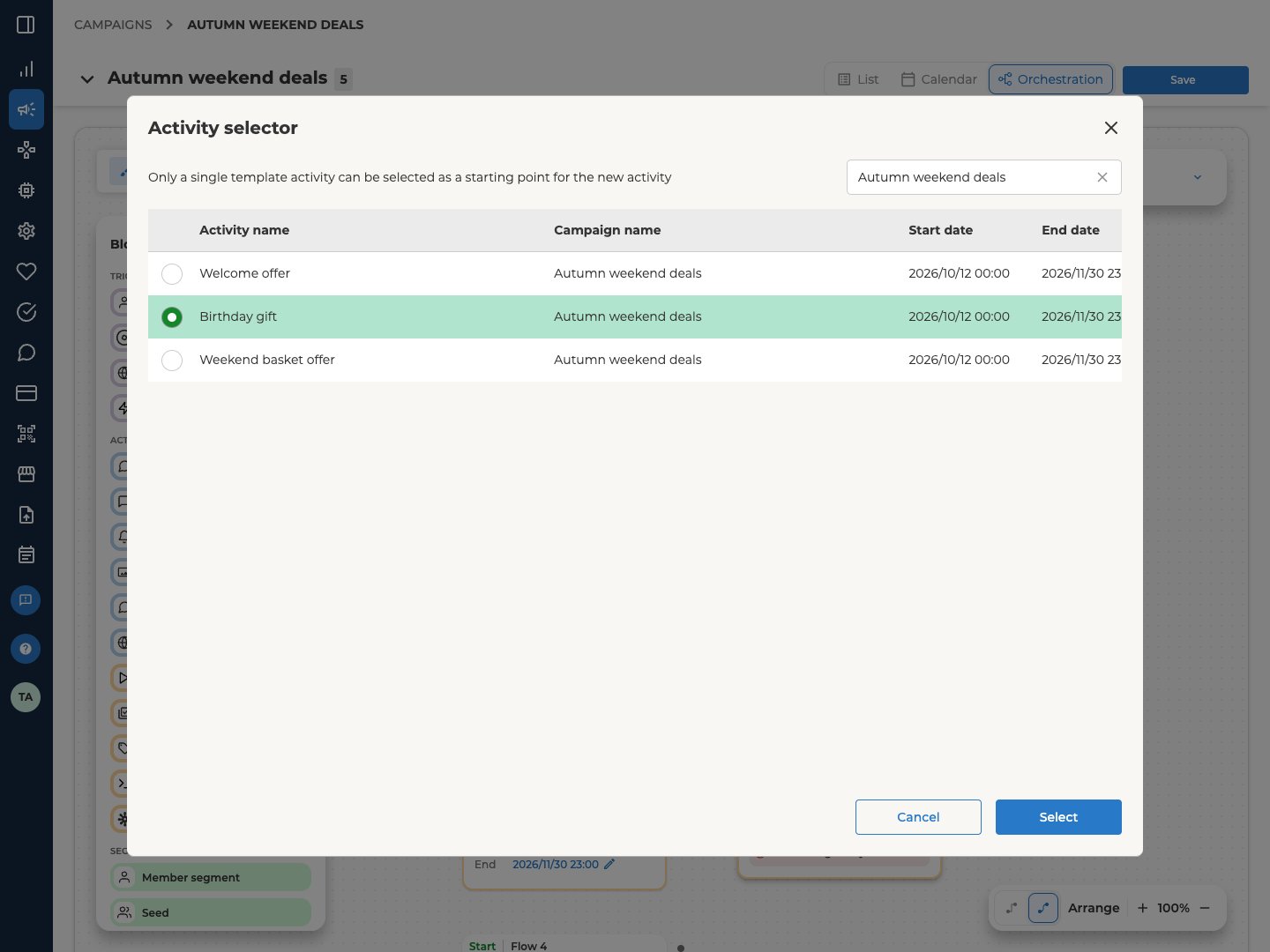
Check the form and save
The activity’s form opens, filled in from the template. It’s a copy of the template as it is at that moment. If you edit the template later, activities you’ve already made from it don’t change. Nothing is created until you save. First, check what came across.
Each type treats the audience in its own way, and clears a few of its own settings. Triggered means the flow on the canvas decides who gets the activity.
Then select Save to keep the activity as a draft, or select Publish.
You’ll know it worked when the new activity shows in the campaign’s list as a Draft, with no Template badge of its own.
Remove a template
Select Remove from templates, in the row’s ⋯ menu or in the form footer. The activity stays exactly as it is, and so do activities you’ve already built from it. It only stops appearing in the Activity selector. You’ll know it worked when the Template badge is gone from the activity’s row.Copying an activity block on the canvas gives you a plain copy, named Copy of the original. The template flag doesn’t come across.
Troubleshooting
Why can't I see Save as template?
Why can't I see Save as template?
Work through these checks in order.
- Is it already flagged? Then the control says Remove from templates. Look for the Template badge on the row.
- Are you looking for a button? On a form you can still edit, Save as template is under the arrow beside Save.
- Has the activity been saved? A form you’re still filling in for the first time has nothing to flag. Save it first.
- Did you open it from its campaign? An activity you open outside a campaign has no template action. Open it from the campaign’s list instead.
- Is the campaign locked? Then the form footer has no template button. Use the ⋯ menu on the activity’s row instead. Open a campaign explains what a locked campaign is.
- Is it one of the nine types? A type listed under These activities are not available has no templates. If one of the nine types is there, either it isn’t switched on for your company’s portal, or your user roles don’t include it. Ask your Integration Lead.
Why is the Activity selector empty?
Why is the Activity selector empty?
No activity of that type has been flagged yet. The list is per type, so a saved Offer template does nothing for a Push.
Why is a template in the list greyed out?
Why is a template in the list greyed out?
The template sits in a locked campaign, so you can’t start from it. Pick another template, or ask Lobyco support about the locked one.
Related
- Create a campaign — the campaign an activity has to sit in, and the Select an activity page
- Find and manage campaigns — the campaign list and its filters, including Activity templates
- Orchestration canvas — building flows, and reusing segment definitions
- Edit or reuse an offer — the same mechanism, seen from the offer form