

What a flow looks like
A flow is a set of connected blocks, read from left to right. A campaign can hold several flows side by side, and each one is published and runs on its own. This flow picks its customers with a Member segment, the block with the Start tab. Enrich adds extra details to each customer. Delay holds them for a set time, and then Push sends them a notification.Open the canvas
To start a new campaign, see Create the campaign. From Scratch gives you an empty canvas that reads Drag in your first block. From Template starts from a saved campaign template. To open the canvas of a campaign that already exists:- In the left menu, go to Campaigns → Orchestration.
- Select From existing campaign. Edit existing campaign opens, with a list of campaigns you can search.
- Pick the campaign and select Select. Its canvas opens.
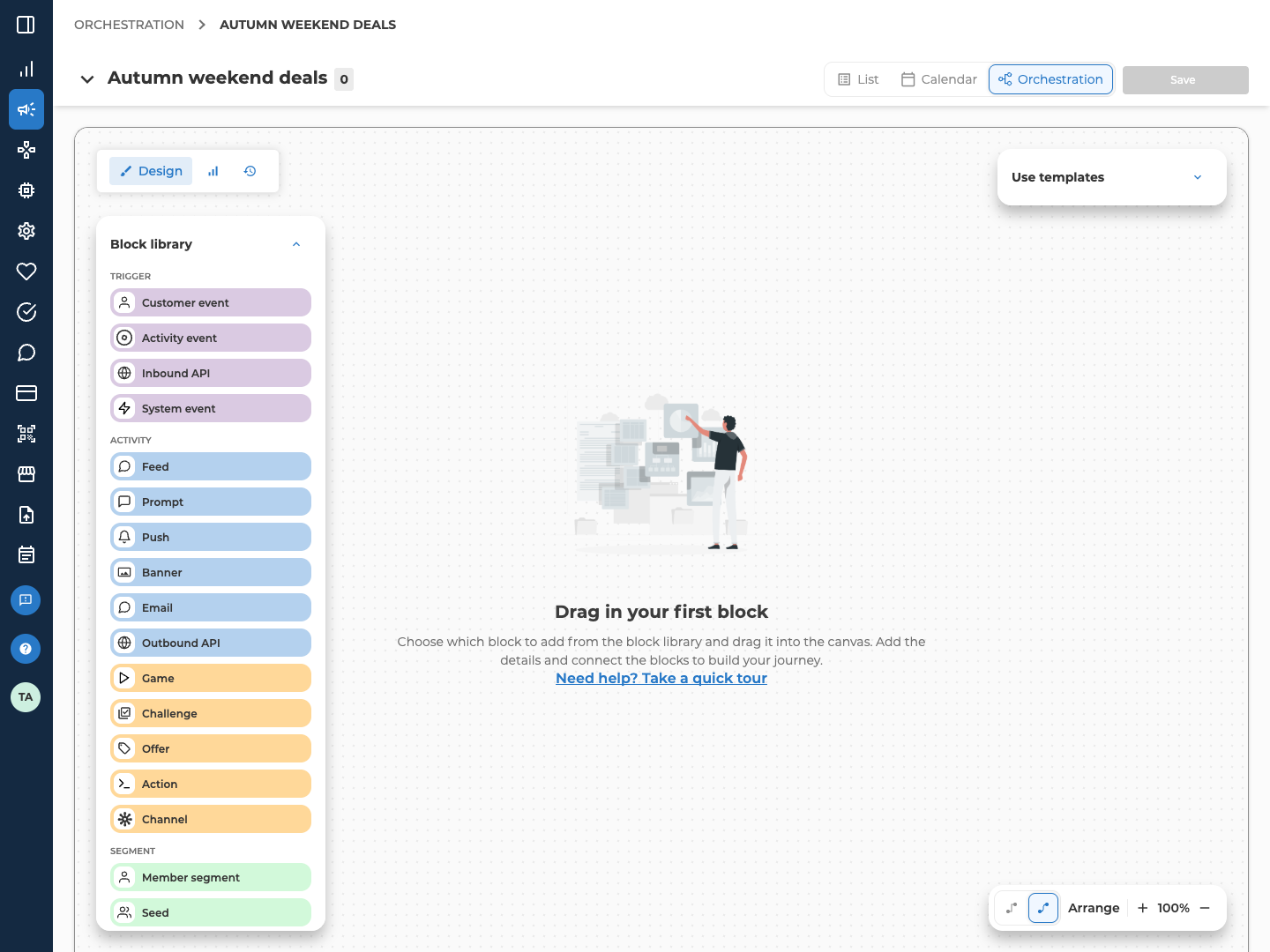
- Design is where you build. Everything on this page happens here.
- Live stats shows the same diagram, read-only, with counts on its blocks.
- History shows the runs.
Decide what starts each flow
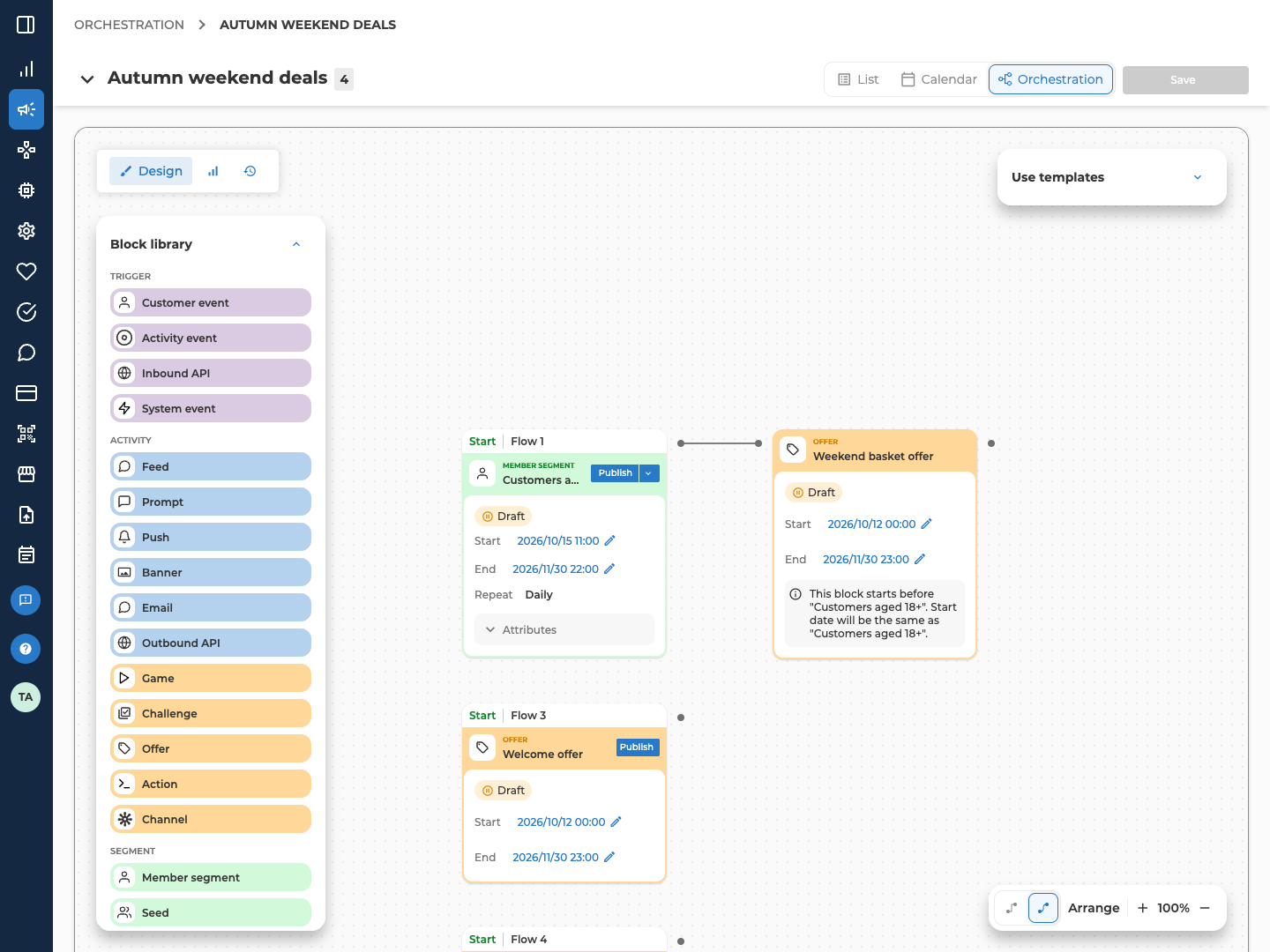
A flow starts from its first block, the one with nothing connected before it. The canvas marks it with a Start tab, which also shows the flow’s name, such as Flow 1. The same block carries the flow’s own Publish button. The kind of block that starts the flow decides how the flow runs.
Operator and Control blocks never start a flow. Neither does Activity event, which needs its activity connected before it. The Block reference says what each block does.
Check this before you plan a journey around another customer event. On the canvas, the Customer Event block reads Sign-up.
Build the audience
Add the blocks that decide who the flow acts on.- From the Segment group, add a Member segment block or a Seed block. A Member segment selects customers by rules. A Seed takes them from a file or from another campaign’s result. Double-click a new Member segment to set it up, from scratch or from a template.
- From Operators, add any blocks that work on the result. For example, Combine, Intersect, Exclude and Split, or Enrich to attach extra data.
Add what happens
From the Activity group, add the blocks that act on the audience. That can be a communication such as Push or Email, or an activity such as Offer or Game. It can also be a Channel block, which exports the result. To reuse a saved activity, see Reuse with templates. From Controls, add Delay to hold customers for a set time, or Limit to cap how many get past a step. On the canvas, the old one reads Limit (soon deprecated) above its name. The new one reads just Limit.Connect the blocks
Drag from one block’s output port to the next block’s input port. A link only carries what the earlier block passes on, so the order matters. See What can connect to what.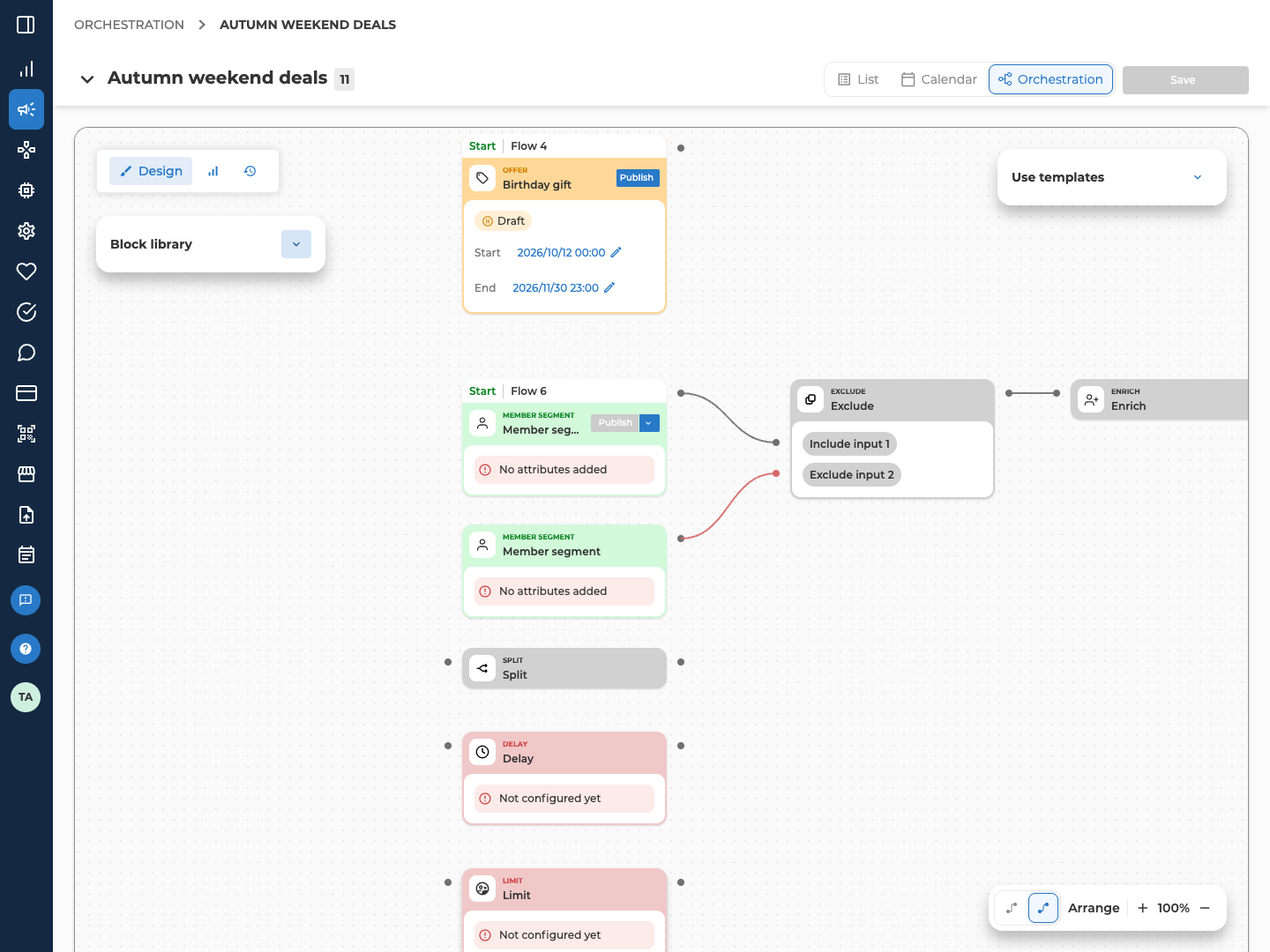
- Connecting two flows merges them. The flow you connect into keeps its Start block and its schedule. If the other flow was published, the portal asks you to confirm first.
- Cutting a connection can split a flow. A part left with a starter of its own becomes a new flow, with a new draft schedule.
- Links only run one way. A link back to an earlier block is refused.
- Port labels matter. The Exclude block’s ports read Include input 1 and Exclude input 2. Connect them the wrong way round and the result is inverted, with no warning.
- Some blocks can’t be removed. When you delete a selection, the confirmation lists the blocks you can remove and, separately, the ones you can’t.
Save the canvas
Save is at the top right. It stays disabled until there’s something to save, and while a published block shows an error. A change you make through a block saves straight away. That includes its settings, its dates, and publishing or unpublishing it. Adding, moving and connecting blocks aren’t saved until you select Save. Saving isn’t publishing. A saved flow still does nothing until you publish it.Publish and run it
You publish each flow from its starter block. Until you do, the flow is Draft. Schedule and run a campaign covers every step.- Select Publish on the starter and confirm. Unpublish then takes its place. It stops new customers entering, but doesn’t undo what already happened.
- A flow that starts from a Member segment or Seed runs on the schedule set in that block. Its chevron runs the flow now instead.
- Publishing the starter doesn’t publish the activities after it. Publish each activity from its own form.
Troubleshooting
Why is a block I need missing from the library?
Why is a block I need missing from the library?
A block only shows when its service is set up for your portal, your roles include it, and the platform allows it. So a missing block is down to configuration, not a fault.
Why is my audience smaller than the segment said?
Why is my audience smaller than the segment said?
Why is Publish greyed out on a starter?
Why is Publish greyed out on a starter?
The starter isn’t ready yet. On a Member segment or Seed, finish the schedule. A one-time schedule needs a start date. A recurring one needs a start date, an end date and a frequency. On a Customer event or System event, choose the event. On an activity that starts a flow, save the activity first.
Why did changing or deleting a Delay affect customers already waiting in it?
Why did changing or deleting a Delay affect customers already waiting in it?
Making a Delay shorter sends forward every customer whose new wait has already run out. Deleting one makes you choose between sending its customers forward and removing them from the flow. Sending them forward still drops them if any action after the Delay is in Draft. In both cases, the portal asks first. Delay explains each choice.
Why won't my campaign save after an integration was deleted?
Why won't my campaign save after an integration was deleted?
One of its Outbound API blocks still uses the deleted integration. The block keeps sending requests with it until you change the block. Open each Outbound API block and look for [DELETED] in Auth integration, on its Settings tab. To keep the requests going, pick another integration there. To stop them, select Unpublish in the block and confirm. Then save the campaign again.
Related
- Block reference — every block, what it needs, and what it passes on
- Schedule and run a campaign — a flow’s schedule, running it by hand, and reading each run
- Create a campaign — the campaign the canvas sits inside, where to start it, and its Permissions field
- Find and manage campaigns — finding a campaign again and opening its canvas
- Segments and Audiences — the rules and attributes segments are built from