

At a glance
You add blocks from the Block library and connect them. Customers then move from one block to the next. To set up a block, double-click it on the canvas. The library sorts its blocks into five groups, and this page follows the same order.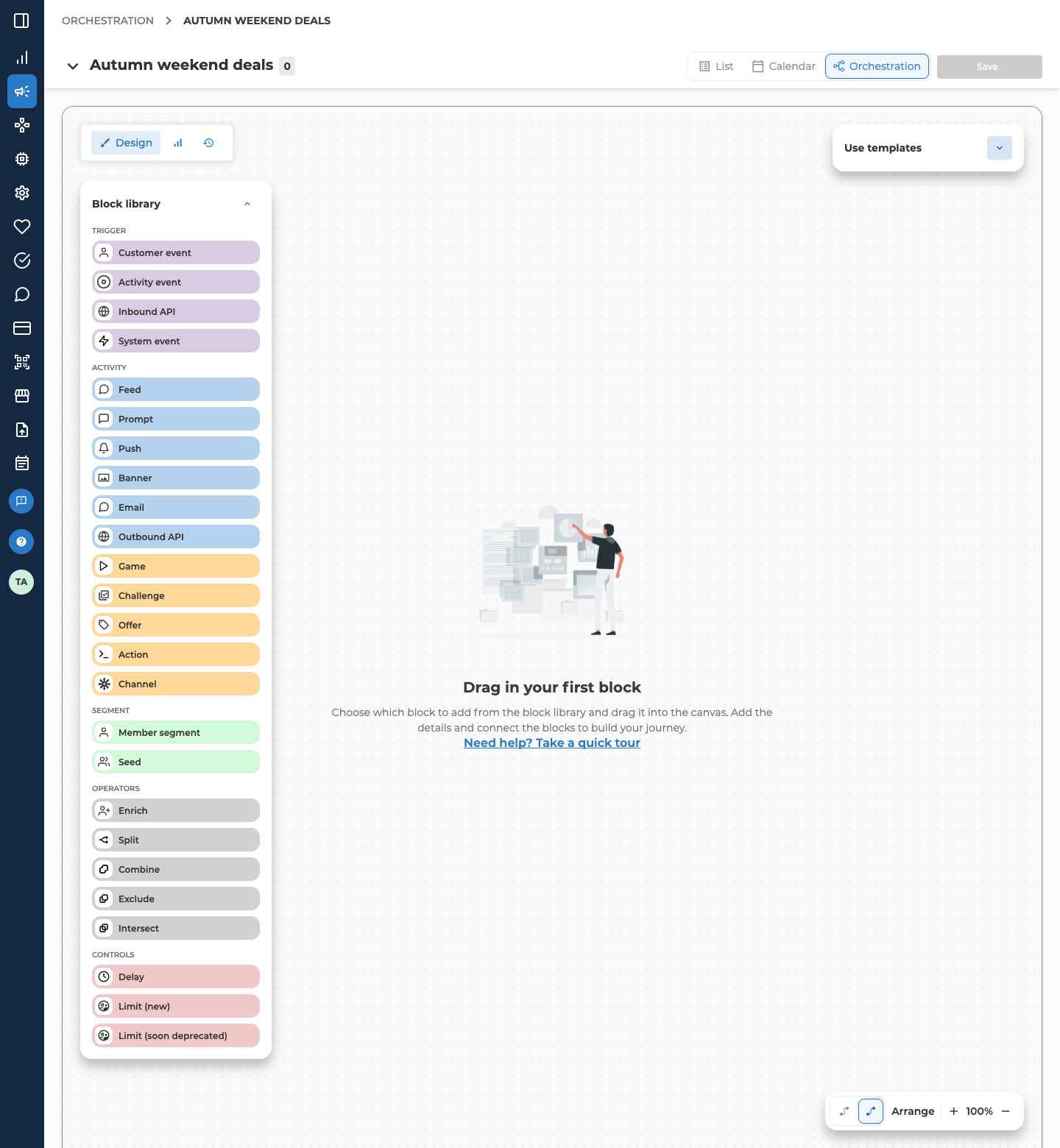
The communication and activity blocks work the same on a canvas as in a campaign’s list of activities, so their own sections cover them.
Trigger blocks
A trigger reacts to an event. Customer event, Inbound API and System event take no input, so each one starts the flow it’s connected to. Activity event never starts a flow. It sits after the activity it listens to. A scheduled flow starts from a Member segment or Seed instead. To choose what starts each flow, see Orchestration canvas.Customer event
Starts a flow when a customer signs up. It listens for as long as you schedule it to.- From Trigger, drag Customer event onto the canvas.
- Double-click it. The Customer Event dialog opens on Choose Event.
- Under Select customer event, keep Customer Sign-Up. It’s the only event, and it’s already selected.
- On Schedule real-time run, set the Start date, when the system starts listening, and the End date, when it stops.
- Select Save.
- Passes on. The customer, plus the attributes the event carries.
Activity event
Continues a flow when something happens on an activity, rather than to the customer directly. There’s no dialog.- From Trigger, drag Activity event onto the canvas.
- Connect it after a Game or Challenge block, or after an Offer block whose offer type is a triggered one. You can also connect it after one coupon listed under a Game’s or Challenge’s Rewards. It takes one input.
- On a Game, choose Won or Lost on the block itself. Where only one event exists, the block sets it for you.
- Events. A Challenge gives Completed. A Game gives Won or Lost. An Offer or a reward coupon gives Assigned.
- Passes on. The customer, plus the attributes the event carries.
Inbound API
Starts a flow when an external system calls in. Each call names one customer.- From Trigger, drag Inbound API onto the canvas.
- Double-click it. The Inbound API dialog opens on Add Inbound API details.
- Enter a Name and Description. Under Schedule, set the Start date and End date. Both are required.
- Open Integration details. Copy the Endpoint URL and the Payload example, and hand them to whoever builds the integration.
- Select Save.
- Passes on. The customer named in each call, plus attributes.
System event
Starts a flow when something happens to any activity of the type you pick. It isn’t tied to one activity you connect it to.- From Trigger, drag System event onto the canvas.
- Double-click it. The System Event dialog opens on Configure Event.
- Under Event Configuration, pick the Event. It can be Created, Updated, Published or Unpublished.
- Pick Offer, Challenge or Game as the Activity Type.
- On an offer, Created and Updated add a Type field to narrow it down. On a challenge, they add a Reward type field. Left empty, either field reads All.
- Set a Start date and an End date for when the trigger listens. They must fall inside the campaign’s own dates.
- Select Save.
- Connects to. Outbound API and Delay, or an Action block already on the canvas.
Activity blocks
Activity blocks are what the flow does once it has an audience. Most of them are documented in the section they belong to.- Feed, Prompt, Push, Banner and Email are in Communication.
- Game, Challenge and Offer are in Activities.
Outbound API
Calls an external system with a request you define, each time a trigger fires.- From Activity, drag Outbound API onto the canvas. Connect one Customer event, Activity event or System event before it. Nothing connects after it.
- Double-click it. It opens on Edit outbound API.
- Enter a Name, pick the HTTP method and enter the URL.
- For POST, PUT or PATCH, write the request body in the JSON editor. Use
{{ variable }}placeholders to fill in values from the event that triggered the call. - On Settings, add any Headers. Under Authentication, pick a saved Auth integration, or add one with Create new auth integration. Left empty, it’s No auth.
- Select Test to send the request once and see whether it worked.
- Select Save.
Channel
Sends the flow’s result somewhere else.- From Activity, drag Channel onto the canvas, and connect one block before it.
- Double-click it. Configure channel opens.
- Enter a Name.
- Pick a Location, which is where the result goes. For Bloomreach, also pick a Bloomreach Channel Type, the destination within it.
- For Audience, pick an audience from the list or create a new one.
- Select Save.
Location only offers the destinations that take every block already connected. For example, with a Member segment connected, App is gone from the list.
If the audience already holds customers, the portal warns you first. They’re replaced as soon as you execute the campaign.
Segment blocks
Member segment
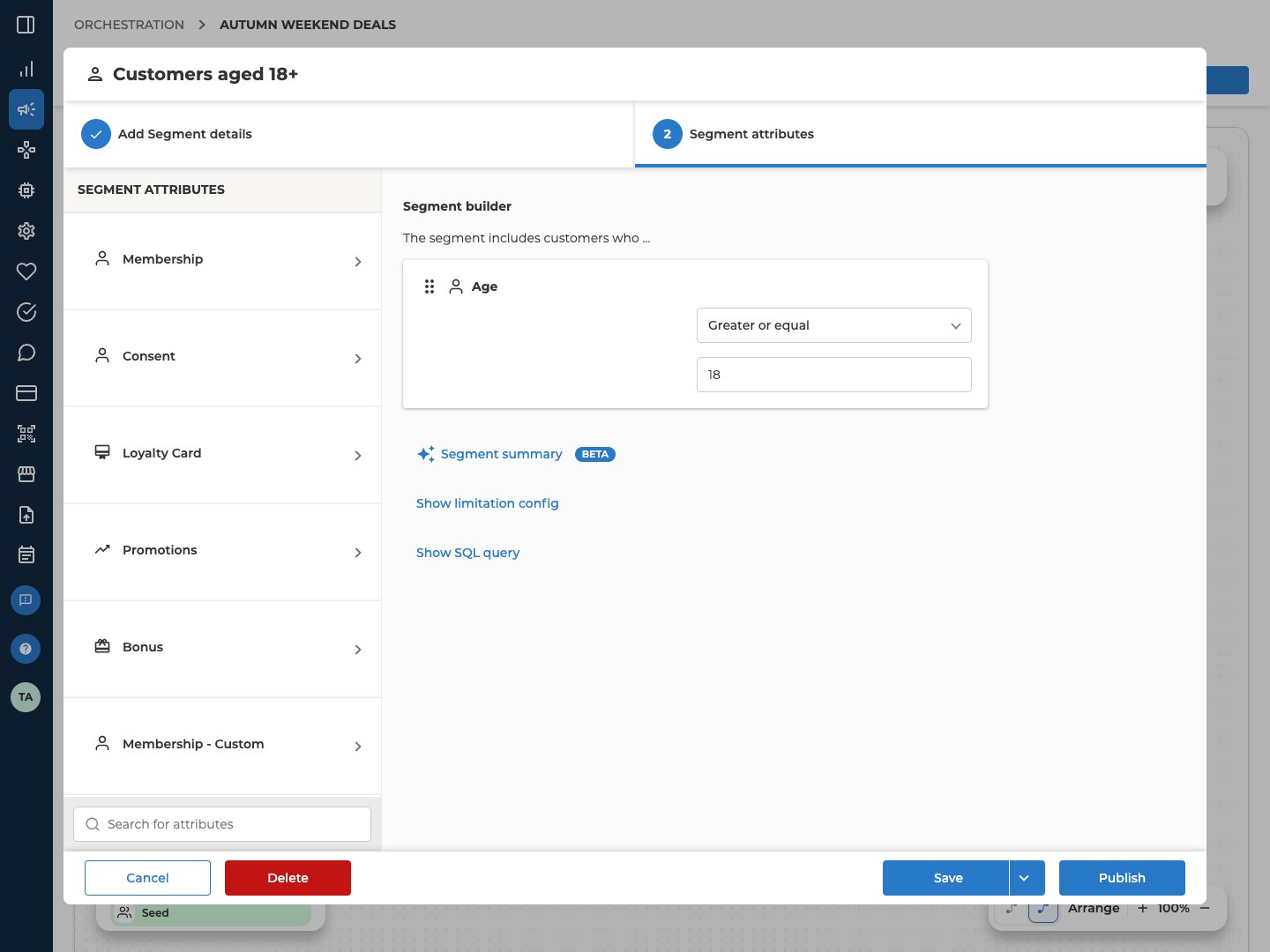
Selects the customers a flow acts on, by rules. Member is the product’s older word for a customer.- From Segment, drag Member segment onto the canvas.
- Double-click it. A new block asks Create member segment. Pick From Scratch, or From Template to start from a saved definition.
- On Add Segment details, fill in Member segment name, Description and Permissions.
- If this block starts the flow, set the flow’s schedule on the same tab. Only the starting block can change it. See Schedule and run a campaign.
- On Segment attributes, build the rules in the Segment builder.
- Select Save. To keep the rules for later, the arrow beside Save offers Save as template. It isn’t offered while a template is linked.
- A linked template. While a template is linked, the rules are read-only. The Template panel offers Unlink, to change the rules here, and Edit, to change the template. When the template has changed since it was linked, the block shows Sync available, and the panel offers Sync.
- Below the builder. The Segment attributes tab has three more controls.
- Segment summary (BETA) shows a short summary of the segment, written by AI.
- Show limitation config caps how many customers the segment passes on. Use the slider, from 1k to 500k, or type any number. Inf means no cap. The cap doesn’t choose which customers to keep, so don’t use it to pick, say, your top spenders.
- Show SQL query shows the database query your rules turn into.
- Passes on. Customers only.
Seed
Selects customers from a list decided outside the segment builder, instead of from rules.- From Segment, drag Seed onto the canvas.
- Double-click it. Create Seed opens on Add Seed details.
- Fill in Seed name and Description. This tab also holds the flow’s schedule, as on a Member segment.
- On Configure seed, under File upload, choose where the customers come from.
- File takes one
.csvfile. Once it’s uploaded, the field shows how many of its records matched a customer. - Campaign result takes an earlier campaign’s output. Pick the Campaign, then a Run. Once you pick a specific run instead of Latest run, Steps narrows it to the output of particular blocks.
- File takes one
- Select Save.
- Passes on. Customers only.
Operator blocks
Operators reshape the audience between the segment and whatever acts on it. Every operator takes customers-only input. Collateral assign and Personal offers also take a whole Split.Enrich
Adds data columns to every customer in the result, so later blocks can use them.- From Operators, drag Enrich onto the canvas, and connect one customers-only block before it. Enrich can’t follow a trigger or a whole Split.
- Double-click it. Add data enrichment opens.
- Enter a Name and a Description.
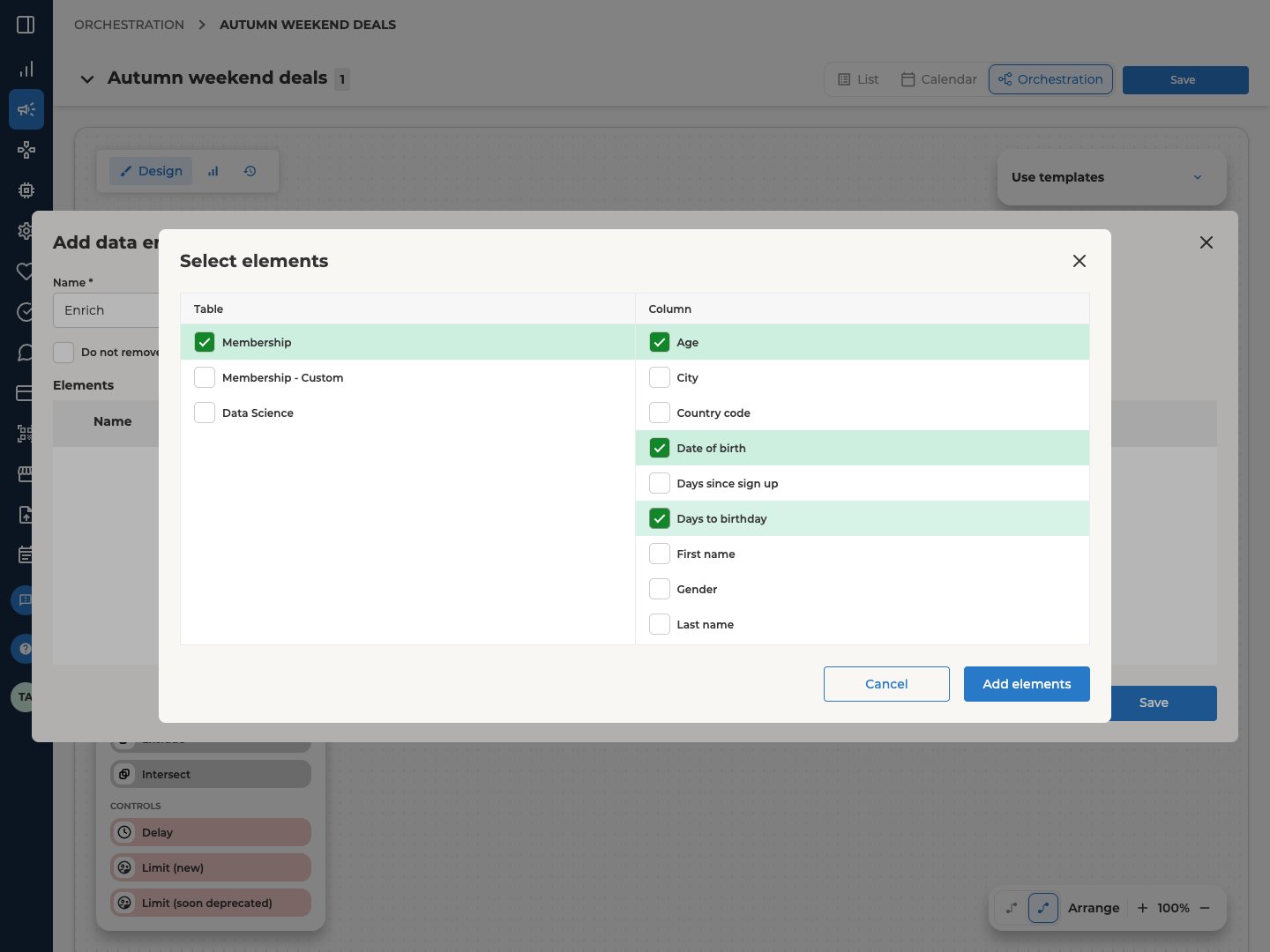
- Select Add elements. In Select elements, tick a Table and then its Column entries. Select Add elements to add them.
- To keep customers who get no result, tick Do not remove member without result. They then continue with an empty value.
- Select Save.
- Each element’s name is its attribute. Later blocks know the value by its name in the Name column.
- Passes on. Customers, plus the attributes you added.
Split
Divides customers into groups, each with its own output. That way, the flow can treat each group differently.- From Operators, drag Split onto the canvas, and connect one customers-only block before it.
- Double-click it. Attribute Split opens on a list of attribute groups.
- Choose how to divide customers. Build random split divides them without looking at them. To split by an attribute instead, pick one from the sidebar. Tick the values it offers, or add your own with Add more ranges. Each range has a Name and a condition. Then select Build attribute split.
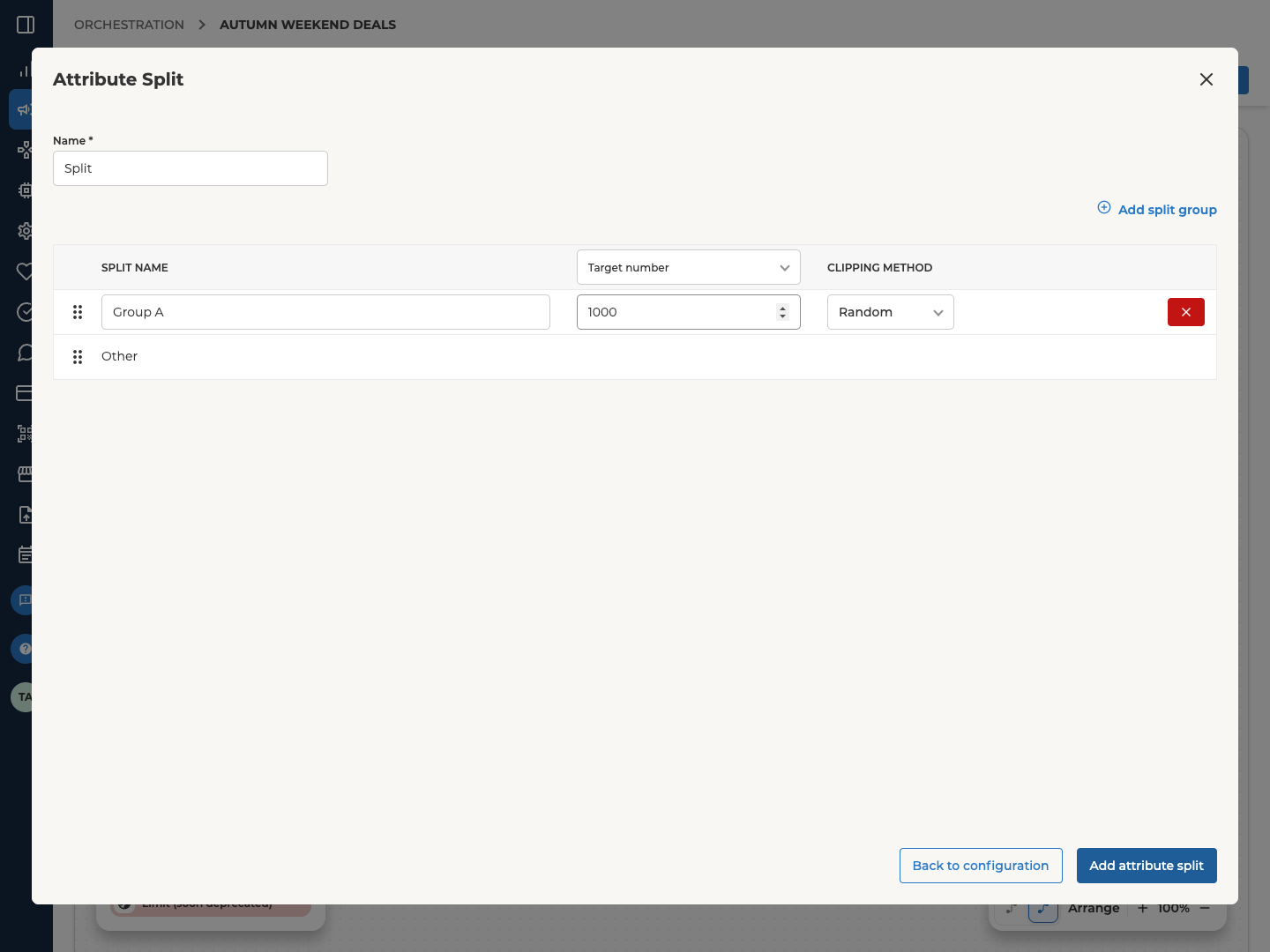
- On the next step, enter the required Name for the Split.
- Pick Target number or Target percentage in the size column’s heading, which is itself a dropdown. On a random split, Add split group adds a group.
- Set each group’s CLIPPING METHOD to None, Random, Top or Last. It decides which customers fill the group once its size is reached. On a random split, changing one group’s method changes them all.
- Select Add attribute split to save the groups.
- Other. Every split gets an automatic last group called Other, which takes everyone left over.
- At least two groups. Otherwise the block stays a draft. Other counts, so one group of your own is enough.
- Passes on. Each group passes on customers only. The whole Split also carries which group each customer is in. Only Collateral assign, Personal offers and a Channel set to Export to CSV or Bloomreach take the whole Split.
Combine
Merges its inputs into one result. A customer in any input is in the result.- From Operators, drag Combine onto the canvas, and connect as many customers-only blocks as you need.
- Double-click it. In Configure operation, enter a Name.
- Select Save.
- Passes on. Customers only.
Exclude
Removes one set of customers from another.- From Operators, drag Exclude onto the canvas.
- Connect the customers to keep to Include input 1, and the customers to remove to Exclude input 2. The result is everyone in input 1 who is not in input 2. Each port takes several inputs.
- Double-click it. In Configure operation, Include and Exclude decide how each port combines its inputs. Pick Combine or Intersect. Both start as Combine.
- Select Save.
- The order matters. The port labels are the only thing on screen that tells you which port is which.
- Passes on. Customers only.
Intersect
Keeps only the customers who appear in every input.- From Operators, drag Intersect onto the canvas, and connect as many customers-only blocks as you need.
- Double-click it. In Configure operation, enter a Name.
- Select Save.
- Passes on. Customers only.
Collateral assign
Hands out collateral to the customers who reach it, with caps so no one receives too much. Collateral is either the offers in an event you import, or items you add and name yourself.- From Operators, drag Collateral assign onto the canvas. Connect customers-only blocks, as many as you need, or a whole Split. A single Split group doesn’t connect, so connect the Split and every group appears in the grid.
- Double-click it. Collateral assignment opens.
- Set Max collaterals per member. While no event is imported, there’s also Max collateral activations and a Single row per member checkbox.
- Bring in the offers of an event with Import collateral. Or, while no event is imported, add named collateral with Add collateral. Importing an event replaces any named collateral.
- In the grid of Segments against Collaterals, tick what each segment gets.
- Select Save.
- Which events it lists. Every event except personal offer events, which belong to Personal offers.
- After the flow has run. Delivered counts shows how many went out.
- Connects to. A Channel set to App or Export to CSV. That’s how the collateral leaves the flow.
Personal offers
Hands out the offers in personal offer events to the customers who reach it.- From Operators, drag Personal offers onto the canvas. Connect customers-only blocks, or a whole Split, the same as Collateral assign.
- Double-click it. The Personal offers dialog opens.
- Enter a Name and Deduplication days. Deduplication days is required and at least 1. It’s how many days pass before the same customer can receive the same offer again, and it’s the only cap this block has.
- Select Import event. It lists personal offer events only. Choose the events, then select Import.
- In the grid of Segments against Events, tick which offers each segment gets.
- Select Save.
- After the flow has run. Delivered counts shows how many went out.
- Connects to. A Channel set to App or Export to CSV.
Control blocks
Delay
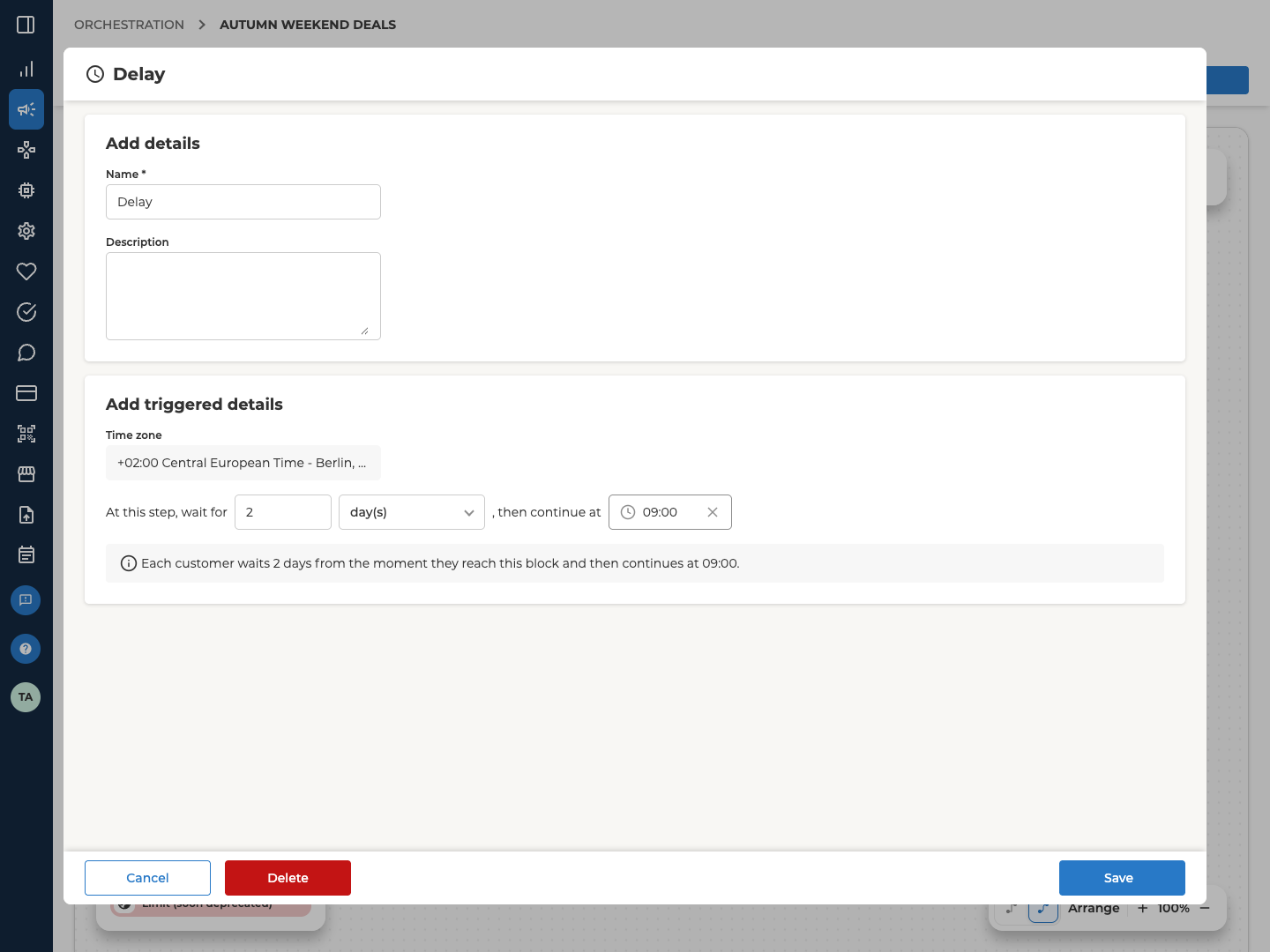
Holds each customer at this step for a set time, then lets them continue. The clock starts when each customer arrives, not when the flow starts.- From Controls, drag Delay onto the canvas, and connect one block before it. It can be a customers-only or customers-plus-attributes block, a System event, or another Delay.
- Double-click it. The Delay dialog opens.
- Under Add details, enter a Name and Description.
- Under Add triggered details, complete the sentence. At this step, wait for a number and a unit, then continue. The wait can be up to 90 days.
- For a wait in day(s), also set the time of day to continue at. It can be 0, which means the same day at that time. If you set it to 0, customers already waiting are released at once. The Time zone shown above is your own.
- Select Save.
Limit (new)
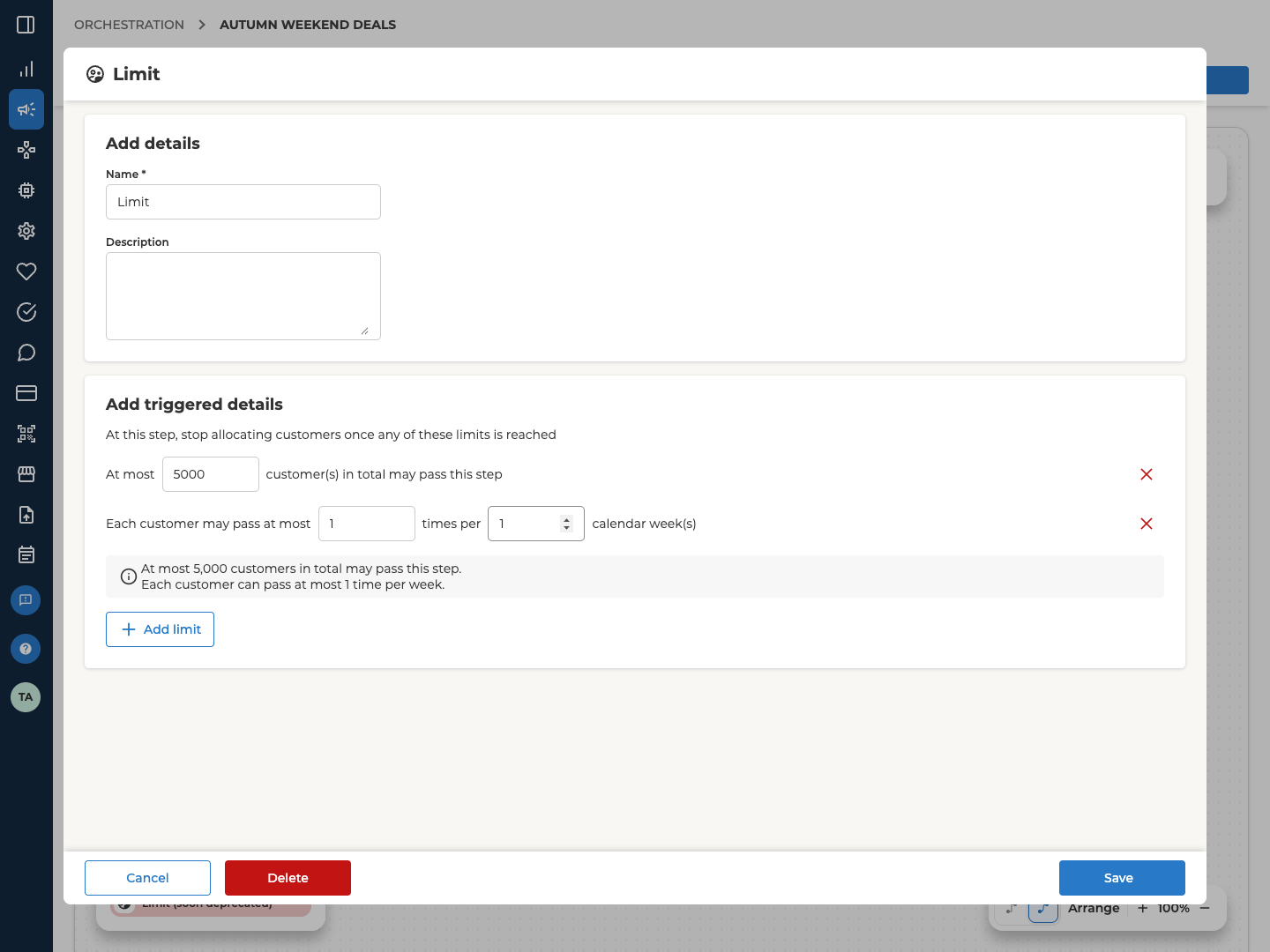
Caps how many customers pass this step.- From Controls, drag Limit (new) onto the canvas, and connect one block before it. It can be a customers-only block, a Customer event or an Activity event.
- Double-click it. The Limit dialog opens.
- Under Add details, enter a Name.
- Select Add limit to add a rule, then fill in its numbers. You can add each of the four rules once.
- Select Save.
- The rules nest. Each rule can allow at most as many passes as the one above it in the table.
- Passes on. Customers only.
Limit (soon deprecated)
The older cap, still in the library. Build new flows on Limit (new). On the canvas, this one reads Limit (soon deprecated) above its name.- From Controls, drag Limit (soon deprecated) onto the canvas, and connect one customers-only block before it.
- Double-click it. Configure control group opens.
- Enter a Name, and fill in the sentence. Get Random, Top or Last items limited by a number, in result(s) or percent. The first choice decides which customers pass.
- Select Save.
- Passes on. Customers only.
What can connect to what
The block groups connect in this direction. The dotted link is the Activity event trigger, which follows a Game, Challenge or Offer. A trigger never feeds an operator, because operators take customers only. A link only works if the next block accepts what the previous one passes on. The canvas won’t make a link the next block doesn’t accept.
This is what each block accepts.
An Offer takes an input only when its offer type is a triggered one. See Offer types.
Enrich can’t come before a Split. A Split takes customers only, so the attributes Enrich adds can’t reach its groups. To use enriched attributes in one group, put the Enrich after that group.
Blocks that are not in the library
Some blocks can appear on a canvas without being in the Block library.- Action, with a single Action list in its dialog.
- Dynamic Feed and Dynamic prompt. They’re different blocks from the library’s Feed and Prompt.
- Bonus. A Bonus activity in the campaign shows on the canvas, but nothing connects to it. If you delete a selection on the canvas, the Bonus stays in place.
- A block your roles don’t allow. It’s labelled with its type above its name, like Bonus.
Related
- Orchestration canvas — adding and connecting these blocks, and what starts each flow
- Schedule and run a campaign — the schedule a Member segment or Seed holds, and running a flow
- Find and manage campaigns — finding a campaign, reading its status, and editing or deleting it
- Campaigns — how a campaign fits together