

What you’ll build
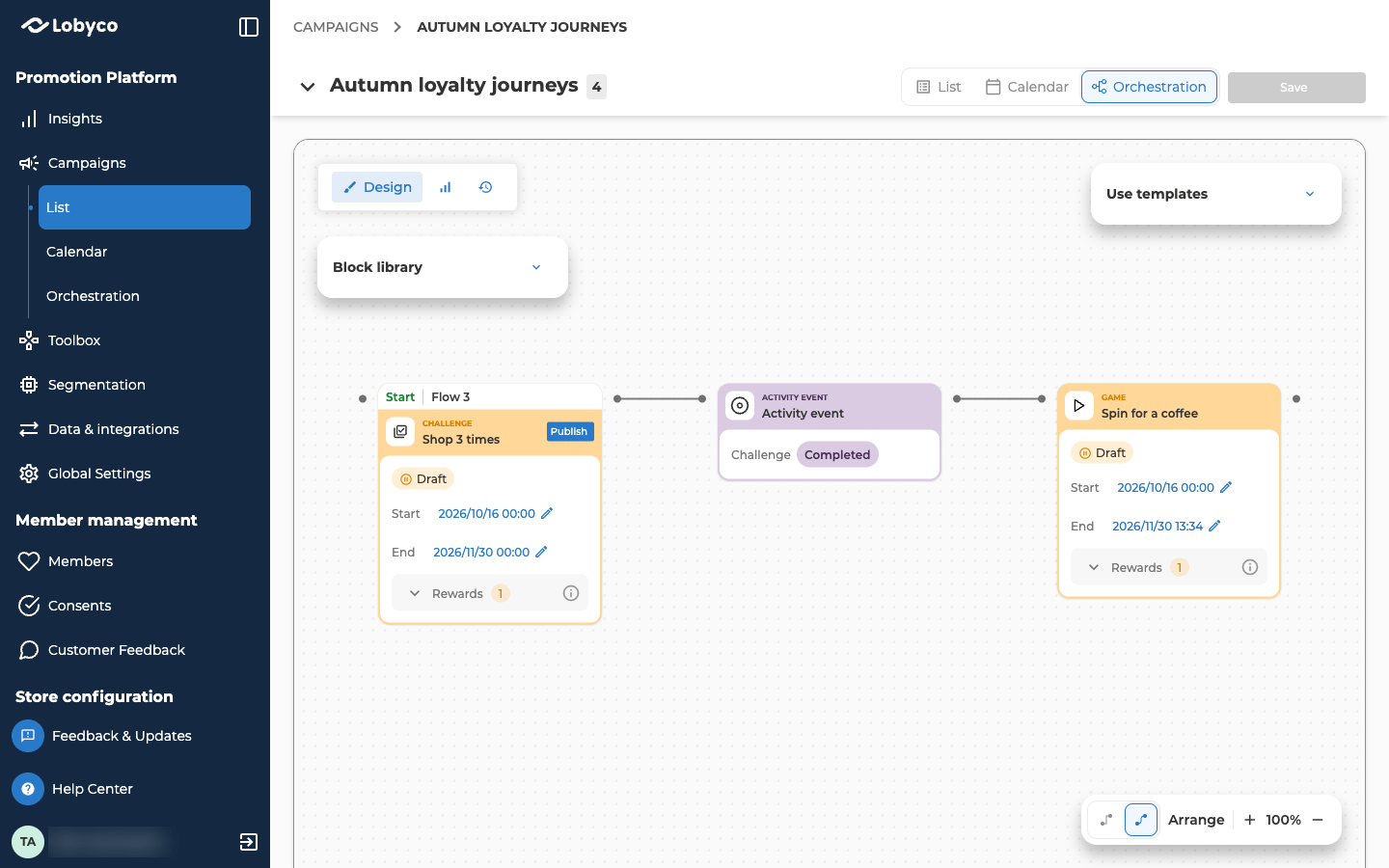
The Challenge starts the flow, on its own dates. Each time a customer completes it, the Activity event passes that customer on to the Game. Because a block connects into it, the game is triggered. Only customers the flow passes on get a play. The dotted line is the game’s prize, which you pick on the game itself.Settings
All the dates have to fall inside the campaign’s dates.
Create the prize
The game’s coupon comes from an offer of type Game. Create it first, because the game only lists published Game offers. Open the campaign’s List view and select Add activity. On the Offer tile, select From scratch. Set Type to Game, and give the offer dates that cover the whole game. Fill in the rest as described in Create an offer, then select Publish. Add it from the List view, not the canvas. An Offer block on the canvas doesn’t offer the Game type.Add the challenge
Open the Orchestration view, in Design mode. From Activity in the Block library, drag a Challenge onto the canvas. Double-click it and select From Scratch. Fill in the challenge as described in Create a challenge. These settings matter here.- On Settings, under Accumulation, pick Store visits. Then set Store visits under Earn rules to 3. That makes it the Shop 3 times challenge.
- On Settings, under Specify if the challenge should be one-time or renewable, pick One-time. Each completion gives a play, so a renewable challenge gives a play every time a customer completes it again.
- Under Activity reward, keep Standard and tick Custom reward. It needs nothing more. The game play is the reward, and the flow gives it out.
- On Segmentation, choose who can take part, such as All customers.
Find customers who complete the challenge
From Trigger, drag an Activity event onto the canvas, and connect the Challenge to it. It reads Completed, the one event a challenge has.Give them a game play
From Activity, drag a Game onto the canvas. Connect the Activity event to it before you open it. A game is only triggered if a block connects into it before its first save. A game you’ve already saved without the connection can’t become triggered later, so start a new game from the canvas instead. Double-click the Game and select From Scratch. Fill it in as described in Create a game. These settings matter here.- On Activity details, give the game a Start date on or before the challenge’s, and an End date on or after the challenge’s. Customers who complete the challenge while the game isn’t running don’t get a play. The Game block on the canvas shows a warning when the dates don’t cover the challenge.
- On Activity details, the Add triggered details panel has Validity period of game. It’s how many days a customer has to use the play. Leave it empty to give them until the game ends. If you set it, end the game at least that many days after the challenge ends, so the last customers to complete it get the full period.
- On Reward settings, select Add reward, tick Coupon reward, and tick the Game offer you created. Set its Max. rewards, how many of these coupons the game can give out in total, such as 200. It has to be at least 1.
- On Activity behaviour, paste the gameplay’s Live URL into Game URL, as Create a game describes. Set Attempts per day and Total attempts to 1. Higher numbers don’t give a customer more plays. They only play when the flow gives them a play. Set Allowed wins to 1, and Win rate to how many plays there are for each win, on average, such as 5.
- On Segmentation, Triggered is selected and locked. The challenge decides who gets a play.
Save and publish the challenge
Select Save at the top right of the canvas. Then select Publish on the Challenge, the block with the Start tab, and confirm. That publishes the challenge itself. It runs on its own dates, and the flow runs each time a customer completes it.Check the result
Use a test customer who can take part.- Complete the challenge with the test customer. The game then shows in the app.
- Open the game and select Statistics. Filter Membership IDs by the test customer. Their attempt shows, with the coupon in Reward if they won.
- Switch the canvas to Live stats to see counts on each block as customers complete the challenge.
Variation: a coupon for customers who lose
To give every customer who loses the game a small coupon, add a second Activity event after the Game.- Connect the Game to a new Activity event, and choose Lost on the block.
- Connect it to an Offer before you open the offer. Set its Type to Gift. Because a block connects into the offer, the Type list only shows the types a flow can hand out.
- Fill in the offer, and publish it from its form.
How the coupons combine
The challenge’s reward, the game’s prize and your other offers are all offers. When a customer has more than one in the same basket, the same stacking settings decide what applies. Control how reward coupons stack works through an example.Related
- Create a challenge covers every field on the challenge form.
- Create a game covers the game form, including triggered games.
- Offer types explains the Game, Challenge and Gift types.
- Block reference describes the Activity event block in full.