

What you’ll build
There’s one Channel block for each day. Each one puts the customers who reach it into that day’s audience. A Channel block doesn’t send them anything, so it isn’t one of the communications such as push or email. Each email then sends to one of those audiences, on its own day.Settings
If the campaign has dates, the emails’ dates have to fall inside them. So make sure the campaign runs for the whole warm-up, 14 days for example.
Find customers who agreed to email
Open the campaign’s Orchestration view. Add a Member segment from the Block library and open it. In Create member segment, choose From Scratch. On Segment attributes, open Consent and add the attribute for email consent. If it asks for a Name, pick your email consent there. Leave Version empty to include every version. Add any other attributes you need. The Split picks each day’s customers at random, so it can’t put your most engaged customers first. To warm up with engaged customers only, add attributes here that pick them. Leave the others out until the warm-up is over.Split them into daily groups
Add a Split and connect the Member segment to it. Then open the Split and select Build random split. On the next step, give the Split a Name. Leave the size column on Target number. Then add one group per day with Add split group. Name each group after its day, and set its size to that day’s number of emails. For example, 500 for day 1 and 650 for day 2. The warm-up schedule has a full 14-day example. Every split also gets a last group called Other. It holds the customers who didn’t fit in any day. Don’t connect it to anything. Select Add attribute split to save the groups. Split a segment into groups shows the Split block step by step, and the Block reference lists every setting.Send each group to its own audience
Add a Channel for each day’s group, and connect the group to it. Open each Channel. Give it a Name, and set Location to Audience. Then select Create new audience and name it after the day, such as Warm-up day 1. Under Destination(s), choose Email. If Email isn’t in the list, choose Select all. Either one lets an email use the audience. Then select Create.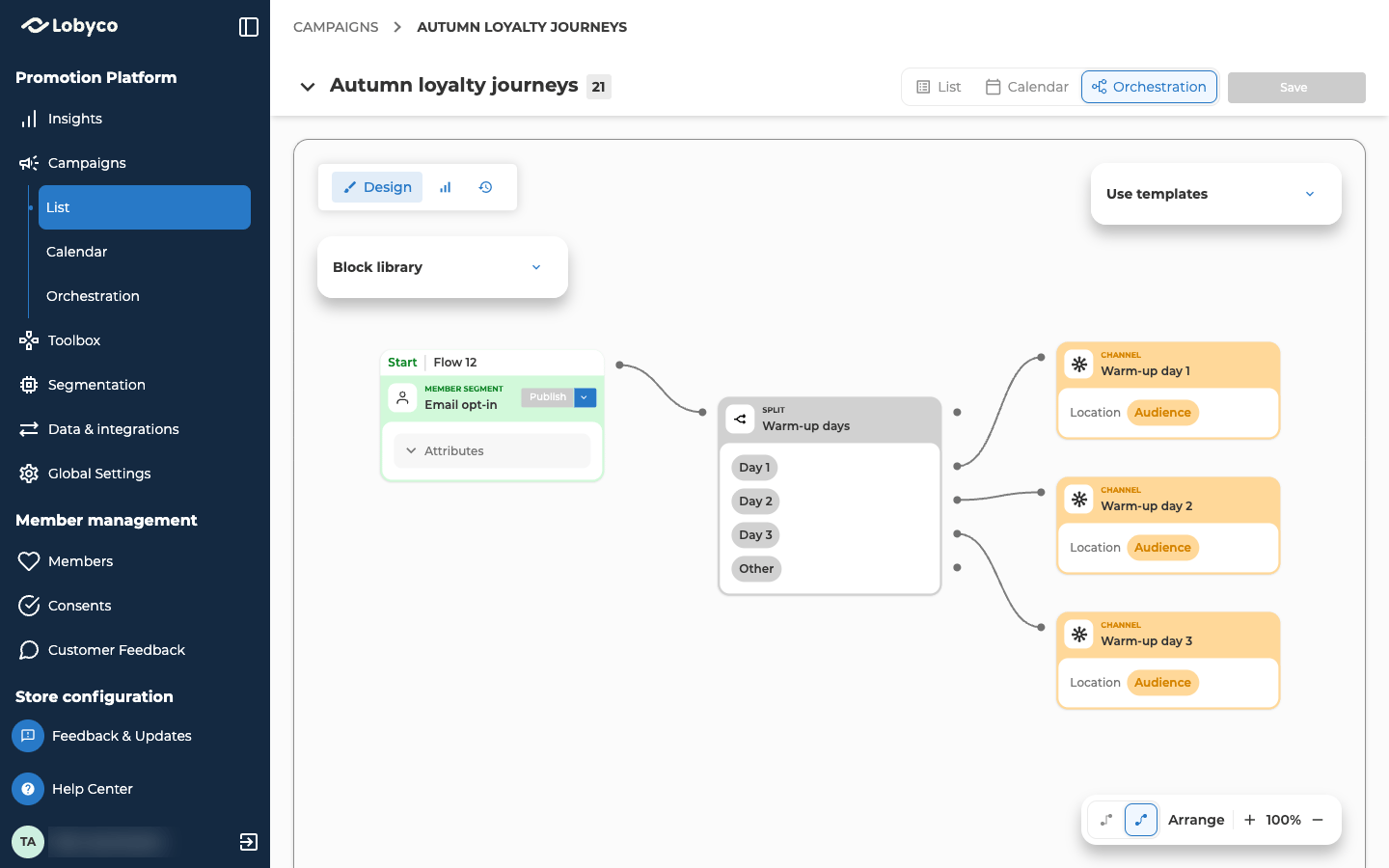
Run the flow once
Save the canvas, then run the flow once with Execute. See Or run it now.Create one email per day
Go to the campaign’s List view and select Add activity. On the Email tile, select From scratch. An email you add from the List view isn’t connected to any block, so it sends to an audience. Fill in the email as described in Emails. Two settings make it part of the warm-up.- On Activity details, set Start date to the day and time this email goes out. An email that sends to an audience goes out once, at its start date. Each email starts one day after the one before.
- On Segmentation, Audience is already chosen, because an email can’t go to every customer. Under Select Audience, choose Select from list and pick that day’s audience.
Publish each email
Select Publish on each email and confirm. Because the start date is in the future, the portal says the email will automatically become active on that date.Check the result
Two checks tell you the warm-up is set up.- Open any email’s Segmentation and choose Select from list. The Size column shows how many customers each day’s audience holds. It should match your plan.
- In the campaign’s List view, each email shows Scheduled until its day, then Active.
Variation: split a file instead
If you already have the list as a file, you can skip the canvas.- Start from a CSV file of member IDs, one per line. This upload isn’t the same as a Seed block’s, so the file can have a header row with a
MemberIdorCustomerIdcolumn. - Split it into one file per day, with that day’s number of customers in each.
- Create one email per day as described above. On Segmentation, choose Create new audience instead of Select from list. Name the audience, upload that day’s file and select Create.
Related
- Deliverability explains why to warm up, and what to do if the warm-up is interrupted.
- Emails covers every field on the email form.
- Split a segment into groups shows the Split block on its own.
- Block reference describes the Split and Channel blocks in full.