

An email always belongs to a campaign. Open the campaign first, or create one.
Add an email to your campaign
You can add an email in the campaign’s List view or on its orchestration canvas. Either way, the Create Email form opens. Where you add it, and whether it’s connected to another block, decides how customers get it. See Choose who gets it.- In the list
- On the canvas
- Go to Campaigns and open the campaign the email belongs to, or create a new one.
- Select Add activities, or Add activity if the campaign already has some.
- On the Select an activity page, point at the Email tile and select From scratch. To start from a saved email instead, select From template. Reuse with templates explains how.
Fill in Activity details
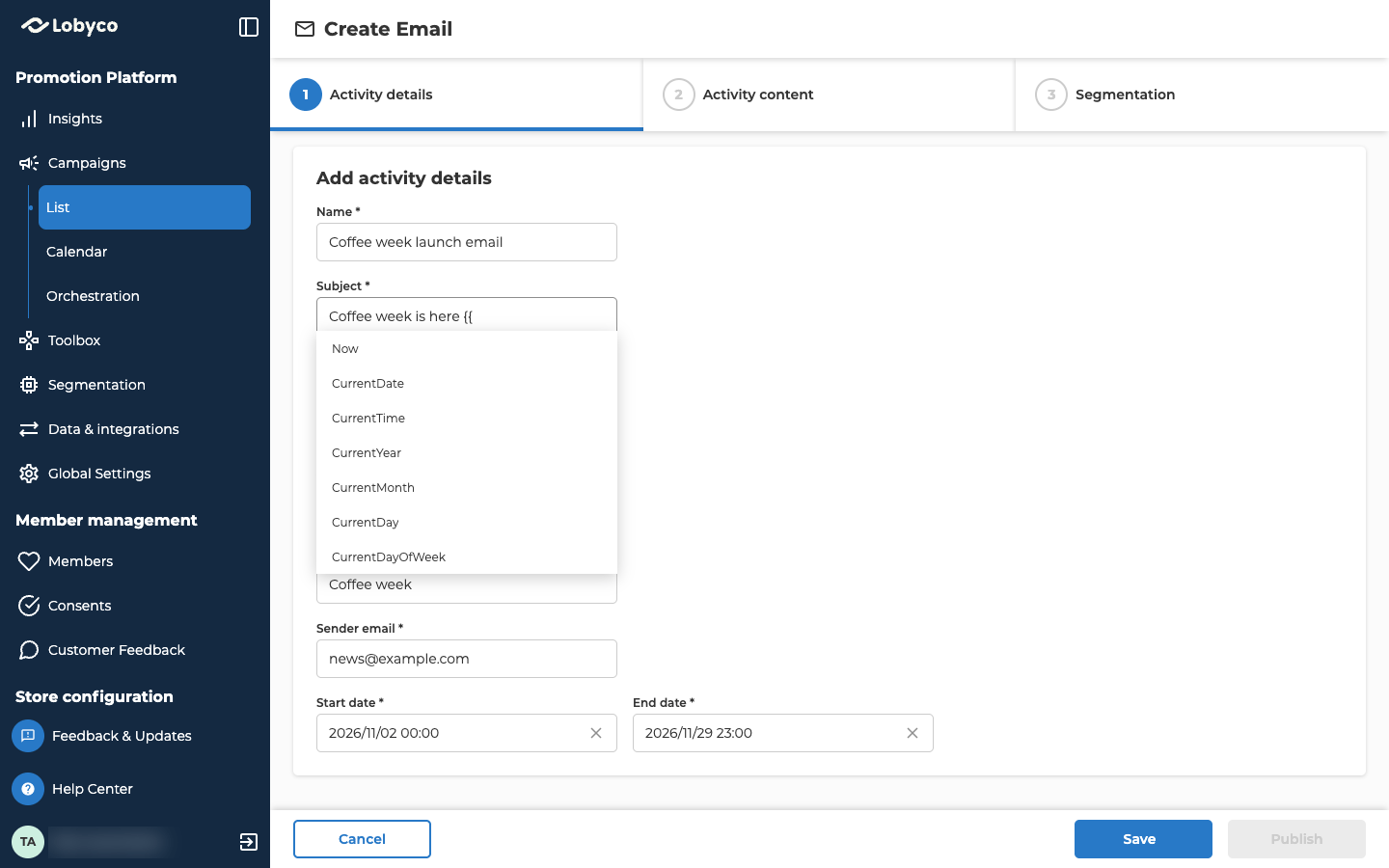
On Activity details, name the email and set what customers see in their inbox.
To personalise the subject or the preheader, type
{{ and pick a tag from the list. The list always has date and time tags, such as CurrentDate. When an Enrich block is connected straight to the email on the canvas, the list also has the attributes it adds, such as a first name.
Design the email in Activity content
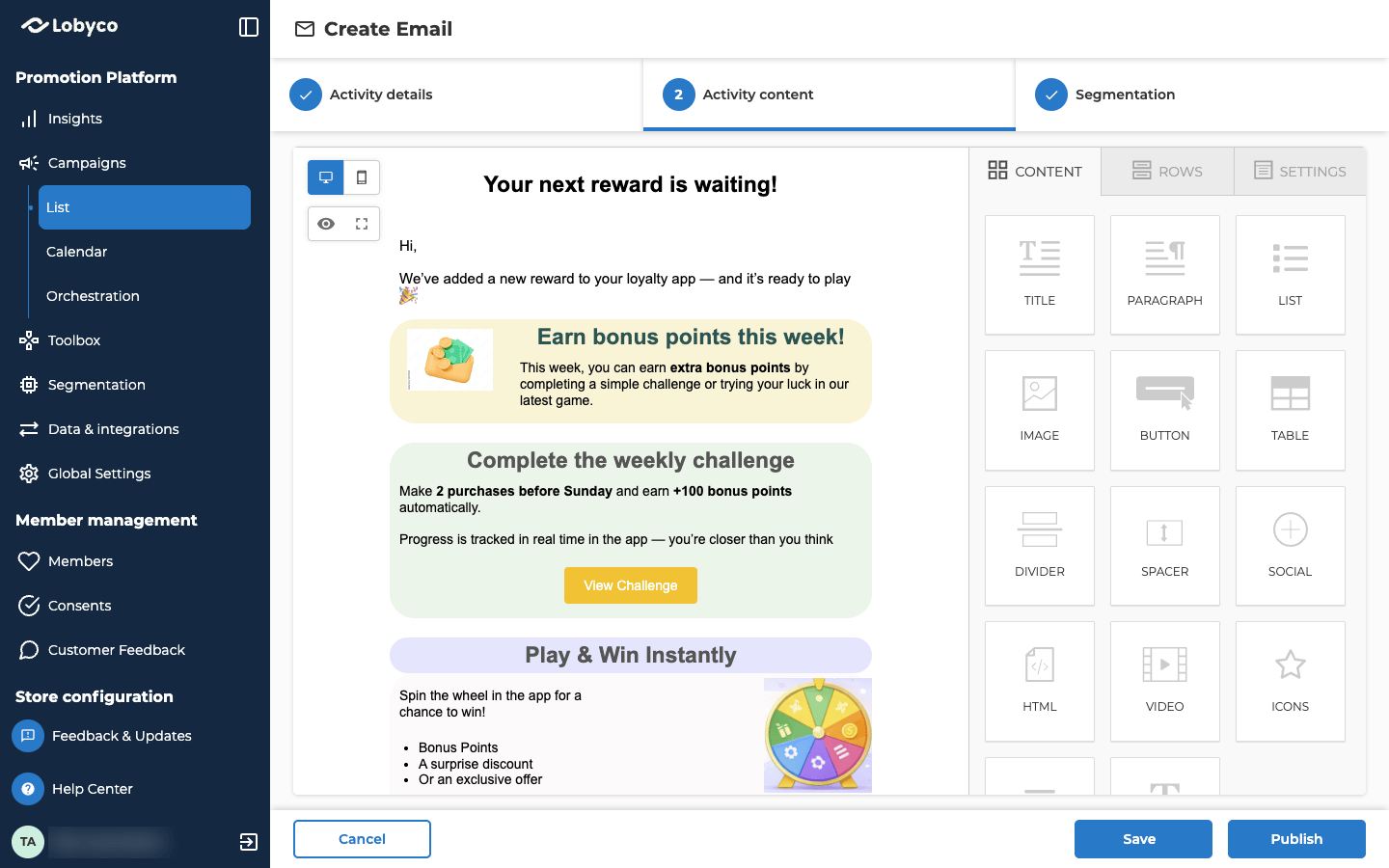
Activity content opens the email editor. You build the email by dragging pieces onto the page on the left.- Content holds the building blocks, such as Title, Paragraph, Image, Button, Social and HTML.
- Rows holds layouts. A row sets the columns that your content sits in.
- Settings sets the look of the whole email, such as its width and background colour.
Choose who gets it
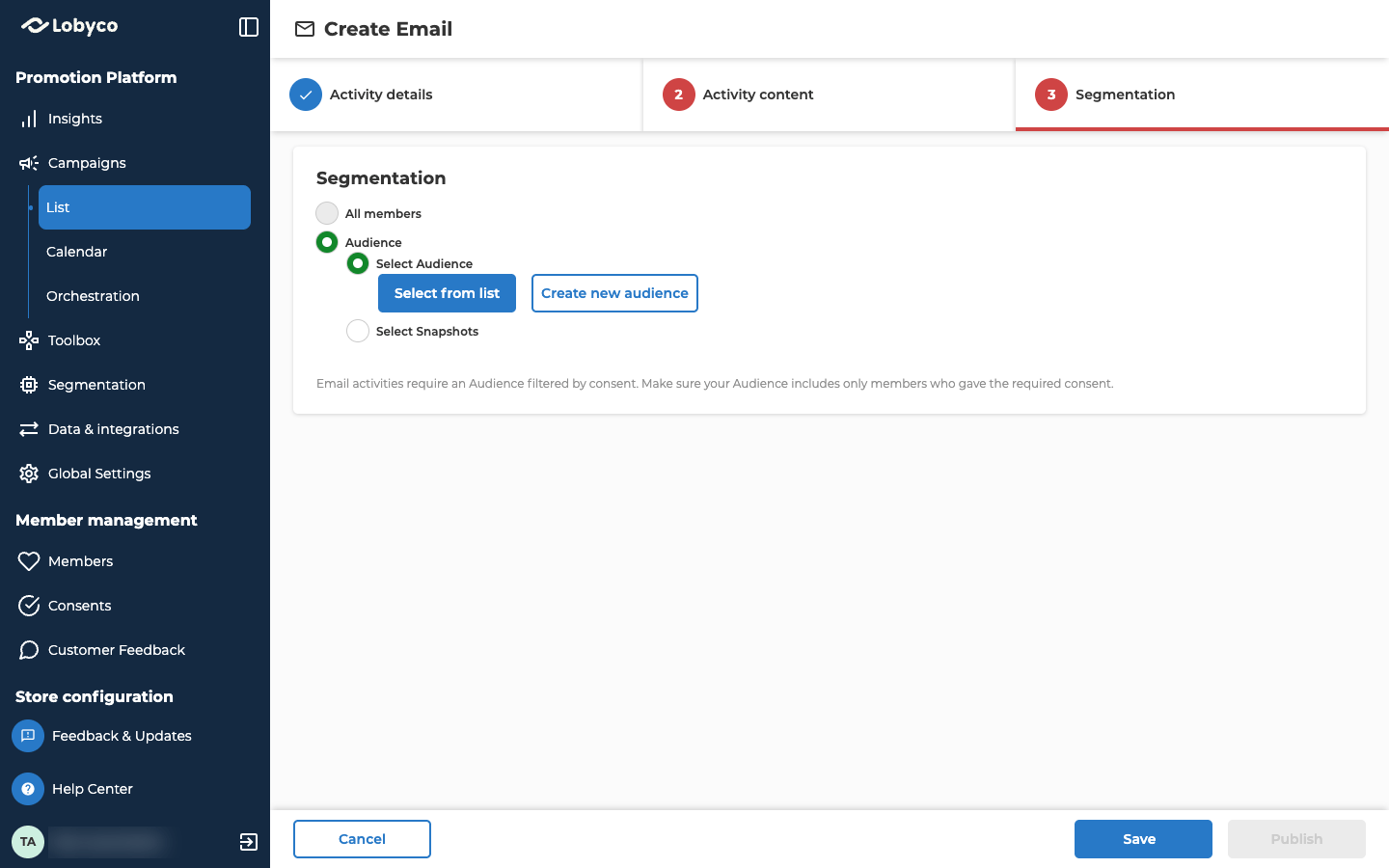
On Segmentation, the option you get depends on whether the email is connected to another block on the canvas.
To send a Triggered email to an audience instead, remove its connection on the canvas while the email is a draft. It then switches to Audience.
All members is always greyed out. An email can’t go to every customer at once. Customers with no email address are skipped.
Pick the audience
With Audience selected, choose one of these.- Select Audience sends to the audience as it is when the email goes out. Choose Select from list to pick one or more audiences. Choose Create new audience to upload a new one.
- Select Snapshots sends to a snapshot of an audience. A snapshot is a copy of the audience at one moment, so its customers don’t change after that.
MemberId or CustomerId column.
Sending to a large list for the first time, or from a new sender address? Read Deliverability first.
Save or publish
- Save keeps the email as a draft. It only needs a Name, and any other field you’ve filled in has to be valid.
- Publish stays greyed out until every required field on all three tabs is filled in and every value is valid. For an Audience email, that includes at least one audience. A tab you’ve opened shows a check mark once everything on it is right. The portal asks you to confirm, and says whether the email becomes active now or on its start date.
Troubleshooting
Why won't my email publish when every field is filled in?
Why won't my email publish when every field is filled in?
Check Sender email. Its domain has to be one Lobyco has set up for your programme. If you aren’t sure which domains you can use, contact Lobyco support with the campaign’s ID and the sender address you tried.
Why does the Email block say No audience selected?
Why does the Email block say No audience selected?
The email isn’t connected to another block, so it’s an Audience email, and no audience is picked yet. Open the email and pick one on Segmentation.
Why can't I find my audience in the list?
Why can't I find my audience in the list?
Check the audience’s Destination(s). They have to include email, or be set with Select all. If they are and you still can’t find it, contact Lobyco support with the audience’s name and the campaign’s ID.
Related
- Recipients explains when each kind of email is sent.
- Lifecycle covers what you can change once an email is published.
- Deliverability explains what decides whether emails reach the inbox, and how to warm up a new sending domain.
- Warm up email sending shows how to send to a large list a little more each day.
- Block reference describes the Enrich block and the other blocks an email can connect to.