

At a glance
Lobyco sets up this list for your app. You can’t change it in Lobyco Nexus. Some deeplinks open one specific thing, so they ask for its ID. The last column names the box that appears when you pick one.
campaignId takes the offer’s ID, not the ID of the campaign the offer sits in.
Where you pick a deeplink
A push, banner, feed and prompt all offer the same list. Only the place you find it changes. An email has no deeplink.
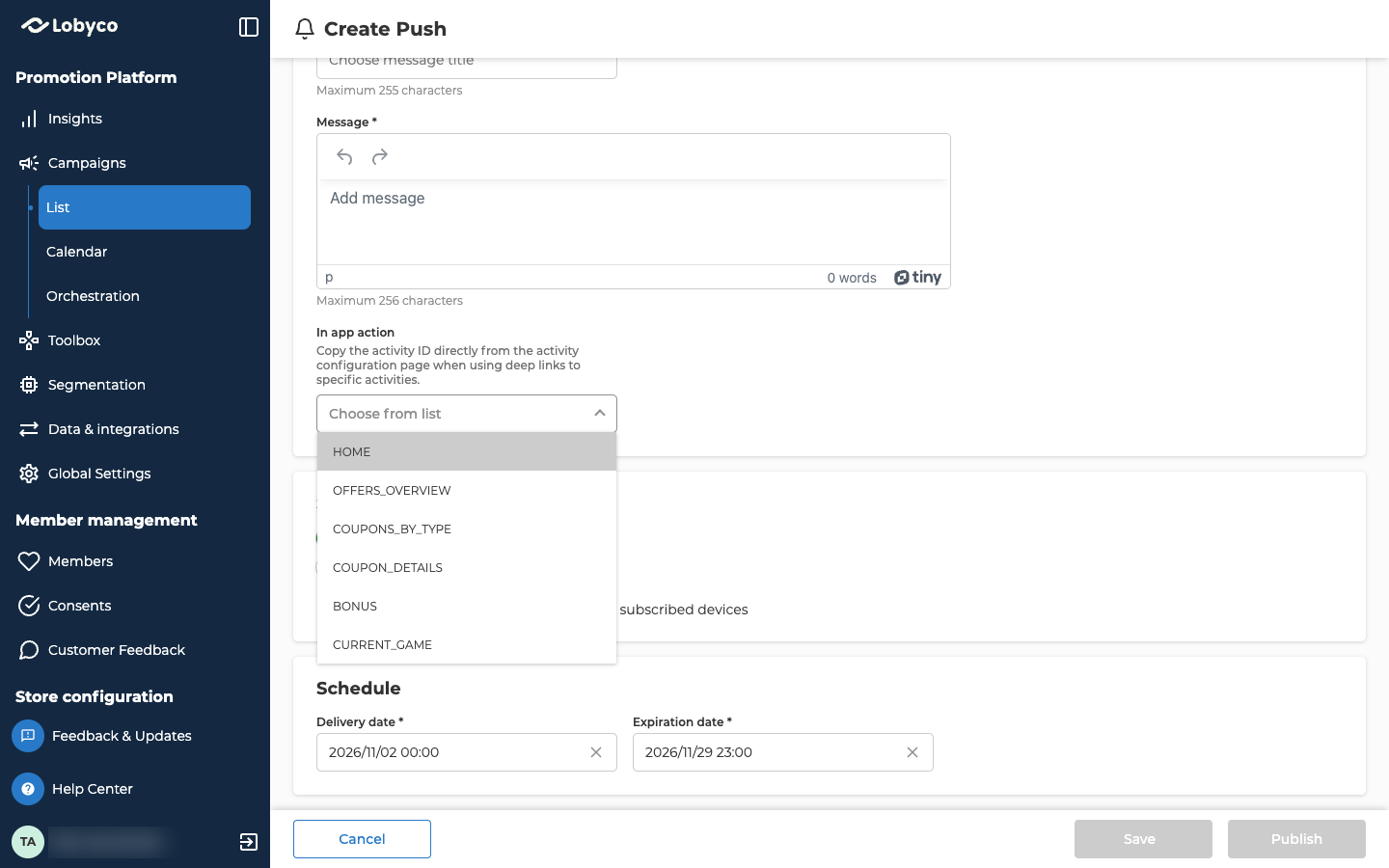
Pick a deeplink from Choose from list. If it needs an ID, a box named after that ID appears under the list.
Link to one offer, game or challenge
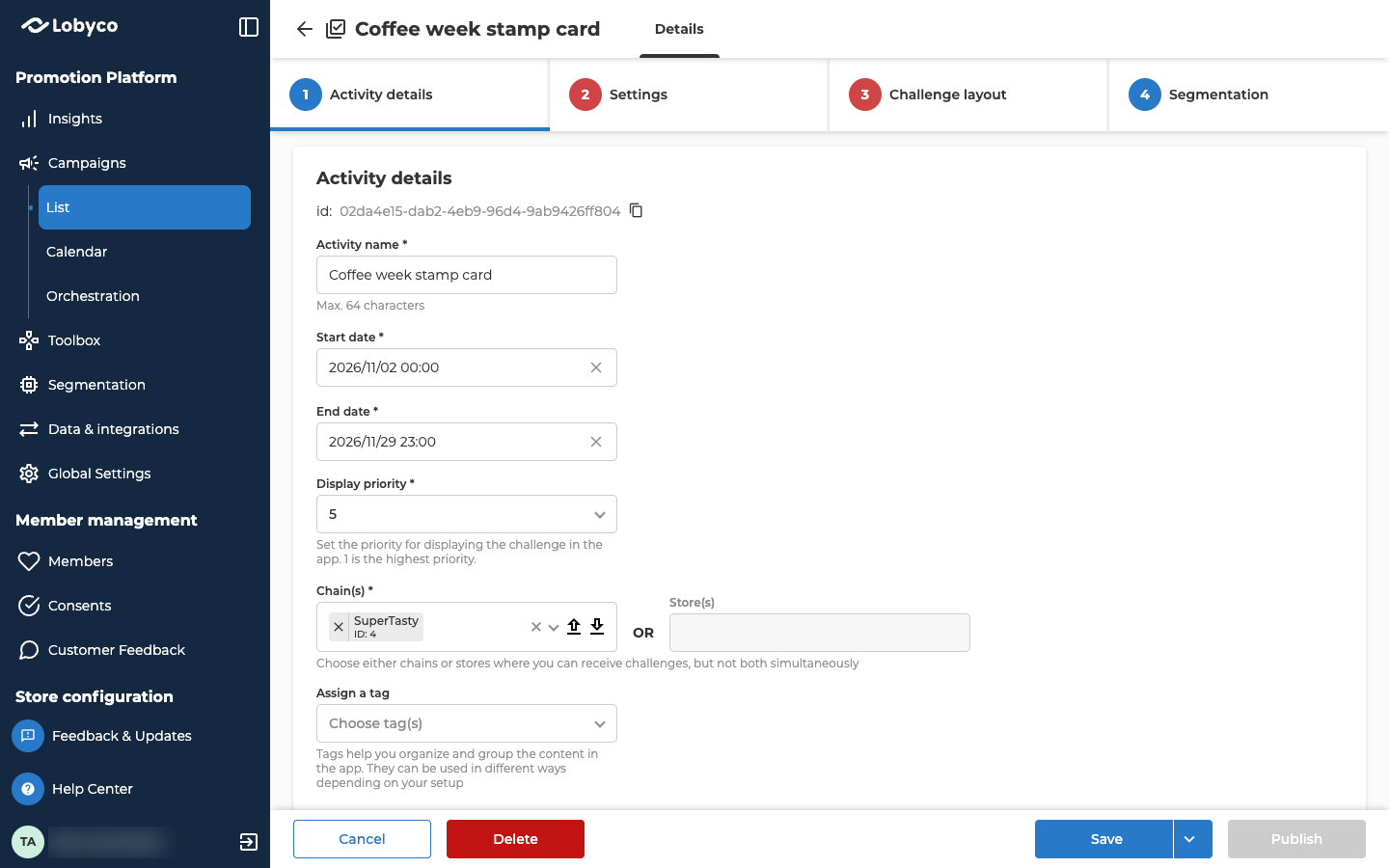
Three deeplinks open one activity you built. Each one needs that activity’s ID.- Open the offer, game or challenge you want to link to.
- Find id at the top of its first panel. It only shows once the activity is saved.
- Select the copy icon next to it. The portal confirms it’s copied.
- Open your push, banner, feed or prompt. Under Choose from list, pick the deeplink the table above names.
- Paste the ID into the box under the list.
When a deeplink shows a warning
A warning means the deeplink is missing an ID, so it can’t open the screen you meant. You see it in two places:- In the form, as an orange line under the ID box.
- In the campaign’s List view, as a warning icon next to the activity’s name. Point at it to read the warning.
Related
- Push notifications, Banners, Feeds and Prompts — the forms where you pick a deeplink.
- Offers, Games and Challenges — the activities a deeplink can open by ID.
- Create a campaign — starting a campaign from a template, which copies its deeplinks.