

A prompt always belongs to a campaign. Open the campaign first, or create one.
Add a prompt to your campaign
You can add a prompt in the campaign’s List view or on its orchestration canvas. Either way, the Create Prompt form opens. Add it on the canvas when a flow should decide who sees the prompt and when. A Preferred store prompt needs this, because it reads each customer’s suggested store from the block before it. Recipients explains how a flow decides who gets a communication, and when.- In the list
- On the canvas
- Go to Campaigns and open the campaign the prompt belongs to, or create a new one.
- Select Add activities, or Add activity if the campaign already has some.
- On the Select an activity page, point at the Prompt tile and select From scratch. To start from a saved prompt instead, select From template. Reuse with templates explains how.
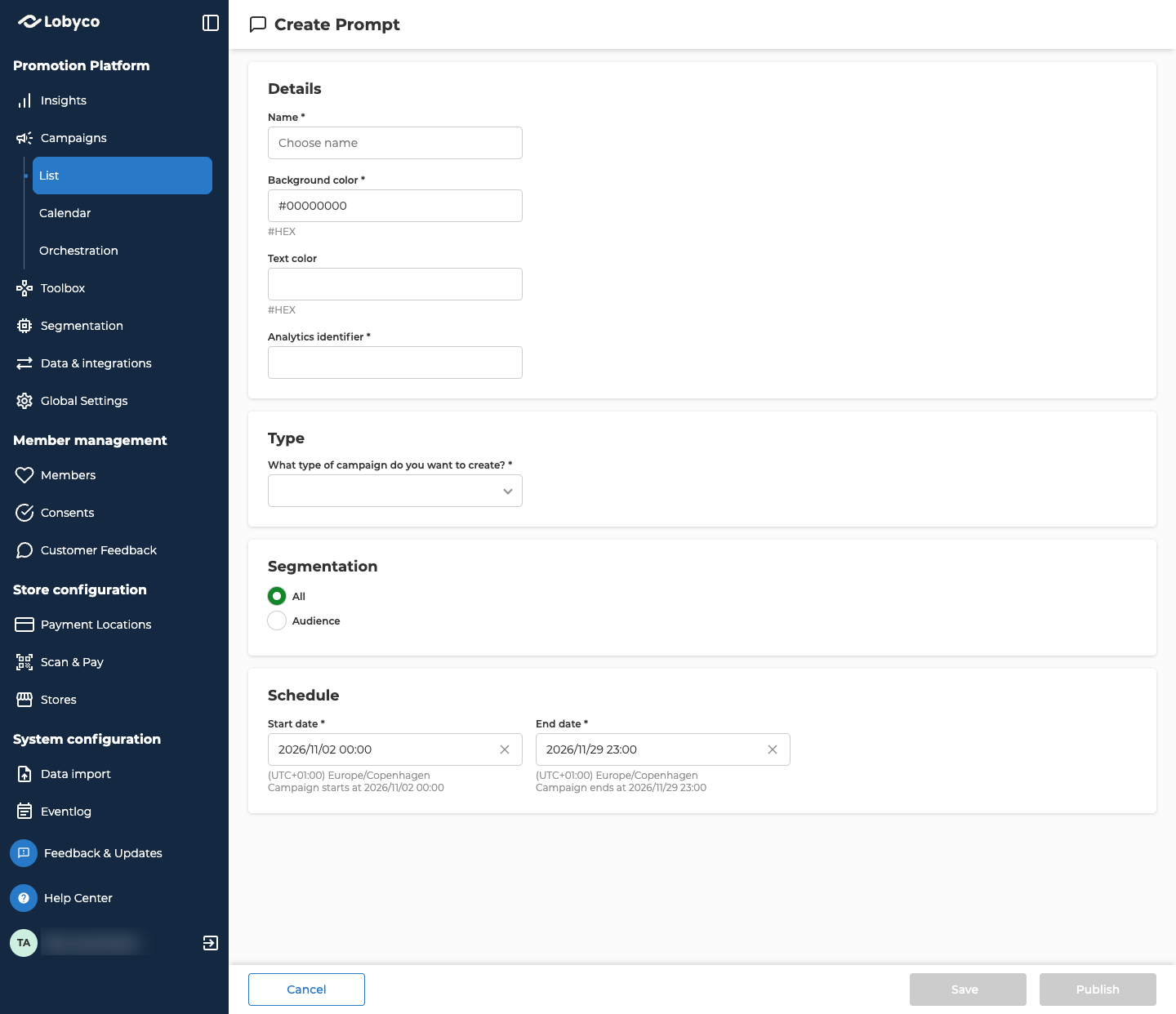
Fill in the details
Once you’ve saved the prompt, its ID shows at the top of Details, with a copy icon.
Choose the prompt type
Under Type, open What type of campaign do you want to create? and pick a type. The type decides what the prompt does for the customer and which fields the form adds.
Changing the type clears the image, the suggested store field and any button navigation you’ve set. The headline, body and button texts stay.
Select field with suggested store id lists the details the prompt gets from the block connected before it. Pick the one that holds each customer’s suggested store. The list stays empty until the prompt’s block is connected after a block that passes on customer details. That block has to pass on each customer’s suggested store. Connect it on the canvas and select Save, then open the prompt again. Block reference shows which blocks those are.
Write the message
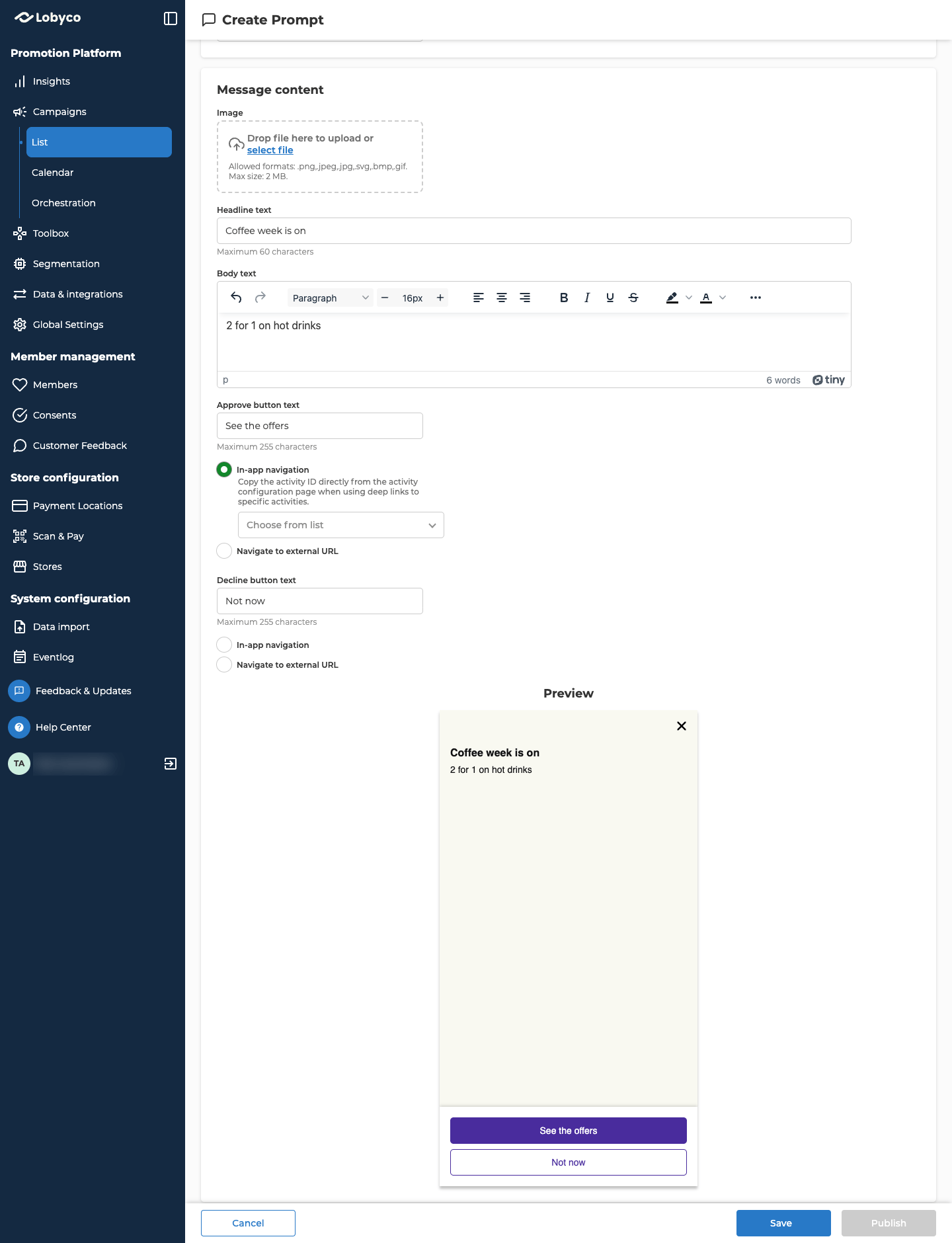
The Message content panel appears once you’ve picked a type. Fill in at least one of Image, Headline text and Body text.
When the prompt’s block is connected after a block that passes on customer details, you can add those details to Body text. Type
{ and pick one from the list. It shows in the text in braces, such as {CustomerId}, and each customer sees their own value. See Personalise a triggered communication.
Preview shows the prompt as you build it.
Then name the buttons.
A Regular prompt needs at least one of the two. As soon as you name a button, pick where it takes the customer:
- In-app navigation opens a place in your app. Pick it under Choose from list. See Deeplinks.
- Navigate to external URL opens a web page. Enter a full address that starts with
http://orhttps://.
Choose who sees it
In Segmentation, pick who the prompt is for:- All shows it to every customer.
- Audience shows it to the customers in the audiences you pick. See Segments and Audiences.
Set the schedule
Customers can see the prompt between its Start date and End date. If the campaign has dates, both start as them, and both have to stay inside them. The end date has to be later than the start date. A Preferred store prompt doesn’t need an end date. Lifecycle explains what happens on each date.Save or publish
- Save keeps the prompt as a draft. You only need Name and Type for that. Customers don’t see drafts.
- Publish asks you to confirm first. If the start date is still ahead, the prompt becomes active on that date. Otherwise it goes live as soon as you confirm.
Troubleshooting
Why is Publish greyed out?
Why is Publish greyed out?
Something required is still empty or not valid. Look for red text under the fields. The ones people miss most often are Analytics identifier and the navigation choice under a Regular prompt’s button.
Related
- Add an activity — adding the prompt in the List view or on the canvas
- Recipients — how a flow decides who gets a communication, and when
- Lifecycle — the statuses a prompt moves through after you publish it
- Deeplinks — picking a place in your app for a button to open
- Block reference — the blocks that can come before a prompt on the canvas
- Reuse with templates — saving a prompt as a template, and what a copy keeps