

A feed always belongs to a campaign. Open the campaign first, or create one.
Add a feed to your campaign
You can add a feed in the campaign’s List view or on its orchestration canvas. Either way, the Create Feed form opens. Add it on the canvas when a flow decides who sees the feed. Recipients explains how a flow sends a feed.- In the list
- On the canvas
- Go to Campaigns and open the campaign the feed belongs to, or create a new one.
- Select Add activities, or Add activity if the campaign already has some.
- On the Select an activity page, point at the Feed tile and select From scratch. To start from a saved feed instead, select From template. Reuse with templates explains how.
Fill in Feed details
Lobyco sets up which feed types your app has. Each one changes the form a little:
Write the feed content
Open Content type and pick Text, Image or Video. The Feed content section then opens below. If you switch to Text later, the form clears the image and video you added. Fill in Feed content. Preview shows the feed as you type.
To swap an uploaded image or video for another, select Change file.
When the feed’s block is connected after a block that passes on customer details, you can add those details to Text, Top message text or Bottom message text. Type
{ and pick one from the list. It shows in the text in braces, such as {CustomerId}, and each customer sees their own value. Title doesn’t take them. See Personalise a triggered communication.
Under Title and each message, a counter shows your characters against the length the portal recommends. The recommended lengths depend on the feed type, and on which home screen design your app uses. One design scrolls down, and the other has rows that scroll sideways. On an Inspiration image or video feed, the two messages share one count. You can type past it, but the portal recommends staying within it.
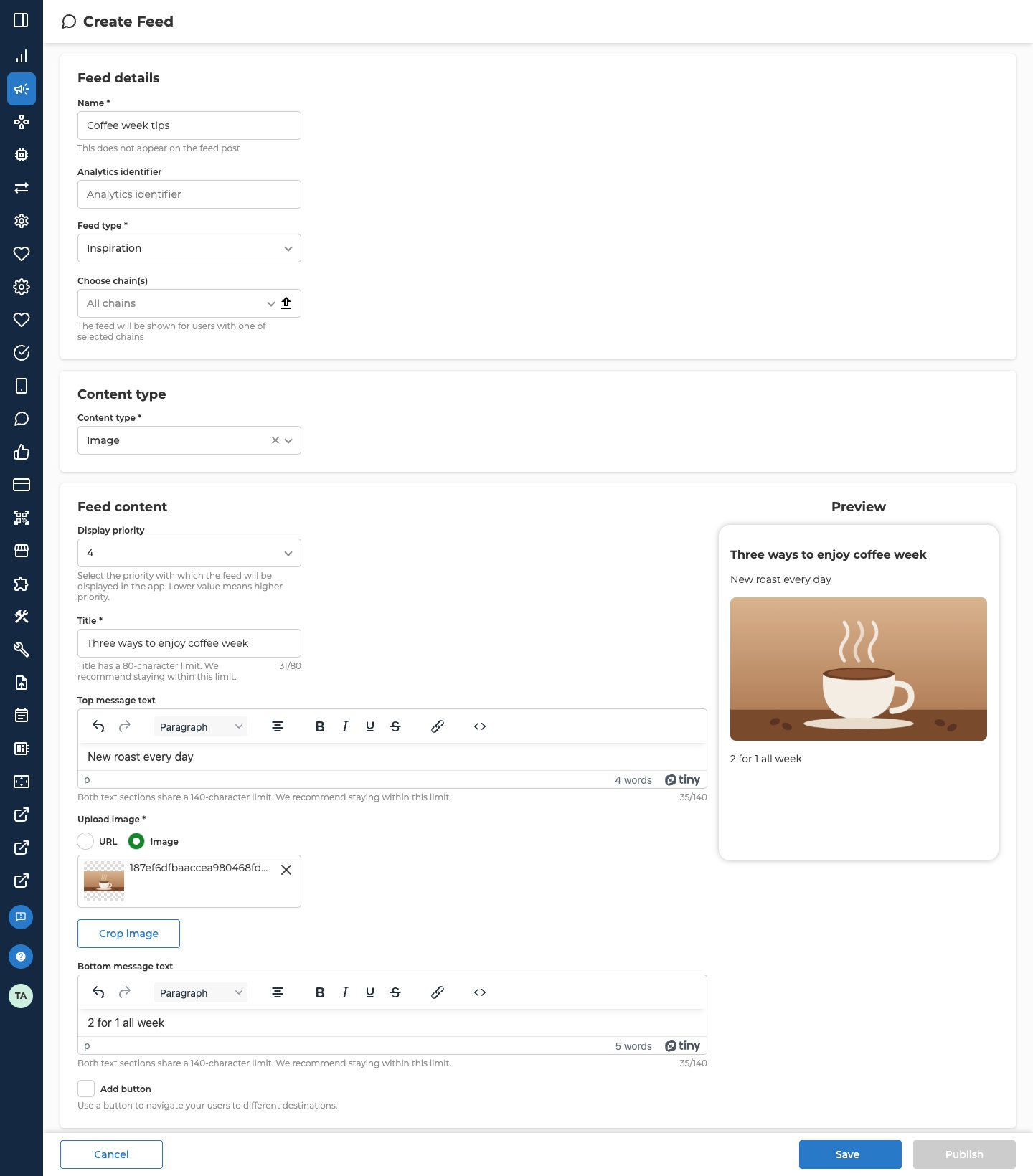
Add a button
A button takes customers somewhere when they tap it. It’s optional. To add one, tick Add button.Choose who sees the feed
Open Segmentation.
When you choose Audience, more options open:
- Select Audience picks saved audiences. Choose Select from list to pick them, or Create new audience to make a new one. The list shows audiences that are set up for feeds. You build audiences in Segments and Audiences.
- Select Snapshots picks a snapshot of an audience instead.
Set when the feed shows
Open Schedule. Start date and End date are the local date and time the feed starts and stops showing in the app. If the campaign has dates, both start with them. You can narrow them, but they have to stay within the campaign’s dates. A date outside them shows an error under the field. To give the feed wider dates, change the campaign’s dates first. Set the end date in the future, after the start date.Save or publish
- Save keeps the feed as a draft. You can save once it has a Name, Feed type, Content type and Title. A draft doesn’t show in the app, whatever its dates. You can keep changing it.
- Publish stays greyed out until every required field is filled in. An empty required field turns red once you’ve clicked into it and out again. Once you change one of the fields Save needs, any of them that are still empty turn red together. The portal asks you to confirm, and says whether the feed becomes active now or on its start date.
- Cancel closes the form. If you have unsaved changes, the portal asks whether to Stay or Discard changes.
Other feeds in the app
Two other kinds of feed can show in the app, but you don’t create them here:- Purchase feeds reach customers on their own after each purchase. They show the receipt and bonus information, and ask for feedback on the purchase. Whether your app has them is part of how it’s set up.
- Local communications are posts from store staff for the customers of their store, such as local offers, news, polls and events. They come in from a separate system and show alongside your other feeds.
Troubleshooting
Why can't I edit this feed?
Why can't I edit this feed?
The form is read-only once the feed has expired, and when its campaign can no longer be changed. See Lifecycle.
Related
- Partner benefit feeds — the feed types for a partner’s offer, and their form.
- Recipients — how a flow on the Orchestration canvas sends a feed to the customers it picks.
- Lifecycle — what each status means, and what you can change after publishing.
- Deeplinks — the app screens a button can open.
- Add an activity — every way to add a feed to a campaign.
- Reuse with templates — start a new feed from a saved one.