

A banner always belongs to a campaign. Open the campaign first, or create one.
Add a banner to your campaign
You can add a banner in the campaign’s List view or on its orchestration canvas. Either way, the Create banner form opens. Add it on the canvas when a flow decides who sees the banner. Recipients explains how a flow sends a banner.- In the list
- On the canvas
- Go to Campaigns and open the campaign the banner belongs to, or create a new one.
- Select Add activities, or Add activity if the campaign already has some.
- On the Select an activity page, point at the Banner tile and select From scratch. To start from a saved banner instead, select From template. Reuse with templates explains how.
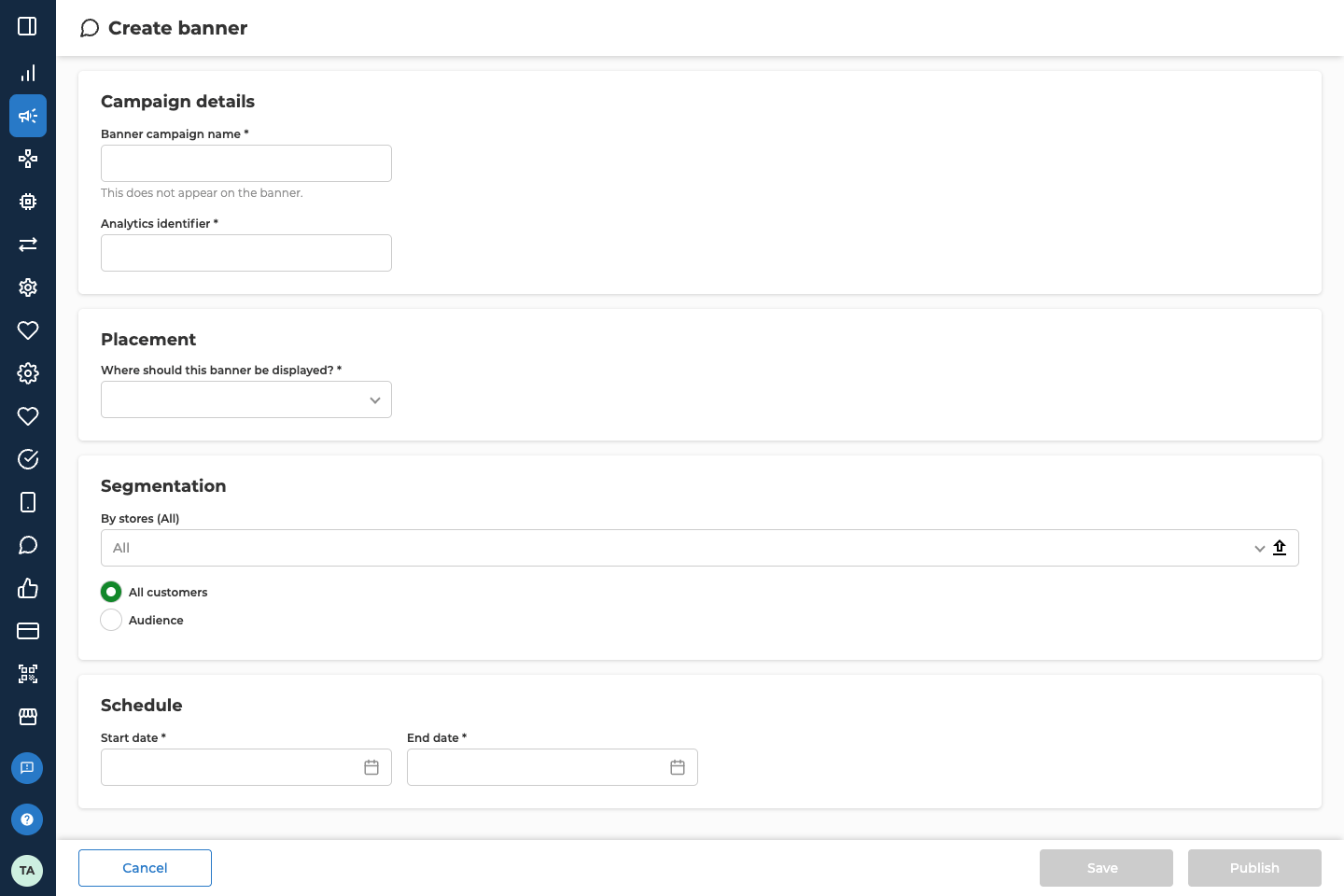
Name the banner
The Campaign details panel names the banner.
Once you save the banner, the panel also shows its ID, with a button to copy it.
Choose where it shows
In the Placement panel, pick an option under Where should this banner be displayed?. The placement decides which fields come next and what shape the image has.
The fields a placement adds sit in the next panel, Display on: followed by the placement’s name. If you change the placement later, the portal clears Display priority and the chains you picked.
The app shows only the top banners in each placement. Banners with the same priority show the newest first. Receipts and Offer universe show one banner at a time. How many the home screen shows is set for your app by Lobyco.
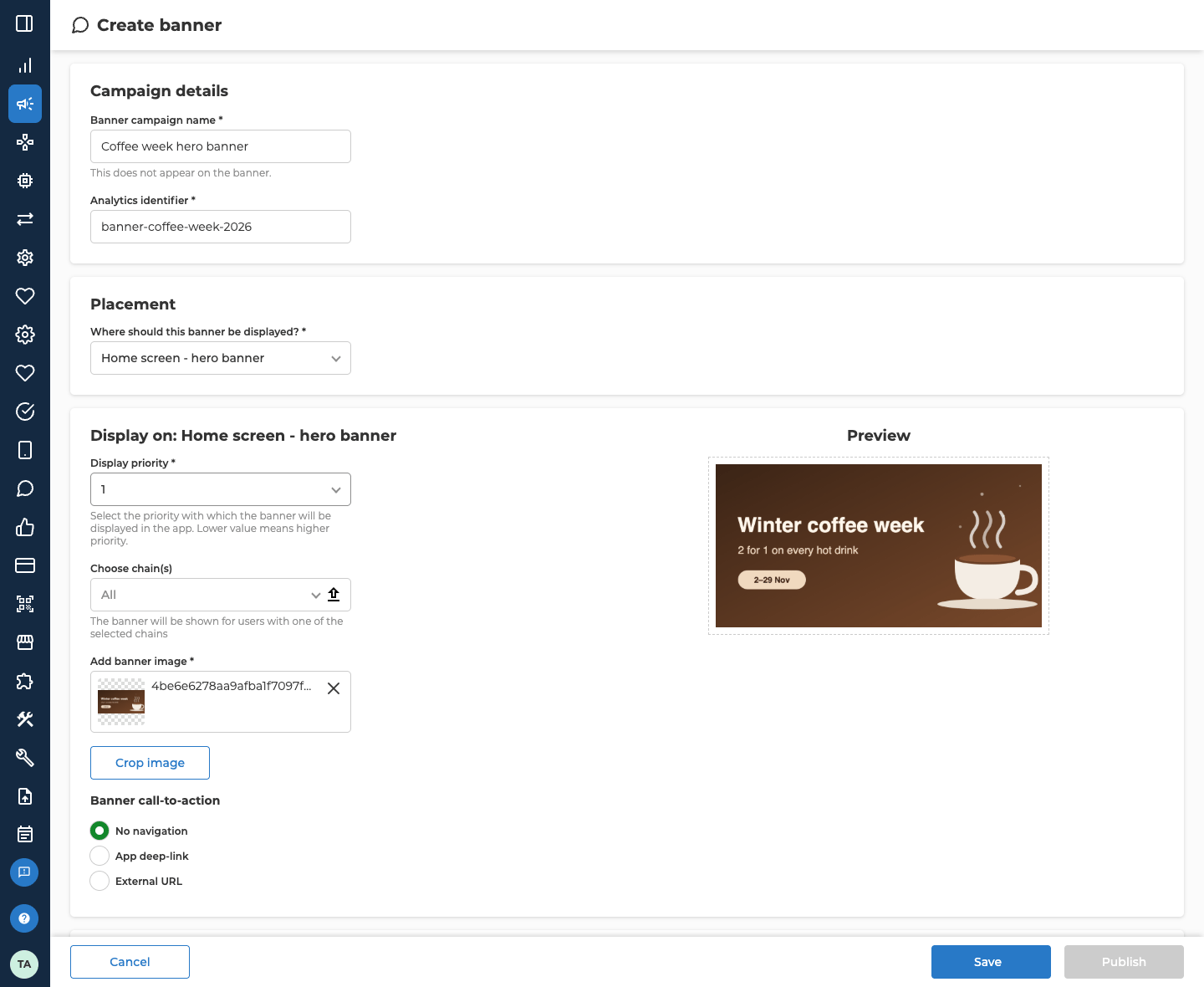
Add the image
Add banner image takes a PNG or JPG file of up to 2 MB. It’s required. Preview shows the image once it’s uploaded. Use the shape your placement needs: 3:1 for Offer universe, and 2:1 for every other placement. An image in the wrong shape shows an error under the field. You can’t save or publish the banner until you fix it. To fix it, select Crop image. It crops the image to the placement’s shape, and the error goes away.Choose what a tap does
Under Banner call-to-action, choose what happens when a customer taps the banner.Choose who sees it
In the Segmentation panel, choose who can see the banner.
On the canvas, a block connected before the banner decides who sees it instead. Segmentation then shows Custom segment, and the form adds Validity period of banner. Connecting or disconnecting that block clears any audience and validity period you set. Trigger it from the canvas explains how both work.
Set the dates
In the Schedule panel, set when the banner shows. If the campaign has dates, both start as the campaign’s dates.
A date outside these limits shows an error under the field.
Save or publish
- Save keeps the banner as a draft. It needs a name and a placement.
- Publish asks you to confirm first. It stays greyed out until every required field is filled in.
Troubleshooting
Why is Save greyed out?
Why is Save greyed out?
Save needs a Banner campaign name and a placement. It also stays greyed out while a field holds a value the form doesn’t accept, such as a website address that doesn’t start with
http:// or https://.Why is Publish greyed out?
Why is Publish greyed out?
Every required field has to be filled in first. Check the fields marked with a star, including the ones your placement adds and the image. If you chose App deep-link or External URL, fill in where the tap goes. If you chose Audience, pick at least one audience. It also stays greyed out while a field shows an error, such as an image in the wrong shape.
Related
- Recipients — how a flow on the canvas sends a banner
- Lifecycle — what each status means, and what you can change after publishing
- Deeplinks — the places in the app a banner can open
- Reuse with templates — saving a banner as a template, and starting a new one from it