

A push always belongs to a campaign. Open the campaign first, or create one.
Add a push to your campaign
In Lobyco Nexus, you can add a push in the campaign’s List view or on its orchestration canvas. Either way, the Create Push form opens. Add it on the canvas when a flow decides who gets the push, for example a customer event or a segment. Add it in the list when you pick the customers on the push itself. Recipients explains the difference.- In the list
- On the canvas
- Go to Campaigns and open the campaign the push belongs to, or create a new one.
- Select Add activities, or Add activity if the campaign already has some.
- On the Select an activity page, point at the Push tile and select From scratch. To start from a saved push instead, select From template. Reuse with templates explains how.
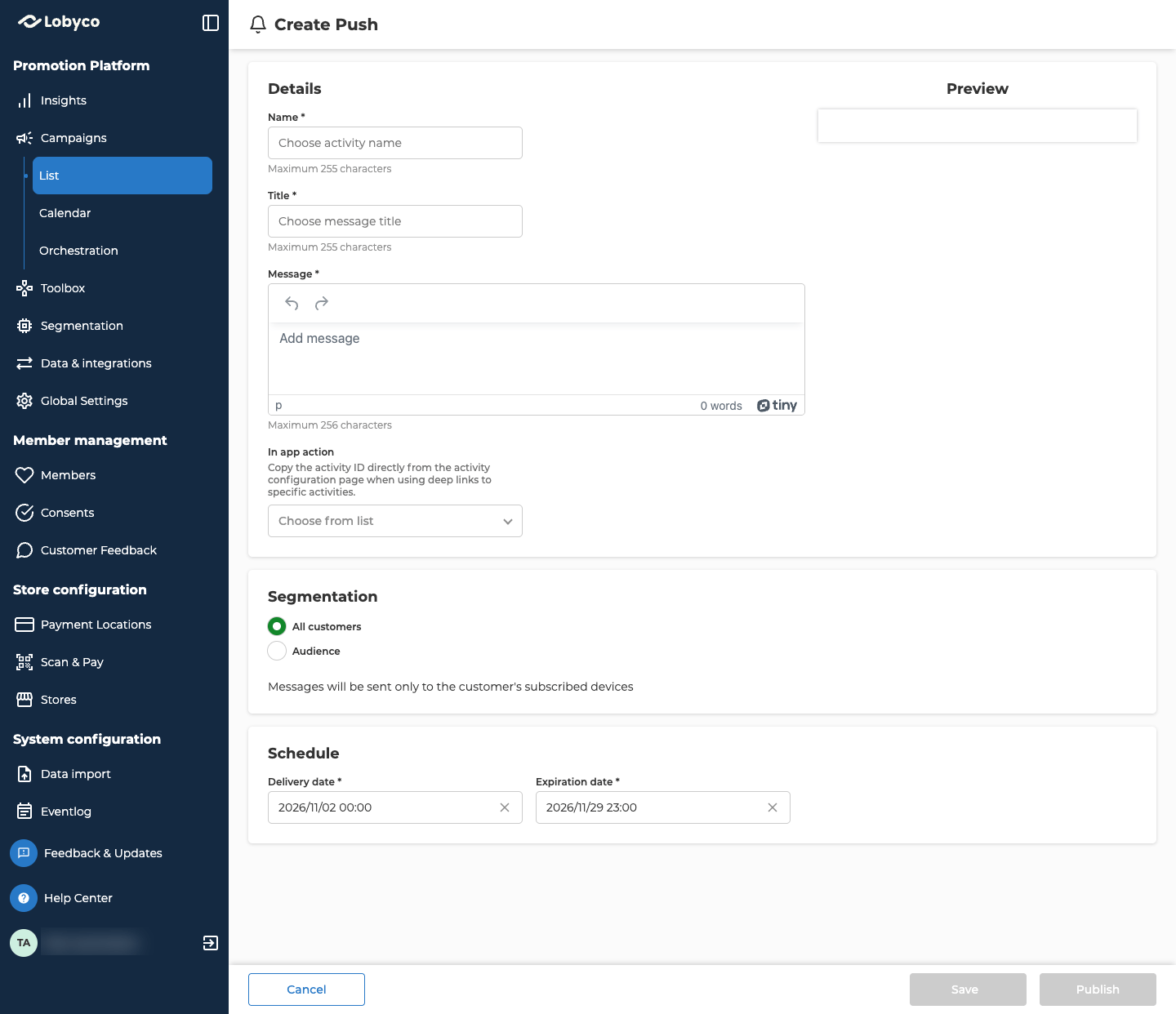
Write the message
Fill in the Details panel. Preview shows the title and message as you type.
You can personalise Title and Message with tags. A tag goes in curly brackets, and each customer gets their own value in its place. The values come from the block before the push in a flow on the canvas. A Customer event passes on IDs and the time of the event, and an Enrich block adds customer attributes. Type
{ in either field to pick from the tags that block passes on. If you use a tag it doesn’t pass on, the field shows an error. Preview shows the tag as you typed it, not a customer’s value.
A push you add from the List view goes out exactly as you typed it, curly brackets and all, so don’t use tags there. See What can connect to what.
Choose who gets it
In Segmentation, choose who the push goes to.
Whichever you choose, customers only get the push on devices that are signed up for notifications from your app.
To send a Custom push to a group instead, copy it with Duplicate as draft, or add a new push from the campaign’s List view. The copy starts on All customers, so check Segmentation before you publish it.
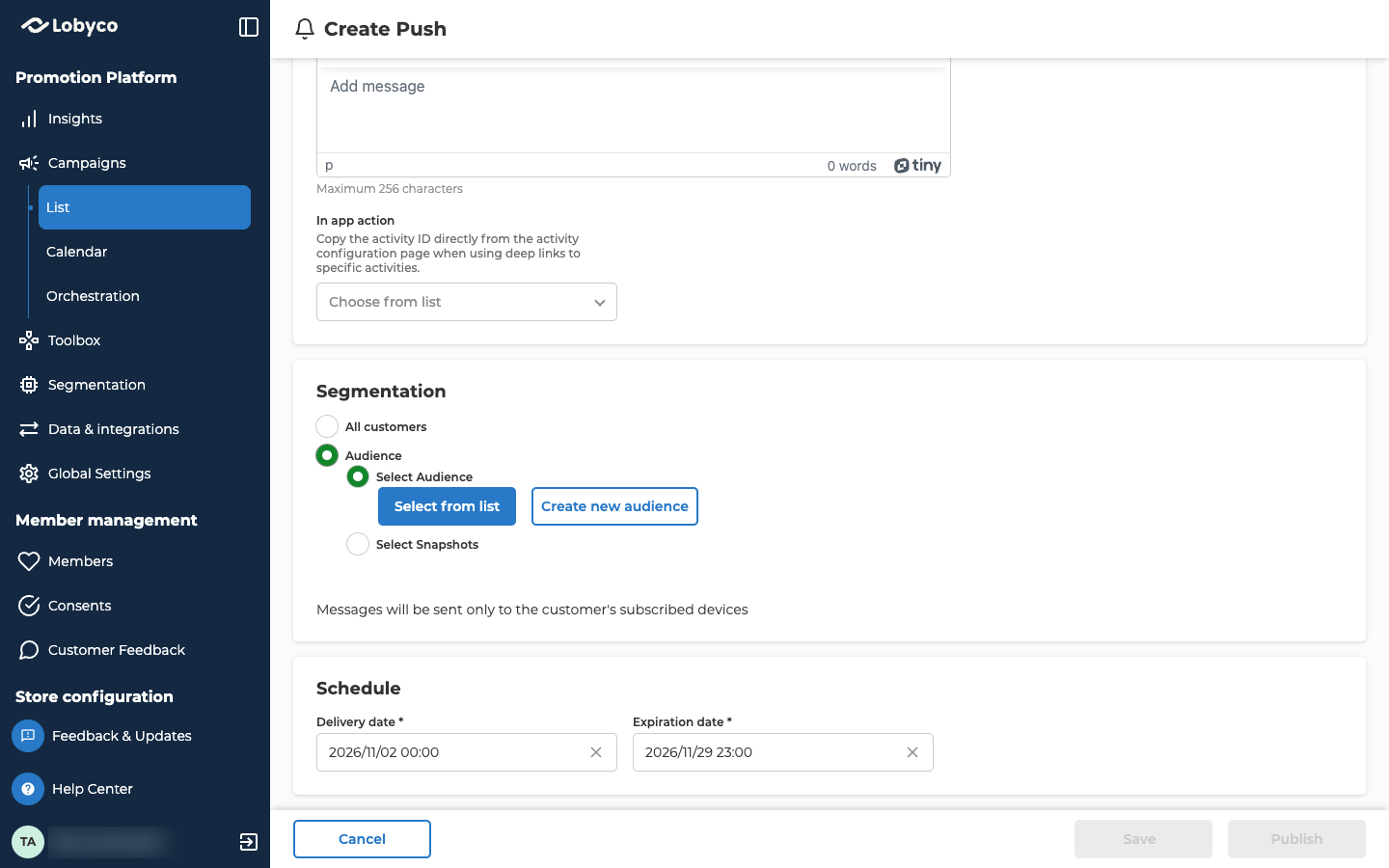
Set when it’s sent
In Schedule, set when the push goes out. If the campaign has dates, both start with them.
If the campaign has already started, Delivery date starts in the past. Pick a new date before you publish. Until you do, the field shows an error and you can’t publish.
To send the push as soon as you publish it, set Delivery date to now.
Save or publish
- Save keeps the push as a draft, and nothing is sent. You need a Name and a Title to save, and an audience if you chose Audience.
- Publish needs every field marked with a star, and dates that are allowed. See Set when it’s sent. The portal asks you to confirm, and says whether the push becomes active now or on its delivery date. Select Publish to confirm.
Troubleshooting
Why can't I change my push?
Why can't I change my push?
It’s Active and goes to All customers or an Audience, or it’s Expired. An active push in a flow can still be changed, apart from its Delivery date. See Save or publish for what you can still change. If something is wrong with an active push, contact Lobyco support.
Why can't I pick Push?
Why can't I pick Push?
Your user roles decide which activity types you can add. If Push is under These activities are not available, contact Lobyco support to get access.
Related
- Recipients — what decides who gets a push, and when, in a flow
- Lifecycle — what each status means, and what you can change at each one
- Deeplinks — what to choose under In app action
- Create a campaign — creating the campaign and adding an activity to it
- Orchestration canvas — building the flow a push can sit in
- Block reference — which blocks can connect to a push