

Partner benefit feeds aren’t there by default. Setting them up for your app takes extra development and configuration. Only then do they show in Feed type.
Start a feed and pick its type
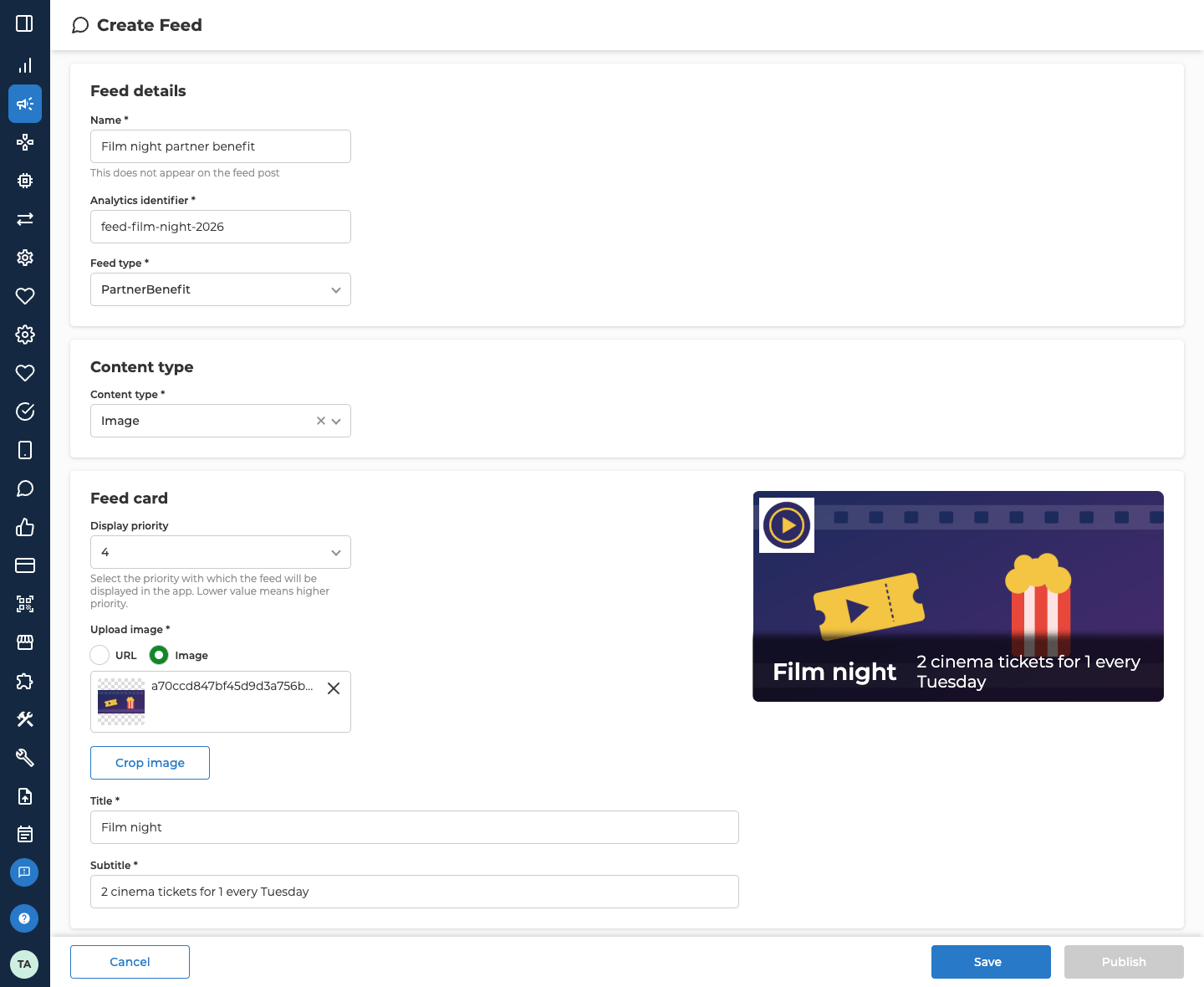
Add a feed to your campaign the way you add any feed. See Add a feed to your campaign. Then fill in Feed details:
The two types build a different card:
Then open Content type and pick Image or Video. Text isn’t offered, because the card always has an image. The content type only decides what the details page shows: a picture, or a video.
Design the feed card
Fill in Feed card. The preview shows the card as you go.
On a PartnerBenefit feed, Title and Subtitle show on the card and at the top of the details page. A PartnerBenefitBanner card shows only its image. So it asks for them only when Action type is Feed card details, and they head the details page.
When Action type is Navigation, choose In-app navigation or Navigate to external URL. They work as they do for a feed button. See Add a button.
Fill in the details page
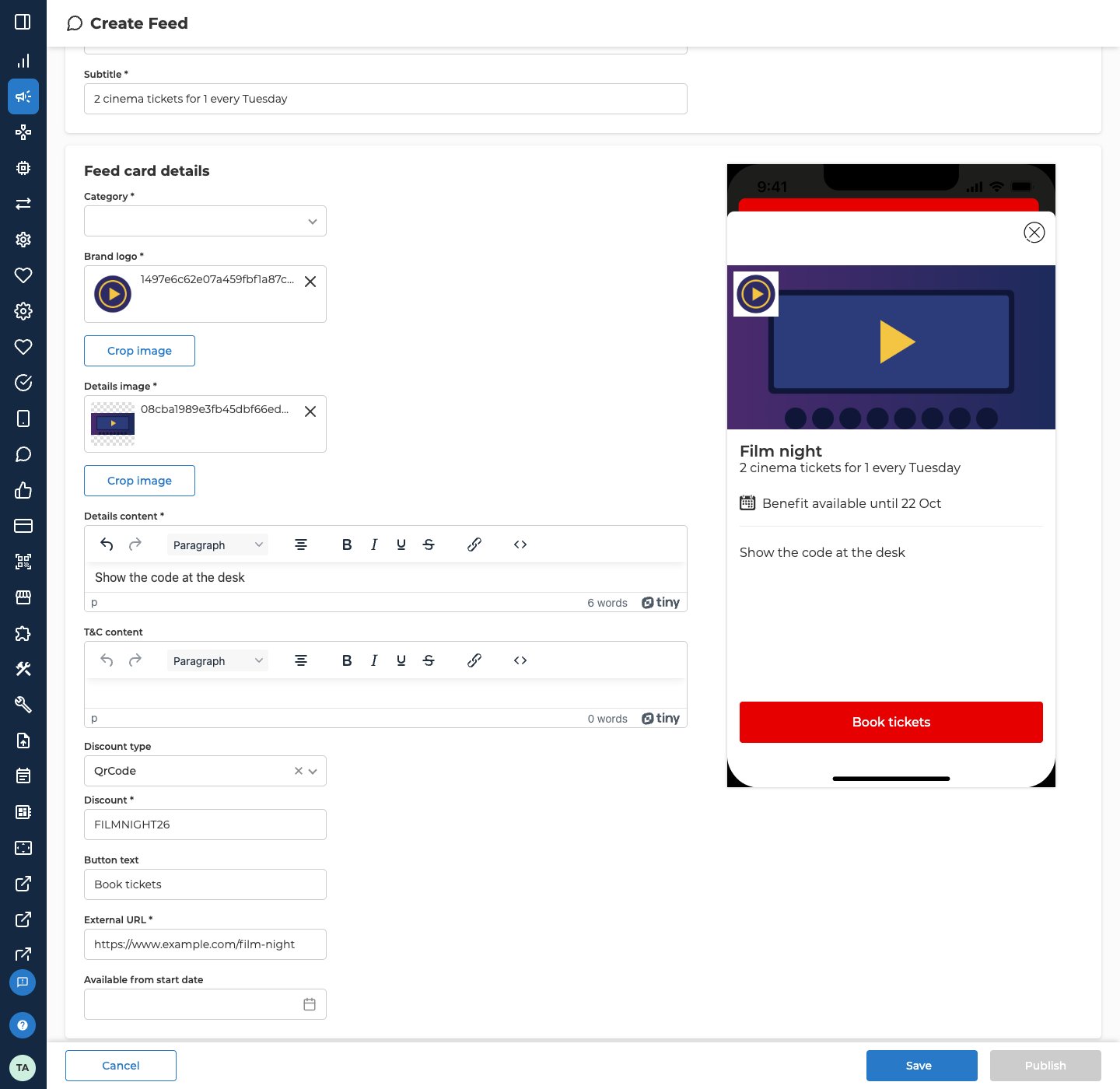
Feed card details is the page that opens when a customer taps the card. It shows for every PartnerBenefit feed, and for a PartnerBenefitBanner whose Action type is Feed card details. With Navigation, or with no action, there’s no details page to fill in. A phone preview shows the page.
A BarCode code has to be a valid UPC-A barcode: 11 digits plus a check digit, 12 in all.
Under the title, the details page says Benefit available until and the feed’s end date. Before Available from start date, it says Available from and that date instead. The preview then masks the discount code and greys out the button. To see the teaser, tick Preview as teaser above the preview. It only shows while Available from start date is in the future.
Choose who sees it and when
Segmentation and Schedule work as they do for any feed. See Choose who sees the feed and Set when the feed shows. The End date is the date customers see under Benefit available until.Save or publish
Save or publish as for any feed. See Save or publish. Publish stays greyed out until every required field is filled in, including Analytics identifier. It also stays greyed out while the card image is the wrong shape.Approve or reject a partner’s feed
A partner can send in a partner benefit feed of their own. It waits for your approval, and its form is read-only, so you can only approve or reject it.- Approve publishes it, or schedules it if its start date is later.
- Reject turns it down. Reason for rejection opens, where you describe why and can add images. The feed then shows your reason under Rejection details.
About the partner programme
Partner benefit feeds are part of a partner programme. Partners reach new customers who are likely to be interested, and your customers get benefits from brands they may already use. Because it gives partners real value, the programme can also bring you income.Troubleshooting
Why is my barcode rejected?
Why is my barcode rejected?
A BarCode has to be exactly 12 digits, with nothing else in it. The last digit is a check digit worked out from the first 11, so a 12-digit number can still be an invalid barcode. Check the code with the partner. If the partner’s code isn’t a UPC-A barcode, pick Plain or QrCode instead.
Related
- Feeds — adding a feed, and the segmentation, schedule and save steps every feed shares.
- Recipients — how a flow on the Orchestration canvas sends a feed to the customers it picks.
- Lifecycle — what each status means, and what you can change after publishing.
- Deeplinks — the app screens a PartnerBenefitBanner’s Navigation can open.