

What you’ll build
The customer gets the discount of the highest tier they reach. So a customer who buys 7 bottles gets 20% off.
Settings
Add an offer to the campaign
- Go to Campaigns → List and open the campaign. To create one, see Create a campaign.
- Select Add activity, or Add activities if the campaign is still empty.
- On the Offer tile, select From scratch. The offer form opens.
Fill in Details
- Enter a Name, such as 2026_week_42_Water_buy_more.
- Choose Type first. Pick App Coupon. Changing the type later clears some of your settings.
- Switch on Pre-activated.
- Set the Start date and End date. They have to fall within the campaign’s dates.
Set where it’s valid
Open Location and choose Chain(s). Then pick the chain.Set the tiers
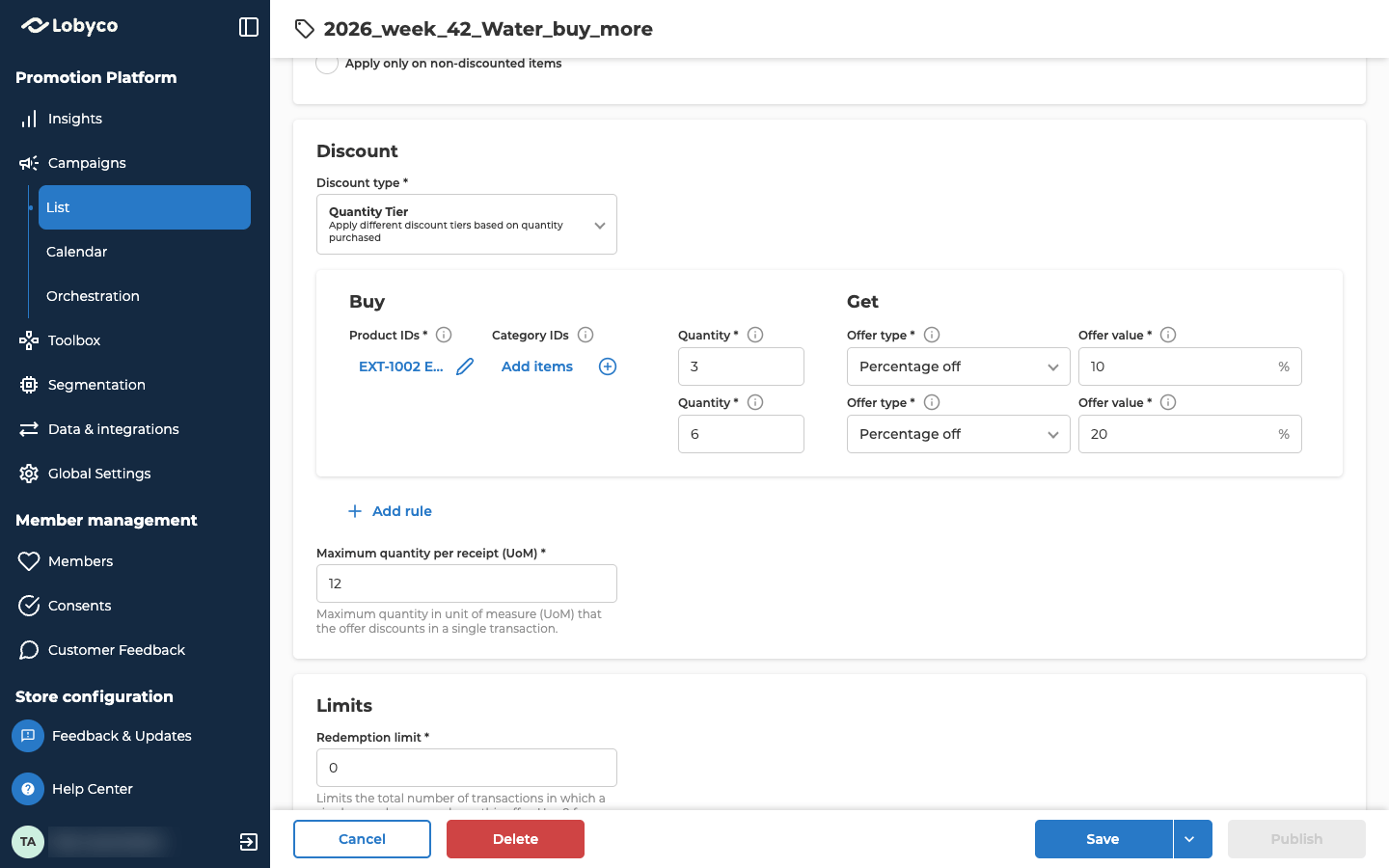
Open Discount.- Choose Quantity Tier under Discount type. Choose it before anything else in this section, because changing it replaces the rules.
- Under Buy, select Add items under Product IDs and enter the water brand’s IDs, one per line. Or add its category under Category IDs. The IDs come from your product catalogue, the product list your organisation shares with Lobyco. The products are the same in every tier. Product and category IDs explains the lists.
- The form starts with two tiers. Set the first to Quantity 3, with Offer type Percentage off and Offer value 10. This Offer type sets the kind of discount, and isn’t the Type you picked in Details. See Offer type and Offer value.
- Set the second to Quantity 6, with Percentage off and 20. Each tier’s Quantity has to be higher than the one before. To add a third tier, select Add rule.
- Set Maximum quantity per receipt (UoM) to 12. It can’t be lower than the highest tier’s Quantity.
Set the limits
Open Limits. Set Redemption limit to 0, for no limit. Discount amount limit caps the discount one coupon can give in a purchase. Enter 0 for no cap, or set one if the brand has a budget per purchase. Stacking and limits explains how the caps work together. Leave Stacking as it is, unless the brand has other offers running at the same time. Stacking and limits covers that.Write what customers see
Open Content. Fill in the Offer title, such as Buy more, save more on water, and a Description that names both tiers. Add an Image, or an Image URL. Create an offer describes every field in Content.Publish it
Leave Segmentation empty, so every customer gets the offer. Then select Publish and confirm.Check the result
The offer is live when the campaign’s list shows it as Active. It shows Scheduled until its start date, then goes live on its own. Open the offer to check the tiers. A published offer is read-only, so to change it you unpublish it first. See Edit or reuse an offer. If a customer’s basket doesn’t get the discount, check which tier it reached and whether the products match. Why isn’t a customer’s coupon working? walks through the checks.Variations
Related
- Discount types — all seven discount types, with examples
- Create an offer — every section of the offer form
- Offer types — what Type decides, and how customers get each type’s coupons
- Stacking and limits — how this offer stacks with others, and its caps