

What you’ll build
Lobyco puts each customer in a group by how recently, how often and how much they shop. The attribute is Recency Frequency M. Value, under Data Science. This page uses two of its groups, Lapsing and Churned. Customers move between groups as they shop, so the flow runs every week to find the ones who have just slipped. Limit (new) makes sure each customer gets the coupon only once, however many weeks they stay in those groups.Settings
All the dates have to fall inside the campaign’s dates, so give the campaign dates that cover the whole time the flow runs.
Find lapsing and churned customers
Open the campaign’s Orchestration view, in Design mode. From Segment in the Block library, add a Member segment and double-click it. In Create member segment, choose From Scratch, and name it, such as Lapsing or churned. Open Segment attributes, then Data Science, and add Recency Frequency M. Value. Choose In, then pick Lapsing and Churned. The other groups are Loyals, One-off Visitors, Potentials, Small Baskets and Uncategorized. To reach only one group, choose Equal instead. Segment attributes explains the groups.Run it every week
Go back to Add Segment details. In the schedule panel, named after the flow, such as Schedule - Flow 1, set these fields.
Select Save. This block has the Start tab, so it holds the schedule for the whole flow.
Give each customer the coupon once
From Controls, add a Limit (new) and connect the Member segment to it. Controls also lists Limit (soon deprecated). Don’t pick that one, because it’s being retired. Double-click the Limit (new), give it a Name, and select Add limit. Fill in the per-customer rule so it reads Each customer may pass at most 1 times in total. Then select Save. That rule never resets, so a customer who is still lapsing next week doesn’t get a second coupon.Add the coupon
From Activity, add an Offer. Connect the Limit (new) to it first, then double-click the Offer and choose From Scratch. Connecting it first means the Type list shows only the types a flow can hand out, and the form leaves out Segmentation. Fill in the offer as described in Create an offer. These settings make it a win-back coupon.- In Details, set Type to Gift before anything else. That switches on Pre-activated. Leave it on, so the coupon works without the customer activating it in the app.
- Set Validity period to how many days the customer has to use it, such as 14. The days count from when the flow gives it out. A coupon never lasts past the offer’s end date, so set the offer’s dates to cover the whole campaign.
- In Discount, set up the win-back discount, such as 20% off the basket. See Discount types.
Add a push
From Trigger, add an Activity event and connect the Offer to it. It reads Assigned, the one event an offer has. From Activity, add a Push and connect the Activity event to it. Write your message, as described in Push notifications, and publish it from its form. A push that isn’t published when the flow reaches it doesn’t go out, and isn’t sent later.Save and publish the flow
Select Save at the top right of the canvas. Then select Publish on the Member segment, the block with the Start tab, and confirm. Before the first run, you can open the chevron beside Publish and choose Count. It shows how many customers the segment would find, without giving out coupons or sending anything.Check the result
After the first weekly run, check these things.- Open History on the canvas. There’s a run card started by Scheduled, with the status Done.
- Select the run, then the Member segment. Its Count is how many customers were lapsing or churned that week.
- After the second run, the push only reaches customers who are new to those groups. Customers who already got the coupon stop at the Limit (new).
Variation: decide who counts as lapsed
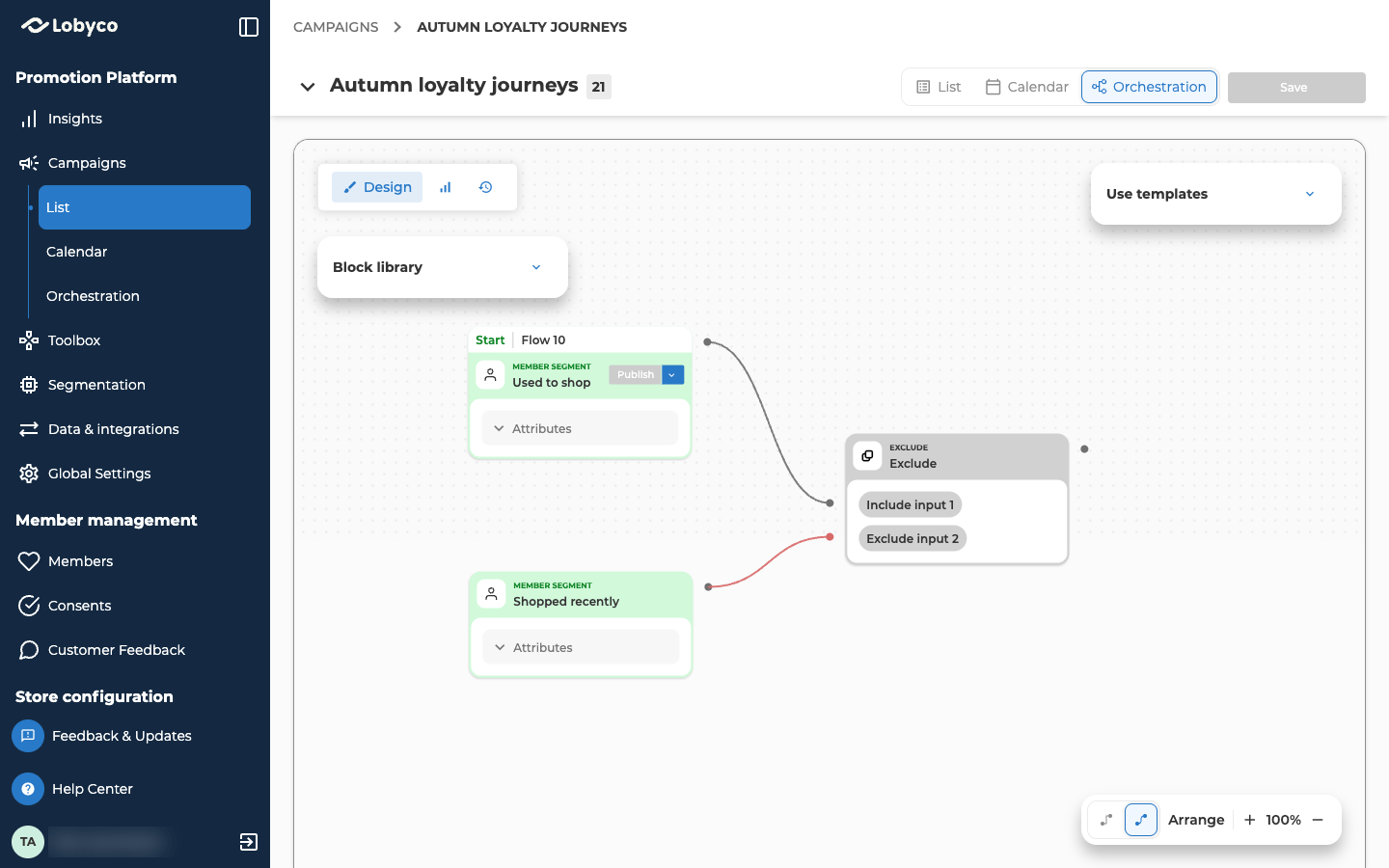
To decide for yourself what counts as lapsed, build it from purchase dates instead. One segment finds customers who used to shop with you, a second finds everyone who shopped recently, and Exclude keeps the first without the second.- In the scheduled Member segment, replace the rule with two from Purchase: Receipt count Greater or equal 2, and Purchase date Between, with Float, From 180 to 61. Name it Used to shop.
- Add a second Member segment, Shopped recently, with Receipt count Greater or equal 1 and Purchase date Between, with Float, From 60 to 0. It doesn’t need a schedule. Once it’s connected, it runs on the first segment’s schedule.
- From Operators, add an Exclude. Connect Used to shop to Include input 1 and Shopped recently to Exclude input 2.
- Connect the Exclude to the Limit (new), in place of the segment.
Related
- Segment attributes explains Recency Frequency M. Value and the Purchase attributes.
- Block reference describes the Limit (new), Exclude and Activity event blocks in full.
- Schedule and run a campaign describes every schedule frequency, and running a flow by hand.
- Give customers a birthday voucher builds the same coupon-and-push ending from a daily segment.