

What you’ll build
A customer plays game 1 first. Once they’ve used today’s attempts on it, game 2 takes its place. The next day, game 1 comes back first, as long as the customer still has attempts left on it.How the app picks a game
Lobyco gives your app the games each customer can play right now, in order of Game priority. 1 is the highest. The two games don’t have to be in the same campaign. Priority compares every game that’s live for the customer. A game leaves a customer’s list as soon as they can’t play it any more. That happens when the customer has done one of these.- Used all their Attempts per day for today. The game comes back the next day.
- Used all their Total attempts. The game doesn’t come back.
- Won as many times as Allowed wins allows. The game doesn’t come back.
Settings
Attempts per day can’t be higher than Total attempts. Create a game describes every field on the form.
Create the first game
Open the campaign and select Add activity. Select the Game tile, then From scratch. On Activity details, set Game priority to 1. Fill in the rest of the game as described in Create a game.Set how often customers can play
Open Activity behaviour. In the Gameplay panel, paste the gameplay’s Live URL into Game URL. Create a game explains where to copy it. Then set Attempts per day to 2 and Total attempts to 10. Under Winner draw, leave Enable lottery draw (not recommended for luck-based games) unticked. Set Allowed wins to 1. Set Win rate to how many plays there are for each win, on average, such as 5. A lottery game has no Allowed wins, so a customer only moves on from it once their attempts are used.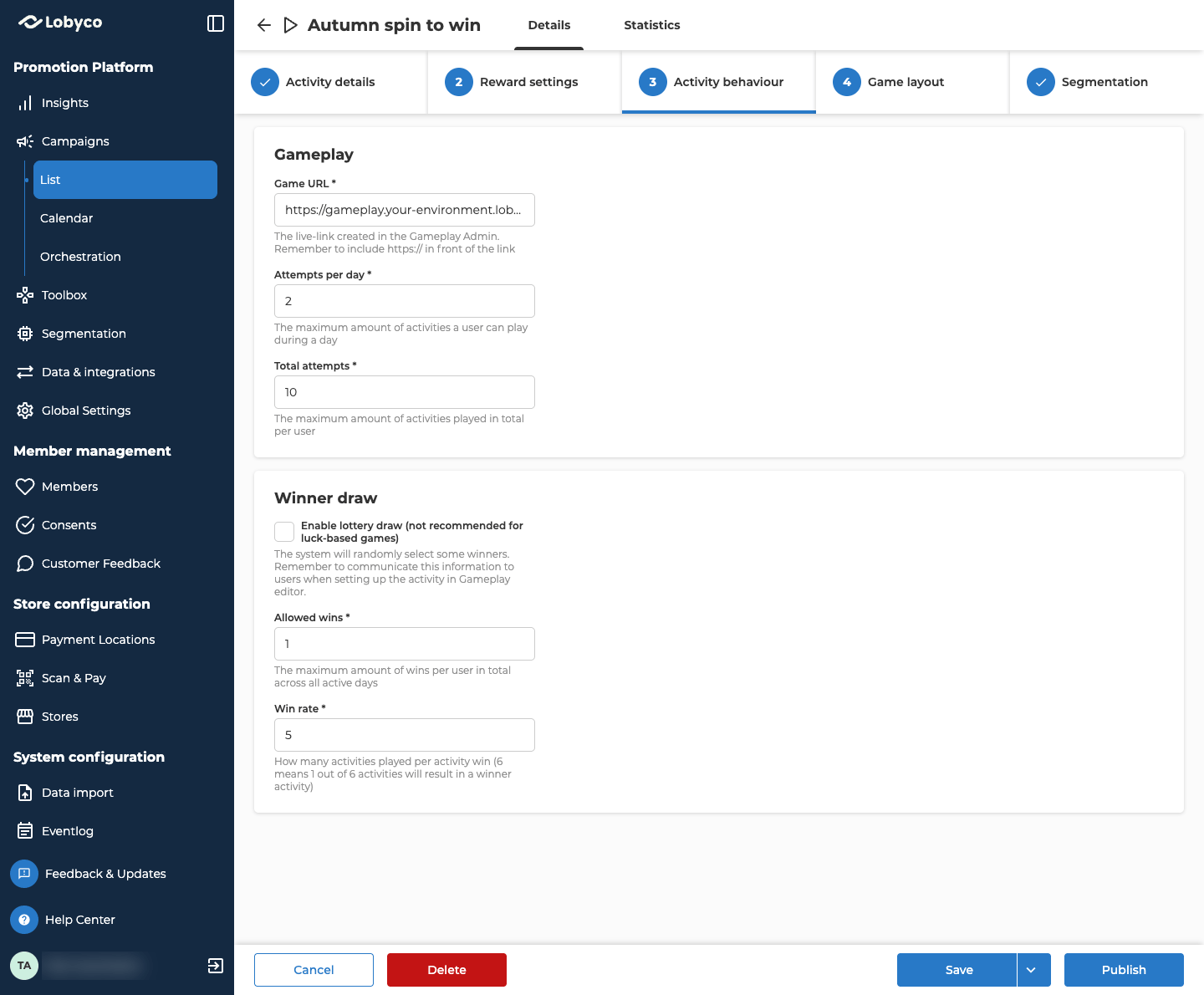
Create the second game
Add a second game the same way. Give it the same Start date and End date, and set Game priority to 2. On Activity behaviour, set Attempts per day to 1, Total attempts to 5 and Allowed wins to 1. Fill in Game URL and Win rate the same way as on the first game.Check who can play each game
Open Segmentation on both games. A customer only sees a game they’re allowed to play. If game 2 targets an audience the customer isn’t in, game 1 is the only game they ever see.Publish both games
Select Publish on each game and confirm. Each one goes live straight away, or on its start date if that’s later. You’ll know it worked when both show as Scheduled or Active in the campaign’s list.Check the result
Use a test customer in your app.- Play game 1 twice. The app then shows game 2, or moves game 2 to the top of its list.
- Open game 1 and select Statistics. Under Filters, enter the test customer’s member ID in Membership IDs and select Apply. The table shows their two attempts.
- Do the same on game 2. Its attempts start after the second attempt on game 1.
Variation: show game 2 once game 1 is used up
Set game 1’s Attempts per day to the same number as its Total attempts. Customers then see game 2 only once they’ve used every attempt on game 1, or won it as many times as Allowed wins allows.Variation: a triggered second game
If game 2 is triggered from the orchestration canvas, it only shows to customers the flow has given a play. They can’t play it more often than the plays they’ve been given, whatever Attempts per day says.Related
- Create a game covers the game form, including Game priority and attempts.
- Game statistics explains the Statistics tab and its filters.
- Reward a challenge with a game play gives customers a play of a triggered game.