

Before you start, publish the gameplay in Gameplay design and copy its Live URL. The gameplay is what customers play. Design a game explains how.
Add a game to your campaign
- Go to Campaigns and open the campaign, or create a new one.
- Select Add activity.
- Select the Game tile, then From scratch. To start from a saved game, select From template instead. See Reuse with templates.
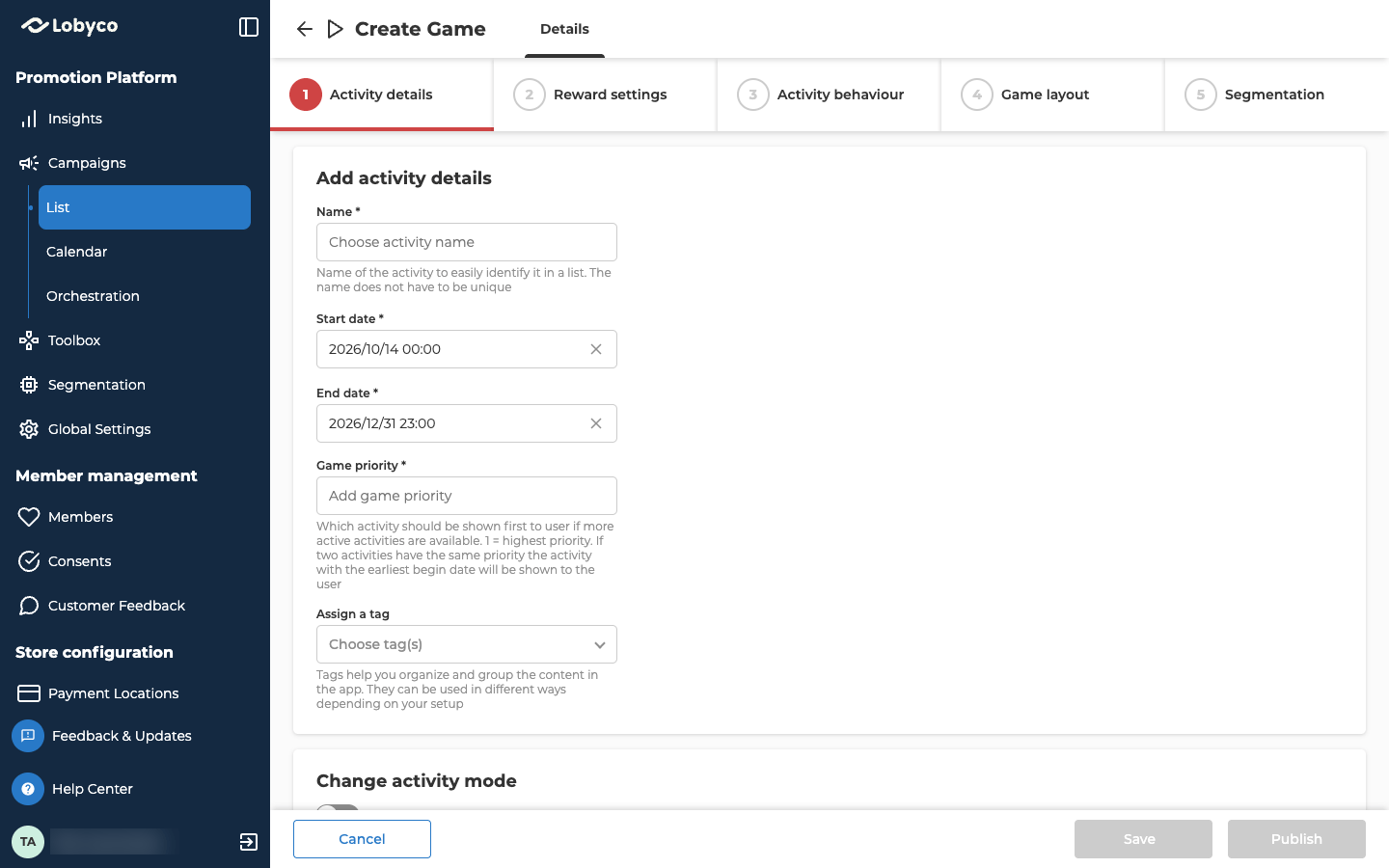
Fill in Activity details
Silent Stop, under Change activity mode, lets customers keep playing while nobody wins. Use it for a short while to fix a problem with the rewards, such as a prize that has run out.
Starting the game from a block on the canvas? See Games started by a block.
Choose the rewards
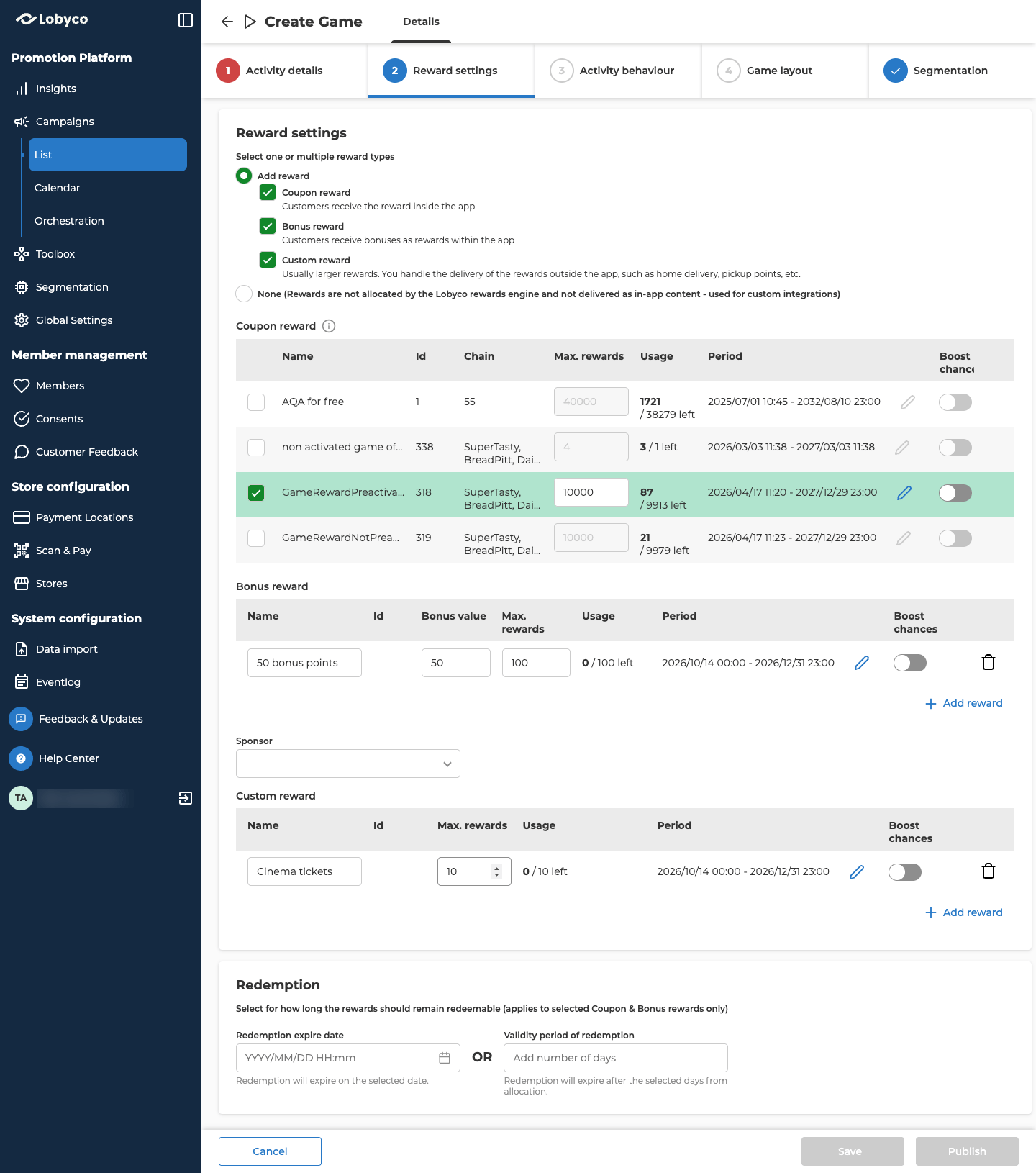
Open Reward settings. None is selected to start with, so the game gives out nothing through Lobyco. Keep it only when your own system hands out the prizes. The game still decides who wins. Otherwise, select Add reward and tick one or more reward types.
You can mix them. Each win gets a reward picked at random, and a reward with more items left is more likely to be picked. A game with several rewards needs a winning screen for each one in its gameplay. Show each winner the right reward explains how.
Fill in the reward tables
Coupon reward lists the published Game offers whose dates cover the whole game. Each row shows the offer’s name, its ID and the chains where the coupon can be used. Tick each coupon you want, and set its Max. rewards, how many the game can give out. Usage shows how many have been given out and how many are left.- Match the offer to the game. The offer has to run for the game’s dates plus the days winners get to redeem. A game from 1 to 7 February with 3 redemption days needs an offer that runs to at least 10 February. See Set how long winners have to use the reward.
- Use each offer in one game only. If two games use the same offer, they share its coupons and its Usage count.
- Plan for a surplus. Max. rewards counts coupons given out, not coupons redeemed. Not every winner redeems, so set Max. rewards higher than the number of coupons you expect to be redeemed.
Set when each reward can be won
Every reward has a Period, the time when it can be won. A coupon’s period starts out as its offer’s dates. A bonus or custom reward’s period starts out as the game’s dates. To shorten it, select the pencil icon in Period and pick dates inside the game’s dates. Reset puts the original period back. Once every reward has reached its Max. rewards, customers can still play, but every play loses. You can raise Max. rewards while the game is running, for example to add prizes a supplier has funded. To spread the prizes over the game, give each reward its own Period. At every moment of the game, at least one reward has to be available. If there’s a gap, a red bar under the tabs shows the dates with no reward. You can save, but you can’t publish until you close the gap.Boost a reward
This step is optional. Every row in the three reward tables has a Boost chances switch. On a coupon row, the switch only works once you’ve ticked the coupon. Turn it on for a reward you don’t want left over, such as a few big prizes. A boosted reward gets more likely to be picked as its period goes on. In its last hour, or the last 5% of its period if that’s longer, it’s picked before any other reward. If several rewards are boosted, they share that final stretch, and the one with more items left is more likely to go first. A boosted reward isn’t guaranteed to be given out. That depends on the game’s length, how many customers play, the win rate and the other boosted rewards, so a big prize can still be left over. Boosting changes which reward a winner gets, not how often customers win. It only makes a difference when some rewards are boosted and others aren’t. If you boost them all, they’re picked as if none were boosted.Set how long winners have to use the reward
For coupon and bonus rewards, the Redemption panel sets when the reward expires. You can fill in only one of its two fields.- Redemption expire date is the date the reward expires. It has to be on or after the game’s end date.
- Validity period of redemption is how many days the customer has to use the reward after they win it.
Set how the game plays
Open Activity behaviour and fill in the Gameplay panel.
Under it, Winner draw decides how winners are picked. To start with, customers find out straight away whether they’ve won, and you set two fields.
Wins can come in a row, or a long gap can pass between them. Tell customers in the gameplay that winning is down to chance.
A win only counts once the customer finishes the play in the gameplay. If they win a reward and leave before finishing, they can pick the same play up again that day. From the next day the win is gone, and the unfinished play doesn’t use up one of their attempts. Make the gameplay show a clear finish, so customers don’t leave before it.
To draw the winners after the game ends instead, tick Enable lottery draw (not recommended for luck-based games). Allowed wins and Win rate then go away. You can’t switch the lottery on or off once the game has started.
In a lottery game, every finished play is an entry in the draw. Who can win explains how that works for luck games, which is why the lottery isn’t recommended for them.
Tell customers in the gameplay that the winners are drawn later. You draw them on the game’s Lottery tab once the game ends, as Draw lottery winners explains.
Add the game’s image
This step only applies if your form has a Game layout tab. Open it. Image is optional. It’s the picture on the game’s card in the app. A game made from a template keeps the template’s image. Choose Image to upload a .png or .jpg file of up to 2 MB, or URL to paste a link to one. The app may crop the image, so keep the important part in the middle and text away from the edges. Use the highest resolution you have.Choose who can play
Open Segmentation. All members lets every customer play, and is selected to start with. To limit the game, choose Target only selected segments, then one of these:- Select Audience picks saved audiences. Use Select from list to pick one, or Create new audience to make one. The list only shows audiences whose Destination(s) include games. You build audiences in Audiences & Data.
- Select Snapshots picks a snapshot instead. A snapshot is a copy of an audience at one moment, so its customers don’t change. Pick one when the players have to stay the same for the whole game.
Games started by a block
A Game block on the campaign’s Orchestration canvas opens the same form. A game is triggered when another block, such as a segment or a Delay, connects into its Game block. Each customer that block passes on gets a play. Block reference shows which blocks can connect. To make one, start on the canvas instead of with Add activity. Connect the block before you first save. After that, connecting or removing a block doesn’t change whether the game is triggered. To start the game from outside Lobyco, such as from your CRM, add an Inbound API block to the canvas. A triggered game has an Add triggered details panel on this tab:- Validity period of game is how many days a customer has to use a play. Leave it empty to give them until the game ends.
- Time between games issued and Specify timeframe set how long before the same customer can get another play. Enter a number, then pick Day(s), Week(s), Month(s) or Year(s). For example, a segment that runs every night picks the same customer every night. To give them the game at most once a month, set Time between games issued to 1 and Specify timeframe to Month(s).
Save or publish the game
- Save keeps the game as a draft. It needs a name and its dates.
- Publish needs a tick on every tab and no gap in the reward periods. Select Publish again to confirm.
Test before customers play
Test a new game before you open it to everyone, and check what happens when a customer wins and when they lose.- On Segmentation, limit the game to an audience of test customers. Choose who can play explains how.
- On Activity behaviour, set Win rate to 2, so about every second play wins. Set Allowed wins above 1, so a test customer who wins still sees the game and can lose next.
- Select Publish. The game goes live for the test audience straight away.
- In the app, signed in as a test customer, play the game several times. The first few plays can all lose before wins even out, so keep playing before you decide something is wrong.
- Test wins use up Max. rewards, and the coupons behind them. Raise Max. rewards again, set the real Win rate, put Allowed wins back, and widen who can play.
Troubleshooting
Why is a coupon missing from the coupon list?
Why is a coupon missing from the coupon list?
Check that the offer is a published Game offer, and that its dates cover the game’s from start to end. The list stays empty until the game has both dates.
Why is there no Game layout tab?
Why is there no Game layout tab?
Lobyco switches Game layout on per portal. It lets you add a picture to the game’s card in the app. Contact Lobyco support and ask them to switch it on for your portal.
Why is Publish greyed out?
Why is Publish greyed out?
Look for a tab whose number is red. If every tab has a tick, look for a red bar under the tabs about a gap in the reward periods. Set when each reward can be won explains how to close it.
Why does the game show a red bar about its URL?
Why does the game show a red bar about its URL?
The Game URL on Activity behaviour doesn’t match a gameplay in Gameplay design. In Gameplay design, copy the gameplay’s Live URL again. Paste it into Game URL, and save the game.
Why does the game show a red bar about its dates?
Why does the game show a red bar about its dates?
The gameplay’s period in Gameplay design is shorter than the game’s dates. Set the game period explains how to change it. The bar doesn’t stop you publishing, so fix it before the game starts.
Related
- Design a game — design the gameplay, and get the link this form needs.
- Draw lottery winners — pick the winners of a game with the lottery draw on.
- Game statistics — what the Statistics tab shows for a game.
- Offer types — what a Game offer is, and how its coupons reach customers.
- Reuse with templates — start a new game from a saved one.