

The Lottery tab only shows on a game with Enable lottery draw (not recommended for luck-based games) ticked, once its end date has passed. You tick it when you create the game. Only a published game can be drawn, so publish the game before it ends.
Draw the winners
- Open the game from its campaign and select Lottery, beside Details and Statistics. The tab shows how many customers played. There’s no deadline for the draw.
- Select Draw winners.
- In Winner to draw, enter how many winners you want, as a whole number of 1 or more.
- Select Draw.
Who can win
Each time a customer plays the game is one attempt. Each attempt a customer finished with a win is one entry in the draw. Attempts that ended in a loss, or that the customer didn’t finish, aren’t entries. In a lottery game, every finished attempt is a win unless the gameplay decides the customer lost, for example on a wrong quiz answer. A luck game never decides that, so everyone who finishes a luck game gets an entry. A customer with more entries has more chances, but can only be drawn once. If fewer customers have an entry than you asked for, you get fewer winners. The number on the tab counts everyone who played, not entries. If nobody has an entry, nobody is drawn, and the tab stays as it was.Which prize each winner gets
Each winner gets one of the game’s rewards, starting with the reward that has the fewest left. For example, with 5 concert tickets and 100 T-shirts, 5 winners get a ticket and the rest get a T-shirt. You can’t choose which winner gets which prize. If you draw fewer winners than there are rewards, the reward with the most items left may not be used up. To give out every reward, draw at least as many winners as there are rewards left. You can’t draw more winners than there are rewards left. If you try, the draw fails with an error and no winners are drawn. Try again with fewer winners. A game with no rewards can still be drawn. Its winners then get no reward.Check the winners
The Winners tab lists everyone who was drawn.
To find one customer, use Search for member ID.
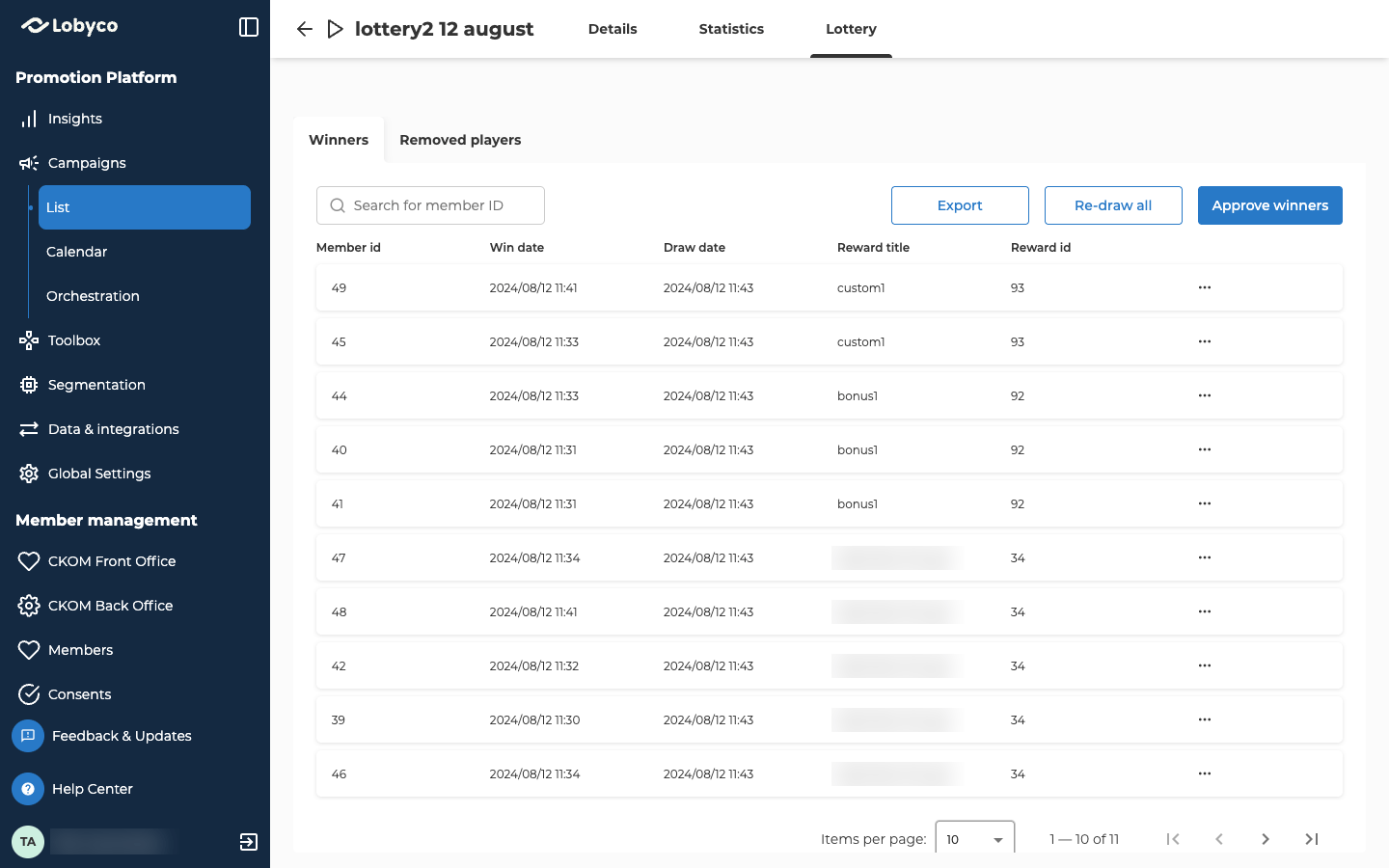
Replace a winner who can’t take part
Remove a winner who isn’t allowed to win, such as an employee the lottery’s rules exclude.- Open the ⋯ menu on the winner’s row and select Remove & replace member.
- Enter the reason in Specify reason. It’s kept with the lottery as the record of why you removed the winner, so write one you can explain later.
- Select Draw new winner.
Re-draw, if you need to
Re-draw all runs the whole draw again, for example with a different number of winners.- Select Re-draw all.
- In Winner to draw, enter how many winners you want.
- Select Re-draw.
Approve the winners
- Select Approve winners.
- Select Continue to confirm.
Troubleshooting
Why is Draw winners greyed out?
Why is Draw winners greyed out?
Nobody played the game. The tab then says 0 users participated.
Why does the draw fail with an error?
Why does the draw fail with an error?
Check these two things:
- You asked for more winners than there are rewards left. Try again with fewer winners.
- The game is a draft. Only a published game can be drawn, and a draft can’t be published once its end date has passed. Contact Lobyco support.
Related
- Create a game — turning on the lottery draw and setting up the rewards.
- Game statistics — how many customers played, and every attempt they made.