

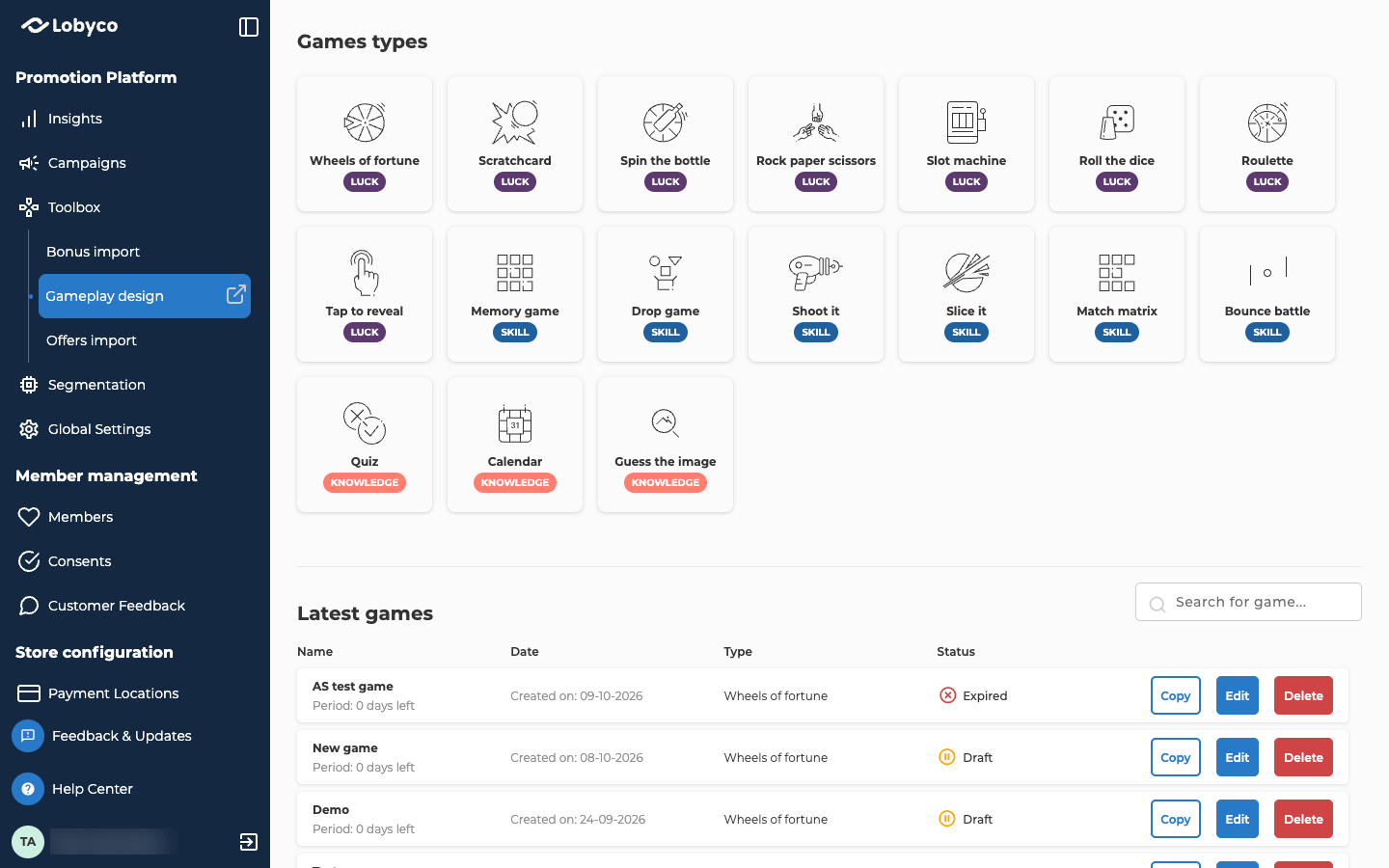
Open the game type
- Open Toolbox → Gameplay design. If you don’t see it, ask your administrator for access.
- Select the card for the game type you want. Game types lists them all.
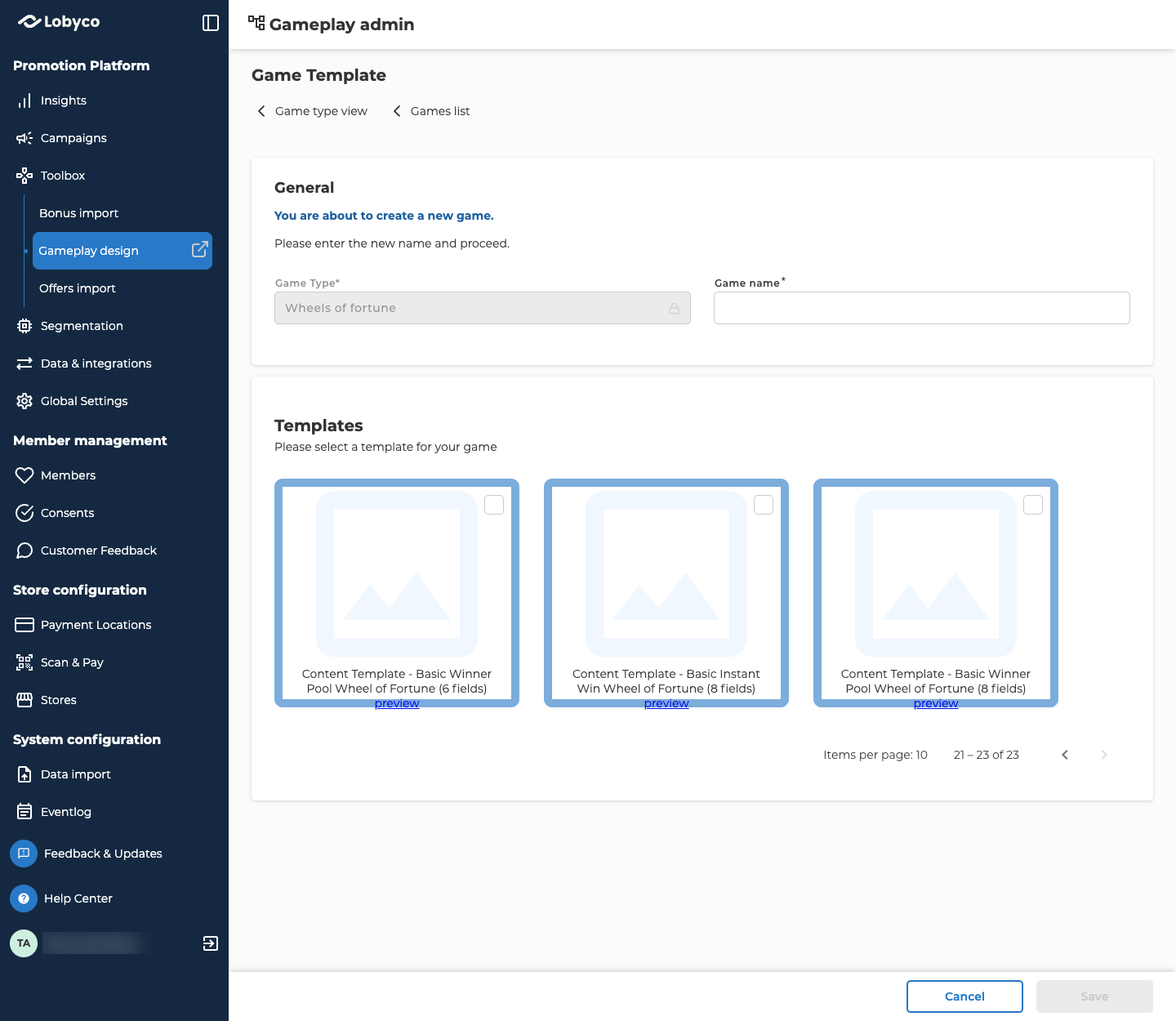
Start from a template
Every new gameplay is a copy of a template.- Select Create new.
- Enter a Game name.
- Under Templates, tick the one to copy. Select preview under a template to try it in a new tab.
- Select Save.
Design the gameplay in the Gameplay Editor
At the top of Game Setting, select Go to Gameplay Editor. The editor opens in a new browser tab. That’s where you change how the gameplay looks and what it says, such as a quiz’s questions. Gameplay design opens a Refresh dialog at the same time. Select Refresh there when you’ve finished, and customers see your changes straight away. Otherwise they update on their own within 24 hours. You can also refresh from the top of Game Setting, once every 5 minutes at most.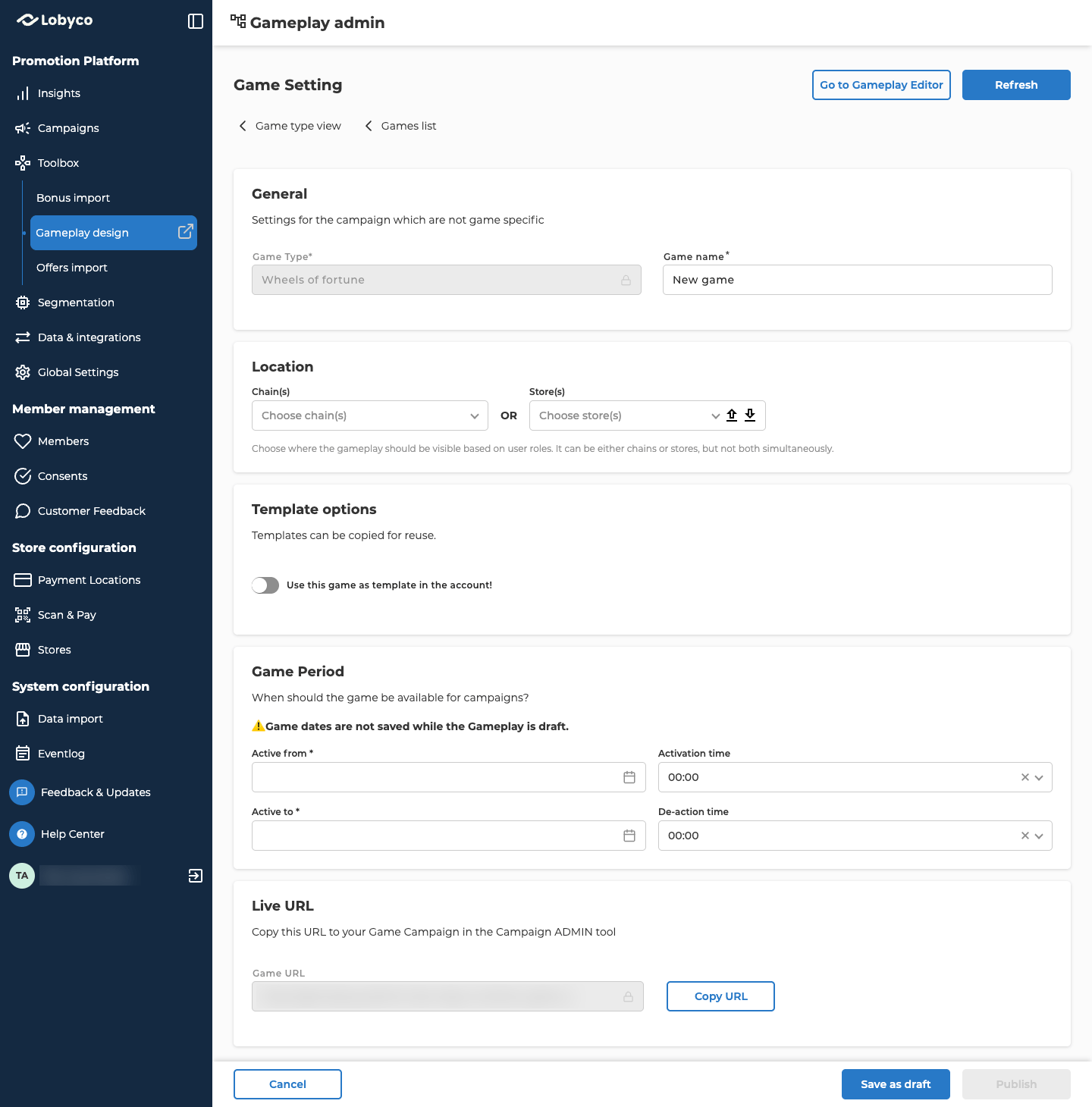
Show each winner the right reward
Skip this if your game has one reward, or if it’s a lottery game. In a lottery game, Lobyco picks the winners after the game ends, so no reward is chosen while the customer plays. When a customer wins a game with several rewards, Lobyco picks one of them at random and sends the gameplay its reward ID. A reward with more items left is more likely to be picked, and you can’t set the split yourself. Create a game explains how. The gameplay can only tell which reward the customer won from that reward ID. So it needs a winning screen for each reward, and each screen has to show only to the winners of that reward. If the gameplay has only one winning screen, every winner sees the same reward on it, even when they won a different one. Find each reward ID in the Id column of the reward’s table on the game’s Reward settings tab. Bonus and custom rewards get their ID when you save the game. Give the IDs to whoever designs the gameplay in the Gameplay Editor, and ask them to show each winning screen to the winners of that reward. To check it worked, play the live game until you’ve won each reward once, and see that every win shows the matching screen. Each win uses up one item of that reward.Set the location and template options
Both are optional.- In the Location panel, Chain(s) or Store(s) saves chains or stores with the gameplay. Pick one or the other. It doesn’t limit who can play. You choose who can play on the game’s Segmentation tab, in its campaign.
- In the Template options panel, Use this game as template in the account! offers this gameplay as a template for new gameplays of its type. It then shows on the type’s Templates tab. When you turn it on, a Template Identifier Image field appears. That’s the picture on the template’s card. It’s required, and you upload a .jpg, .jpeg or .png file.
Set the game period
Set Active from and Activation time for when the gameplay starts. Set Active to and De-action time for when it stops, after the start. All four are required to publish. If you save a draft, the dates aren’t kept, so fill them in again before you publish. Make the period at least as long as your game in the campaign. It has to start no later than the game and end no earlier. Otherwise the game shows a red bar about its dates in its campaign.Publish the gameplay
Select Publish. It stays greyed out until the dates are filled in, and the Template Identifier Image too if you made it a template. Until you publish, Save as draft keeps your changes without the dates. After you publish, the button reads Save. In the type’s list, the gameplay shows as Scheduled until its start, then Active, then Expired. A published gameplay can’t go back to being a draft. Publishing doesn’t put anything in the app. Customers only reach the gameplay through a game in a campaign, once that game is live.Link the gameplay to your game
- In the type’s list, select Edit on your gameplay.
- Under Live URL, select Copy URL.
- In Campaigns, open the game in its campaign, or add a game.
- On its Activity behaviour tab, paste the link into Game URL.
Change, copy or delete a gameplay
Each row in a type’s list has three buttons.Troubleshooting
Why is Save greyed out when I create a gameplay?
Why is Save greyed out when I create a gameplay?
Enter a Game name that isn’t only spaces, and tick one of the Templates.
Why don't my changes from the Gameplay Editor show?
Why don't my changes from the Gameplay Editor show?
Select Refresh at the top of Game Setting. Without it, changes take up to 24 hours to reach customers.
Why does my game say its dates don't match the gameplay?
Why does my game say its dates don't match the gameplay?
The gameplay’s period is shorter than the game’s dates in its campaign. Select Edit on the gameplay, move Active from earlier or Active to later, and select Save.
Related
- Game types — the 17 types and how to preview one before you choose.
- Create a game — run the game for your customers in a campaign, with its rewards and win rate.