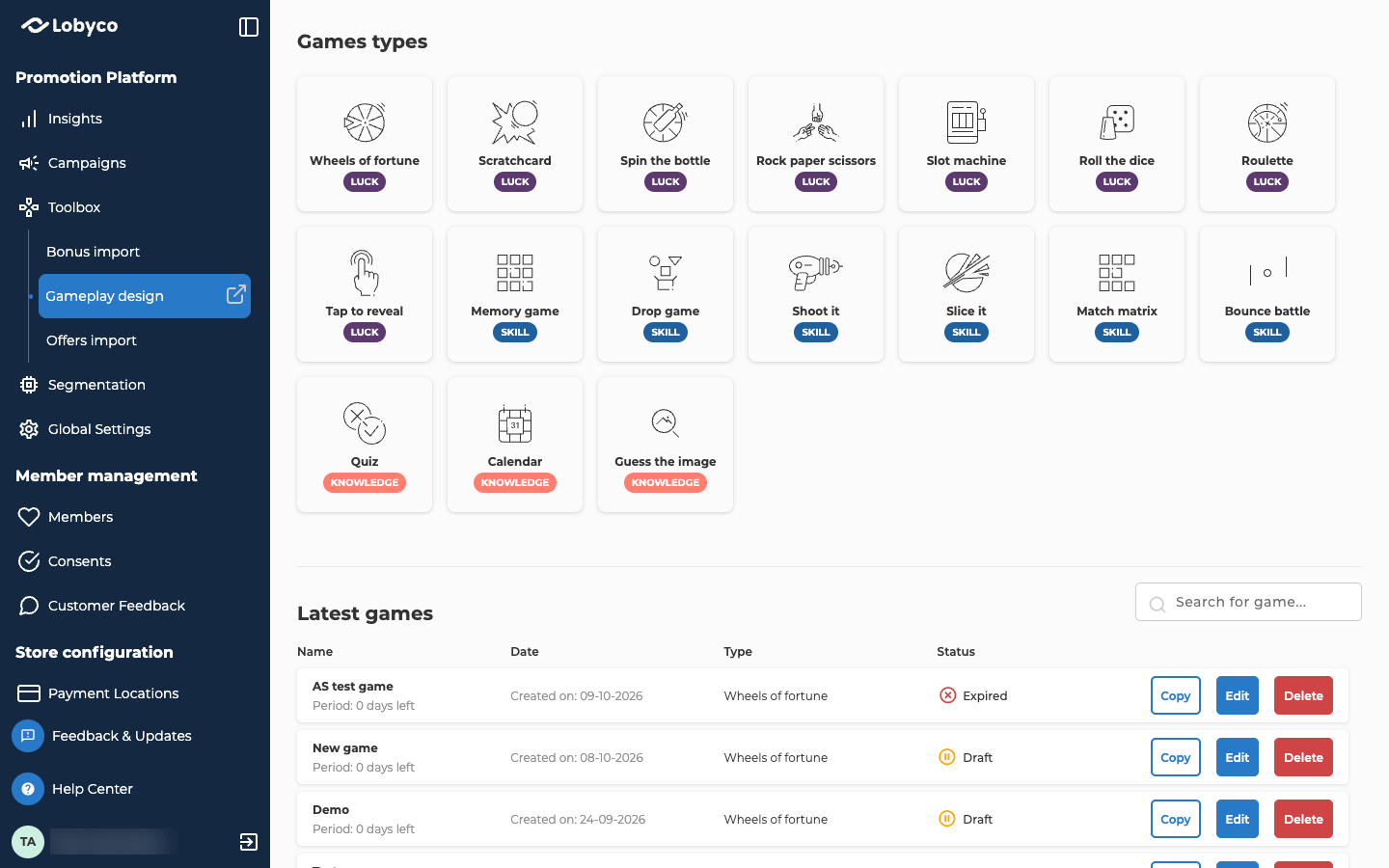
The 17 game types in Gameplay design, what customers do in each, and how to preview one before you choose.
The game type decides what kind of gameplay your customers play, such as a scratchcard or a quiz. You pick it first when you design the gameplay, and you can’t change it afterwards.
Luck games copy games people know from real life, like spinning a wheel or scratching a card. They’re quick to understand and take little effort, so they suit giving out coupons to many customers.
Game type
What customers do
Wheels of fortune
Spin a wheel to see if they’ve won.
Scratchcard
Scratch fields to reveal whether they’ve won.
Spin the bottle
Spin a bottle in the middle of a wheel, instead of the wheel itself.
Rock paper scissors
Play a round of rock, paper, scissors.
Slot machine
Pull the lever for three matching pictures in a row.
Roll the dice
Shake dice in a cup and roll them onto a table.
Roulette
Guess the number the ball lands on.
Tap to reveal
Tap a chest or another object to see what’s behind it.
A luck game, Wheels of fortune, in Gameplay design and on a phone
The type decides which templates you can start from. Every new gameplay is a copy of a template, and you only see the templates of the type you picked.The type doesn’t change the settings on the Game Setting page. Every type has the same settings there, such as the location and the game period. Design a game takes you through them.The type doesn’t decide who wins either. Lobyco decides whether each play wins before the customer starts playing, from the settings on the game in its campaign, such as its win rate. In a lottery game, you draw the winners once the game ends. See Create a game.The gameplay can still turn a win into a loss. For example, in a game that isn’t a lottery, a customer picked to win loses if they answer a quiz question wrong. In a lottery game, they lose their entry instead. It never works the other way round, so playing well doesn’t win a prize on its own. A right answer in Quiz or Calendar keeps a win, but it never creates one.



![Two views side by side. On the left, the Game Template page in Gameplay design, opened with Create new on the Drop game card: Game Type locked on Drop game, Game name empty, and the first row of templates, [Template] Drop Game football, test with its picture blurred, and Ads - content template, each with a tick box and a preview link. On the right, under the label The same game type, as customers see it, a Drop game on a phone in Lobyco branding. A footballer runs up a green pitch while footballs and yellow cards fall towards him, a +10 shows for a ball he just caught, and the game shows 21 Time left and 7 out of 150 points above an orange Terms & Conditions bar.](https://mintcdn.com/lobyco-4c9fb3ad/rG971_5ZfS49bcjM/images/games-09-drop-game.png?fit=max&auto=format&n=rG971_5ZfS49bcjM&q=85&s=673e4a55a0a2d65646e7c117a6e36abb)
