

Search for the customer
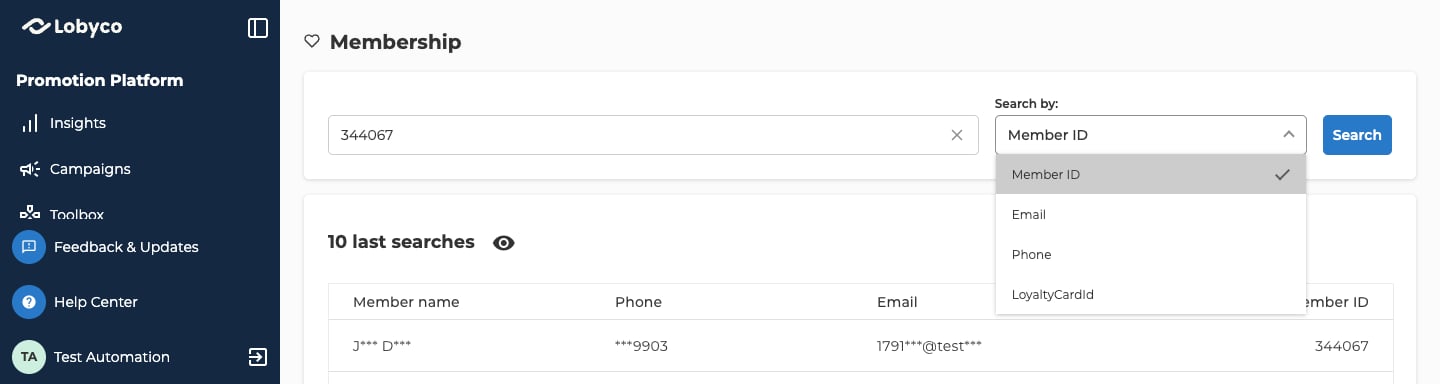
Members calls customers members, so you’ll see Member ID and Search for member on screen. They mean the same thing.- Go to Member management → Members. The page that opens is called Membership.
- Under Search by, pick the kind of value you’ll type, such as Email for an email address. The list can include Member ID, Email, Phone, Personal ID and LoyaltyCardId, depending on how your portal is set up. The portal remembers your last choice.
- Type the whole value in the search field. The search only finds an exact match, so part of an email address or phone number finds nothing.
- Select Search.
Read the top of the customer’s page
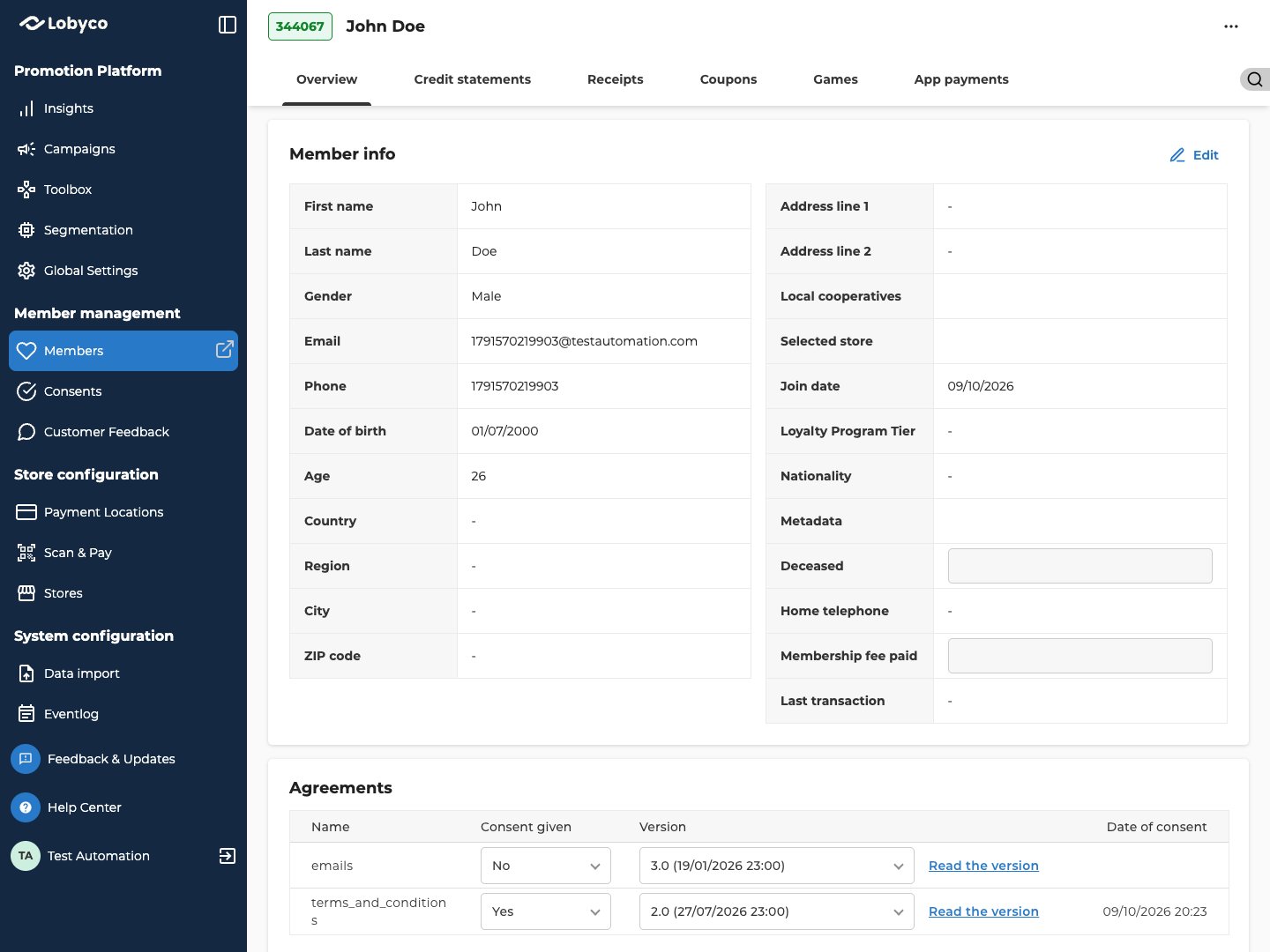
The top of the page shows the customer’s member ID and name. The ID is green when the membership is active and red when it’s blocked. You might also see one of these labels next to the name:
Below the name are the customer’s tabs. They are Overview, Credit statements, Receipts, Coupons, Games and App payments. A tab only shows if your portal has that part set up. For example, there’s no Games tab without games.
To look up someone else without going back, select the magnifying glass at the top right of the page. Search for member opens, with the same search and your last searches.
Check their details on Overview
Overview is the first tab. It’s a set of panels, and a panel only shows if your portal has that part set up.
If your organisation sends Lobyco its own customer data, a Custom Properties section shows it at the bottom of Member info. These are the same attributes you can use under Membership - Custom in Segment attributes. New values can take up to a day to reach segments.
Some portals also have a Linked members panel, which lists customers linked to this one.
Check their other tabs
Receipts, Coupons and Games start with the last month. To see other dates, change Start date and End date on Receipts, Valid from and Valid to on Coupons, or Started at and Finished at on Games. On Receipts, leave Start date empty to go back to the customer’s first purchase. On Coupons, a range of a few months loads faster than a longer one.
On Receipts, select Show more at the bottom to load more receipts. Export on Credit statements and Receipts downloads the list. On Receipts, you choose the columns, and you get a .csv file.
Credit statements, Coupons, Games and App payments also have filters, such as a type or a status, to narrow the list. On Coupons, the filters sit at the top of the columns. On Games, you can filter by Game name and Win status.
Why isn’t a customer’s coupon working? explains every column on Coupons, and how to work out why a coupon didn’t apply.
Block or unblock a customer
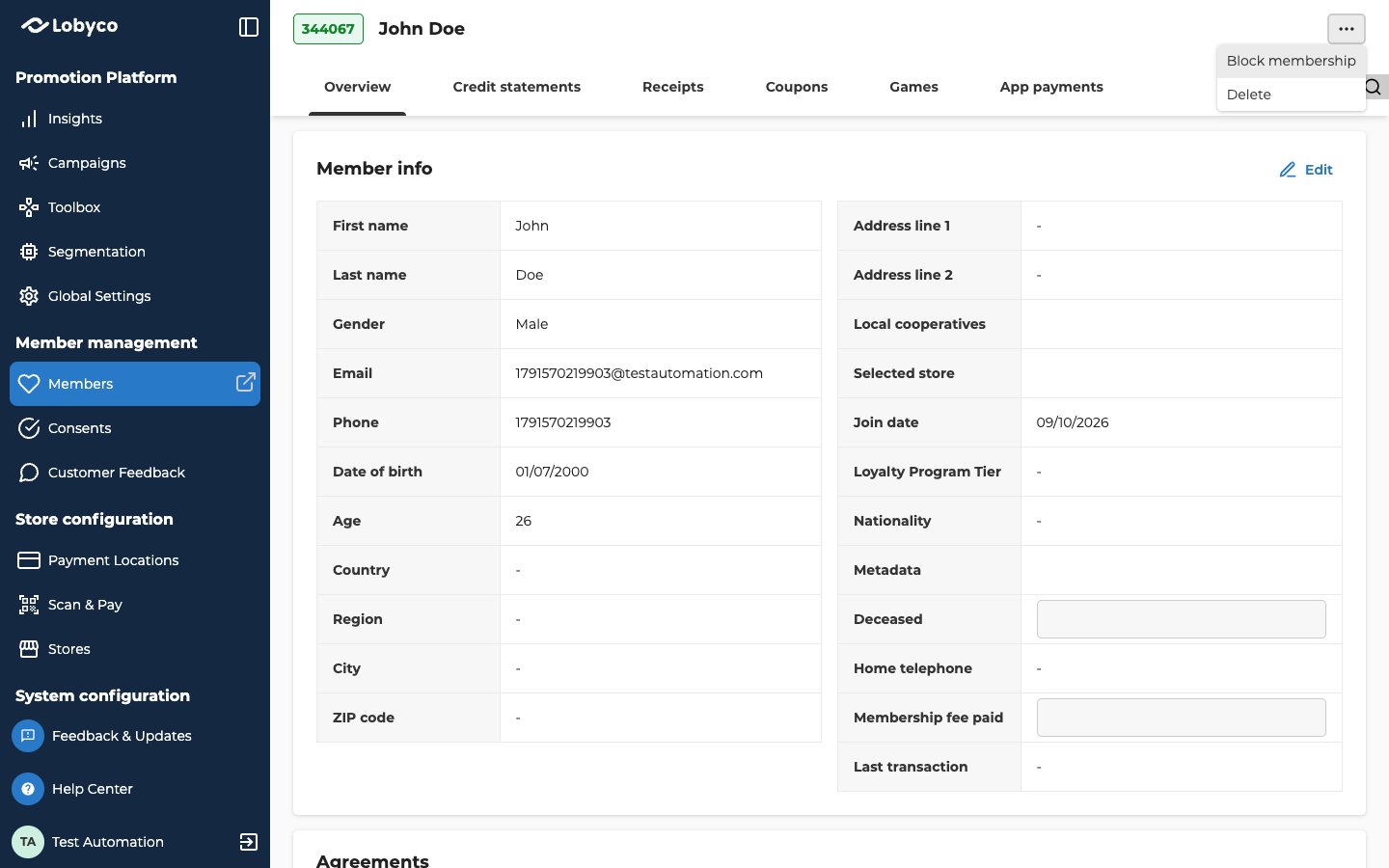
Block a membership to stop a customer using it, for example while you look into misuse. A blocked customer is signed out of the app on every device. They can’t pay with the membership, earn bonus or use bonus until you unblock them.- Open the customer.
- Select … next to their name and choose Block membership.
- Under Add reason to block this member, say why you’re blocking it. You can’t block without a reason.
- Select Block.
Delete a customer
Delete a customer when they ask to have their data removed. Only admin users with full access to Members can delete.- Open the customer.
- Select … next to their name and choose Delete.
- Under Add reason to delete this member, say why. You can’t delete without a reason.
- Select Delete.
Adjust a customer’s balance
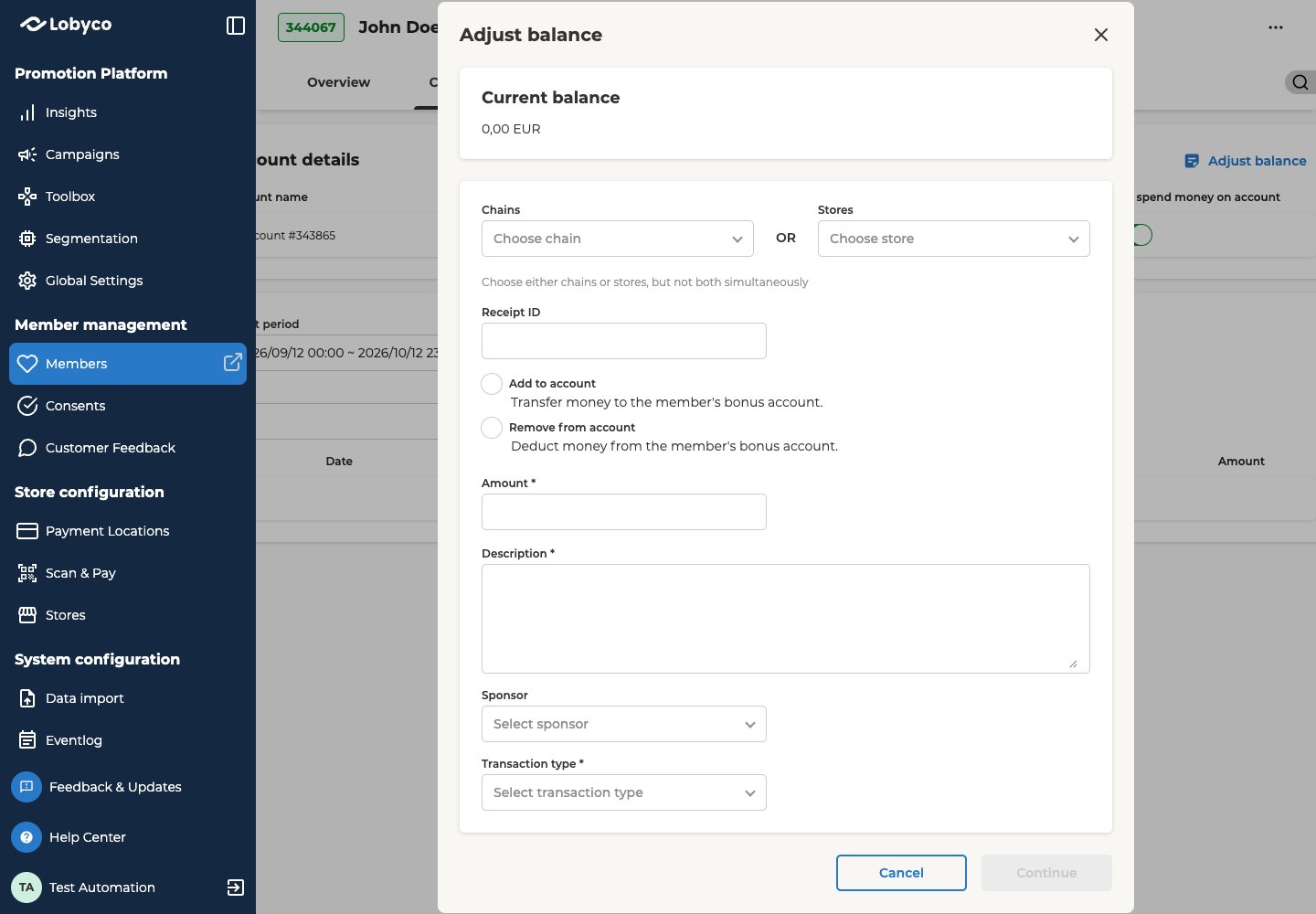
Adjust a balance to add bonus a customer should have got, or to take back bonus they got by mistake. Adjust balance only shows on an active account, and only if your admin user is allowed to change balances. To get that permission, ask whoever manages admin user access in your organisation.- Open the customer and go to Credit statements.
- Under Account details, select Adjust balance. The dialog shows the account’s Current balance.
- Fill in the fields.
- Select Continue. The fields lock so you can check them. To change something, select Go back.
- Select Approve.
Troubleshooting
Why does it say I don't have the required permissions?
Why does it say I don't have the required permissions?
Your access is limited to some customers, for example those of your own stores. The customer you searched for isn’t one of them.
Why is there no … next to the customer's name?
Why is there no … next to the customer's name?
The menu doesn’t show for a deleted customer. It also doesn’t show if your portal isn’t set up to block customers from Members.
Related
- Why isn’t a customer’s coupon working? — read a customer’s coupons and work out why a discount didn’t apply.
- Segment attributes — the customer data you can build segments from, including your own under Membership - Custom.
- Create an audience — make a list of customers from their member IDs.
- Activity statistics — a game’s Statistics tab, with every customer’s attempts on that game.