

Open the Consents screen
- Sign in to Lobyco Nexus.
- In the side menu, under Member management, click Consents.
Find a consent
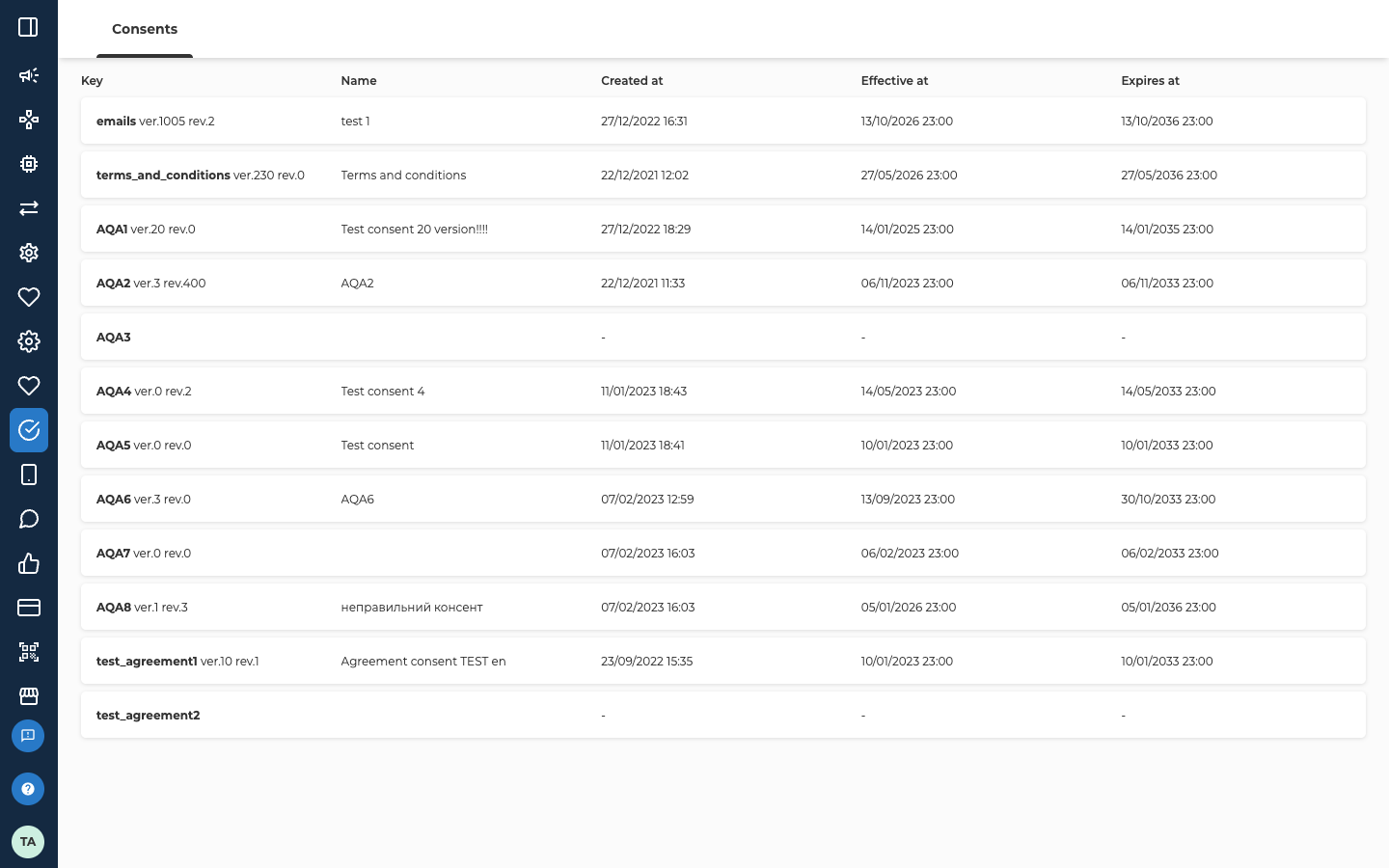
A row with a key and dashes in every other column has no version that customers are offered at the moment. Either the consent has no version yet, or all its versions are deactivated, expired or not yet effective. Click the row to see which. If it has no version yet, create its first version. If its versions are all deactivated or expired, nothing shows below the versions when it opens. Click one of the versions, then create a new version from it to offer the consent again.
Click a row to open that consent.
Read the versions
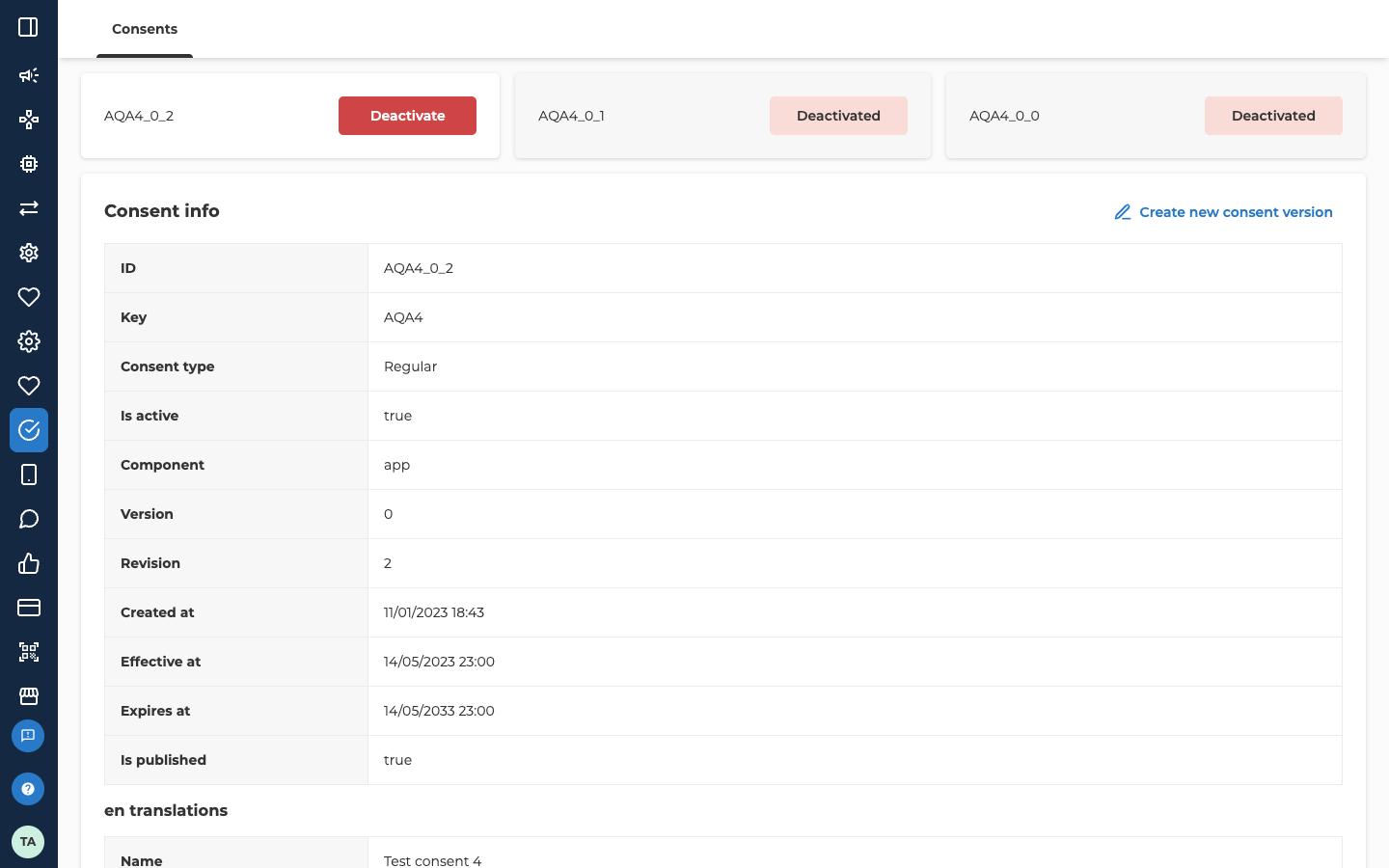
- Ineffective means its Effective at date is still in the future, so customers aren’t offered it yet.
- Expired means its Expires at date has passed, so customers are no longer offered it.
- Deactivated means someone deactivated it. You see this only with the consent admin role.
Create a new version
Use this when the wording, the name or the dates of a consent change. You can’t edit a version in place. Every save adds a new version on top of the newest one, whichever version you had open, and the older versions stay as they are.- Open the consent from the list.
- Click Create new consent version. The details turn into a form and nothing is saved yet.
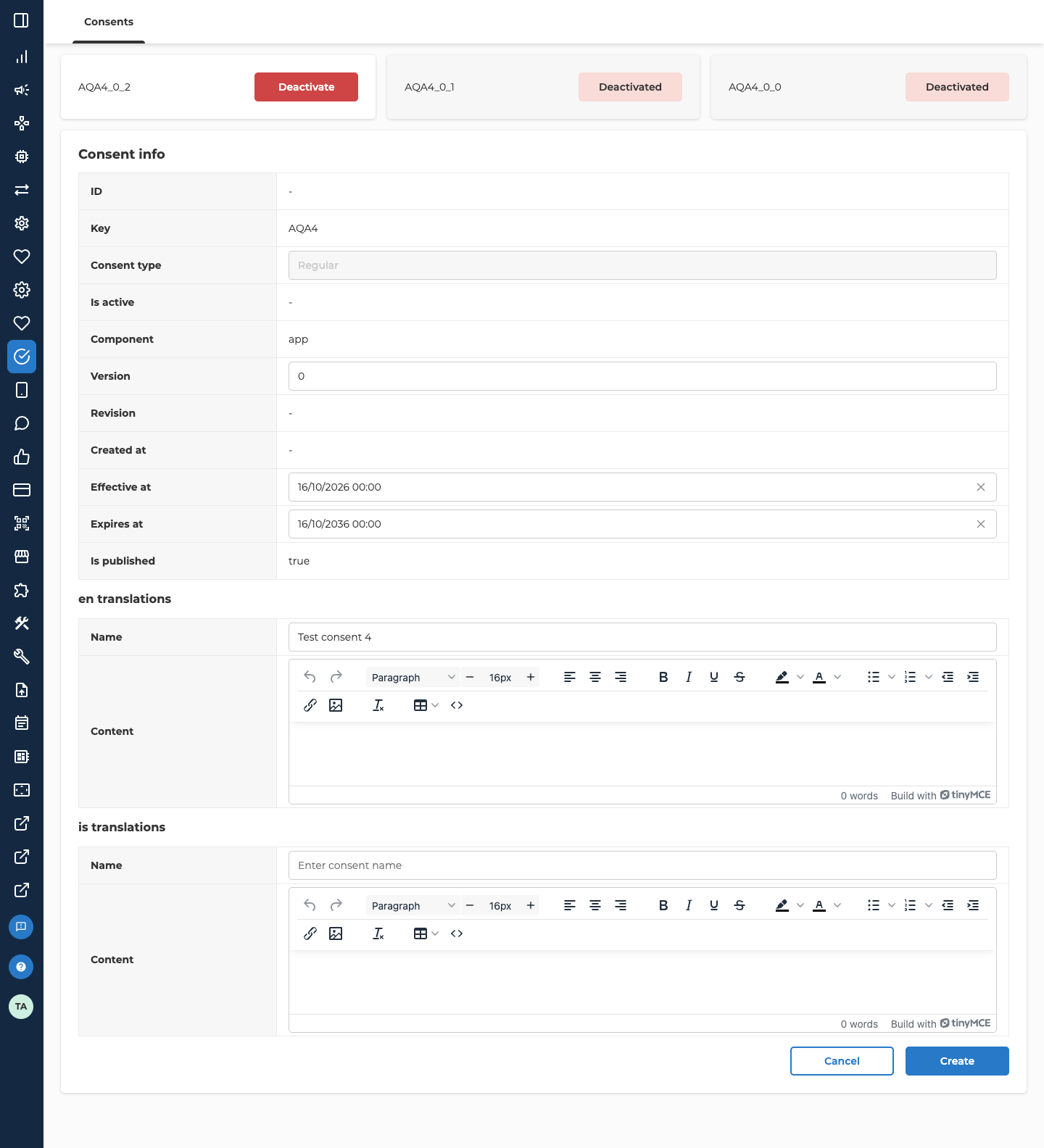
- Change what needs changing.
Name and Content start as those of the version you had open. Effective at always starts as today at 00:00 and Expires at as ten years from today. They don’t copy the dates of the version you had open, so check both before you save.
- Click Create.
Create the first version of a consent
Use this for a consent that has no version at all. In the list it shows dashes, and when you click its row no versions are listed and the Consent info form opens straight away. If versions are listed instead, the consent already has versions. Click one and use Create a new version. Fill it in the same way as a new version, with two differences. Consent type is open: pick Regular if customers can withdraw it later, or Agreement if they can’t once they accept. The Consent page explains the two types. You can’t change it afterwards, so decide first. And there is no Cancel button: click Create to save, or leave the screen. After you click Create, the form closes and the first version appears in the versions. Back in the list, the row now shows the key’s version, name and dates.Deactivate a version
Use this when customers shouldn’t be offered a version any more, for example because it has an error.- Open the consent from the list.
- Next to the version you want to remove, click Deactivate. A dialog titled Deactivate consent asks whether you are sure you want to deactivate that version’s ID.
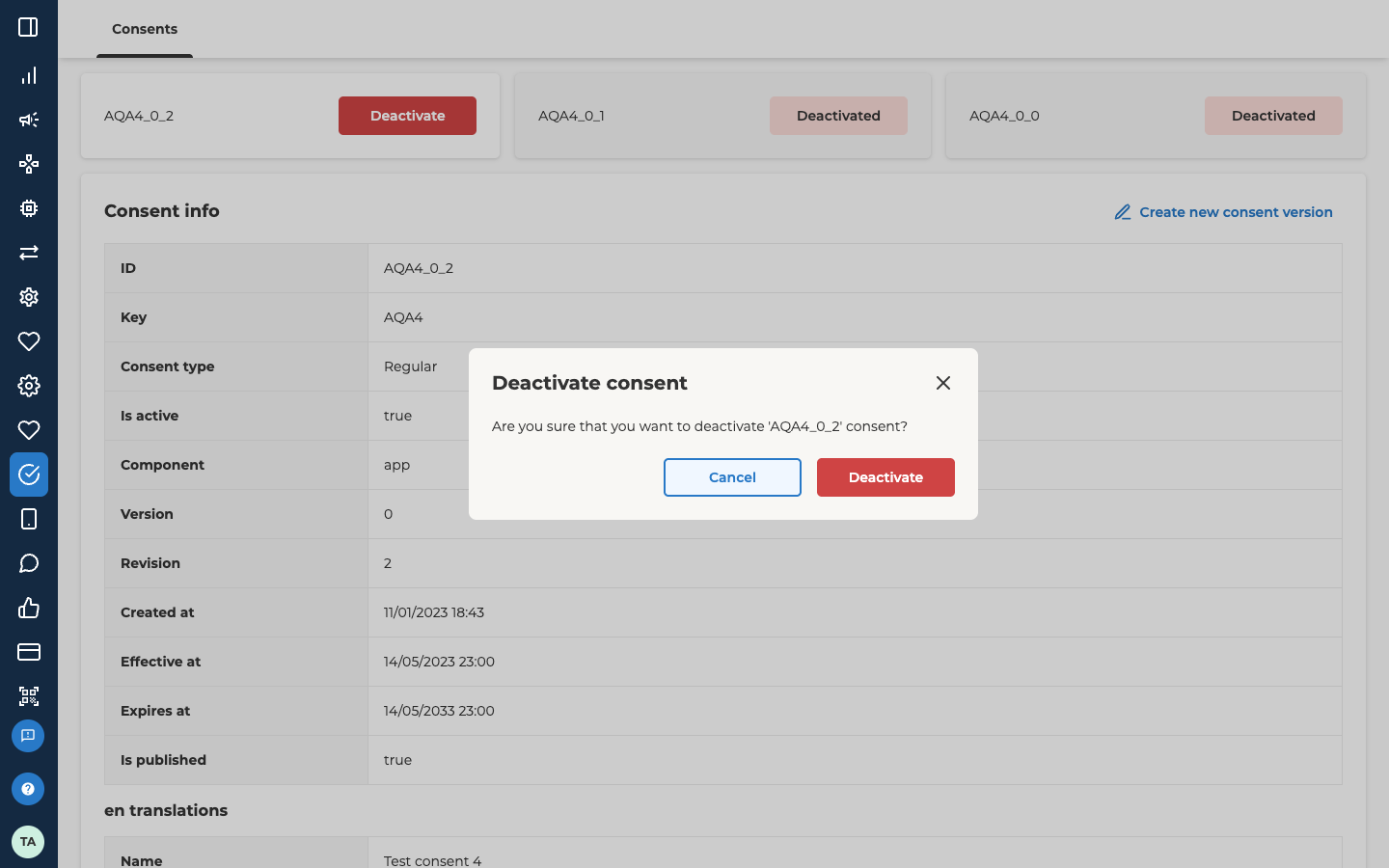
- Click Deactivate in the dialog. To change your mind, click Cancel.
Troubleshooting
Why can't I see Create new consent version or Deactivate?
Why can't I see Create new consent version or Deactivate?
Your admin user has the consent reader role, which is read-only. Ask an admin to give you the consent admin role.
Why can't I add a new consent key?
Why can't I add a new consent key?
The screen has no search box, filter or button for adding a key. Lobyco sets up the keys your portal can use, and you add versions to them. Contact Lobyco support to have a new key set up.
Why does Create show an error under Expires at?
Why does Create show an error under Expires at?
Expires at must be later than Effective at. Move one of the dates and click Create again.
Related
- Consent explains consent types, versions and soft deletion for developers.
- Nexus roles lists the consent reader and consent admin roles.