

Open App configuration
- In the left panel of Lobyco Nexus, open Global Settings. It sits in the Promotion Platform group.
- Select the App configuration tab.
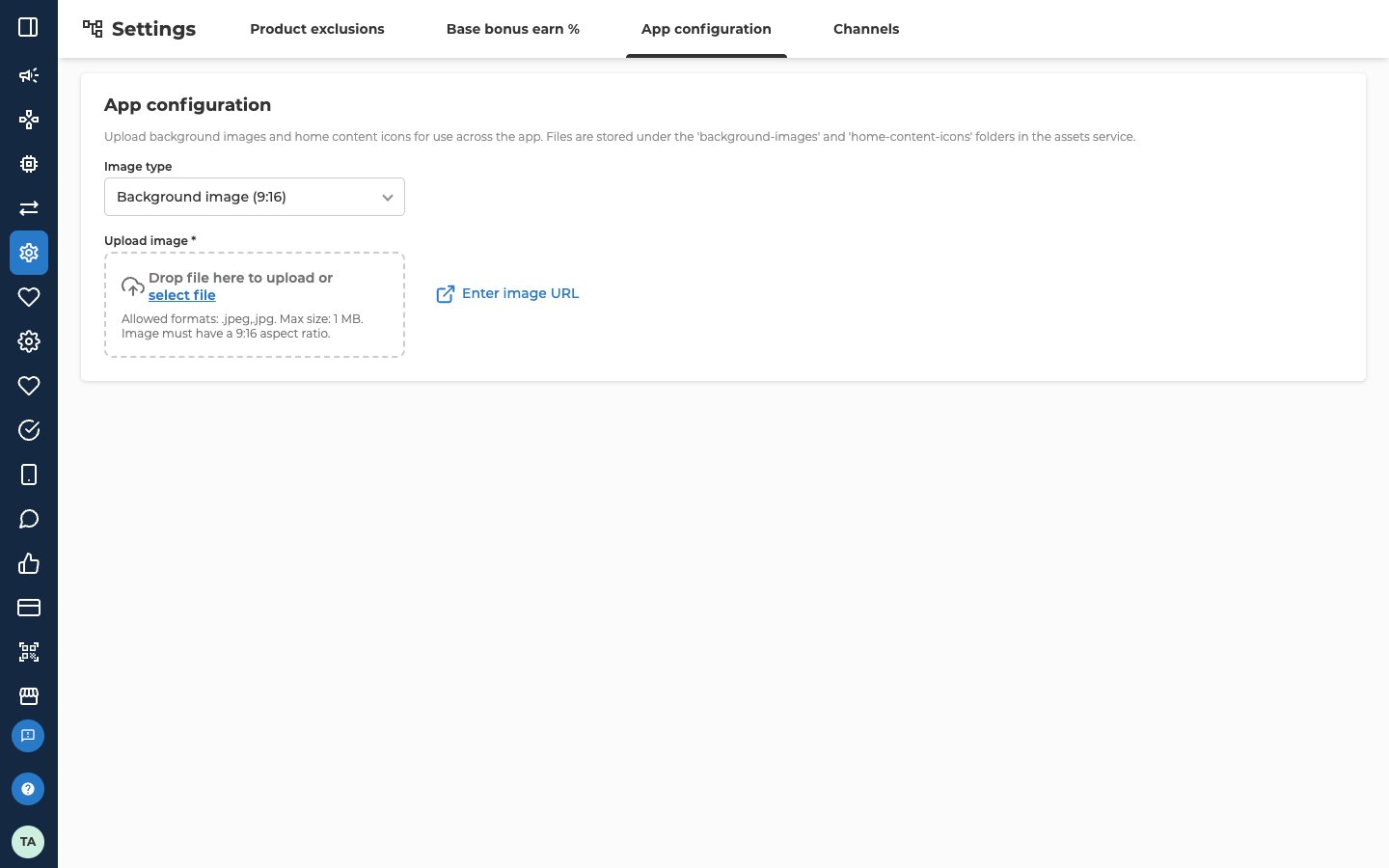
Choose the image type
Open Image type and pick what you are uploading.
Switching the type empties the field below. The rules for the chosen type are printed under the upload box.
Upload the image
- Drop the file on the upload box, or select select file and choose it.
- The image uploads as soon as you choose it. A preview appears in the box, and there is no Save button on this tab.
Crop the image
Once an image is in the box, a Crop image button appears next to the preview. It opens a Crop Image window.- Move the image, and use the Rotate and Zoom sliders to frame it. The crop keeps the ratio of the chosen image type. Reset puts the image back as it was.
- Select Save. To close the window without cropping, select Cancel.
.png file, and the box then shows that file.
Check an image that is already online
If your image is already online, you can paste its web address to check that it has the right ratio. Lobyco doesn’t store the image.- To the right of the upload box, select Enter image URL. The box is replaced by an Image URL field.
- Paste the web address into Image URL. The hint under the field repeats the ratio and format for the chosen image type.
- To go back to uploading a file, select Upload image.
Copy the web address
A Copy image URL button appears below the field whenever it holds an address. That’s after you upload an image, or once you enter a web address, even one with an error. So check that there’s no error under the field first. If an error shows, fix the address or the image first. Select Copy image URL. The message Image URL copied to clipboard appears.Troubleshooting
Why can't I see the App configuration tab?
Why can't I see the App configuration tab?
The tab only shows for admin users with access to app configuration. Access to the other tabs on the Global Settings screen doesn’t include it. Ask the person who manages access to Nexus in your organisation.
Why is my image rejected?
Why is my image rejected?
Check the image against the table above. It may have the wrong ratio, be in a format the image type doesn’t take, or be over 1 MB. Also check that Image type matches the image. A home content icon has to be a
.png, and a background image has to be a .jpeg or .jpg. If you entered a web address, Image has incorrect ratio can also mean the address doesn’t load.Related
- Exclude products from challenges — stop chosen products and categories counting towards challenges, on the Product exclusions tab of the same screen.
- Set the base bonus customers earn — the bonus percentage customers earn on their purchases, on the Base bonus earn % tab of the same screen.