

Open Product exclusions
- In the left panel of Lobyco Nexus, open Global Settings. It sits in the Promotion Platform group.
- Select the Product exclusions tab.
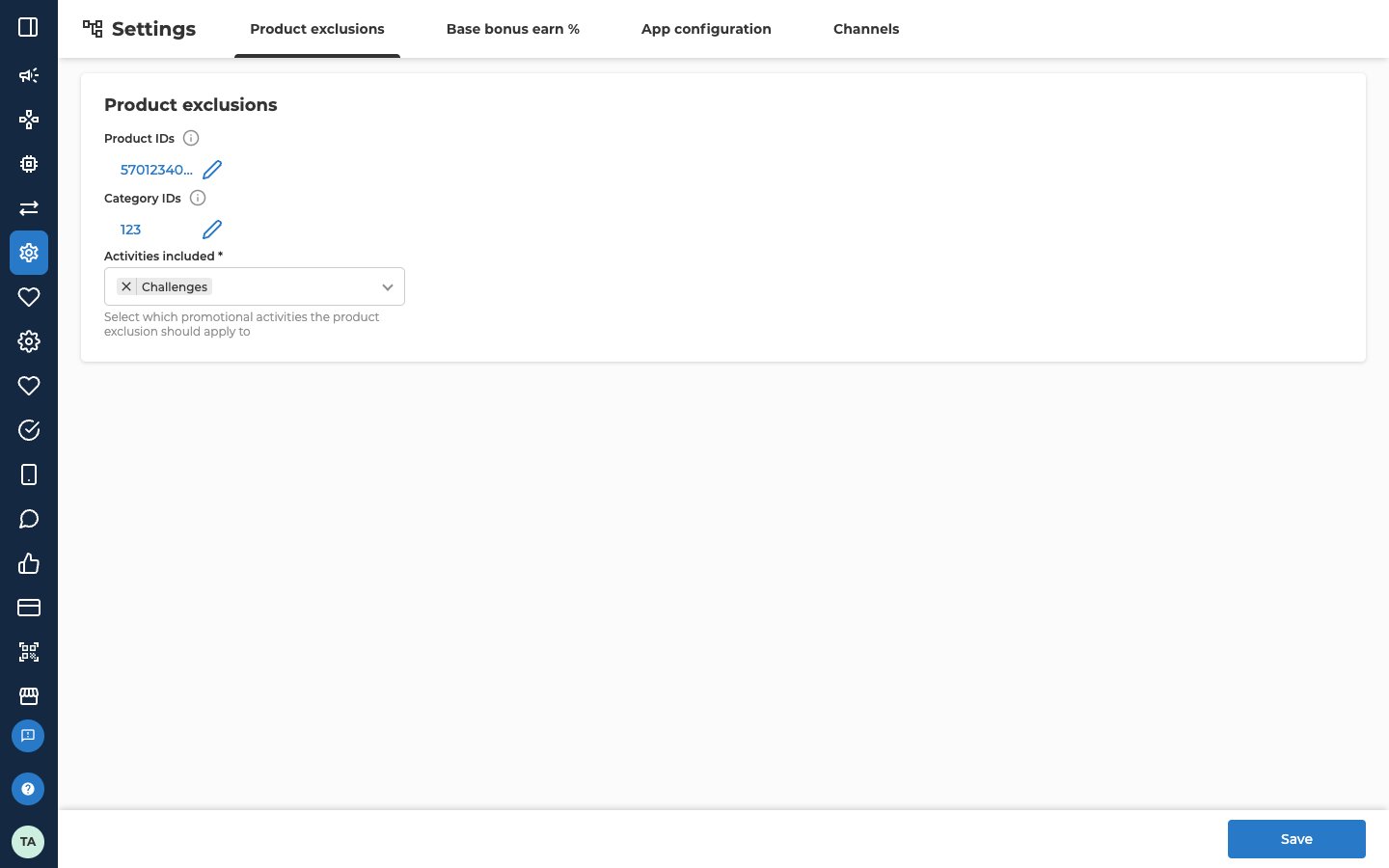
Add the product and category IDs
You can fill in Product IDs, Category IDs or both. Use the IDs from your product catalogue. To look one up, open the Product picker on a segment rule. Categories are in the columns to the left of Product. Each column is one level of your product catalogue. Every product and category shows its ID in bold under its name.
Do this for each field:
- Select Add items. If the list already has IDs, the button shows them with a pencil icon instead. Select it.
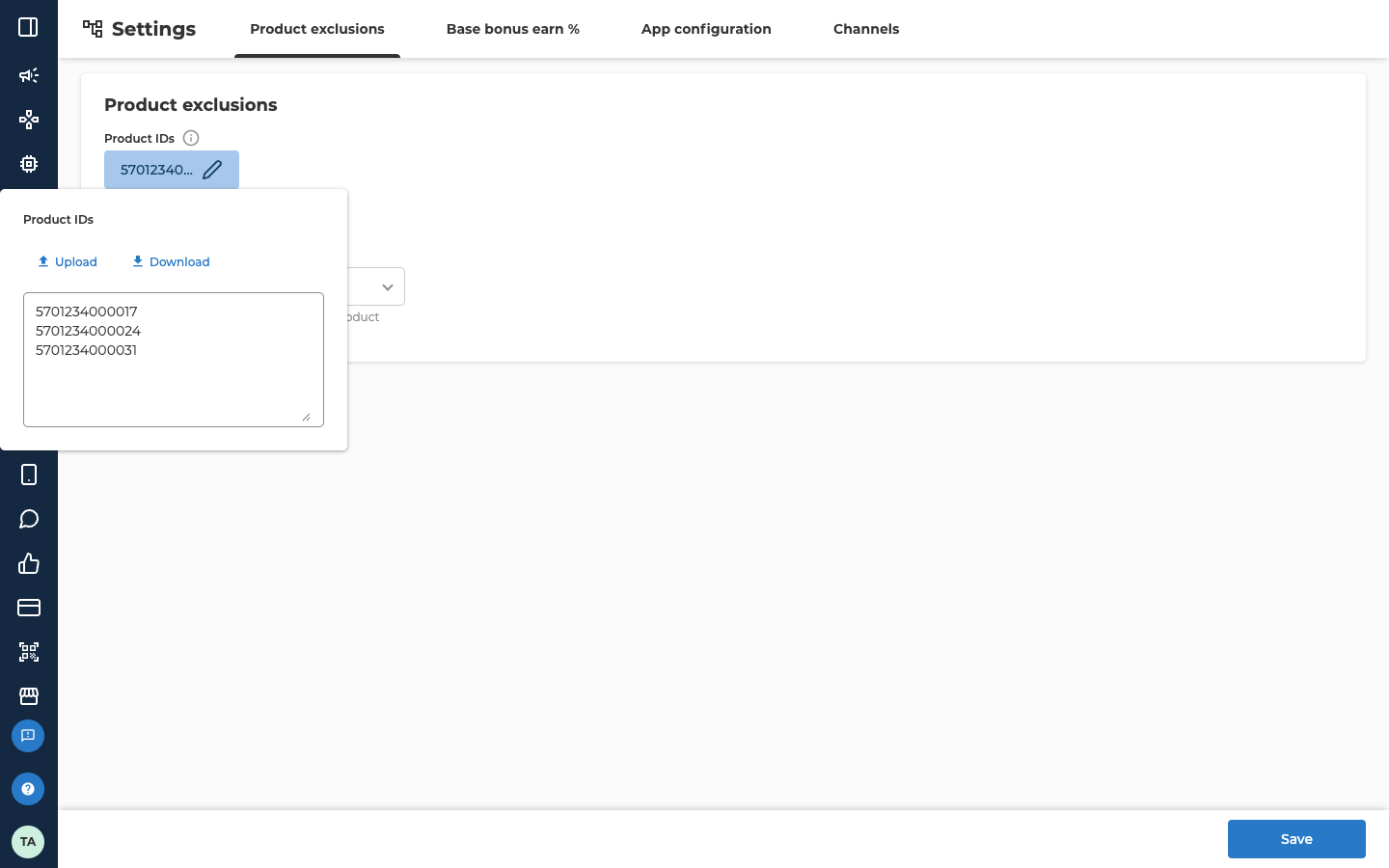
- A panel opens with an Upload button, a Download button and a text box. Type or paste the IDs into the text box, one ID per line.
- To fill the list from a file instead, select Upload and choose a
.csvfile. The file replaces what is in the text box. - Click anywhere outside the panel to close it. The button now shows the IDs you entered.
Product IDs.csv. Download stays greyed out while the list is empty.
To remove a product, delete its line in the text box. To empty a list, delete every line.
Choose the activities
Activities included decides which kinds of activity the lists apply to.
You have to choose at least one activity. If the field is empty, it shows an error and Save stays greyed out. This also applies when you only want to empty the lists.
Save the changes
- Select Save at the bottom right.
- A window opens with the title The update will apply to all selected activities and campaigns. It says that the changes apply to everything selected, including activities that are running now. Select Continue. To go back, select Cancel.
- Download the challenge report for that challenge and pick a customer from the MemberId column. If none of their purchases has an excluded product, pick another customer.
- Search for that member ID in Members and open Receipts. Find a purchase with the excluded product in it, made at least 15 minutes after you saved. Note its receipt ID.
- In the report, add up Progress on every row with that ReceiptId. A purchase that completes a card is split over two rows: the first holds what the card still needed, and the second holds the rest, which carries over to the customer’s next card on a renewable challenge.
What excluded products do in a challenge
The global lists apply on top of each challenge’s own lists.- They only affect Purchase amount earn rules and Store visits challenges. Product quantity earn rules and Payment method challenges ignore them. A One purchase challenge can have both kinds of earn rule, and then the lists only apply to its Purchase amount rules.
- A challenge’s earn rule can list products with ID’s action set to Include. A product listed there still counts in that challenge, even if it is excluded here.
Troubleshooting
Why can't I select Save?
Why can't I select Save?
Save stays greyed out until Activities included has at least one activity chosen. If you can’t see Save at all, your admin user can only read this tab. Ask the person who manages access to Nexus in your organisation to let you change it.
Why is an excluded product still counting in a challenge?
Why is an excluded product still counting in a challenge?
Check three things. The challenge’s earn rule may list that product with ID’s action set to Include, which beats the global list. The earn rule that counted it may be a Product quantity rule, or the challenge may be a Payment method challenge. Both ignore the global lists. Or you saved recently, and the update hasn’t taken effect yet.
Why can't I see Global Settings or the Product exclusions tab?
Why can't I see Global Settings or the Product exclusions tab?
Your admin user doesn’t have access to it. Ask the person who manages access to Nexus in your organisation.
Related
- Accumulation types — how each challenge rule counts purchases, and how the global lists combine with a challenge’s own.
- Why isn’t a customer’s challenge progressing? — the checks to run when a purchase doesn’t count.
- Set the base bonus customers earn — the bonus percentage customers earn on their purchases, on the Base bonus earn % tab of the same screen.
- Upload images for the app — background images and icons for the app, on the App configuration tab of the same screen.