

Prepare the file
Save your offers as a CSV file, with one row for each offer and the column names in the first row. New offers and offers you want to change can go in the same file.- Separate the values with commas, and use a dot for decimals.
- Write dates as yyyy-mm-dd, such as
2026-11-02. - Write
trueorfalsefor a setting that is on or off. - To put more than one ID in a cell, such as several stores, separate them with
;.
2026-11-09 as its end date. Nexus shows these times in your own time zone, so midnight UTC can show as 01:00 or 02:00.
Each column sets a field of the offer form. Create an offer explains what each field does. To find the IDs, type names and settings of offers you already have, download a list of your offers. The import dialog also lists every column it takes, under See expected columns in file.
Details
Fill in
UnifiedCampaignId for every new offer, so you know where it goes. A campaign shows its ID at the top of its page. If you don’t see it there, select the arrow beside the campaign’s name. The import doesn’t check the ID, so copy it exactly. An offer with a mistyped ID goes into no campaign.
Without UnifiedCampaignId, a new offer goes into a default campaign that Lobyco sets up for your organisation. Some offer types go into no campaign at all. You find an offer that’s in no campaign only on the Overview tab of the import screen.
Offer type values
The import takes the offer types Lobyco has switched on for your organisation. They’re the types in the Type list of the offer form. Write the value as in the first column below. Capital letters don’t matter. Offer types describes each type.personalOffer and globalPersonalOffer both show as Personal Offer. To see which one your organisation uses, look at the CampaignType column of a downloaded list of your offers.
Stamp Card is being phased out, so use challenge instead. The types that give a bonus instead of a discount are baseBonus, voucher and triggeredVoucher. Their rows use BonusPercent or BonusAmount in Rule1Type. In DiscountType, a bonus row can use SimpleLine, SimpleTotal, SimpleQuantity, MixAndMatch or MixAndMatchTotal. The import rejects a bonus row with QuantityStep, RewardTotal or TotalStep. The offer form only offers SimpleLine and SimpleTotal for a bonus. In ImpactLevel, a bonus row uses Total with SimpleTotal and MixAndMatchTotal, and Line with the other three, the same as a discount row.
Where the offer is valid
Every chain and store ID has to exist in Lobyco, or the row doesn’t go in.
Discount and limits
The import doesn’t use the offer form’s defaults for these four columns. If you leave a column out,
Priority becomes 0, which comes before any priority the form lets you pick. AllowOtherDiscountsOnTop becomes false, so other offers can’t apply on top of the offer. ItemsApplicationType becomes AllItems, and MaxDiscountAmount becomes 0.
When you have no preference, use the values the offer form starts with. Stacking Priority is 5. Allow other offers on top is on, so write true. Write AllItems for ItemsApplicationType. For MaxDiscountAmount, 0 means no limit.
In the offer form, Stacking Priority goes from 1 to 10. So the form shows a Stacking Priority of 0 as 5, and saving the offer in the form changes it to 5.
Discount rules
A rule is what the customer buys and what they get, as in the Buy and Get parts of the Discount section. Its columns start withRule1. Discount types with more than one rule or tier, such as Mix & Match, carry on with Rule2Type, Rule2Value, Rule2ThresholdType, Rule2ThresholdValue and so on, then Rule3Type and the rest of the Rule3 columns. Number them without gaps, because the import ignores the rules after a missing number.
An offer needs at least one rule before it can be published.
Prices and content
When you update an offer
An update replaces the offer’s settings with what’s in its row. So give each row all the offer’s settings, not only the ones you’re changing. A column you leave out of the file, or a cell you leave empty, works like this:
The text columns are
Title, Description, Brand, ImageUrl, DiscountLabel, NormalPriceLabel, ConditionLabel, UnitOfMeasure, ReceiptDisplayText, Currency and FundedBy.
A downloaded list of your offers holds most settings, but not these four. To look them up, select the Overview tab, open the offer from the list, and read its form.
An example file
The first row creates an offer and publishes it. The second creates an offer and keeps it as a draft. Both go into the same campaign, and both run all of week 45, from 2 to 8 November.true or false have no quotes. Dates, IDs and a list joined with ; are text in quotes. The rules stay as flat keys such as Rule1Type. This line is the first offer of the example:
Open the import screen
- In the menu, open Toolbox, then Offers import. The Export/import screen opens on the Overview tab, with a list of your offers.
- Select the Import tab.
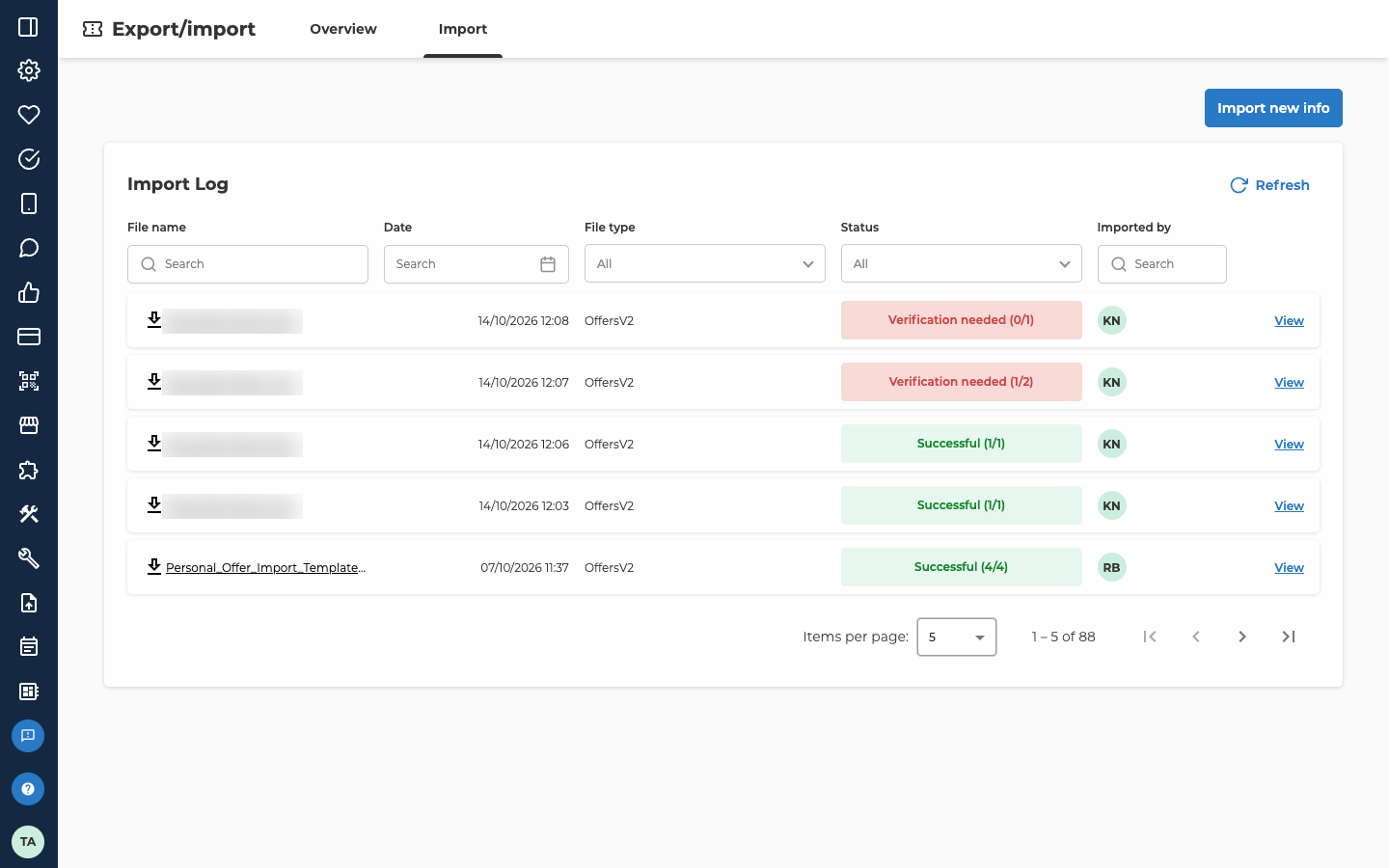
Import the file
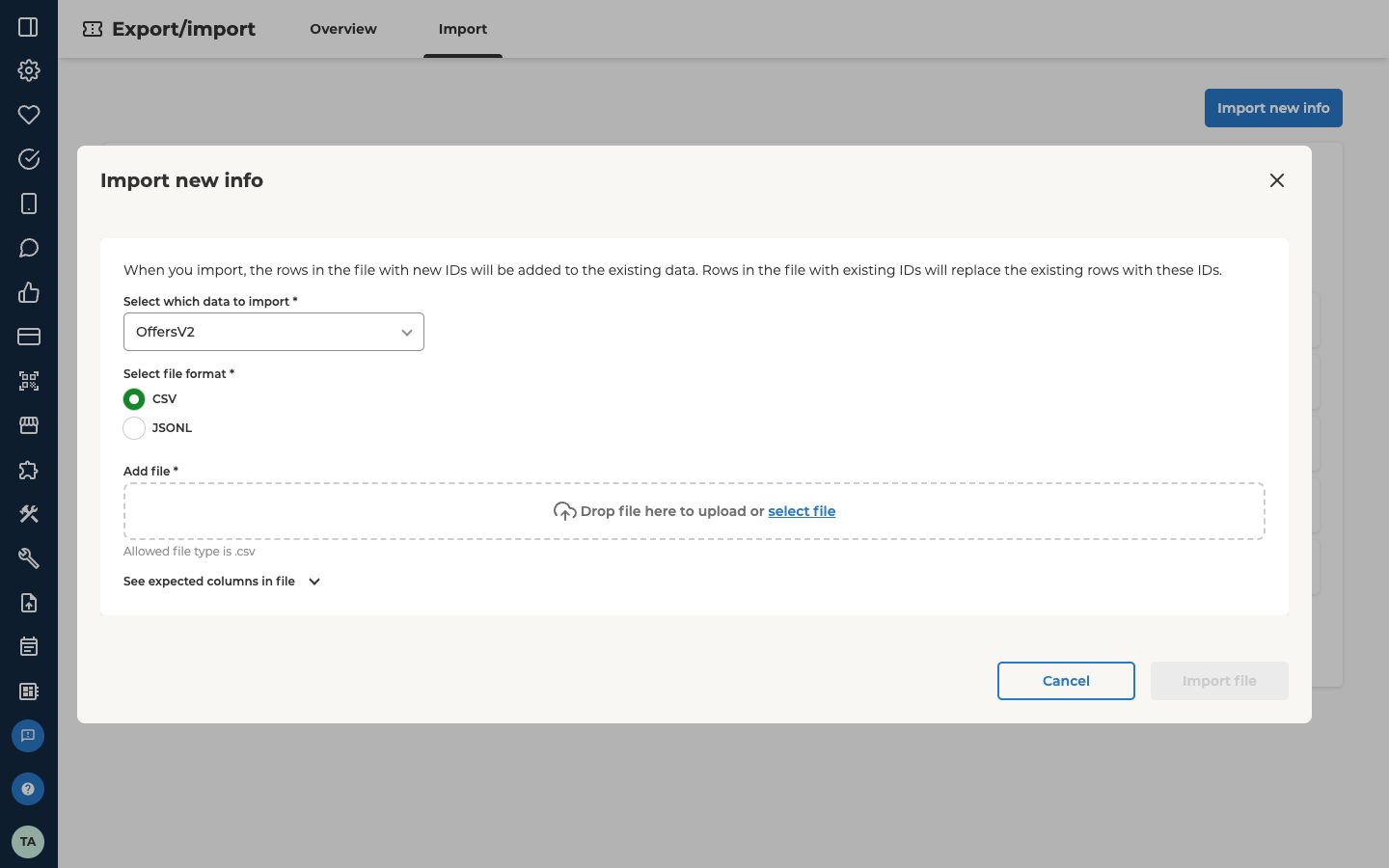
- Select Import new info. The Import new info dialog opens.
- Under Select which data to import, choose OffersV2. It’s the only choice.
- Under Select file format, keep CSV, or choose JSONL.
- Under Add file, drop your file on the area, or choose select file and pick it.
- Select Import file. The Import and add to existing data dialog asks you to confirm, and names your file.
- Select Import file again.
OfferId creates an offer, and an existing one replaces that offer.
Check the result
Your file appears at the top of the Import Log, with the Status Importing while it runs. Select Refresh to see when it’s done. Look at its Status:- Successful, with numbers in brackets such as (4/4), means every offer went in.
- Verification needed, with numbers such as (3/4), means the import found errors, and some rows or all of them didn’t go in. See Fix the rows that were left out.
- Failed, with no numbers, means the import couldn’t read the file at all, for example because it was empty. No offers went in.
- A row with several errors counts several times, so the first number can even go below 0.
- When one value stops a whole group of rows, it counts as only one error.
Fix the rows that were left out
- Select View on the import’s row. The details of the import open.
- Under Errors, read each error. Its Description says what went wrong, such as a store that doesn’t exist. Most descriptions name the offer’s ID. When a value is missing or can’t be read, the description names the row by a number in brackets instead, counting from
[0]for the first row under the column names. - Correct those rows in your own file. The import doesn’t give you a file of the rows that failed.
- Import the corrected file again, as a new import.
- text in a number column, or a decimal in
RedemptionLimit - a misspelled choice, such as
LinesinImpactLevel - an empty cell in
Priority,AllowOtherDiscountsOnTop,ItemsApplicationTypeorMaxDiscountAmount - a rule with a
Rule1Valuebut noRule1ThresholdValue
![The details of an offer import, opened with View in the Import Log, titled with the file name, which is blurred in this image. Under File details, a red message says The file was not imported, due to 1 errors in the file. You can see a list of the errors below. Below it, greyed out, are the choices made for the import: Select which data to import set to OffersV2, Select file format with CSV and JSONL, and Add file showing the same file name, blurred, and 305 Bytes. Import start date and Import end date both read 14/10/2026 12:08. Under Errors, the line In order to import the failed data, you need to correct the errors below in your local file. Afterwards you can create a new job and import the corrected file. is followed by an Error type filter and a Description search, then one error: Error type CreateCampaignAttemptFailed, with the description Failed to create offer [0]: Error converting value {null} to type 'System.Int32'. Path 'Priority'. Close is at the bottom right.](https://mintcdn.com/lobyco-4c9fb3ad/rG971_5ZfS49bcjM/images/administer-62-offers-import-errors.png?fit=max&auto=format&n=rG971_5ZfS49bcjM&q=85&s=a79871c33442a9d45d5ffabf940a037c)
Download a list of your offers
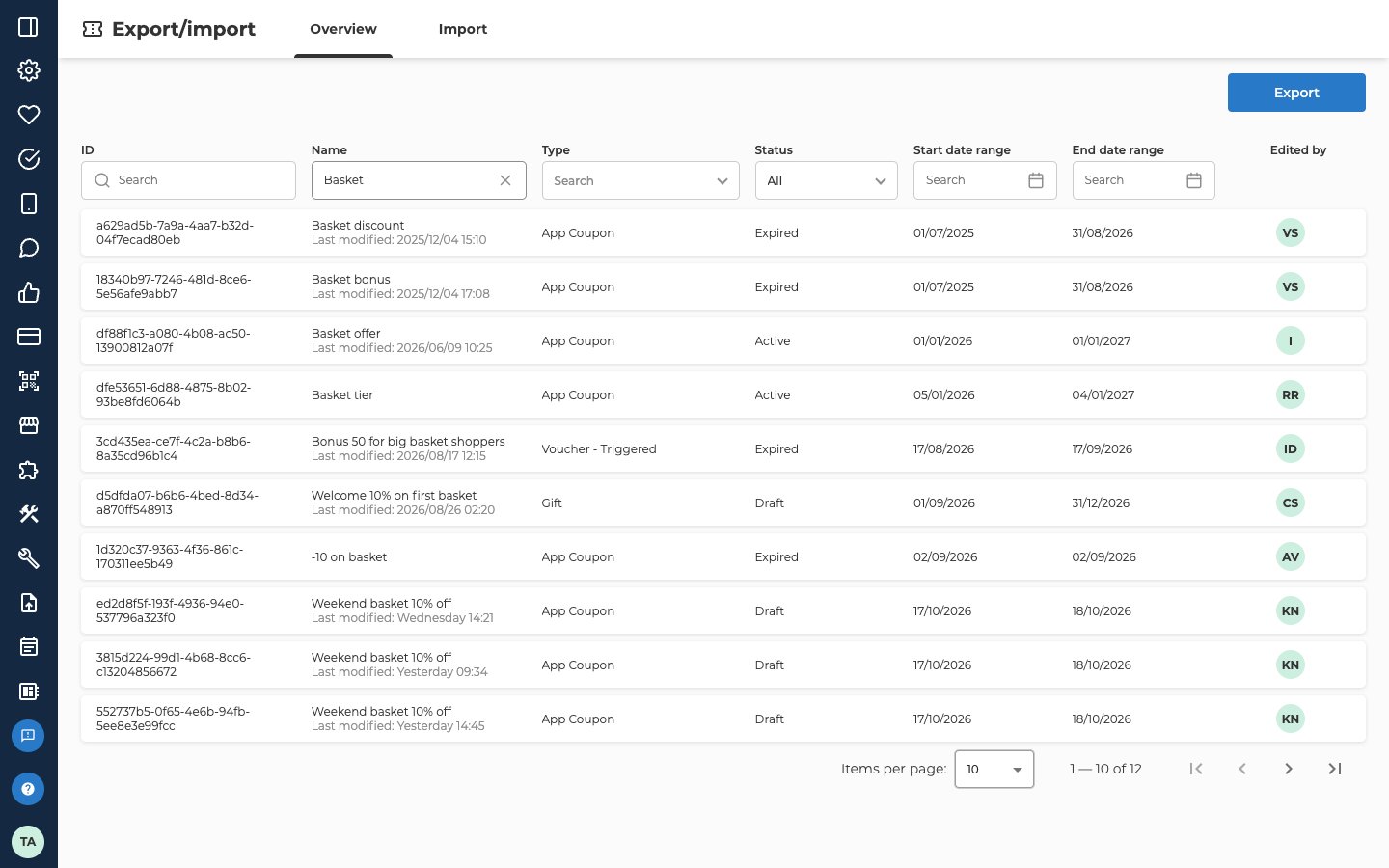
The Overview tab lists your offers, with their ID, Name, Type, Status, start and end dates, and who edited them last. Select an offer to open it.- Use the filters above the list to narrow it down, by ID, Name, Type, Status, Start date range or End date range.
- Select Export.
Title and RedemptionLimit, but these have different names:
The import’s campaign column is
UnifiedCampaignId. The file also leaves out columns the import needs, such as ImpactLevel. So if you import it as it is, every row fails. Use it to look up the IDs, type names and current settings that go in your import file.
The file doesn’t hold ImpactLevel, MaxNumberApplyPerReceipt, Stacking Priority or Allow other offers on top. When you update an offer says where to find them. Open the offer from the list on the Overview tab and look in its form.
Troubleshooting
Why don't I see Offers import?
Why don't I see Offers import?
Offers import only shows for admin users who have access to offers, and only when Lobyco has switched it on for your organisation. If you work with offers and still don’t see it, ask Lobyco support.
Why did some rows not go in?
Why did some rows not go in?
Select View on the import to see each error. A row doesn’t go in when:
- a required column is empty
- a chain or store ID doesn’t exist in Lobyco
- it has both
ChainIdsandStoreIds EndDateis beforeStartDateImpactLeveldoesn’t matchDiscountTypeAudienceIdisn’t a published audience, or the offer’s type has no audienceOfferIdbelongs to an offer that was deletedPublishedistrue, but the offer has no rule, no chains or stores, or a price with no currencyRedemptionLimitis below 0, orTotalCouponsis 0 or less
RedemptionLimit, none of the rows in that group go in. Fix the rows that were left out lists the values that do this.Fix the rows and import the file again.Related
- Create an offer explains each field the columns set, in the order of the offer form.
- Offer types describes each type, and how customers get its coupons.
- Discount types covers each discount type and the rules it needs.
- Stacking and limits explains stacking priority and the limits on an offer.
- Edit or reuse an offer covers changing one offer in the offer form.