

Open Base bonus earn %
- In the left panel of Lobyco Nexus, open Global Settings. It sits in the Promotion Platform group.
- Select the Base bonus earn % tab.
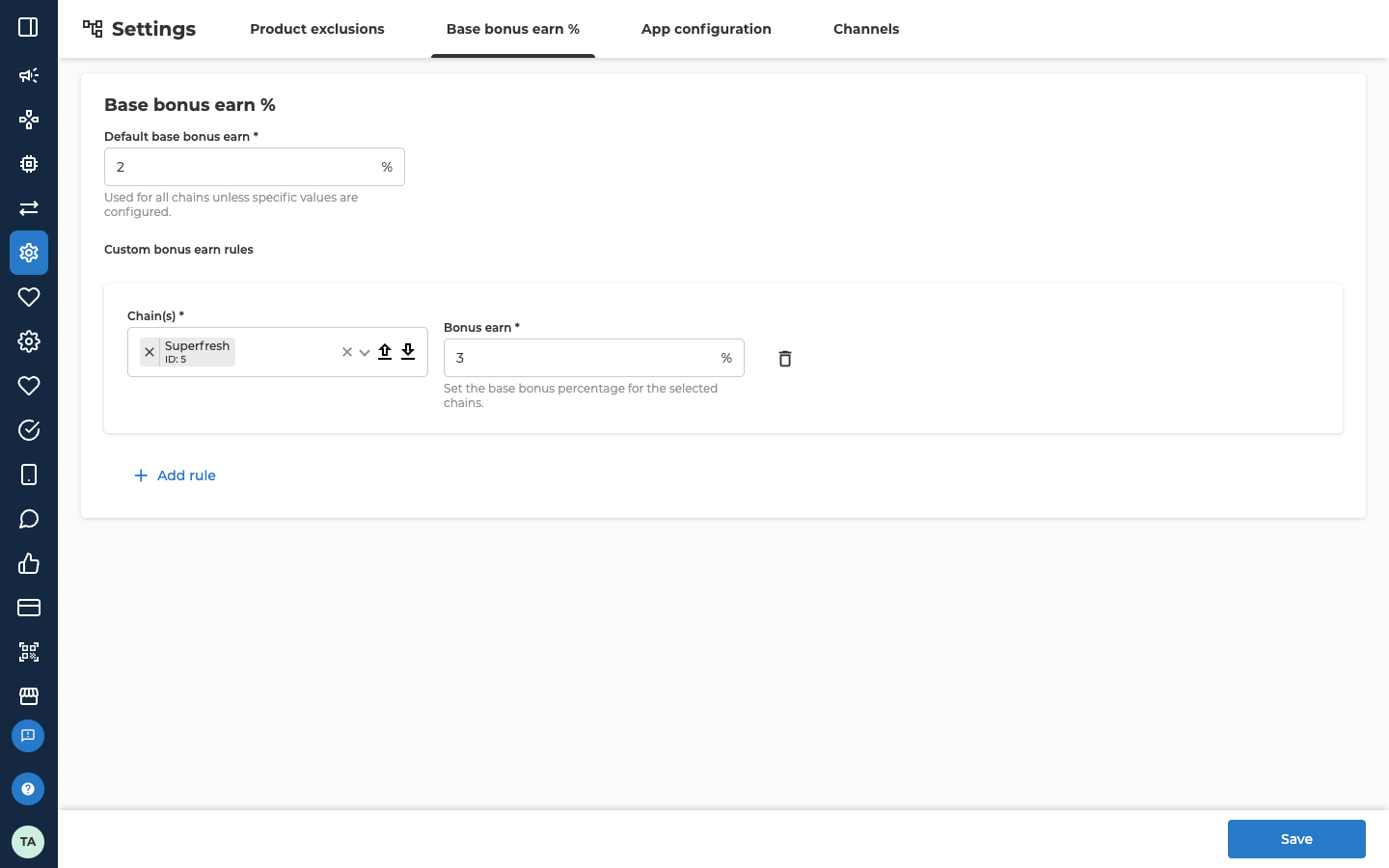
Set the default percentage
Type a number from 0 to 100. The field is required and shows a % sign. A value with more than two decimals is rounded to two.
Add a rule for chosen chains
A rule gives one or more chains a percentage of their own. Chains without a rule keep the default.- Select Add rule. A new rule opens under the Custom bonus earn rules heading. It starts with no chains and a Bonus earn of 0.
- In Chain(s), select Add chain/s, then pick one or more chains. You can search the list. Each chain shows its name and its ID.
- In Bonus earn, type the percentage for those chains.
Repeat the steps to add more rules. Save stays greyed out while a rule has no chain or an empty percentage.
Put each chain in one rule only. The Chain(s) list still offers a chain that’s already in another rule. If a chain is in two rules, customers can earn both percentages added together.
Delete a rule
- Select the bin icon at the bottom of the rule.
- A window asks Are you sure you want to delete this rule? and says This action cannot be undone. Select Delete. To keep the rule, select Cancel.
Save the changes
- Select Save at the bottom right.
- A window opens with the title The update will apply to all selected activities and campaigns. Select Continue. To go back, select Cancel.
- On Receipts, find a purchase made at least 15 minutes after you saved, in a chain whose percentage you changed. Note its receipt ID.
- Go to Credit statements and set the Type filter to MemberCredit.
- Find the row with that Receipt ID. It’s the purchase’s base earn. Its Amount is the new percentage of what the customer paid. While a Multiplier Bonus runs, it shows the multiplied amount instead.
Troubleshooting
Why can't I select Save?
Why can't I select Save?
Save stays greyed out while Default base bonus earn is empty, or while a rule has no chain or no percentage. It also stays greyed out if a number is outside 0 to 100. If you can’t see Save at all, your admin user can only read this tab. Ask the person who manages access to Nexus in your organisation to let you change it.
Why is the base earn lower than I expect?
Why is the base earn lower than I expect?
Lobyco may have set up, for your organisation, product categories that don’t earn base earn, a maximum amount of base earn a customer can get each month, and groups of customers who earn none. These limits don’t show on this tab. Also check that the purchase was made at least 15 minutes after you saved.If it still doesn’t add up, send these details to Lobyco support:
- The customer’s member ID
- The receipt ID
- The percentage you expected
Why can't I see the Base bonus earn % tab?
Why can't I see the Base bonus earn % tab?
Your admin user doesn’t have access to it. Ask the person who manages access to Nexus in your organisation.
Related
- Bonuses — how base earn differs from a bonus activity, and where each is set up.
- Exclude products from challenges — stop chosen products and categories counting towards challenges, on the Product exclusions tab of the same screen.
- Upload images for the app — background images and icons for the app, on the App configuration tab of the same screen.