

Admin users who can only view stores see View instead of Edit, and they don’t see Create, Import, Deactivate or Remove store. They can still use Export.
Open the Stores screen
Open Store configuration → Stores. The Stores tab opens first. It lists every store, and the Chains tab lists every chain. A chain is a retail brand, and a store belongs to exactly one chain. You pick the chain when you create a store.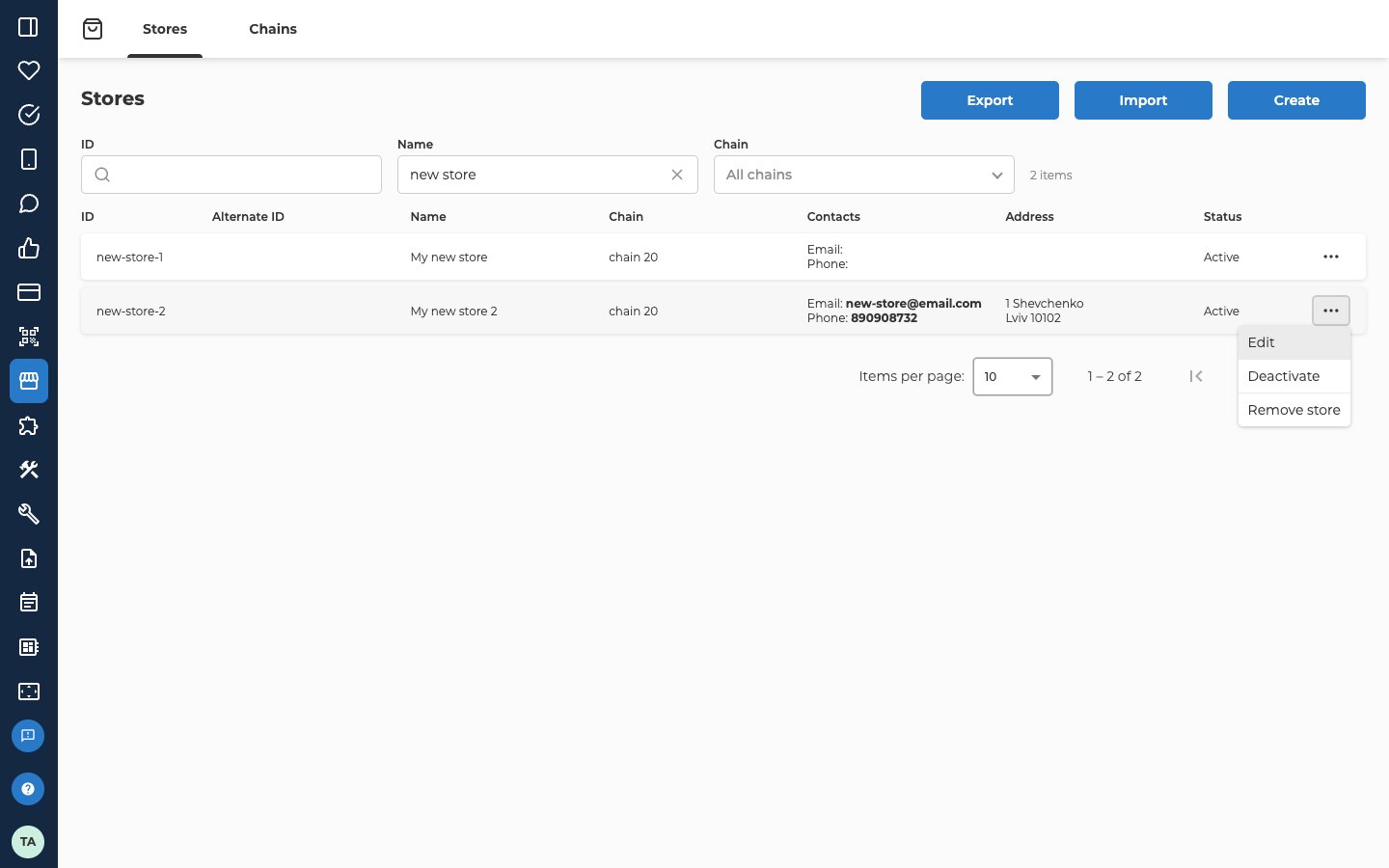
Find a store
Use the three filters above the list. The list updates as you type.
Under the filters you see how many stores match, for example “25 items”. The list shows 10 stores at a time. Use the paging controls at the bottom to move on or to show 25 or 50 at a time. If nothing matches, the list says No results.
The list has these columns:
Select a row to open the store. The ⋯ menu at the end of the row has the other actions.
Create a store
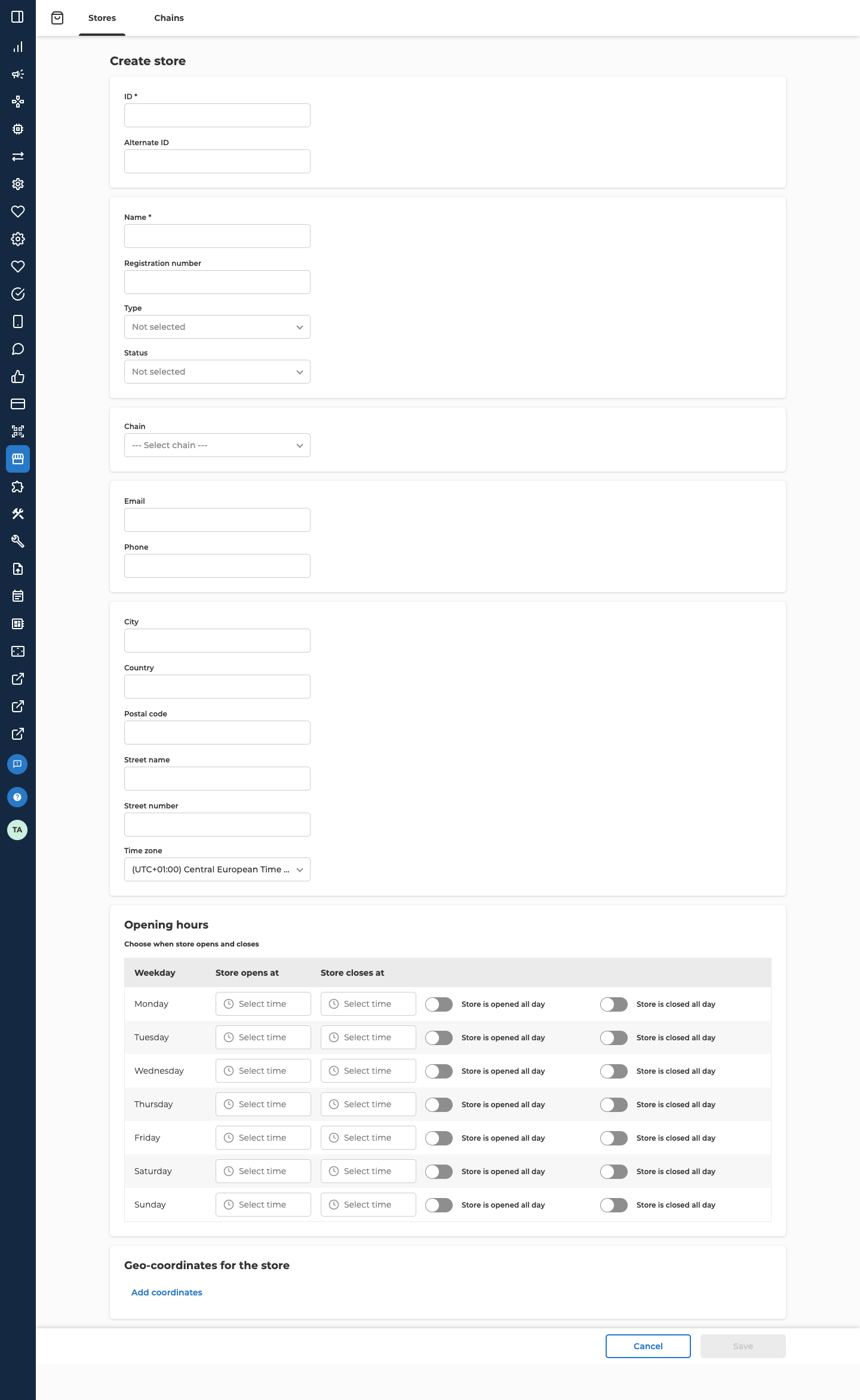
- On the Stores tab, select Create. The Create store form opens.
- Fill in the fields, using the tables below.
- Select Save. The portal takes you back to the store list.
The next two blocks hold the contact details and the address.
Set the opening hours
The Opening hours block has one row for each weekday. For every day, do one of three things:- Fill in Store opens at and Store closes at.
- Switch on Store is opened all day.
- Switch on Store is closed all day.
Add geo-coordinates
The Geo-coordinates for the store block is optional. Select Add coordinates to show the Latitude and Longitude fields. Fill in both. If a value isn’t a valid coordinate, the field says Invalid geo-coordinate. Select Remove coordinates to take them off again.Edit or view a store
- Find the store, open its ⋯ menu and choose Edit. Admin users who can only view stores see View. You can also select the row.
- Change what you need. The form is the same as Create store, except that the ID field is greyed out.
- Select Save. The portal takes you back to the store list.
Add date-specific opening hours
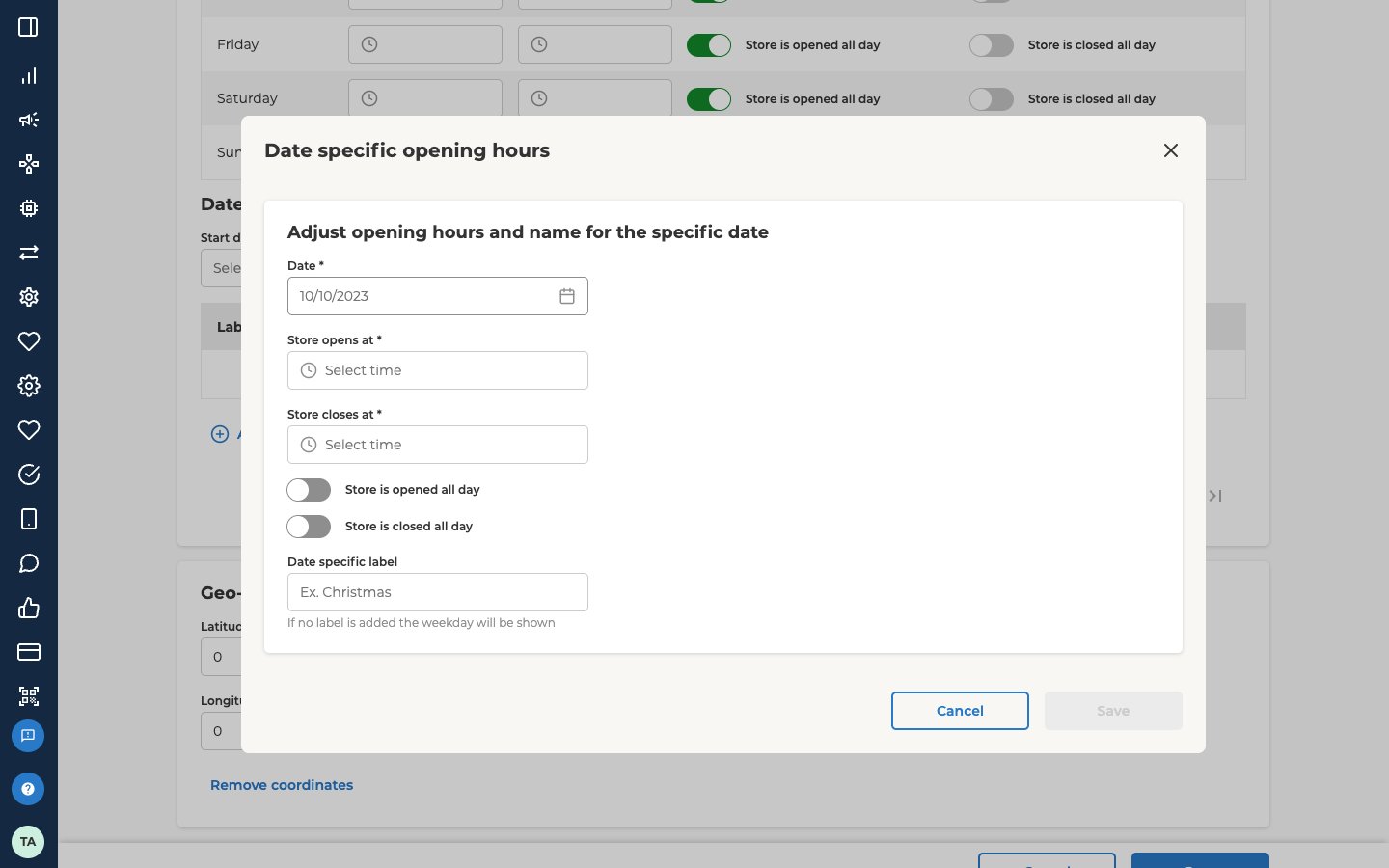
A store’s edit form has one more block, Date specific opening hours. Use it for a day that differs from the usual week, such as a public holiday. It only appears when you edit a store, not when you create one.- In the Date specific opening hours block, select Add date specific opening hours.
- Pick the Date. It must be today or later, and each date can have only one entry. If the date is taken, the dialog says Adjustment on this date already exists.
- Optionally fill in Date specific label, for example “Christmas”. If you leave it empty, the list shows the weekday instead.
- Fill in Store opens at and Store closes at, or switch on Store is opened all day or Store is closed all day.
- Confirm the dialog. The entry appears in the list.
Deactivate a store
Deactivate a store that has closed for good or isn’t ready to show customers.- Open the store’s ⋯ menu and choose Deactivate. This option only appears for stores whose Status is Active.
- In the Confirm store deactivation dialog, choose Yes.
Remove a store
- Open the store’s ⋯ menu and choose Remove store.
- In the Remove store dialog, choose Yes.
Export stores
- On the Stores tab, filter the list if you only want some of the stores.
- Select Export.
- In the Export data to CSV dialog, open Columns and pick the columns you want. You must pick at least one.
- Select Export.
stores_ followed by the date and time, for example stores_20261014153000.csv. It holds every store that matches your filters, not only the ten on screen.
The columns you can pick are Id, AlternateIds, Name, RegistrationNumber, StoreType, Status, ChainId, ChainName, Email, Phone, Country, City, Street, StreetNumber, PostalCode, TimeZone, Latitude, Longitude, and one column for each weekday from Monday to Sunday. A weekday column reads like 08:00:00-20:00:00.
Import stores
To add or update many stores at once, use Import on the Stores tab. That has its own page: Import stores from a CSV file.Create a chain
- Open the Chains tab. It lists every chain with its ID, Name, Color, Logo, White logo, Alias logo and Pin.
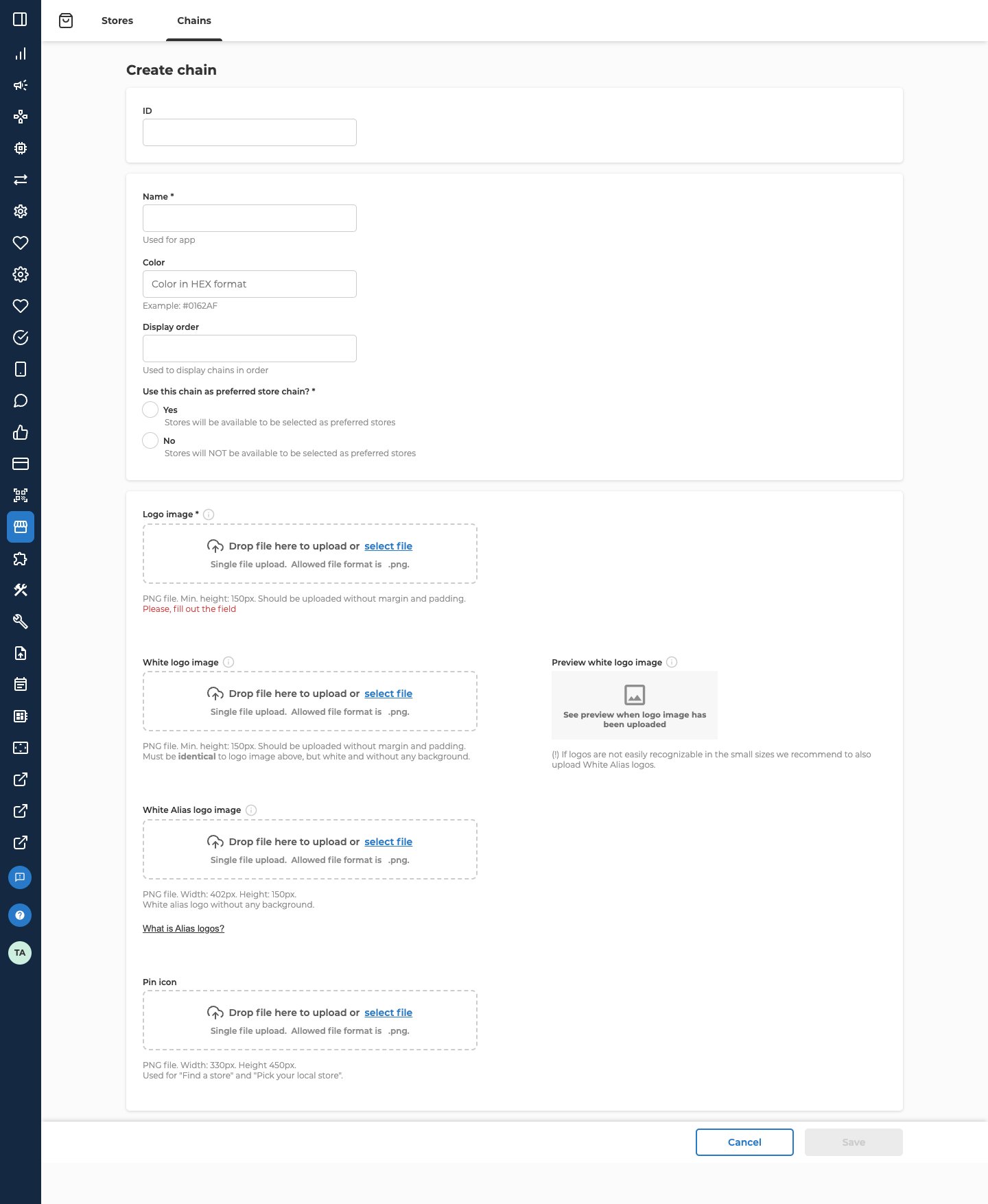
- Select Create. The Create chain form opens.
- Fill in the fields below, then select Save.
Save stays disabled until the required fields are filled in.
Edit or remove a chain
Open the chain’s ⋯ menu on the Chains tab and choose Edit, or View for admin users who can only view. The form is the same as Create chain, except that the ID field is greyed out. Select Save when you finish. To remove a chain, choose Remove chain from the same menu, then Yes in the Remove chain dialog. A chain that still has stores can’t be removed. Remove or move its stores first. The Chains tab has no Export or Import.Troubleshooting
Why is Save disabled?
Why is Save disabled?
A required field is empty or invalid. On a store, check ID, Name, Chain, and the opening hours of every weekday. On a chain, check ID, Name, Use this chain as preferred store chain? and Logo image.
Why can't I remove a chain?
Why can't I remove a chain?
The chain still has stores. The portal refuses to remove it. Remove the chain’s stores, or edit each one and pick another chain, and then remove the chain.
Why don't I see Create, Import or Remove?
Why don't I see Create, Import or Remove?
Your admin user can only view stores. Ask the person who manages access to Nexus in your organisation to let you edit stores.
Related
- Import stores from a CSV file adds or updates many stores in one go.