

Prepare the file
Save your stores as a CSV file with one row for each store and the column names below, in the first row. Stores that are new to Lobyco and stores you want to change go in the same file.
A day you leave empty gets no opening hours. If the store already has opening hours for that day, the import removes them. When you next edit that store, the form marks the empty day with Please, fill out the field, and Save stays greyed out until you fill in its hours or switch on Store is closed all day.
The import can’t create chains. Create a chain first, on the Chains tab of the Stores screen. See Manage stores and chains.
Date-specific opening hours
Opening hours for single dates, such as a public holiday, go in a separate file. Each row is one date for one store.
To close the store all day, write the same time in both columns, such as
00:00:00 and 00:00:00. To keep it open all day, write 00:00:00 and 23:59:59.
A store can have one entry for each date, so each store and date can appear only once in the file. A row replaces the store’s existing entry for that date. The store’s other dates stay as they are.
Open the import screen
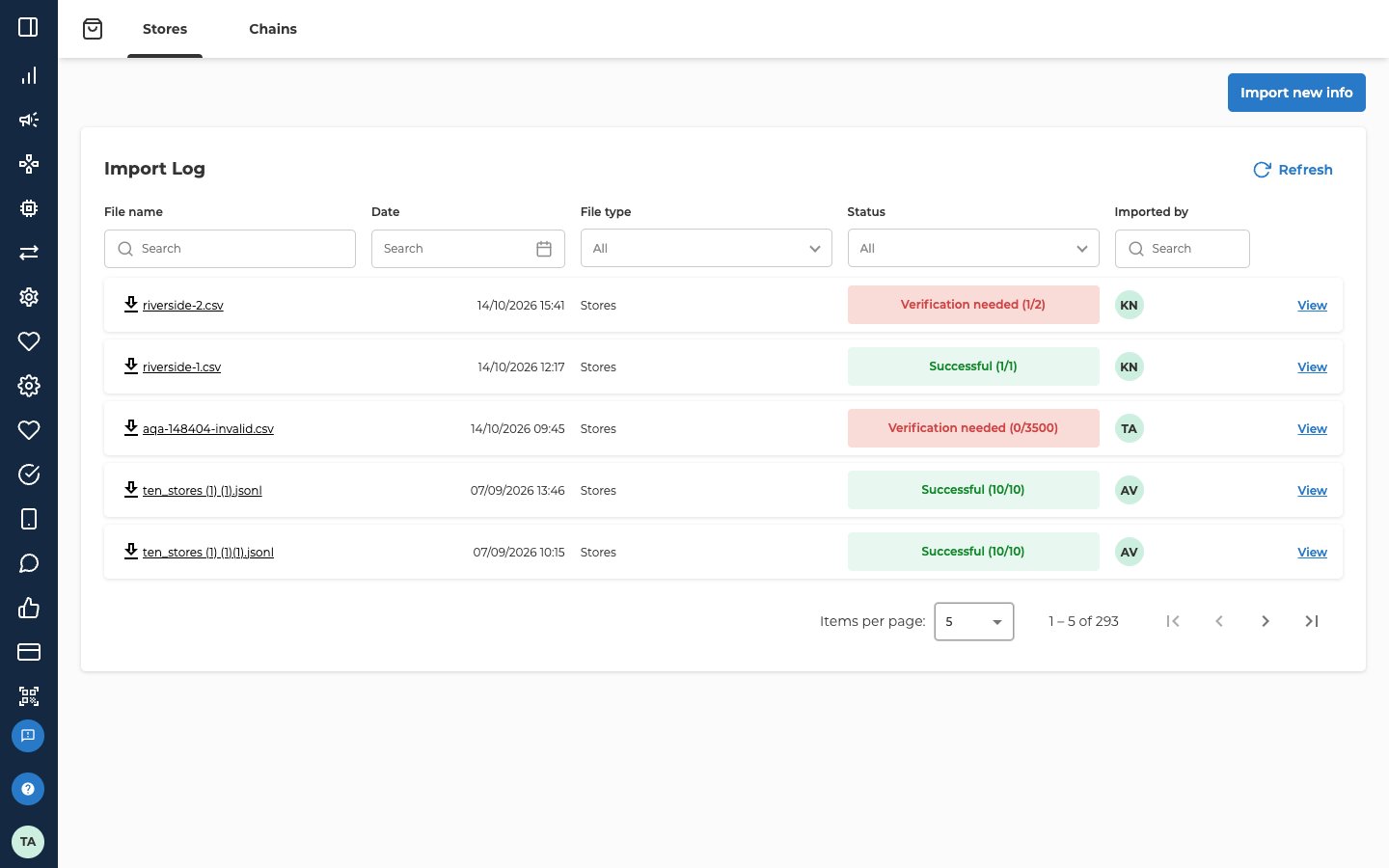
- Open Store configuration → Stores.
- On the Stores tab, select Import.
Import the file
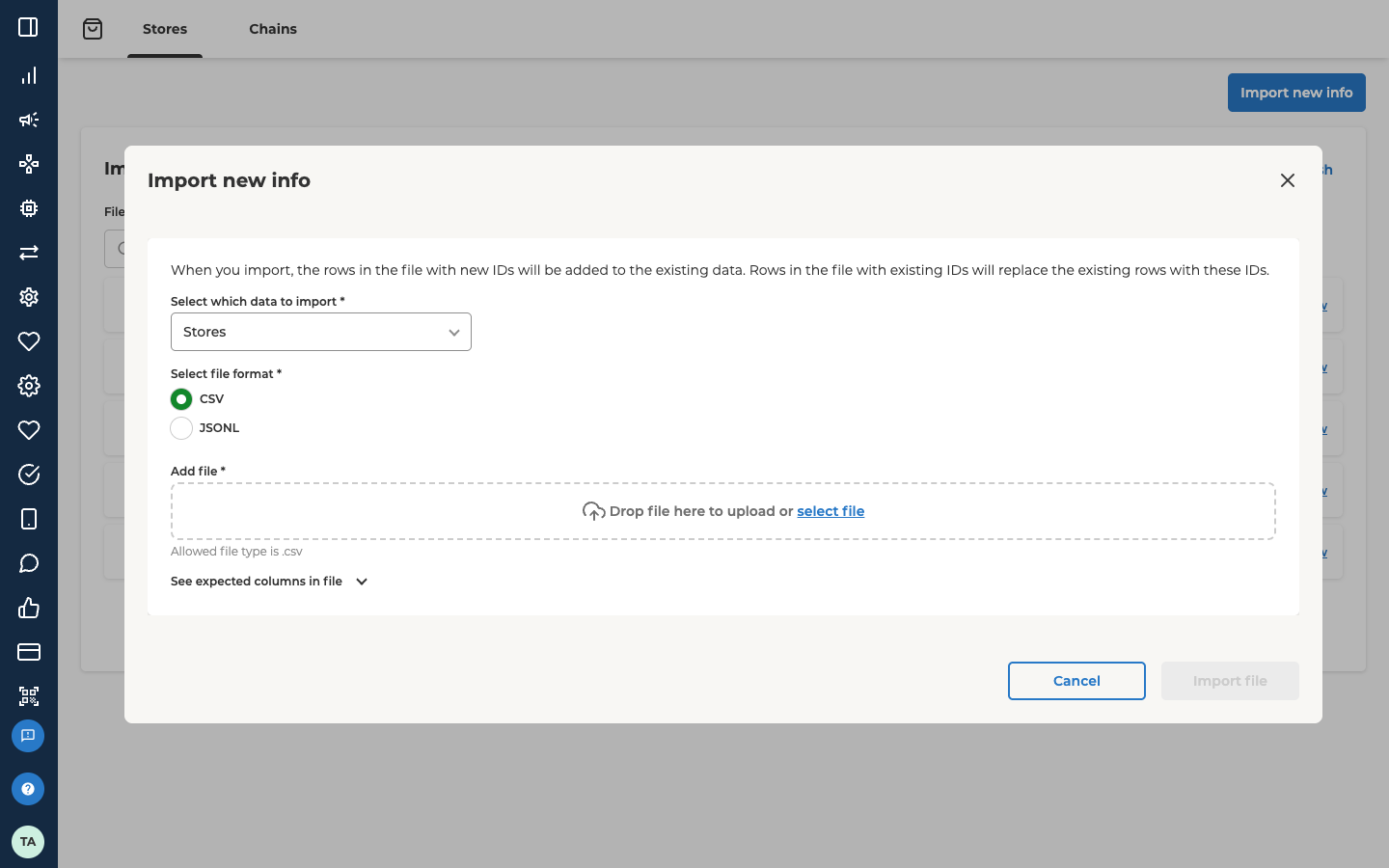
- Select Import new info. The Import new info dialog opens.
- Under Select which data to import, choose Stores. To import a file of date-specific opening hours, choose Date specific opening hours instead.
- Under Select file format, leave CSV selected. JSONL is the other choice.
- Under Add file, drop your file on the area, or select select file and pick it.
- Select Import file.
Check the result
Your file appears at the top of the Import Log. Select Refresh if it isn’t there yet. Look at its Status:- Successful, with numbers in brackets such as (10/10), means every row went in. The numbers are the rows imported out of the rows in the file.
- Verification needed, with numbers such as (1/2), means some rows didn’t go in. In this example, one row of two was imported.
[1] is the second store in your file. File details says “The file was not imported” whenever any row failed, even though the rows that passed did go in.
Fix the failed rows and import the file again. The stores that already went in are replaced with the same values, so importing them twice does no harm.
To see a store itself, go back to the Stores tab and search for its ID. See Manage stores and chains.
Troubleshooting
Why did some rows not go in?
Why did some rows not go in?
The import checks every row. A row fails when:
Id,NameorChainIdis empty.IdorChainIdis longer than 450 characters,Nameis longer than 256, orAlternateIdsis longer than 128.ChainIddoesn’t match a chain that exists.- The same
Idappears twice in the file. Statusisn’tActiveorClosed, orStoreTypeisn’tPublicorInternal.- A weekday isn’t written as
08:00:00-20:00:00, or a time is past23:59:59.
Why can't I import chains?
Why can't I import chains?
The import screen on the Stores screen takes stores and date-specific opening hours only. Create and edit chains on the Chains tab.
Related
- Manage stores and chains covers finding, creating, editing and exporting stores, and looking after chains.