

You pick the store from the stores Lobyco already has. Add a new store in Manage stores and chains first.
Open Store configuration
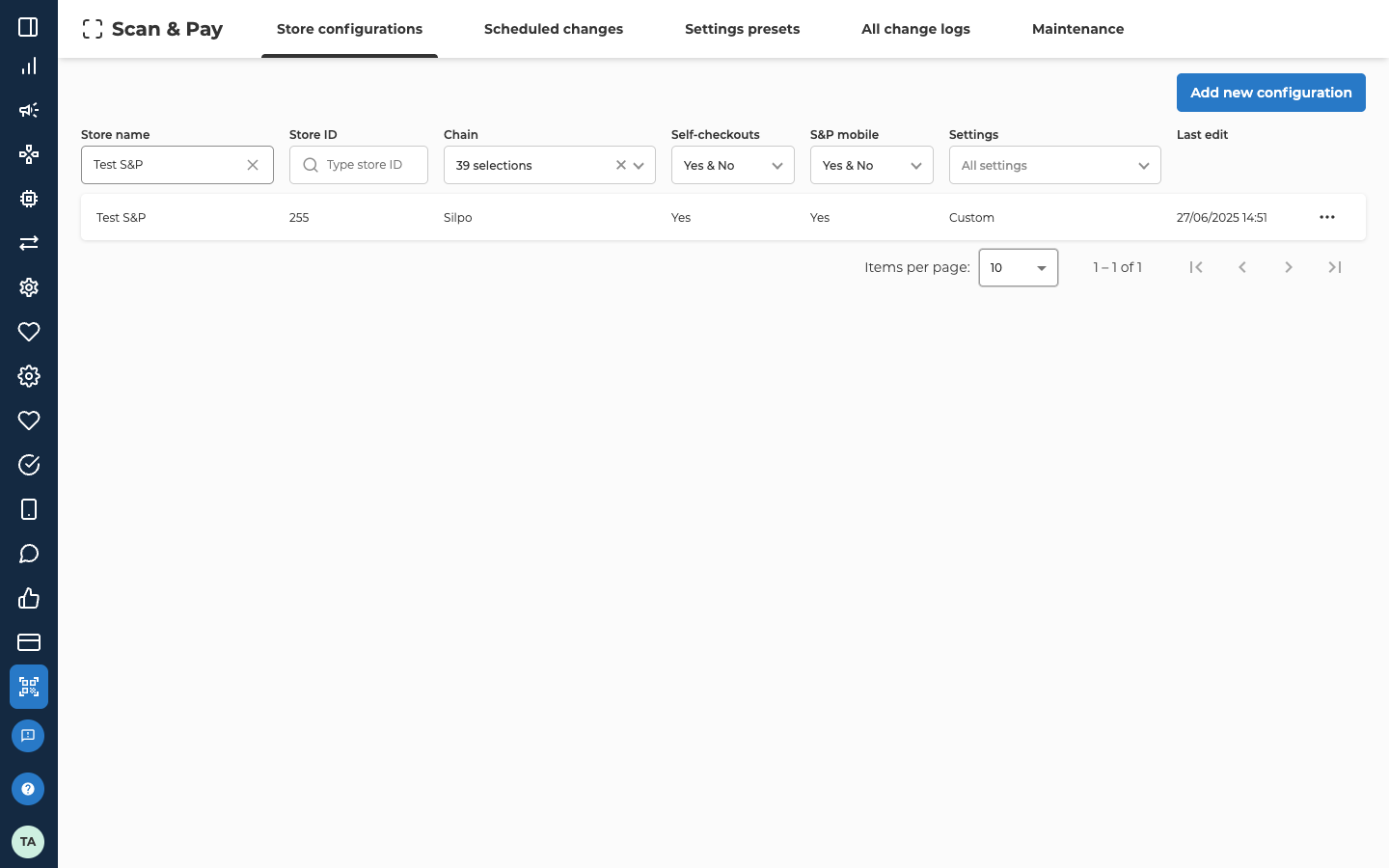
In Lobyco Nexus, open Store configuration → Scan & Pay → Store configuration. The Store configurations tab lists every store that has Scan & Pay set up. Each store’s setup is called its configuration.
Gates, Self-checkouts, S&P mobile and Settings filter the list too.
The other tabs have pages of their own. Settings presets and Scheduled changes are on Control how often customers are rescanned, and Maintenance is on Put a store in maintenance mode. All change logs is under See who changed a configuration below.
Pick the store
Select Add new configuration. Search for the store by its name in Search store, or by its ID in Search store ID. Then select the store in the list below. The list shows each store’s Store name, Store ID, Chain and Has configuration. A store whose Has configuration reads Yes already has Scan & Pay set up. You can’t select it here. Open it from the Store configurations tab instead. Once you select a store, its General store information shows its name, ID, address, chain and GPS coordinates, with a map. To pick a different store, select Choose another store.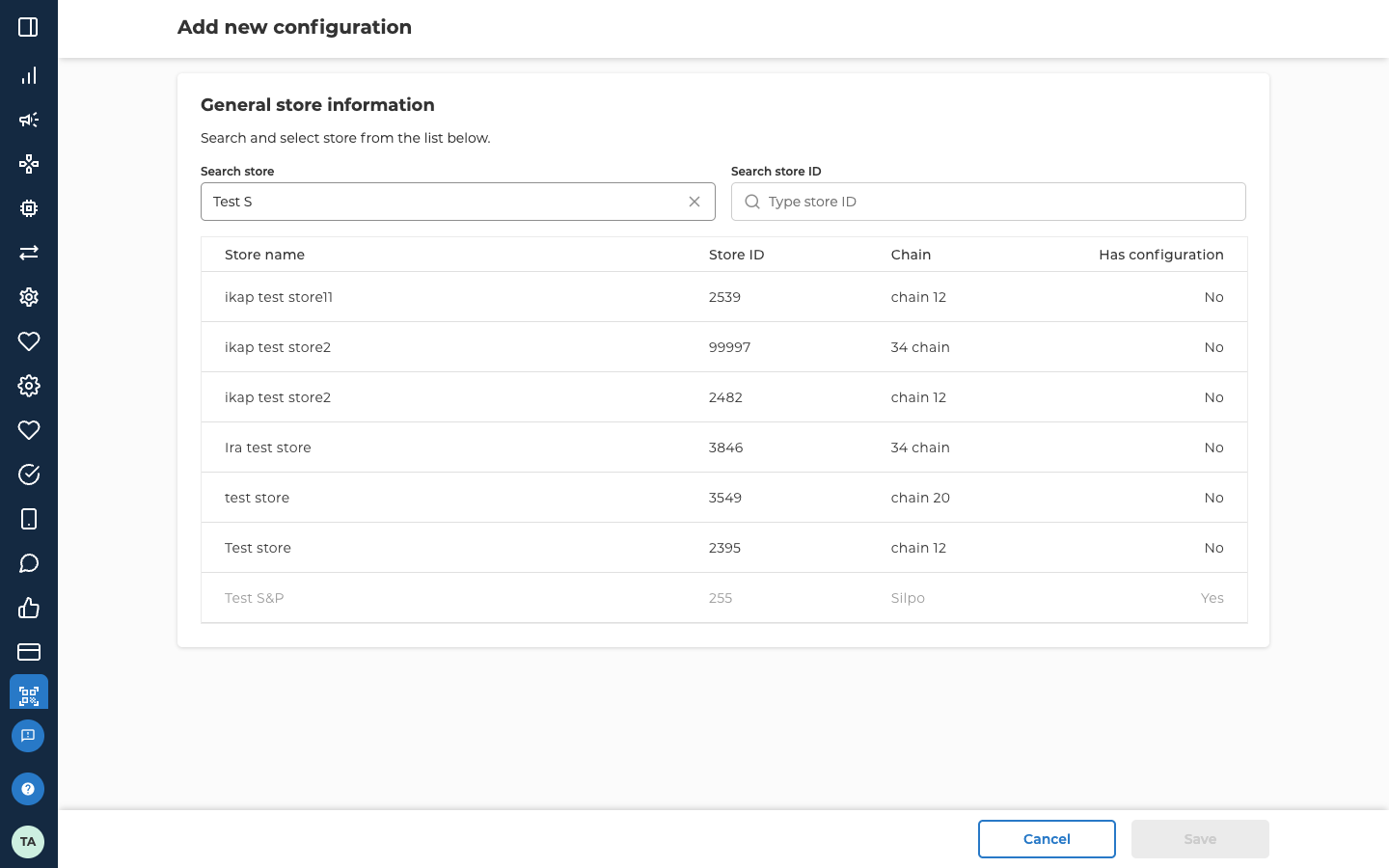
Choose the store settings
Under Store settings, open Select settings and pick a settings preset or Custom. A settings preset is a saved set of values that many stores can share.
With a preset, the two values come from the preset and show a lock. To change them for every store on that preset, edit the preset. Control how often customers are rescanned explains presets and rescans.
Choose the store hardware
Under Store hardware, turn on what the store uses.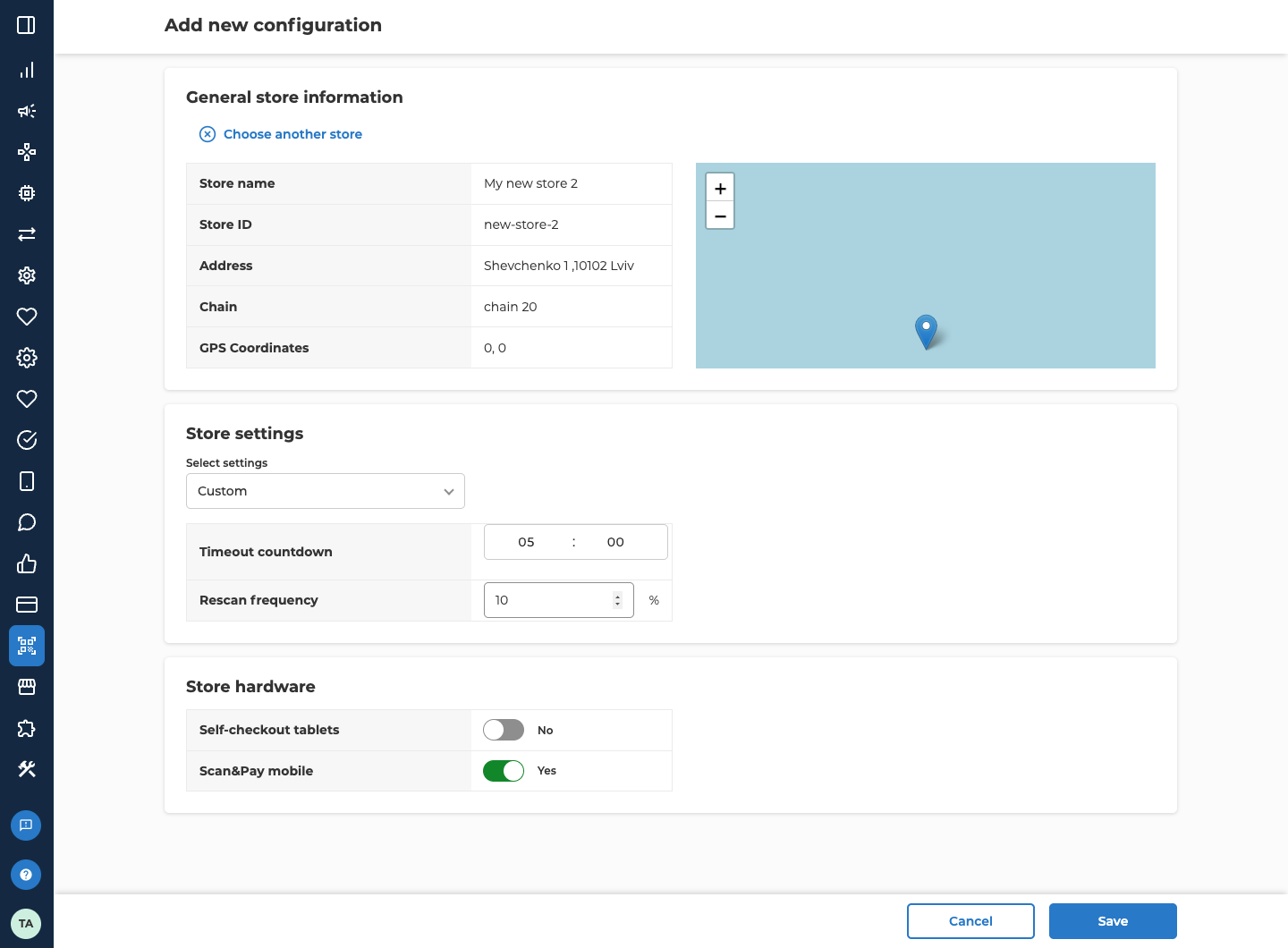
Save the configuration
Select Save. It stays greyed out until you’ve picked a store and every field is filled in correctly. You’re taken back to the store search. The store you added now reads Yes under Has configuration, so you can add the next store straight away. Select Cancel to go back to the Store configurations tab, where the store now shows in the list.Change a configuration
Select the store in the Store configurations list. You can also select … at the end of its row, then Edit. The store’s page shows the same Store settings and Store hardware you chose when you added it. Change what you need and select Save. Cancel leaves the page without saving.Test with the main QR codes
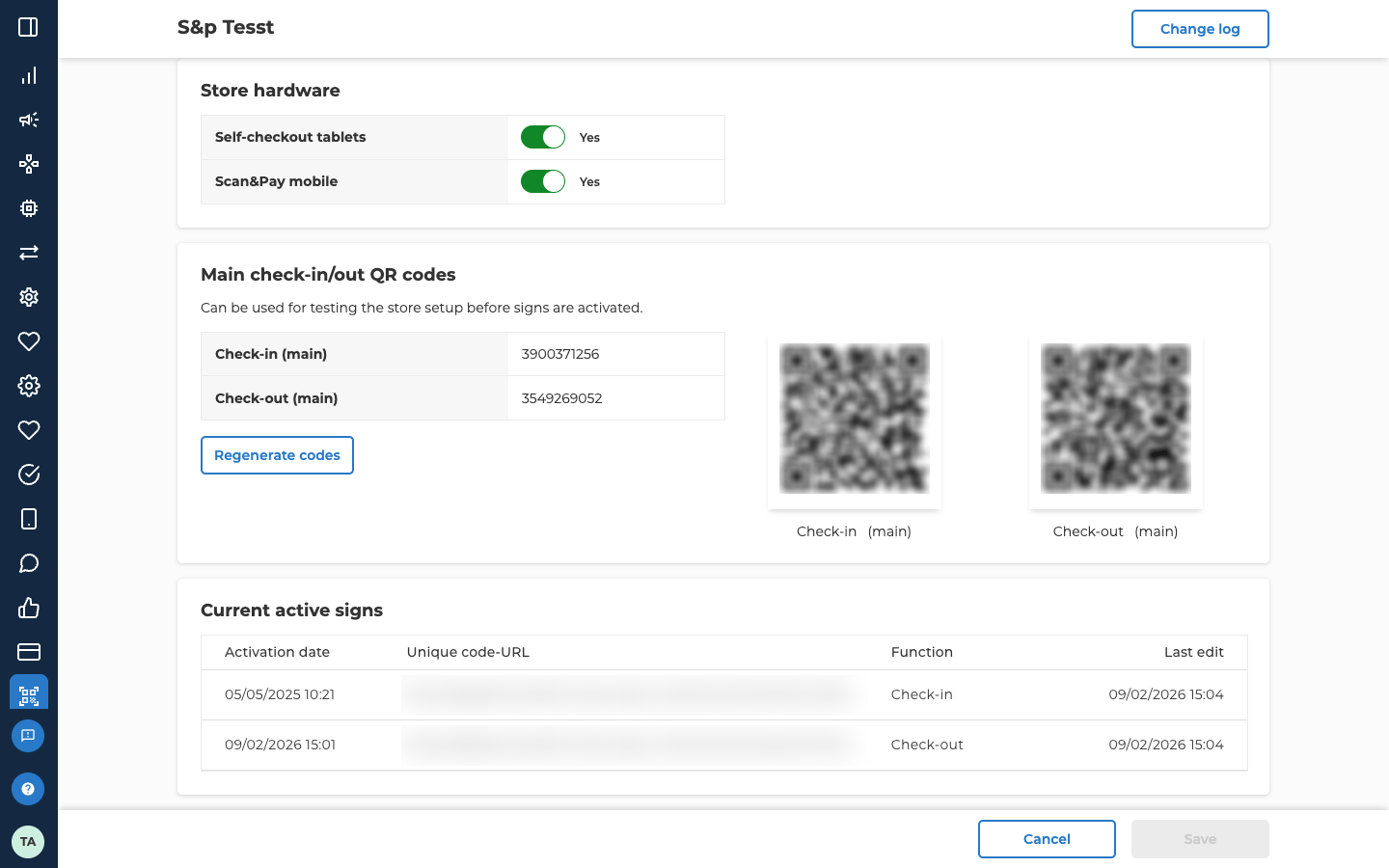
Below the settings, Main check-in/out QR codes shows the store’s main Check-in and Check-out QR codes. You can use them to test the store’s setup before its QR signs are activated.- Download a code. Select a QR code to download it as a PDF.
- Check the store’s signs. Current active signs lists the store’s QR codes with their Activation date, Unique code-URL, Function and Last edit. Function says whether a code is for check-in or check-out. The main codes are marked (main).
- Replace the main codes. Regenerate codes swaps both main codes for new ones. Confirm in the dialog that opens.
See who changed a configuration
Open the store and select Change log at the top right. A list opens with each change’s Date, Type, Action and Name. Use Start date and End date to choose the period it covers. To see the changes for every store at once, open the All change logs tab. Change log - Configurations covers store configurations, and you can search it by store ID. Change log - Settings presets covers changes to presets.Remove Scan & Pay from a store
In the Store configurations list, select … at the end of the store’s row, then Delete. Select Yes, delete configuration to confirm, or No, go back to keep it.Troubleshooting
Why can't I select a store in Add new configuration?
Why can't I select a store in Add new configuration?
The store already has a configuration, so its Has configuration reads Yes. Find it on the Store configurations tab and change it there. If the store isn’t in the search at all, add it in Manage stores and chains first.
Why can't I change Timeout countdown or Rescan frequency?
Why can't I change Timeout countdown or Rescan frequency?
The store uses a settings preset, so the values come from the preset and show a lock. Pick Custom in Select settings to set them for this store alone. To change them for every store on the preset, edit the preset instead.
Why don't I see Add new configuration or Save?
Why don't I see Add new configuration or Save?
You have read-only access to Scan & Pay. Write access comes from a Scan & Pay role in your organisation’s Azure AD. Nexus roles lists the roles.
Related
- Control how often customers are rescanned: create the settings presets stores use, and change rescans for a set period.
- Put a store in maintenance mode: turn maintenance mode on or off for one store or many.
- Manage stores and chains: add a store to Lobyco before you set up Scan & Pay in it.
- Scan & Pay and payments data package: the store configurations, check-ins and rescans as data, for your data team.
- Payments: the payment service that Scan & Pay payments also go through.