

A rescan is a check where a store employee scans the customer’s items again before they pay.
Open Settings presets
In Lobyco Nexus, open Store configuration → Scan & Pay → Store configuration, then the Settings presets tab. A settings preset is a saved set of values that many stores share. Each store uses one preset, or its own Custom values. Set up Scan & Pay in a store shows where a store picks it.Create a settings preset
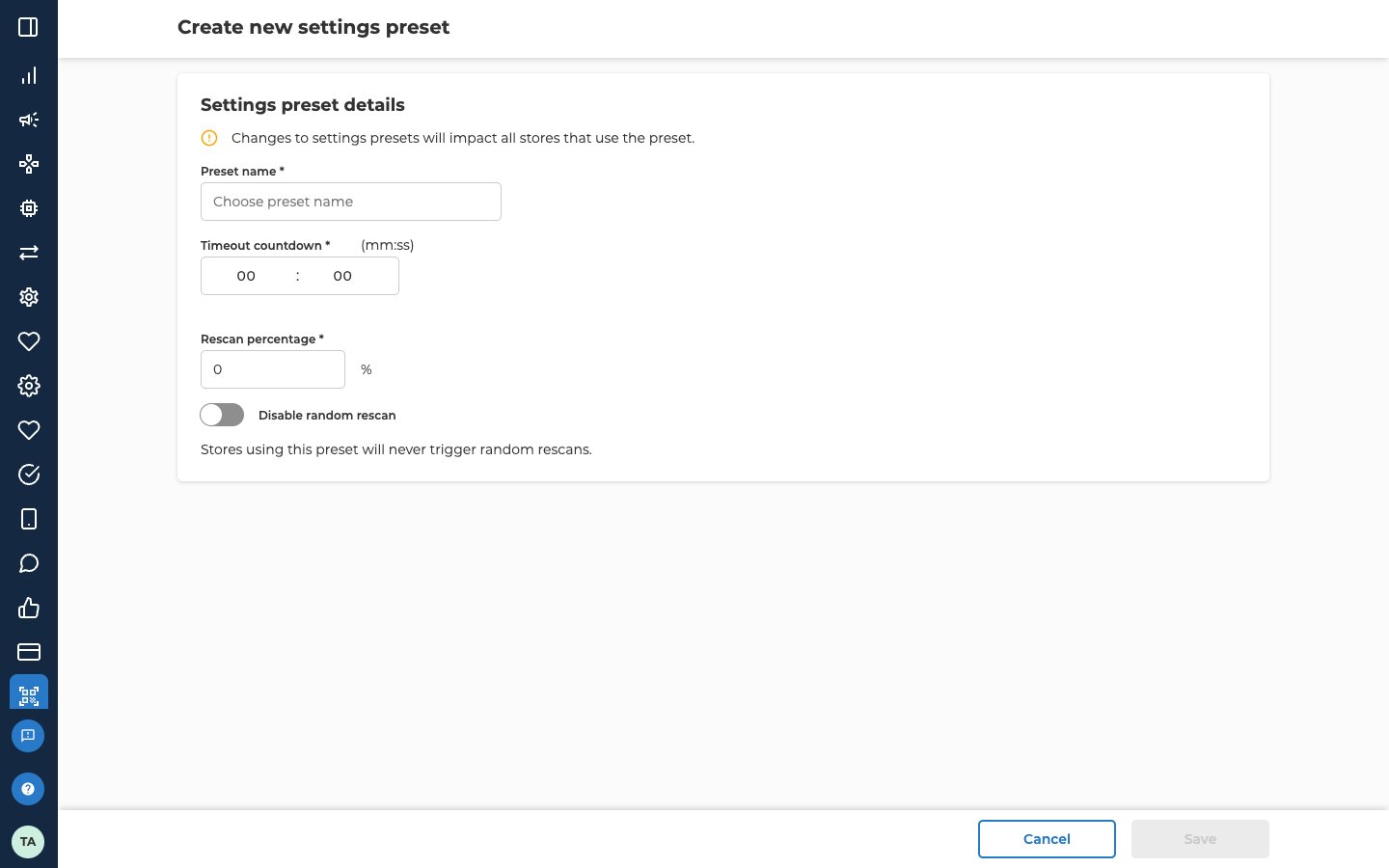
Select Create new preset, then fill in Settings preset details.
Each preset needs a name of its own. Two presets also can’t share the same Timeout countdown and Rescan percentage. Select Save to add the preset to the list.
Change or delete a preset
Select the preset in the list. You can also select … at the end of its row, then Edit. Change the fields and select Save. The preset’s own change log, Change log with the preset’s name, is at the bottom of the page. To find the stores on a preset, filter the Store configurations tab by Settings. To delete a preset, select … at the end of its row, then Delete. Select Yes, delete settings preset to confirm. You can’t undo it. You can’t delete a preset that a store still uses. The portal tells you it’s in use. Move each of its stores to another preset first, then delete it.Schedule a temporary rescan change
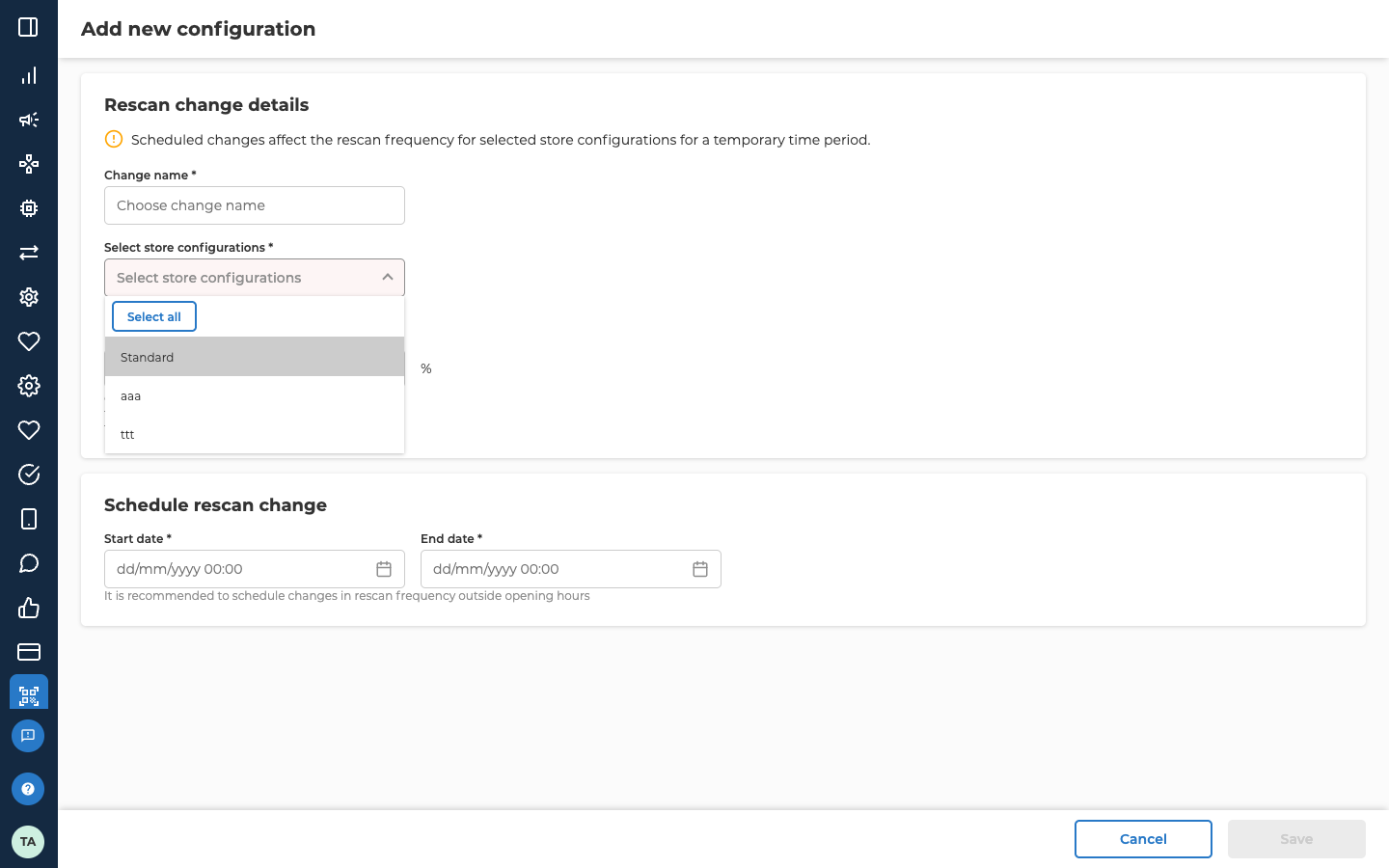
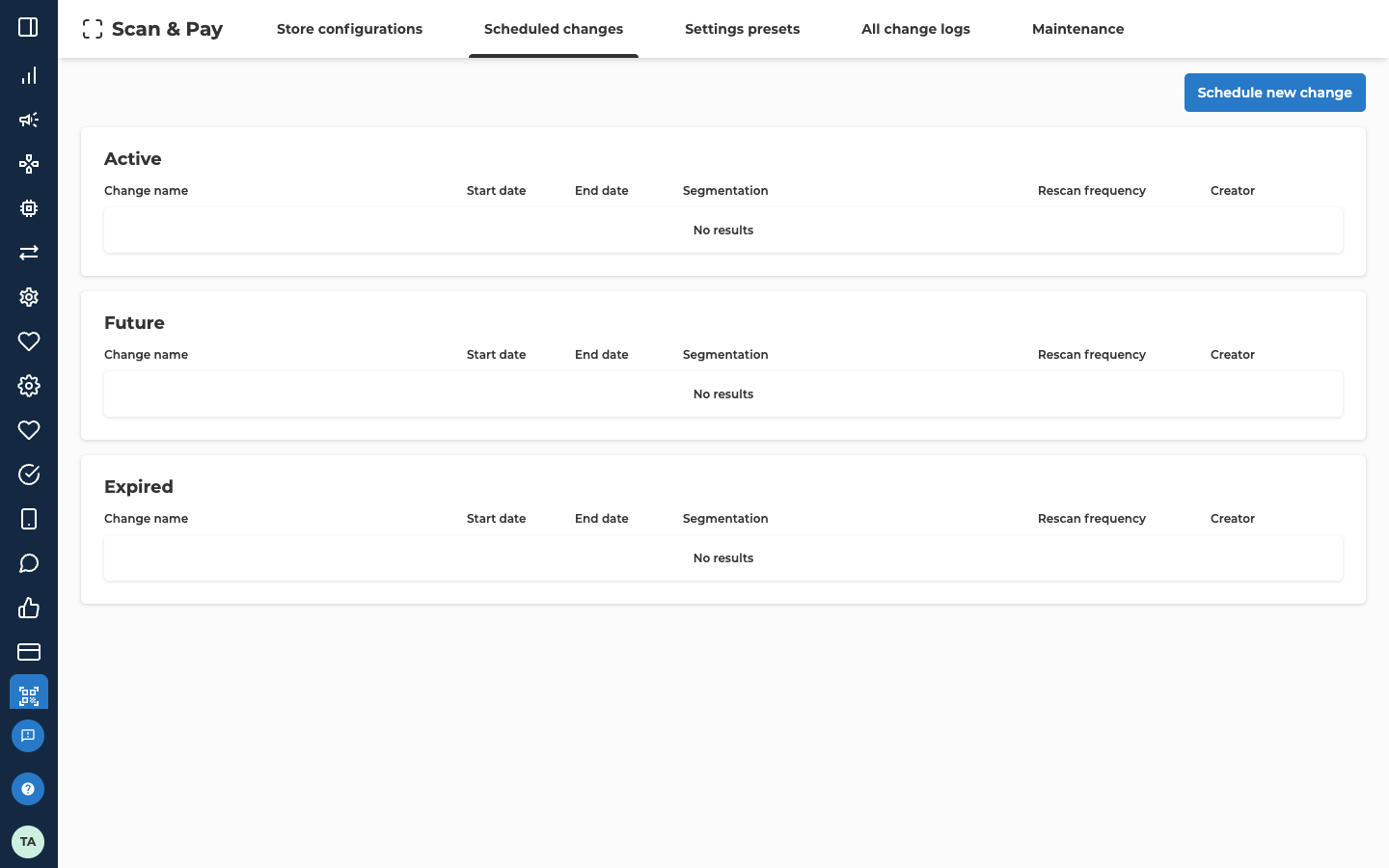
A scheduled change sets a different rescan frequency for a set period. It changes only the rescan frequency, not Timeout countdown. Open the Scheduled changes tab. Its changes are in three lists:- Active for changes running now.
- Future for changes that haven’t started yet.
- Expired for changes that have ended.
The form warns that any value other than 0% can cause a spike in rescans when the change ends. It also recommends scheduling changes outside opening hours.
Select Save. The change shows under Future until its start date, then moves to Active.
Change, stop or delete a scheduled change
Select the change in its list. You can also select … at the end of its row. What you can do depends on which list it’s in.
Each change has its own change log at the bottom of its form.
Troubleshooting
Why can't I save my preset?
Why can't I save my preset?
Another preset already has that name, or the same Timeout countdown and Rescan percentage. The form says which. Change the name or one of the two values.
Why can't I delete a preset?
Why can't I delete a preset?
At least one store still uses it. Filter the Store configurations tab by Settings to find those stores. Move each one to another preset, then delete it.
Why don't I see the Scheduled changes tab?
Why don't I see the Scheduled changes tab?
Scheduled changes need the Scan & Pay admin role. Nexus roles lists the roles, which are set in your organisation’s Azure AD.
Why can't I pick one store for a scheduled change?
Why can't I pick one store for a scheduled change?
A scheduled change covers presets, not single stores. To change one store on its own, give it Custom values in its configuration. See Set up Scan & Pay in a store.
Related
- Set up Scan & Pay in a store: pick the preset a store uses, or give it its own values.
- Put a store in maintenance mode: turn maintenance mode on or off for one store or many.
- Scan & Pay and payments data package: rescans and store settings as data, for your data team.