

A challenge always belongs to a campaign, so create or open the campaign first.
Add a challenge to your campaign
You can add a challenge in the campaign’s list or on its orchestration canvas. Either way, the same form opens.- In the list
- On the canvas
- Go to Campaigns and open the campaign the challenge belongs to, or create a new one.
- Select Add activities, or Add activity if the campaign already has some.
- On the Select an activity page, point at the Challenge tile and select From scratch. To start from a saved challenge instead, select From template. Reuse with templates explains how.
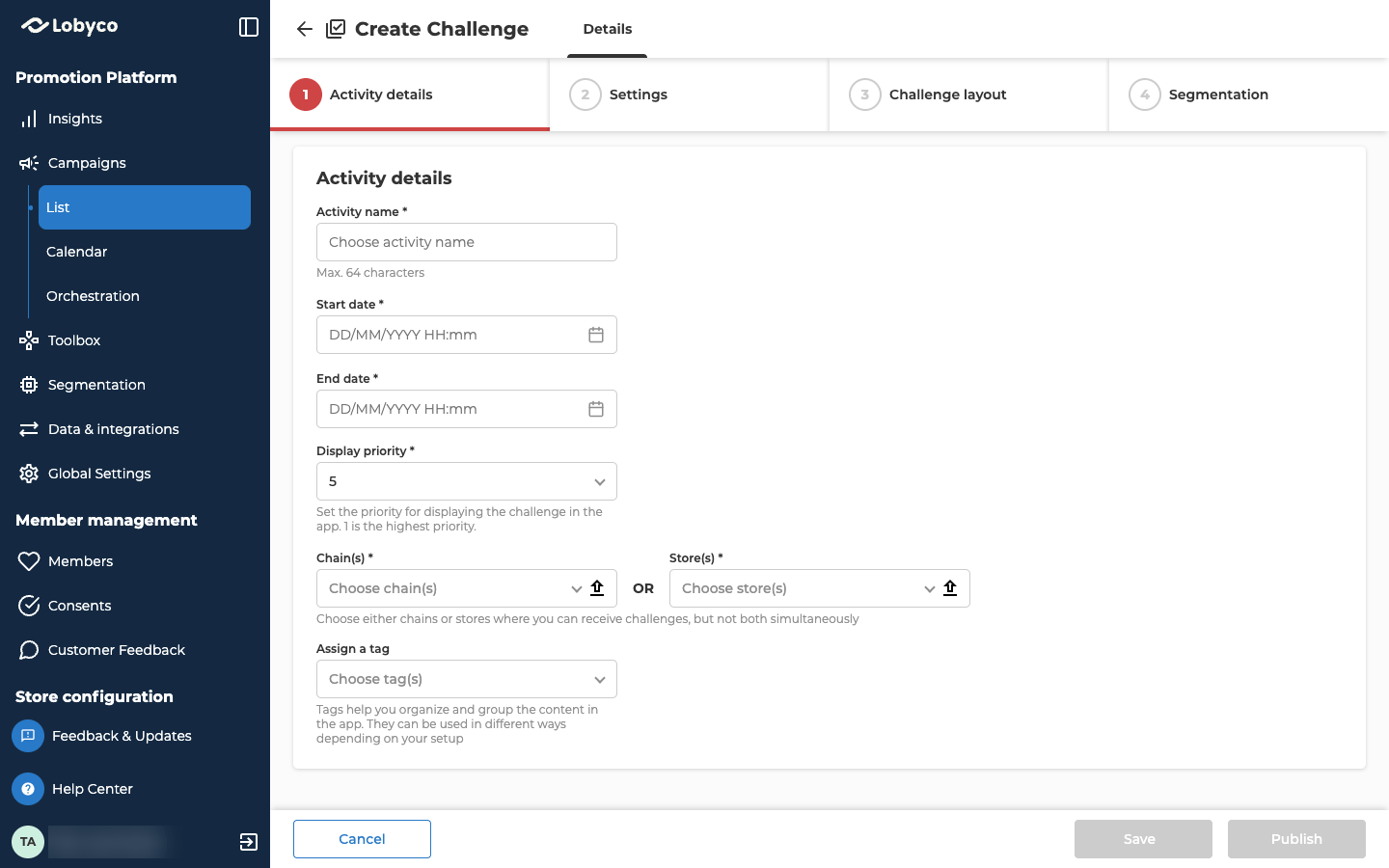
Fill in Activity details
When another block on the orchestration canvas connects into the challenge, it becomes a triggered challenge. This tab then adds an Add triggered details panel with these fields:
- Validity period of challenge is how many days a customer has to complete the challenge after they receive it. If you leave it empty, the customer has until the challenge’s end date.
- Time between challenges issued and Specify timeframe set how long before the same customer can receive the challenge again. Enter a number, then pick Day(s), Week(s), Month(s) or Year(s).
Set how progress is earned
Open Settings. Its first panel, Activity behaviour, decides what customers have to do.
Changing Accumulation resets your earn rules. Changing the accumulation later says what each one keeps.
Nexus asks you to confirm in two cases only:
- The challenge has more than one earn rule, and you change Accumulation or switch Challenge type to Tiered. Both keep only the first rule.
- You switch a tiered challenge that has rewards on its tiers back to Standard.
Tiered challenges
A tiered challenge sets a series of goals on one earn rule, such as spend 50, then 100, then 200. Each goal has its own rewards, for example 5 bonus points, then 15, then a 20% off coupon. Every tier shares the products, categories and earn method you set above.- Set Challenge type to Tiered. The form starts you with two tiers. A tiered challenge always has at least two.
- For each tier, enter its target. Depending on the earn rule, that’s a Count, an Amount, or a number of visits or purchases. Each tier’s target has to be higher than the one before.
- On each tier, select Add rewards. Tick any combination of Coupon reward, Bonus reward and Custom reward. Fill in what each one needs, then confirm with Select. A tier can hold one coupon, one bonus and one custom reward, but not two of the same kind. Every tier needs at least one reward. To change a tier’s rewards later, select Edit.
- To add more goals, select Add tier. Once there are more than two tiers, you can delete any of them.
- Issue at every tier crossed is the default. It gives the customer each tier’s rewards as soon as they reach its target. A purchase that crosses several tiers gives the rewards of all of them.
- Issue only the highest tier gives only the rewards of the highest tier the customer reaches. A customer who reaches the top tier gets its reward straight away, and the card completes. A customer who stops lower down gets the rewards of their highest tier in the overnight run after the challenge ends, and the lower tiers they passed give nothing. Purchases that reach Lobyco after that run, such as sales a store system sends late, don’t change it. If the challenge is disabled when the run happens, those customers get nothing. See Stop a challenge.
- On Multiple purchase, Store visits and Payment method, a card completes when the customer reaches the top tier. On a renewable challenge, the customer then starts a new card at the first tier, and any progress beyond the top tier carries over to it.
- On One purchase, each purchase is judged on its own, and progress doesn’t carry over to the next purchase. The purchase completes the card at the highest tier it reaches, even if that isn’t the top one. If the challenge is One-time, the customer can’t come back for a higher tier.
On a One purchase version of the same challenge, each purchase stands alone:
- 4 coffees reach no tier, and give nothing.
- 7 coffees reach tier 1, and complete the card with 10 points.
- 12 coffees reach tier 2, and complete the card with 10 + 25 points.
Choose the reward
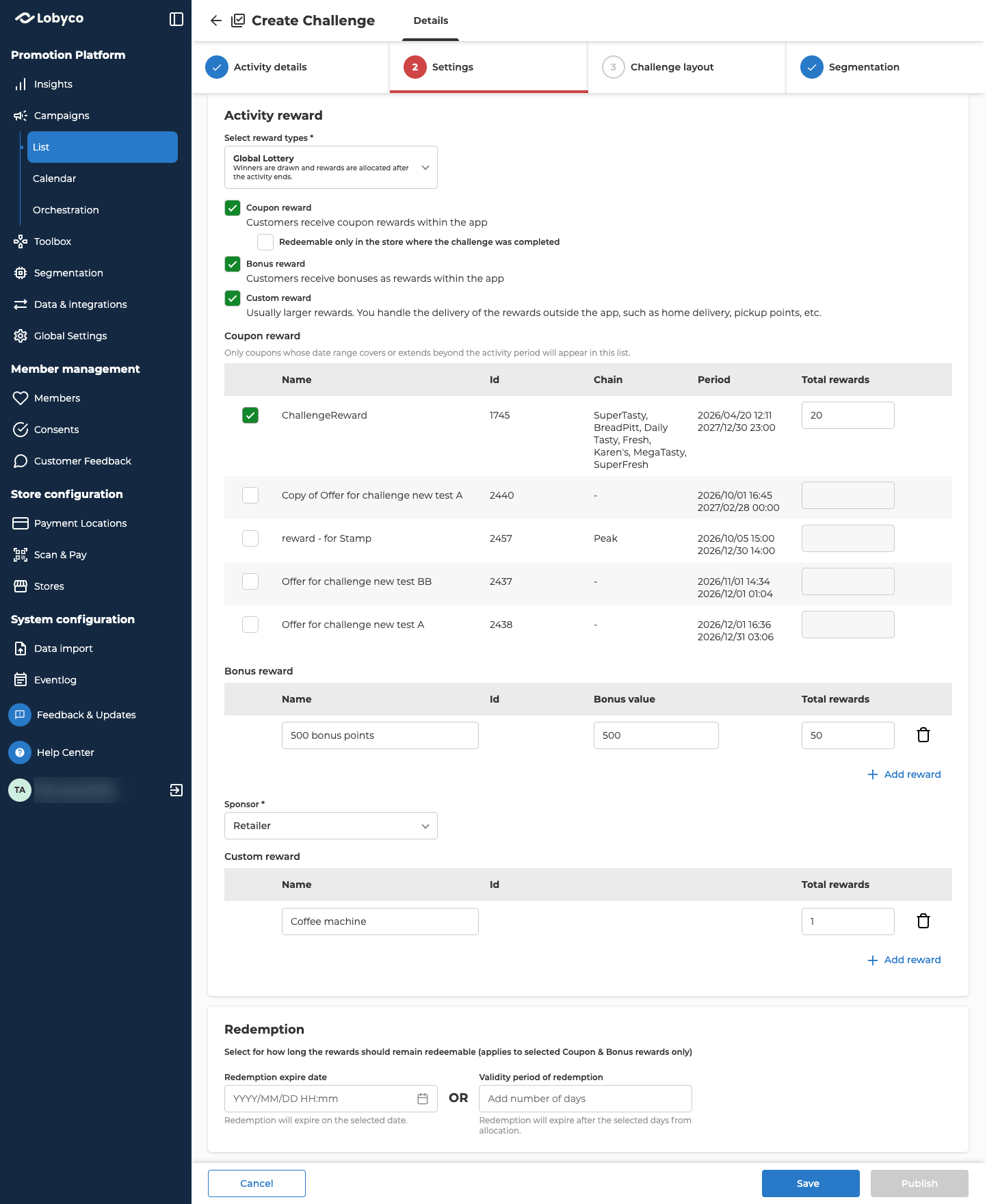
For a standard challenge, you set the reward in Activity reward, the second panel on Settings. A tiered challenge doesn’t show this panel, because its rewards sit on each tier. First, decide how customers get the reward, in Select reward types. Standard is selected when you open the form, and no reward is ticked yet. This Standard is the reward type. It isn’t the Standard challenge type, and a tiered challenge always uses a Standard reward.
You can’t change either of them once the challenge is Active. Nexus also won’t save a change to Select reward types once the challenge is published, even while it’s still scheduled.
Then tick the reward. A challenge with a Standard reward gives one kind of reward, so ticking a second one replaces the first. A lottery can combine all three.
The coupon table only lists published offers of type Challenge that run at least until the challenge’s end date. If your offer isn’t there, publish it, check its type, or bring the challenge’s end date forward. An offer that starts after your challenge starts is listed, but you can’t publish the challenge. Move the challenge’s Start date to the offer’s start or later.
If you pick a Custom reward, say in Details text or Terms & conditions text how and when you’ll deliver it.
Two more fields appear, depending on the reward:
- Redeemable only in the store where the challenge was completed appears under Coupon reward once you tick it. On a tiered challenge it’s in each tier’s Add rewards window. It limits the coupon to the store where the customer completed the challenge.
- Sponsor appears under Bonus reward, and it’s required. It records who paid for the bonus, so you can report on it. The list of sponsors is part of your setup, so you can’t add a sponsor in Nexus.
- Redemption expire date is a fixed date. It can’t be before the challenge’s end date. For a coupon reward, it also can’t be after the end date of the earliest-ending offer you picked.
- Validity period of redemption is a number of days. The reward expires at the end of the day that many days after the day the customer gets it. In a lottery, the customer gets it on the day you approve the draw. For a coupon reward, the challenge’s end date plus this number of days can’t be after the end date of the earliest-ending offer you picked. For example, if the challenge ends on 30 June and the offer ends on 15 July, the most you can enter is 15 days.
Find who earned a custom reward
Download the challenge report. It only exists for Active and Expired challenges. A completed card shows ClosedAt on every one of its rows, so filter to the rows with a filled ClosedAt and list each MemberId once. The report has no contact details. To contact a customer, search for the ID under Member management → Members.Design the challenge card
Open Challenge layout. The Preview beside the fields shows where each one lands on the challenge card and its details page. It isn’t the final design.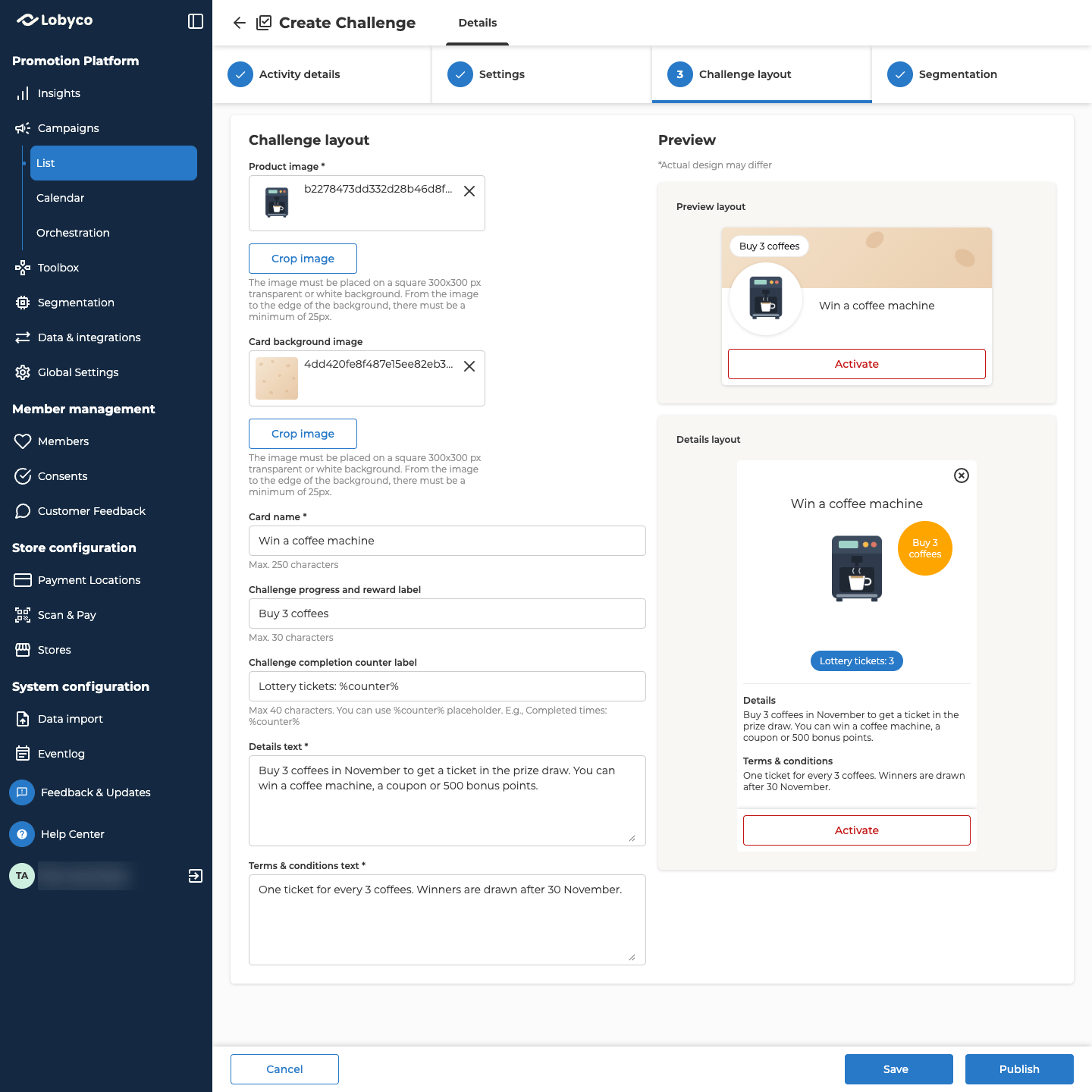
Choose who can take part
Open Segmentation and pick one of these:- All customers is the default. Every customer can take part.
- Target only selected segment limits the challenge to one or more segments. Pick one or more with Select from list, or make a new one there with Create new audience. A customer who is in several of the segments you pick still gets one card, and their progress and rewards aren’t doubled. The list only shows segments whose Destination(s) include Challenges. You build segments in Segments and Audiences.
Save or publish the challenge
At the bottom of the form:- Select Save to keep the challenge as a draft while you work on it. A draft needs an Activity name, a Start date and End date, and a target on every earn rule. On a tiered challenge, that means a target on every tier. It doesn’t need a reward. On a tiered challenge, once one tier has a reward, every tier needs one. Anything else you’ve filled in has to be valid.
- When every tab is complete, select Publish, and confirm. The confirmation tells you whether the challenge becomes active now or on its start date. If you added the challenge on the canvas, connect its block first, because you can’t connect it after you publish.
- Select Cancel to close the form without keeping your changes.
Troubleshooting
Why can't I edit this challenge?
Why can't I edit this challenge?
The form is read-only when the challenge has expired, when its campaign has ended, or when you open the challenge outside a campaign. Open it from the campaign instead, while the campaign is still running.
Why won't the challenge publish with my coupon reward?
Why won't the challenge publish with my coupon reward?
The coupon’s dates have to fit around the challenge. The challenge can’t start before the offer does. The reward also has to expire by the offer’s end date. That goes for the Redemption expire date, and for the challenge’s end date plus the Validity period of redemption. The form checks the Redemption expire date as you type. It only checks the Validity period of redemption when you save or publish.
Related
- Accumulation types — each way progress can add up, and the earn rules for each.
- Draw lottery winners — drawing, checking and approving winners once a lottery challenge ends.
- Edit or disable a challenge — what can still change once a challenge is live, and how to stop one.
- Offer types — the Challenge offer type behind a coupon reward.
- Reuse with templates — starting a challenge from a saved one.