

The Lottery tab only shows on a challenge whose Select reward types is Global Lottery or Local Lottery. A tiered challenge can’t be a lottery, so it never has this tab.
Draw the winners
You can only draw winners once a published challenge’s end date has passed and it shows as Expired. Until then, Draw winners is greyed out. There’s no deadline for the draw itself, and you can draw after the challenge’s campaign has ended. A coupon reward still expires on its Redemption expire date, so draw and approve before then. See Approve the winners.- Open the challenge from its campaign.
- Select Lottery, beside Details at the top of the challenge.
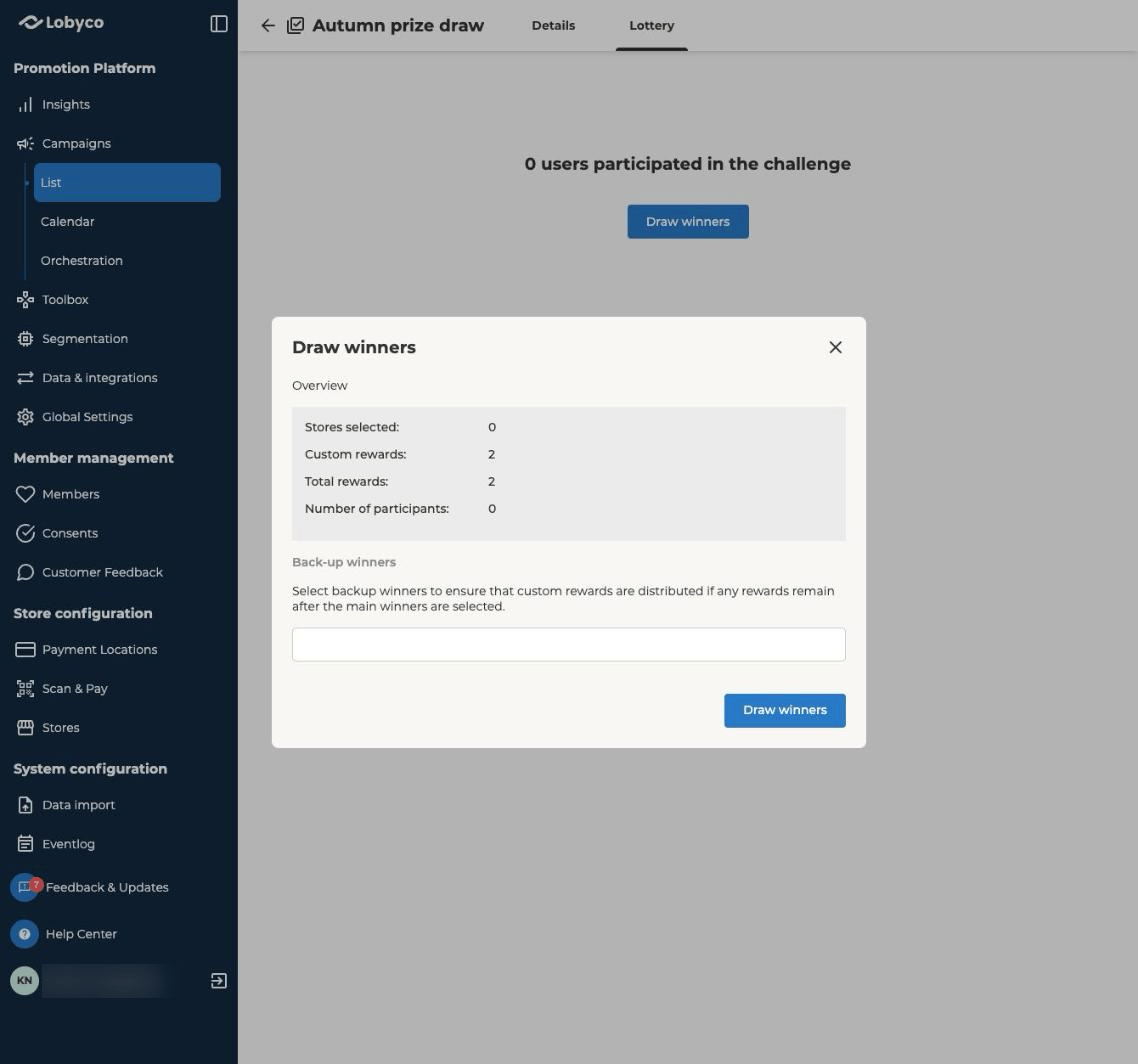
- Select Draw winners. The dialog opens on an Overview of the draw, with these figures:
- If the challenge has custom rewards, which are prizes you deliver yourself outside the app, enter how many Back-up winners you want. In a local lottery, the field is called Back-up winners per store. You can enter zero.
- Select Draw winners in the dialog.
- Each completed card is one entry. A customer who completed a renewable challenge several times has more chances to win.
- Only cards from this challenge count. You can’t draw from customers who completed a different challenge.
- A customer wins once per lottery. In a local lottery, they have an entry in every store where their card collected progress, but they can only win in one of them.
- You can’t choose which winner gets which prize.
- Prizes can go unawarded. If fewer customers qualify than there are prizes, everyone who qualifies wins and the rest go unawarded.
How a local lottery picks winners
A local lottery draws one store at a time. Each store gets the prizes you set per reward. Its winners come from customers whose completed card collected progress in that store.- The busiest store goes first. Lobyco draws the stores in order of how many purchases counted on completed cards there.
- A customer wins once. Someone who wins in one store is left out of every store drawn after it. That’s why the order matters to a customer who shopped in several stores.
- A store can come up short. A store with fewer qualifying customers than prizes gets fewer winners. A store where nobody completed a card gets none, even though Stores selected counts it. So Total rewards is the most the draw can give out.
- Backups come last. Once every store has its winners, Lobyco draws the backup winners store by store in the same way, counting only customers who haven’t won yet.
Check the winners
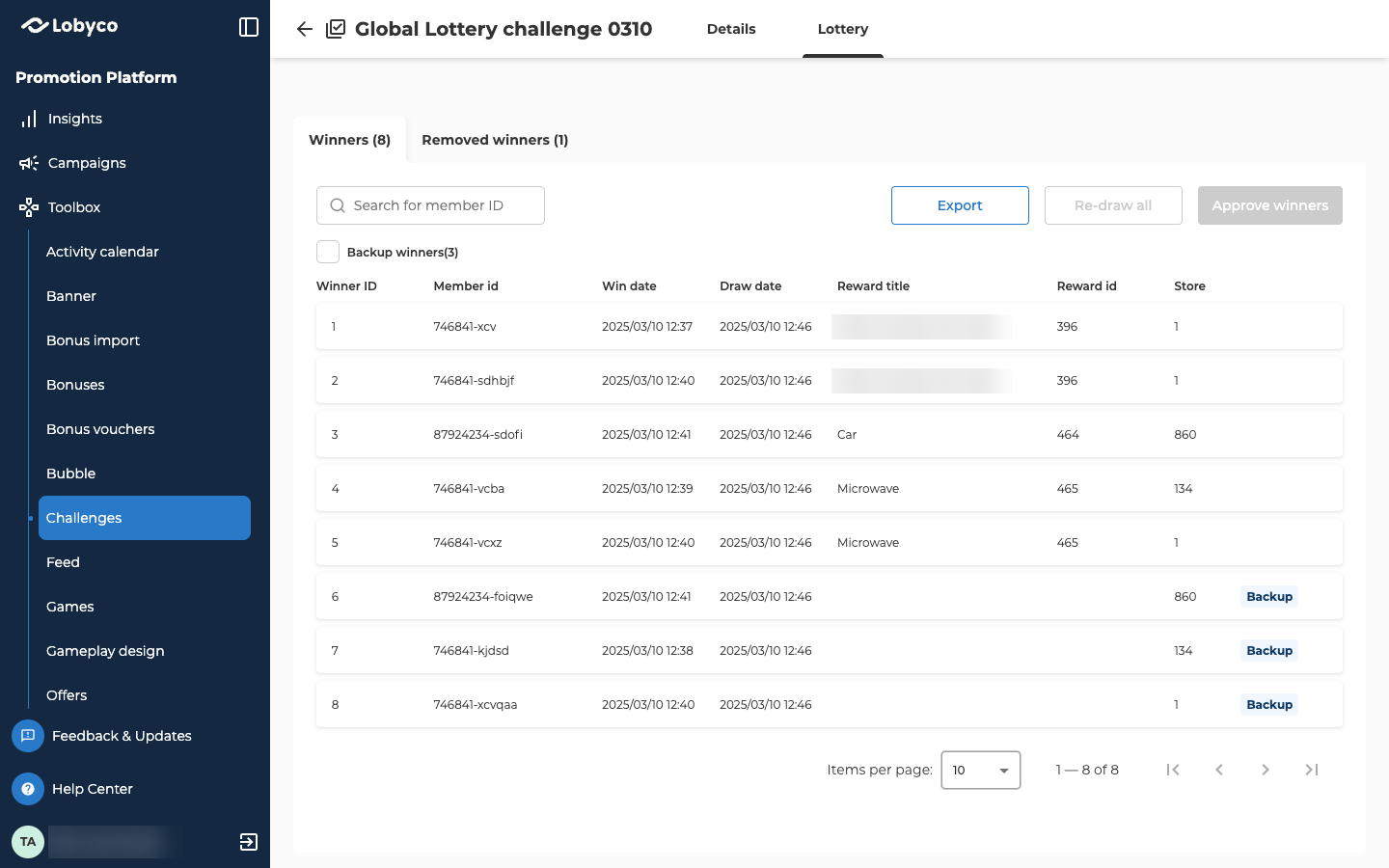
The Winners tab lists everyone who was drawn.
Backup winners have a Backup badge. To list only them, tick Backup winners. To find one customer, use Search for member ID.
Replace a winner who can’t take part
Remove a winner who isn’t allowed to win, such as an employee the lottery’s rules exclude.- Open the ⋯ menu on the winner’s row and select Replace member.
- Enter the reason in Specify reason. It’s required. Lobyco keeps it with the removed winner, so write something a colleague could understand later.
- Select Draw new winner.
Re-draw, if you need to
Re-draw all runs the whole draw again, in the same dialog. Use it to change the number of backup winners, for example. It replaces the current list of winners. Customers you removed stay out of the draw.Approve the winners
Select Approve winners, then select Continue to confirm. When you approve, coupon and bonus rewards go to the winners’ accounts. Re-draw all and Approve winners are greyed out, and the ⋯ menu with Replace member disappears from the rows. That’s how you know the draw is approved. Approving issues each coupon at that moment. A coupon isn’t issued if its Redemption expire date has already passed, or if its offer has already ended. The winner stays on the list but gets no coupon. If you set Validity period of redemption instead of a date, the coupon expires that many days after you approve, and it isn’t issued if that falls after the offer’s end. So approve before the earliest of those dates. With a validity period, approve at least that many days before the offer ends. Nexus doesn’t warn you when a coupon isn’t issued. To check that a winner got theirs, search for them under Member management → Members and open their Coupons tab. Bonus rewards are always added, even after the Redemption expire date, but the bonus then carries an expiry date that has already passed. So approve before that date for bonus rewards too. Nexus doesn’t contact custom reward winners. That’s up to you. Export the winners to get the list.Export the winners
Select Export to download the winners as a CSV file. You can do this before or after you approve. The file has a row for every winner on the Winners tab, backup winners included. Removed winners aren’t in it. Use it to hand out custom rewards, to contact winners, or to give winners points in another system. The file has no names or contact details. To contact a winner, search for their ID under Member management → Members. The columns, in the order the file has them:
Main winners come first in the file, then the backup winners.
Troubleshooting
Why is Draw winners greyed out?
Why is Draw winners greyed out?
The challenge isn’t Expired. You can only draw winners once a published challenge passes its end date and becomes Expired. A draft never becomes Expired. Disabling a challenge sends it back to draft, so a disabled lottery challenge that has ended can’t be drawn until you publish it again.While its campaign is still running, you can get the draw back:
- Open the challenge from its campaign.
- Move End date to the nearest time you can, because customers keep adding entries until then. It has to stay inside the campaign’s dates.
- If the challenge has a Redemption expire date before the new end date, move that too.
- Select Publish.
Related
- Create a challenge — setting up a lottery and its rewards, on the Settings tab.
- Challenges — how cards turn into lottery entries.
- Accumulation types — renewable challenges, and why they give customers more entries.