Add-ons are extra blocks you put on a page of your gameplay, such as an age check or a slideshow. This page covers seven of them and what each one is for. It also covers how to use video and sound in a gameplay. You add all of them in the Gameplay Editor. Edit a gameplay explains how to open it.

At a glance

A video can also be the background of a page. See Video. Some game types also play sound effects.

Add an add-on to a page

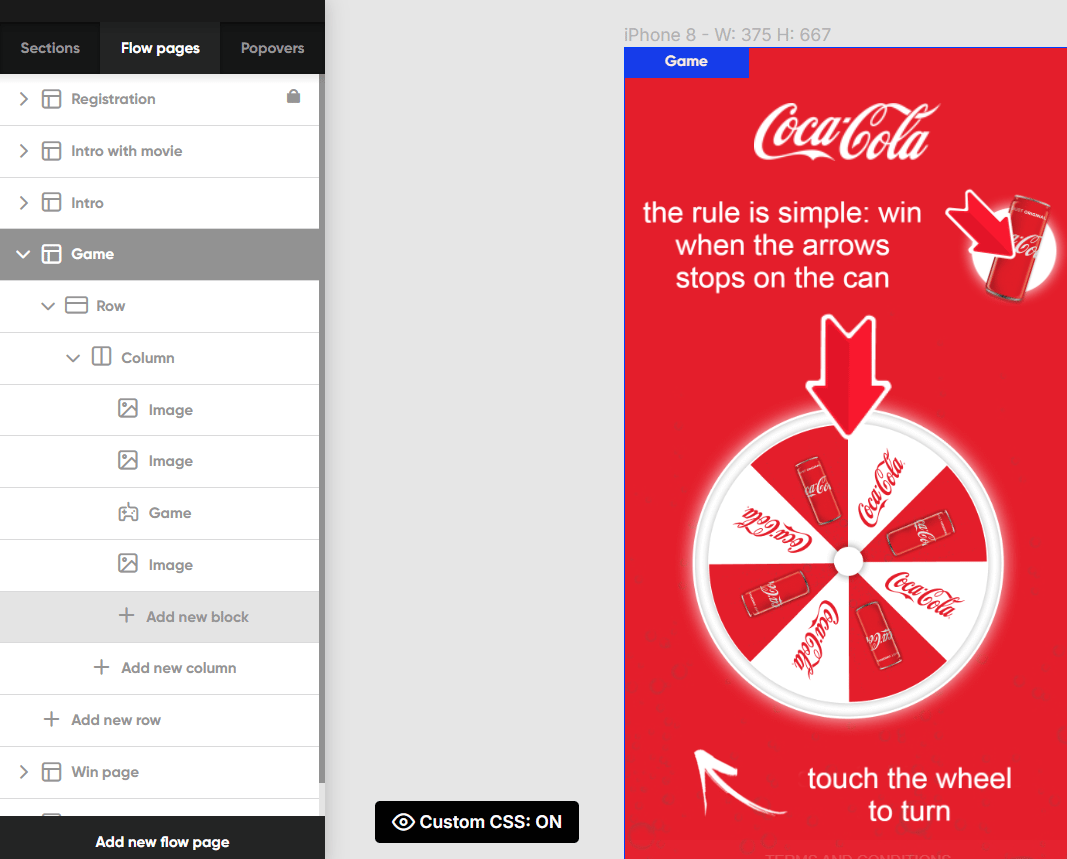
  1. In the Game Navigator, on the left of the editor, open the page. Select Add new block where you want the add-on to go. You can also select the plus icon on the page itself.
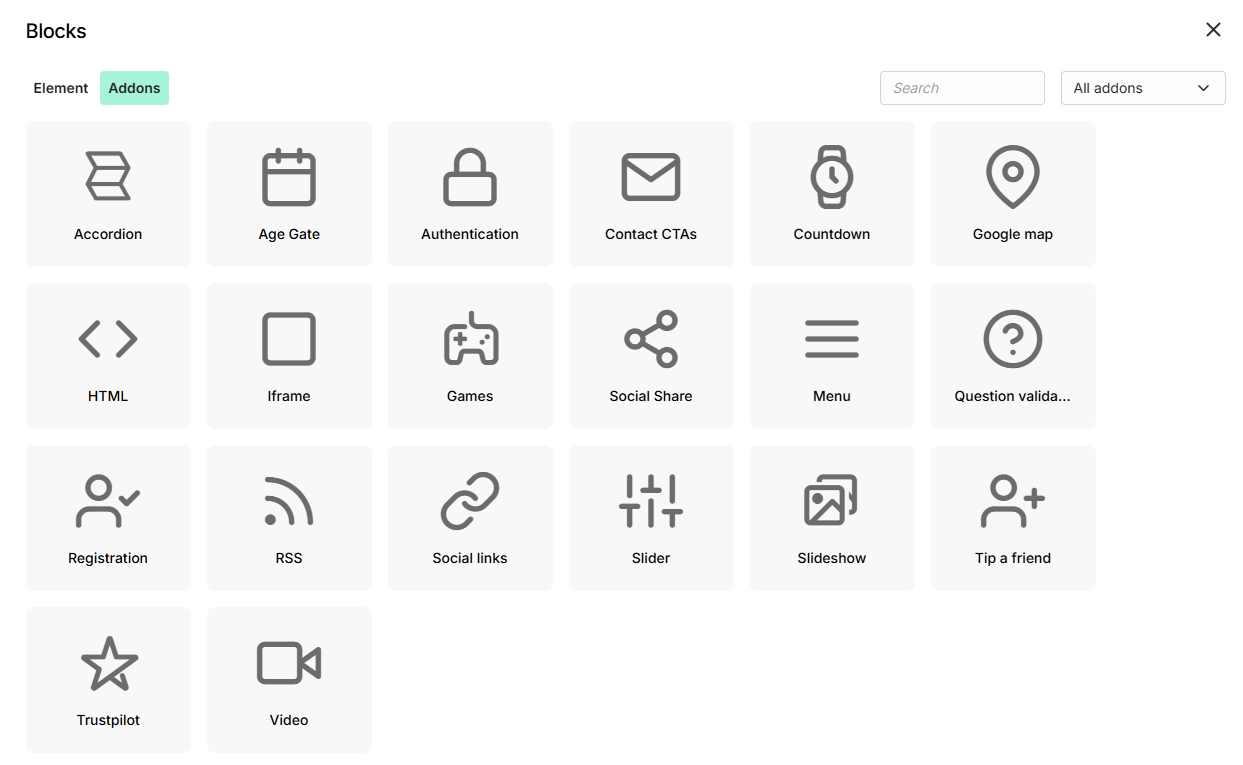
  2. In the Blocks dialog, select the Addons tab.
  3. Select the add-on.
The Addons tab lists the add-ons. To narrow the list, pick a category in the All addons list, or type in Search. The tab also holds add-ons this page doesn’t cover, such as Countdown and Google map. To change an add-on later, select it on the page or in the Game Navigator. Its settings open in the Game menu, on the right. The Game Navigator in the Gameplay Editor, on its Flow pages tab, next to a preview of the page in a phone frame labelled iPhone 8 - W: 375 H: 667. The Game page is open to Row, Column and its blocks, Image, Image, Game and Image, with Add new block highlighted under them, then Add new column and Add new row. The other flow pages listed are Registration, Intro with movie, Intro and Win page, with Add new flow page at the bottom. The preview shows a red Coca-Cola branded Wheel of fortune game with the text the rule is simple: win when the arrows stops on the can, and touch the wheel to turn. A Custom CSS: ON button sits under the preview. Add new block, under the blocks of the Game page The Blocks dialog in the Gameplay Editor, with the Addons tab selected next to Element, a Search field and an All addons filter. It shows 20 add-ons as tiles: Accordion, Age Gate, Authentication, Contact CTAs, Countdown, Google map, HTML, Iframe, Games, Social Share, Menu, Question valida… cut off, Registration, RSS, Social links, Slider, Slideshow, Tip a friend, Trustpilot and Video. The Addons tab of the Blocks dialog

Accordion

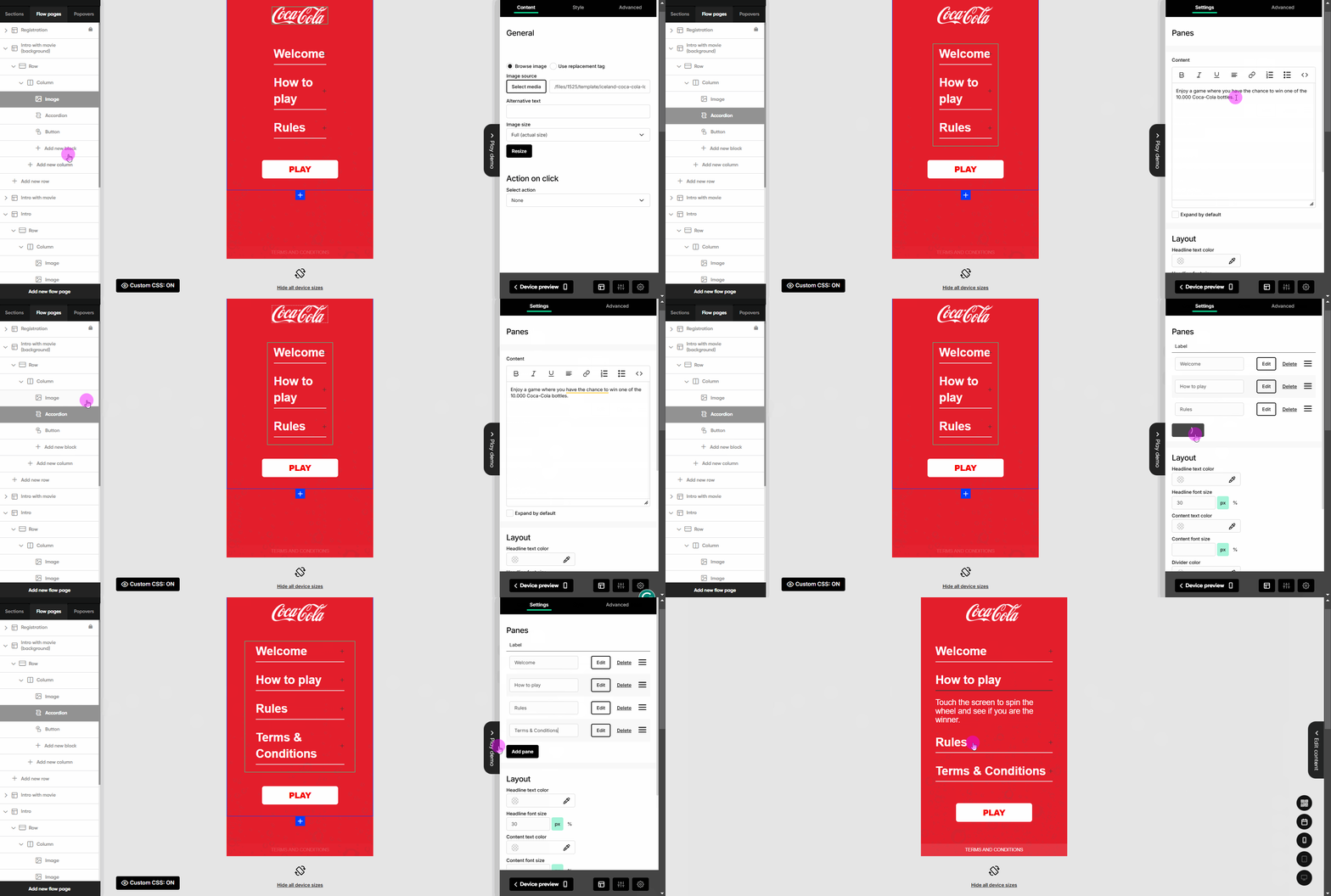
The Accordion add-on holds several sections of text, called panes. Customers tap a pane’s title to open it and tap again to close it. It keeps a page short when you have a lot to say, such as a welcome, how to play and the rules. Select Add pane for each section, and give it a title and the text it shows when it opens. Tick Expand by default on a pane to show it open when the page loads. An animation of the Accordion add-on being set up on the Intro with movie page of a red Coca-Cola branded gameplay. On the Settings tab on the right, under Panes, the text of a pane is typed into a text editor, with an Expand by default box under it. The list of panes then shows Welcome, How to play and Rules, each with Edit and Delete, and Add pane adds a fourth, Terms & Conditions. Layout settings below set the headline and content text colours and font sizes. In the preview, the four panes show as headings with a plus sign, and How to play opens to show Touch the screen to spin the wheel and see if you are the winner, above a PLAY button. Panes added to an Accordion, and one opened in the preview
Age gate

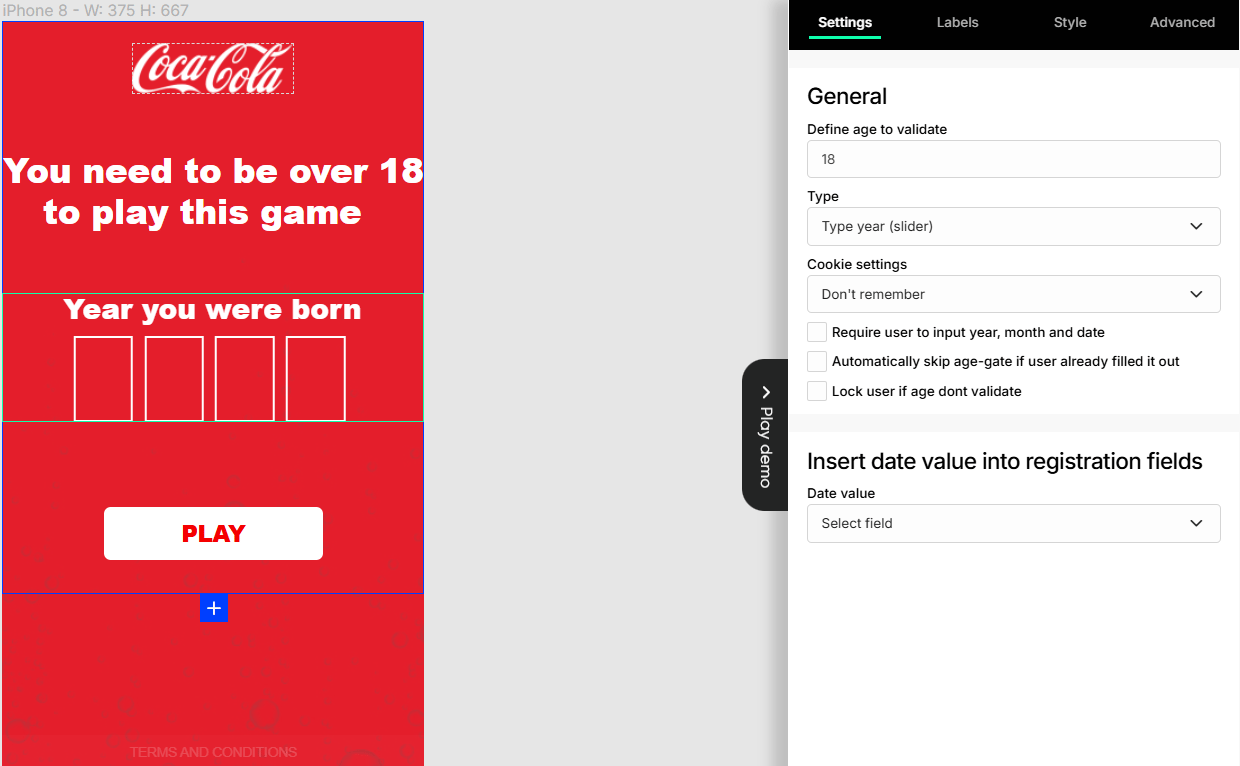
The Age Gate add-on asks customers for their age before they can play. Use it when a game needs an age limit, for example when a prize is alcohol. A customer who is under the age limit can’t go on in the game. Put it on a page of its own at the start of the game, such as an extra intro page. Select the add-on to set it up. For example, Define age to validate sets the age limit, and Type sets how customers enter their year of birth. Its Labels and Style tabs set what it says and how it looks. The Age Gate add-on in the Gameplay Editor. The preview shows a red Coca-Cola branded page reading You need to be over 18 to play this game, then Year you were born with four empty boxes, and a PLAY button. On the right, the add-on's Settings tab, next to Labels, Style and Advanced, shows Define age to validate set to 18, Type set to Type year (slider) and Cookie settings set to Don't remember. Below are three unticked boxes, Require user to input year, month and date, Automatically skip age-gate if user already filled it out, and Lock user if age dont validate. Under Insert date value into registration fields, the Date value list shows Select field. An age check before the game, with its settings
HTML

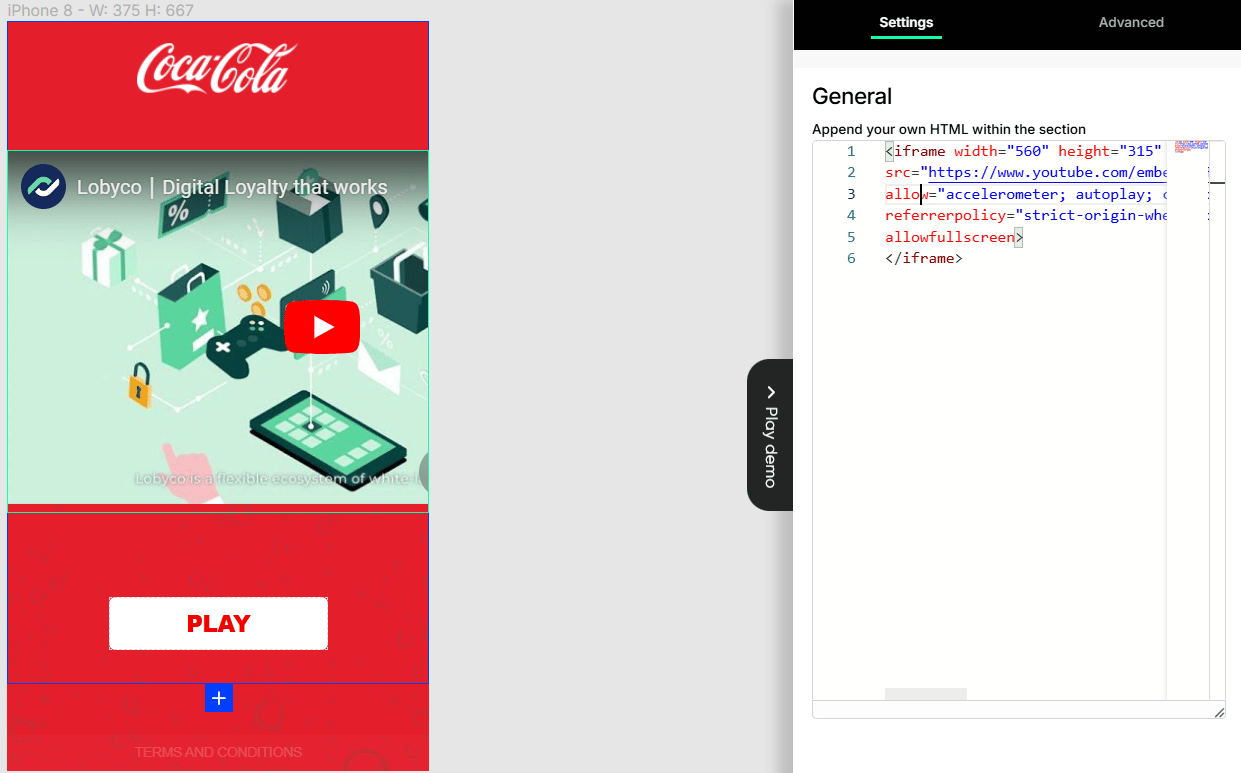
The HTML add-on puts a piece of your own HTML code on the page. For example, it can show content from another site in an iframe, or an HTML5 animation. Use it only when no other block does what you need. Custom HTML can look different from one phone to the next. The HTML add-on in the Gameplay Editor. The preview shows a red Coca-Cola branded page with an embedded YouTube video titled Lobyco | Digital Loyalty that works, above a PLAY button. On the right, the Settings tab, next to Advanced, has a code box headed Append your own HTML within the section, holding an iframe tag with a YouTube embed link. A YouTube video embedded with the HTML add-on
Question validation

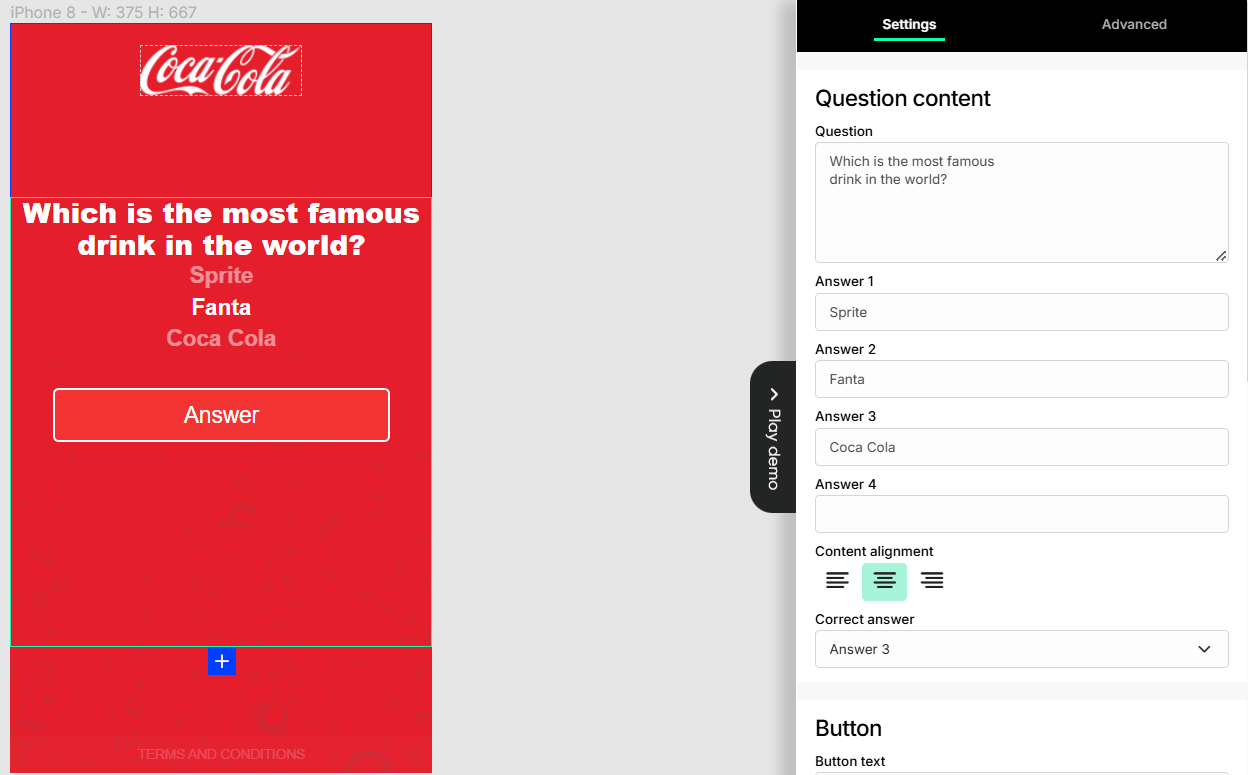
The Question validation add-on asks customers a question at a point in the game. For example, a question at the start can test what they know about the brand or the theme of the game. You write the question and up to four answers, and pick the Correct answer. You can let customers carry on even when they answer wrong, so the question doesn’t stop anyone playing. The Question validation add-on in the Gameplay Editor. The preview shows a red Coca-Cola branded page asking Which is the most famous drink in the world?, with the answers Sprite, Fanta and Coca Cola, and an Answer button. On the right, the Settings tab, next to Advanced, holds under Question content the Question, Answer 1 to Answer 3 filled in and Answer 4 empty, Content alignment set to centre, and Correct answer set to Answer 3, with a Button section below. A question with three answers, and the third one marked correct
Slideshow

The Slideshow add-on shows several images in one place. Customers swipe through them, or they change on their own.
  • Add up to 24 images.
  • Turn on Enable link on an image to open a link when a customer taps it. The link can go to a page of the game or to another website.
  • Turn on Auto slide to change the images on their own. Transition type sets how one image changes to the next, and Shuffle shows them in a random order.
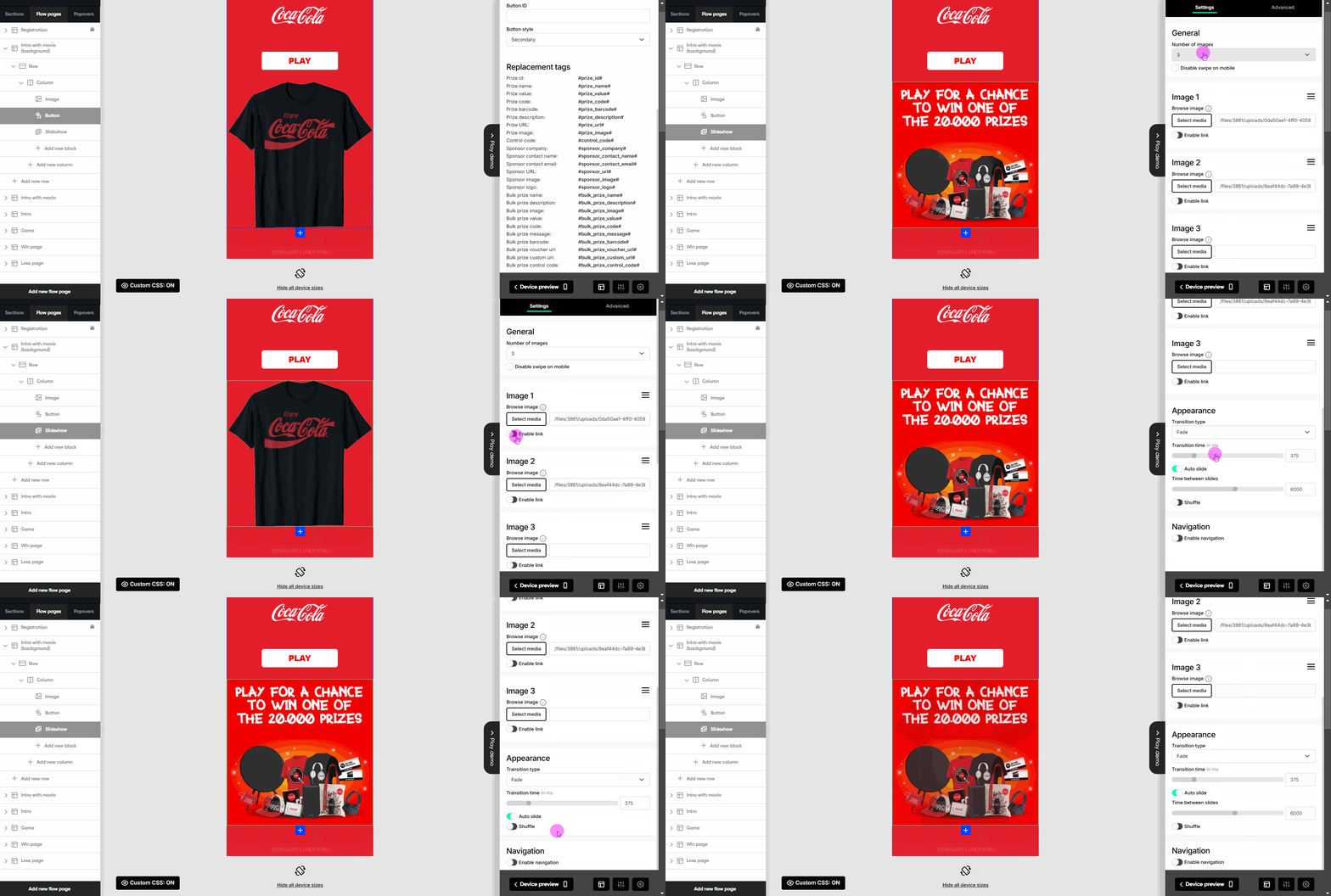
An animation of the Slideshow add-on being set up on the Intro with movie page of a red Coca-Cola branded gameplay. On the Settings tab on the right, Number of images is picked from a list of numbers. Image 2 and Image 3 each get a picture through Browse image and Select media, and each has an Enable link switch. Under Appearance, Transition type is switched between Fade and Slide, with Transition time, an Auto slide switch, Time between slides, a Shuffle switch and Number of visible slides. Under Navigation is an Enable navigation switch. The preview changes between a picture of prizes under Play for a chance to win one of the 20.000 prizes, and a black Coca-Cola T-shirt. Images and their settings in a Slideshow

Stepguide

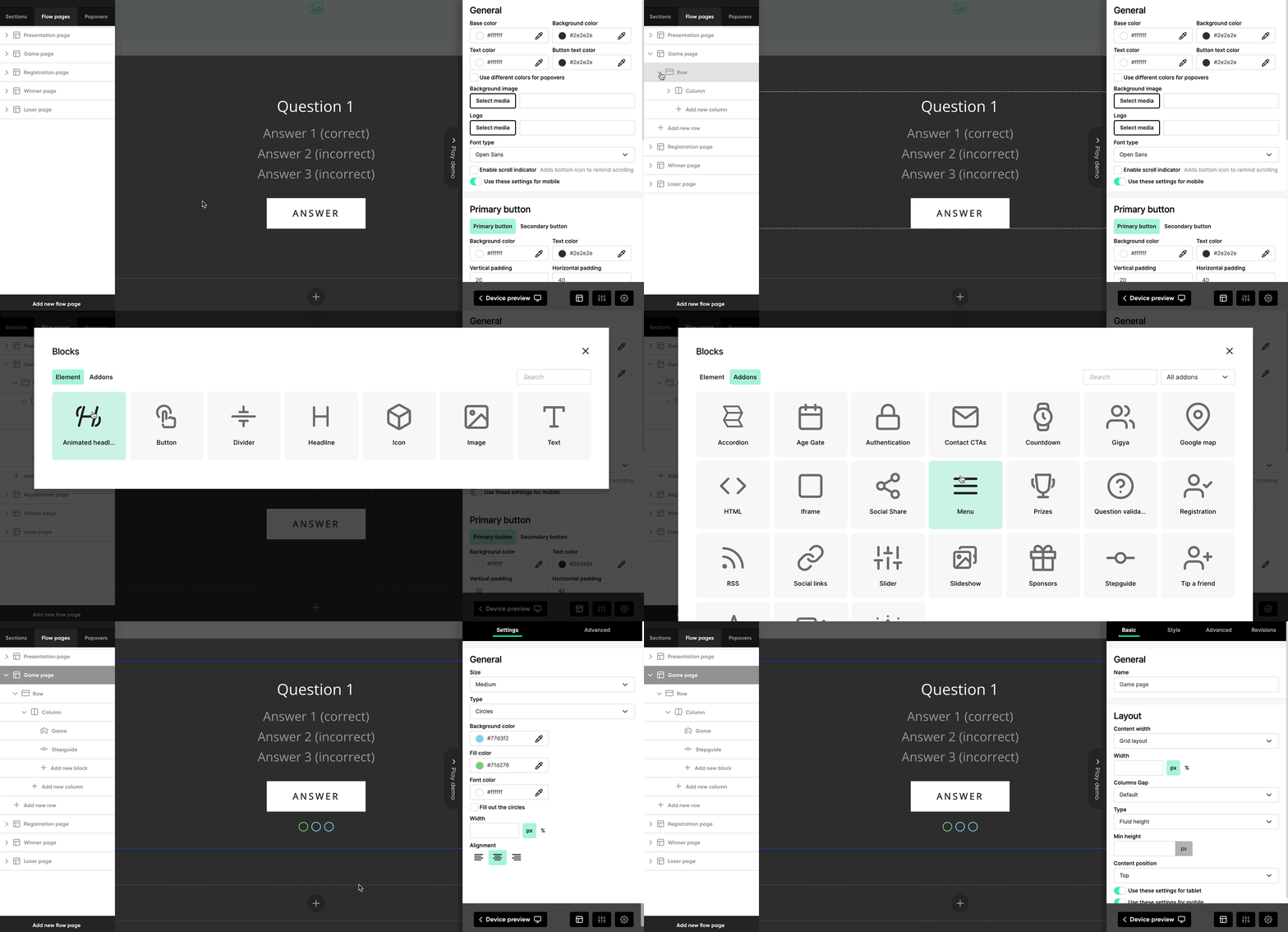
In a Quiz, the Stepguide add-on shows customers how far through the questions they are. To add it, open the game page in the Game Navigator and select Add new block under the Game block. Then pick Stepguide on the Addons tab. Select it to change how it looks, such as its size and colours. An animation of the Stepguide add-on being added to the Game page of a quiz with a dark background, showing Question 1, three answers and an ANSWER button. Add new block opens the Blocks dialog, with its Element and Addons tabs, and Stepguide then shows under Game in the Game Navigator. Its Settings tab shows Size set to Medium, Type set to Circles, Background color, Fill color and Font color, a Fill out the circles box, Width and Alignment. The preview shows three small circles under the ANSWER button. A Stepguide under a quiz question, shown as three circles
Video

You can add a video in two ways. It can be the background of a page, or it can go in the Video add-on. Either way, the video is hosted somewhere else, such as YouTube, and you paste its link. One frame of a game's start page on a phone, from a Danish campaign, with a video as its background. The video fills the screen behind everything else: a bottle of God Morgen mango and raspberry juice with cut mango and raspberries, in front of a sunrise. Over it sit the heading GOD MORGEN MANGO & HINDBÆR, a short description in Danish, a yellow SPIL OG VIND button, meaning play and win, and a Vilkår link, meaning terms, at the bottom. One frame of a start page with a video background, on a phone

Video as a background

  1. In the Game Navigator, open the Flow pages tab and select the page the video goes behind.
  2. Open its Style tab.
  3. Under Background, select Video.
  4. Pick where the video is hosted: External mp4, Vimeo or Youtube. Then paste its link.
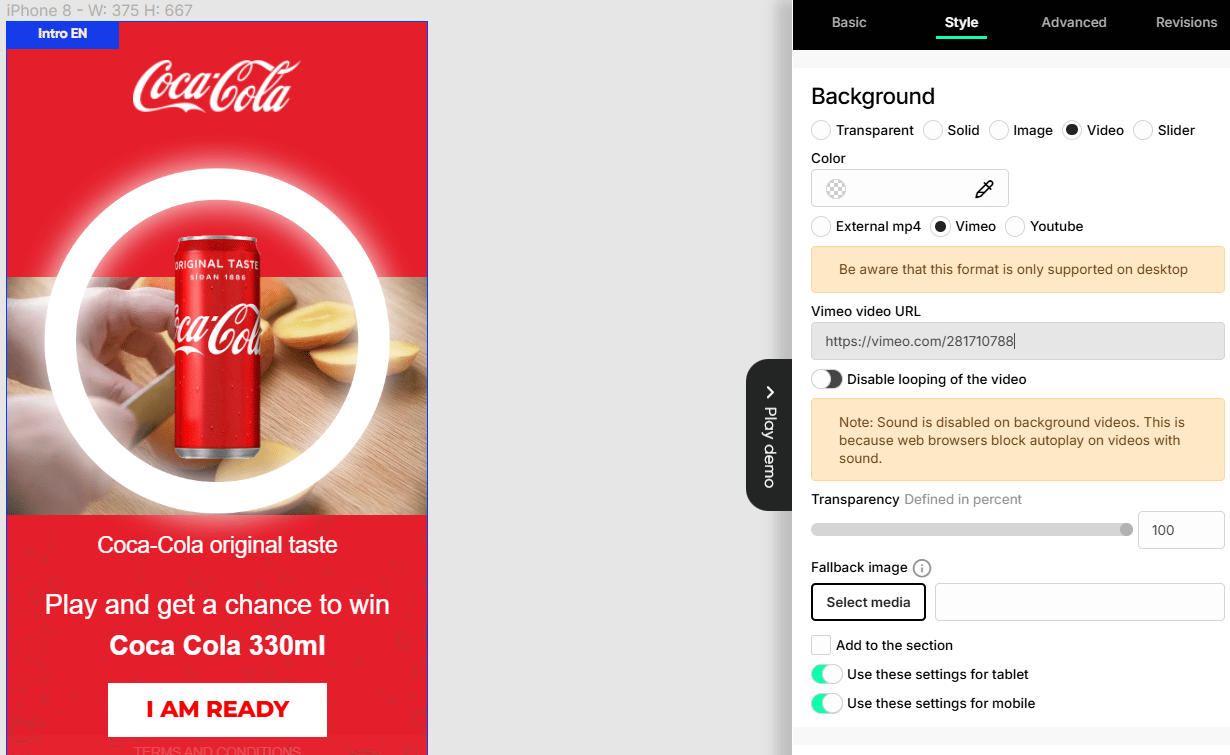
Customers play games on their phones. A YouTube or Vimeo background is only supported on desktop, and the editor says so when you pick Vimeo. For a background that plays on a phone, use External mp4. For a YouTube or Vimeo video, use the Video add-on. External mp4 takes a link to an MP4 file that’s hosted online, for example in your own content system. If you have a Vimeo Pro account, you can get a link to the MP4 file of a Vimeo video. A background video loops by default. To play an MP4 file only once, turn on Disable looping of the video. It then stops on its last frame, with no controls. Keep looping on for a YouTube or Vimeo video. Otherwise, it stops after the first run and shows that site’s own controls, such as its suggested videos. A background video never plays sound. Browsers block videos with sound from playing on their own, so the editor turns the sound off for you. Add a Fallback image too. It shows instead of the video if the video doesn’t play. YouTube Shorts don’t work as a background. To show a Short, embed it with the HTML add-on. The Style tab of a page in the Gameplay Editor, next to Basic, Advanced and Revisions, set up for a video background. Under Background, Video is picked over Transparent, Solid, Image and Slider, and Vimeo over External mp4 and Youtube. A yellow note says Be aware that this format is only supported on desktop. Vimeo video URL holds https://vimeo.com/281710788, and the Disable looping of the video switch is off. A second note says sound is disabled on background videos, because web browsers block autoplay on videos with sound. Below are a Transparency slider at 100, Fallback image with Select media and an empty field, an Add to the section box, and the switches Use these settings for tablet and Use these settings for mobile, both on. The preview on the left shows a red Coca-Cola page with a can of Coca-Cola in a white ring over a video still, the text Play and get a chance to win Coca Cola 330ml, and an I AM READY button. A Vimeo video as the background of an intro page

Video add-on

The Video add-on goes on a section or a flow page. It has its own player controls, so a YouTube or Vimeo video plays on a phone too. You can also use a link to an MP4 file. For a YouTube or Vimeo video, copy the link from your browser’s address bar while the video is open. Don’t use the share link or the embed code. In the add-on’s settings:
  • You can turn on sound, or autoplay, but not both. Lobyco recommends turning on sound and leaving autoplay off. Customers then tap to start the video.
  • Most YouTube and Vimeo videos already have controls such as play, pause, full screen and volume. If yours doesn’t, add them in the add-on’s settings.
  • For a YouTube or Vimeo video, you set what happens at the end in YouTube or Vimeo, such as looping or showing other videos. For an MP4 file, turn on looping in the add-on. Otherwise, the box goes blank when the video ends.
  • The video shows 400 px wide and 250 px tall by default. Change the size to make it bigger, or to match the shape of your video.

Sound effects

Some game types can play a sound at set moments, such as when the customer spins the wheel. Think about whether your game needs sound. A phone that plays a sound the customer didn’t expect can annoy them. To add a sound, open Game settings. Select Game in the bar at the bottom of the editor, or press Ctrl+G. Then go to the Advanced tab, and add a sound file for each sound effect you want. Sounds have to be MP3 files. Images and fonts for a gameplay lists the size limit. For a game type that isn’t in the table, open the Advanced tab of its Game settings to see the sounds it supports. To play sound on one page only, use the Video add-on with sound turned on.
Last modified on November 16, 2026