

These settings change what customers see, not who wins. Lobyco decides whether a play wins before the customer starts playing. See What the type decides, and what it doesn’t.
At a glance
All sizes on this page are in pixels, width first.Wheels of fortune
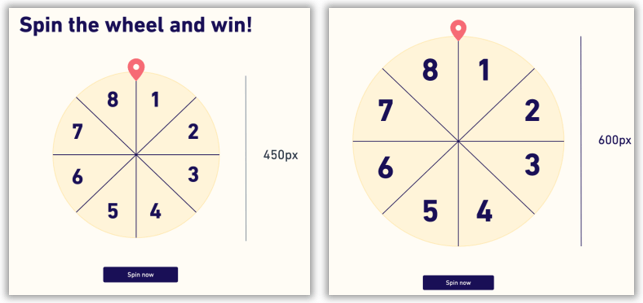
Customers spin a wheel, and a marker at the top shows the section it stops on.- Divide the wheel into 2 to 14 sections of the same size, numbered clockwise. The standard wheel has 8.
- Mark each section as a winning or a losing section.
- The marker sits at the top of the wheel and points to a section when the wheel stops. Make the bottom end of the marker come to a point.
- If you don’t upload a marker, the gameplay uses one of its own.
Scratchcard
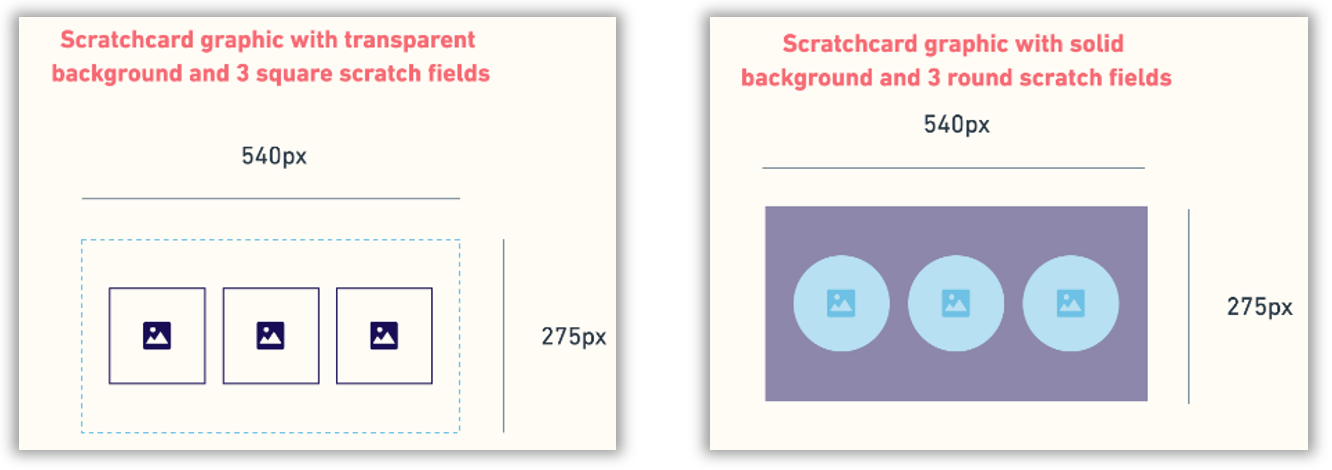
Customers scratch fields on a card to reveal the images hidden under them.- The scratchcard image is the whole card. Draw at least three scratch fields on it, so customers can see where to scratch. Its background can be solid or transparent.
- Make the scratch fields the same size and shape as the images in the pool. They can be round or square.
- The image pool holds the images hidden under the scratch fields. Give them all the same size, and upload at least as many as the card has scratch fields.
- However many scratch fields the card has, a win is always three of the same image.
- In the app, customers scratch with their finger, so a coin or scratcher icon you upload doesn’t show.
Spin the bottle
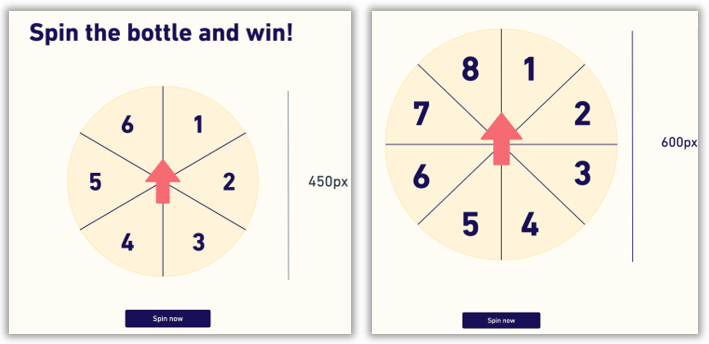
Customers spin a bottle in the middle of a wheel. The wheel itself stays still.- Divide the wheel into 2 to 14 sections of the same size, numbered clockwise. The standard wheel has 8.
- Mark each section as a winning section, a losing section, or a section where the customer spins again.
- The bottle sits in the middle of the wheel and spins anticlockwise. When it stops, it points to a section, so make its top end come to a point.
Rock paper scissors
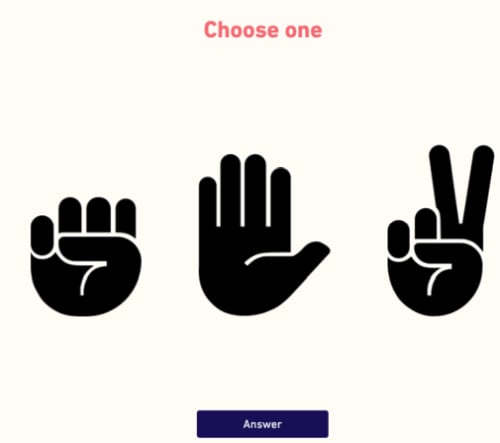
Customers play rock, paper, scissors. You can replace the three hand images with your own, but the rules stay the same. Rock beats scissors, scissors beat paper, and paper beats rock.- Each image can show anything, as long as it plays the same part. Image 1 beats image 3 and loses to image 2. Image 2 beats image 1 and loses to image 3. Image 3 beats image 2 and loses to image 1.
- Set an odd number of rounds. An even number could end in a draw.
Slot machine
Customers spin the reels of a slot machine to get matching images in a row. Set the number of reels in Game settings, on the General tab, under Reels. You can have 3, 4 or 5.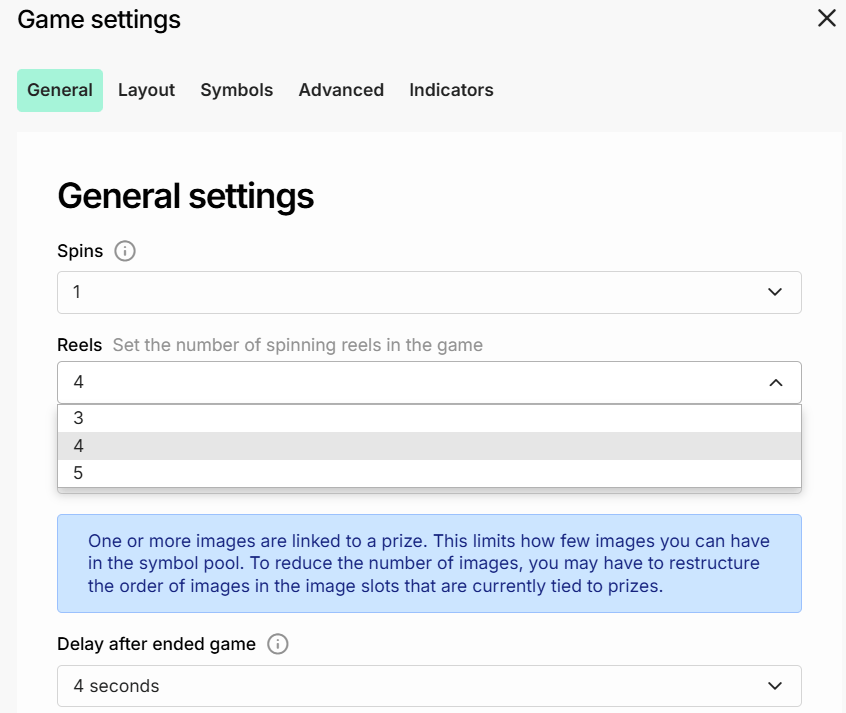
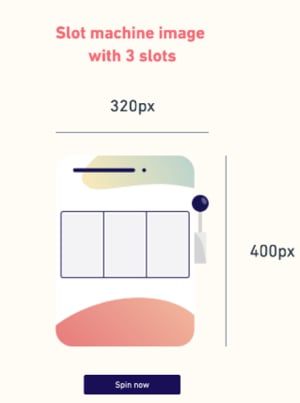
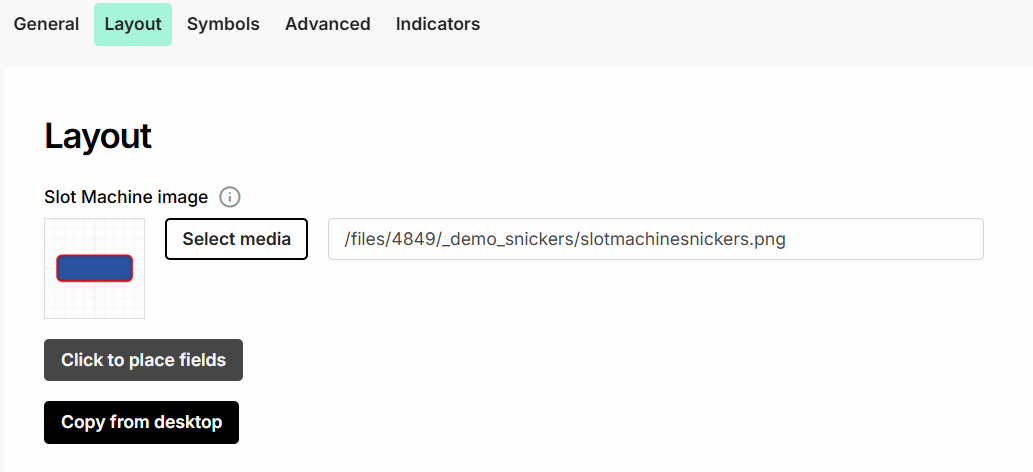
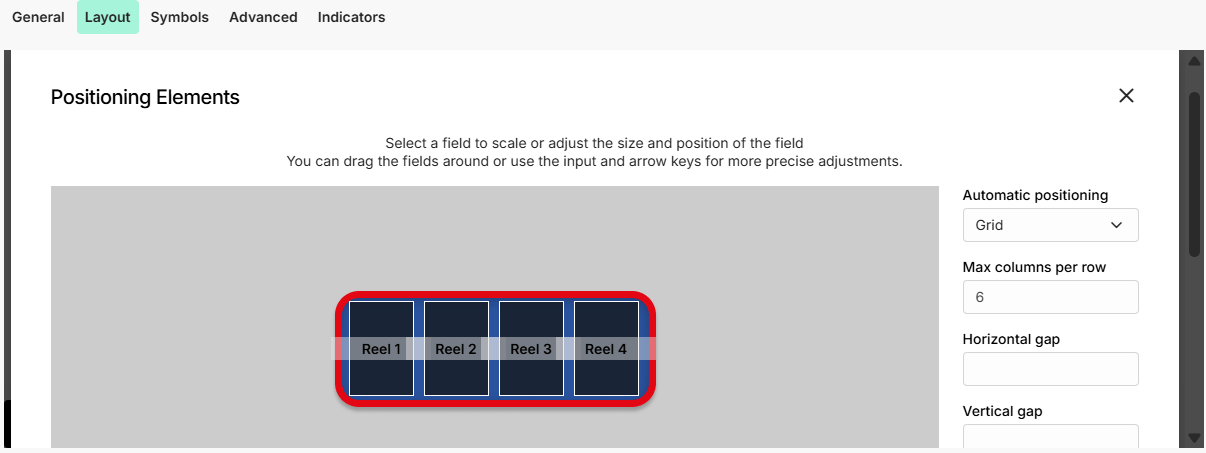
- The slot machine image is the machine itself, with a space for each reel. Make each space the same size as the slot images. Without a slot machine image, the reels sit in a plain, square grid.
- The slot images spin round on the reels. Give them all the same size, so they fit the spaces on your slot machine image.
- The first slot image is the winning image. Customers who win see it three times in a row.
Roll the dice
Customers roll a die onto a table. If you include a cup, they shake the die in it first.- The face you upload as the six is the winning image.
- Make all six faces the same size and perfectly square. They can have rounded corners. Save them as .png files.
- To upload your own faces, choose Use your own graphics under Dice, on the Layout tab. If you don’t, the gameplay uses a standard die with one to six dots.

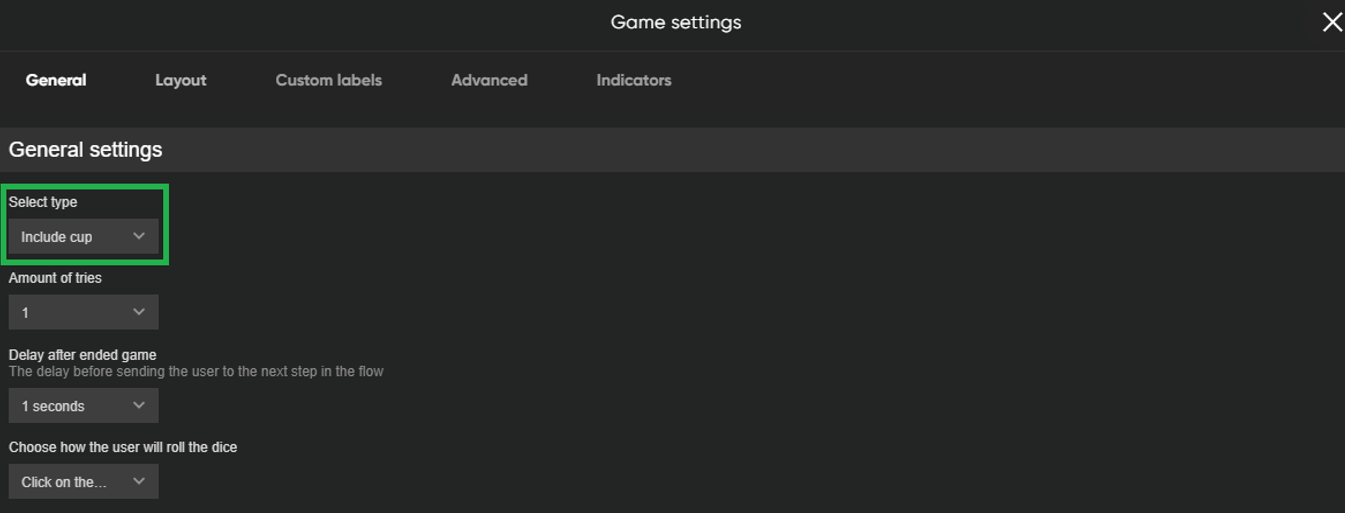
- In Game settings, on the General tab, set Select type to Include cup, then select Save.
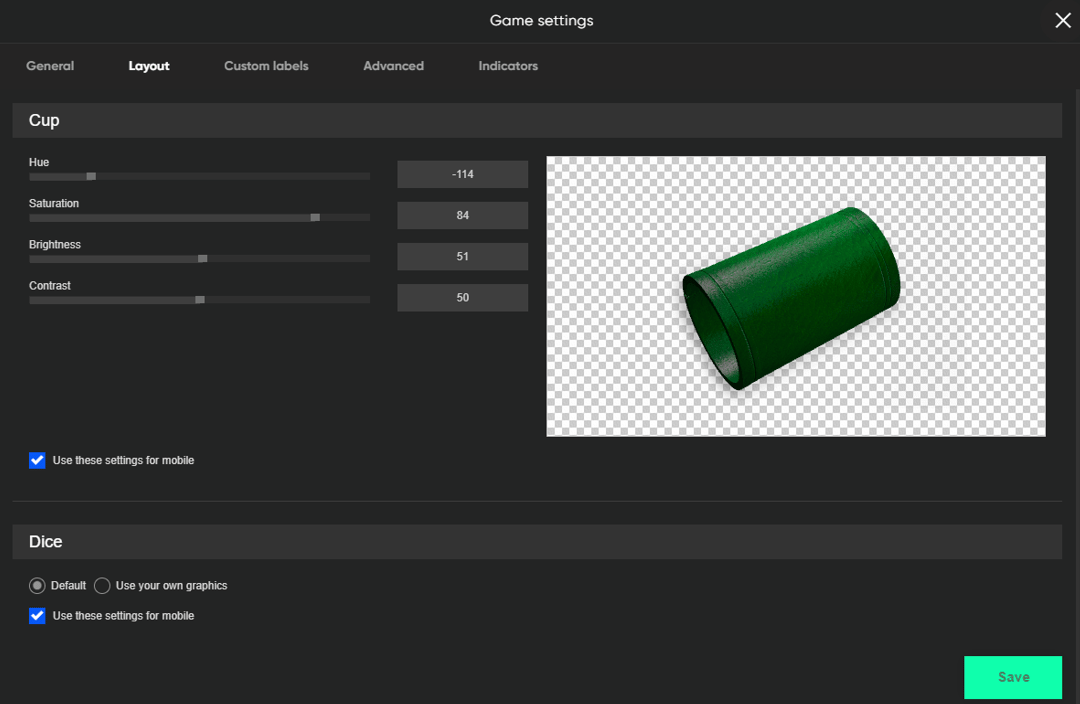
- On the Layout tab, under Cup, change Hue, Saturation, Brightness and Contrast.
Roulette
Customers guess the number the ball lands on. You can replace the standard roulette wheel with your own.- Divide the wheel into 2 to 37 sections of the same size, numbered clockwise. The standard wheel has 37.
- The indicator starts at the top of the wheel and turns with it until it stops on a number.
- If you don’t upload an indicator, the gameplay uses one of its own.
Tap to reveal
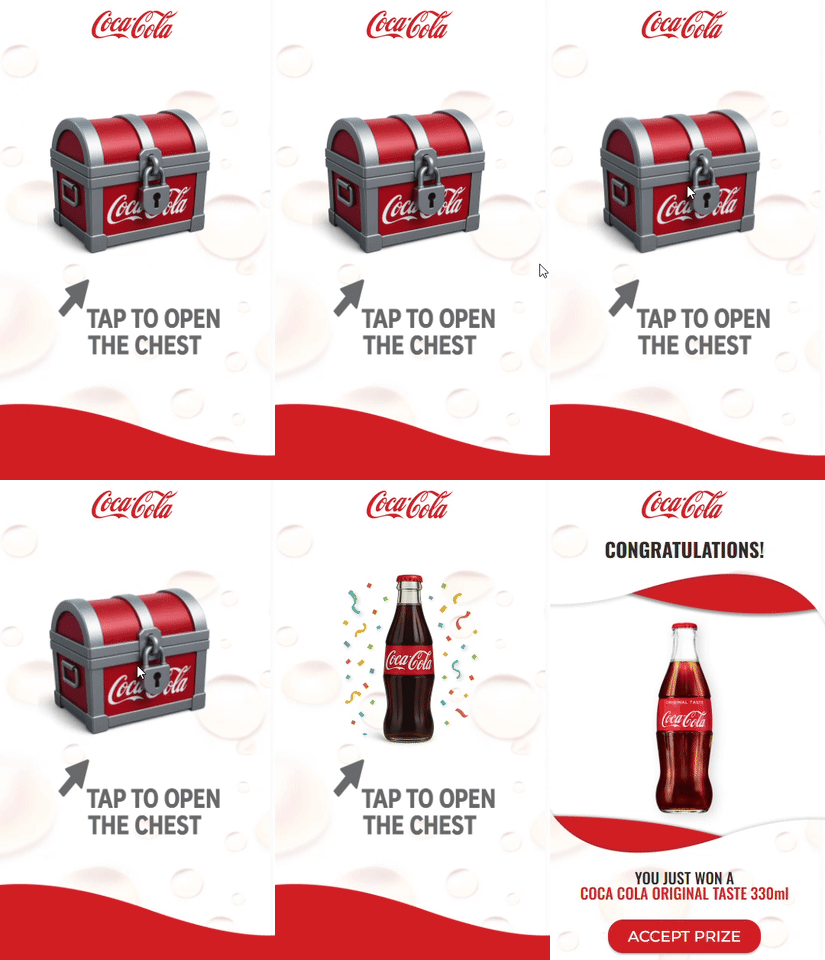
Customers tap an object, such as a chest, to see what’s behind it. It suits mystery prizes, teasers and product launches.- Choose how the object opens: Shake or Tear apart. With Tear apart, the object splits down the middle.
- With several winner images, you can show a different picture for each prize. Show each winner their reward screen explains how to match a winner to their prize.
Images and sounds for every luck game
The file types and size limits that apply to every image are in Images and fonts for a gameplay. Which sounds each type can play is in Gameplay add-ons, video and sound.Related
- Game types — all 17 types, and how to choose one for your campaign.
- Edit a gameplay in the Gameplay Editor — open the editor and change how a gameplay looks.
- Skill game settings — the images and settings of each skill game.
- Knowledge game settings — the images and settings of Quiz and Guess the image.
- Show each winner their reward screen — show a winner the screen for the reward they won.