

At a glance
Prepare your designs
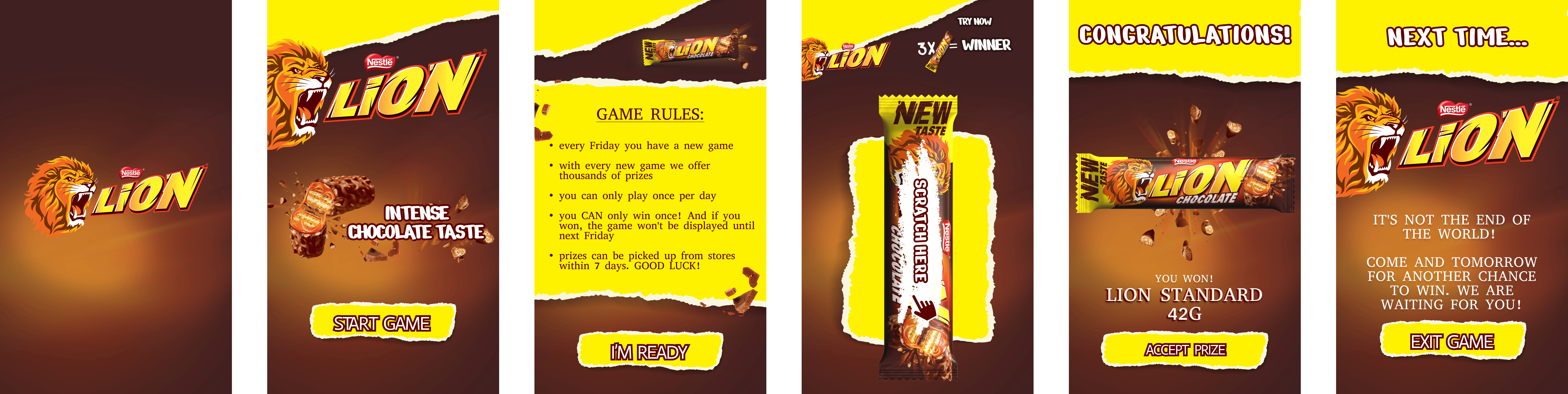
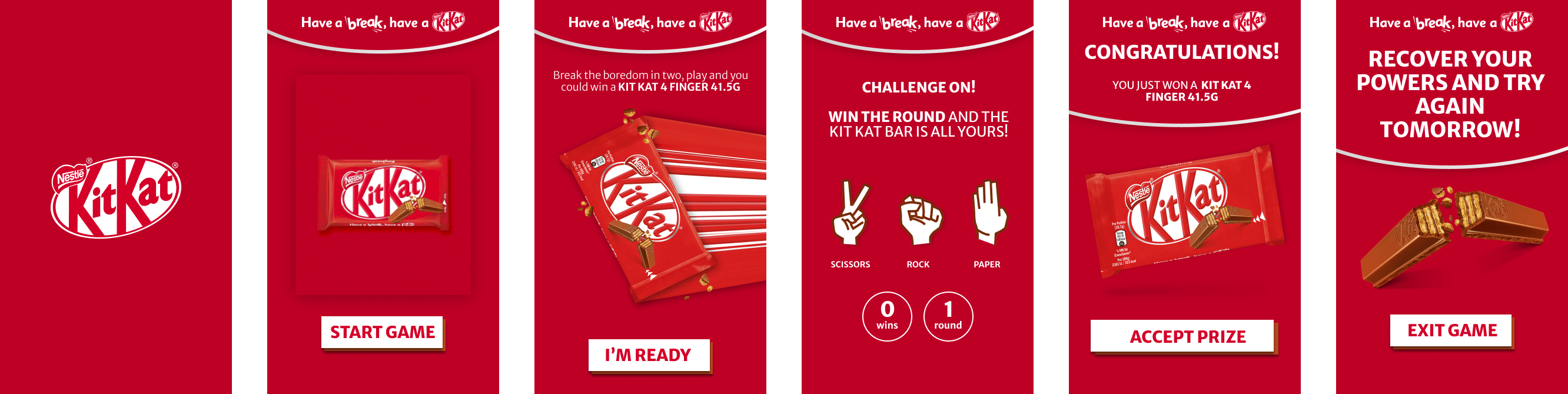
Before you start in the editor, design each page of the game in a design tool, such as Figma or Photoshop. Then export the images, so you have them ready when you build the pages. You can also use images that the game’s sponsor or supplier gives you. Suppliers often have videos or GIFs that match the campaign, too.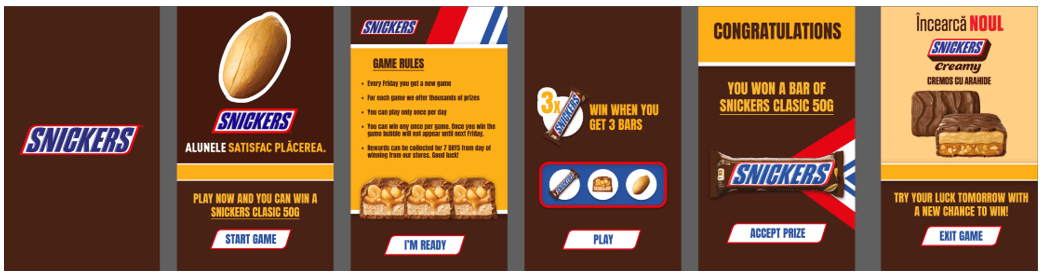
File size limits
Upload your images and other files to a folder in your Media library. Each file has a size limit, which depends on its type. The limit is for each file, not for all the files in a gameplay together.
To keep image files small, save them at 72 ppi. If a file is still too big, make it smaller with an image compression tool, such as TinyPNG.
Videos aren’t in the table. You link to a video on YouTube, on Vimeo or in your own content system. See Gameplay add-ons, video and sound.
Recommended dimensions
No image can be more than 2560 px wide. The sizes below are a guide. When in doubt, make an image bigger. A big image can be cropped or scaled down, but an image that’s too small looks grainy when it’s scaled up.Backgrounds
There’s no one perfect size for a background that fills the screen. How it shows depends on how much is on the page and on the customer’s screen. Phone screens fit more pixels into the same space than a computer screen does. So a background needs more pixels than the screen’s size, or it looks blurry. For a background that covers the whole page on a phone, use an image of:- at least 750 × 1334 px
- at most 900 × 1800 px
Other images
Each game type has its own sizes for its game graphics. Find them on Luck game settings, Skill game settings and Knowledge game settings.
Automatic downscaling and cropping
PNG and JPEG images that are too big for the game scale down on their own. The smaller version is added to your Media library. If an image’s dimensions don’t match what the game needs, the editor asks you to crop it to a size that fits. The crop tool shows the right size. This only changes an image’s dimensions in pixels. The file size limits stay the same, so most images still have to be 700 KB or less.Media library
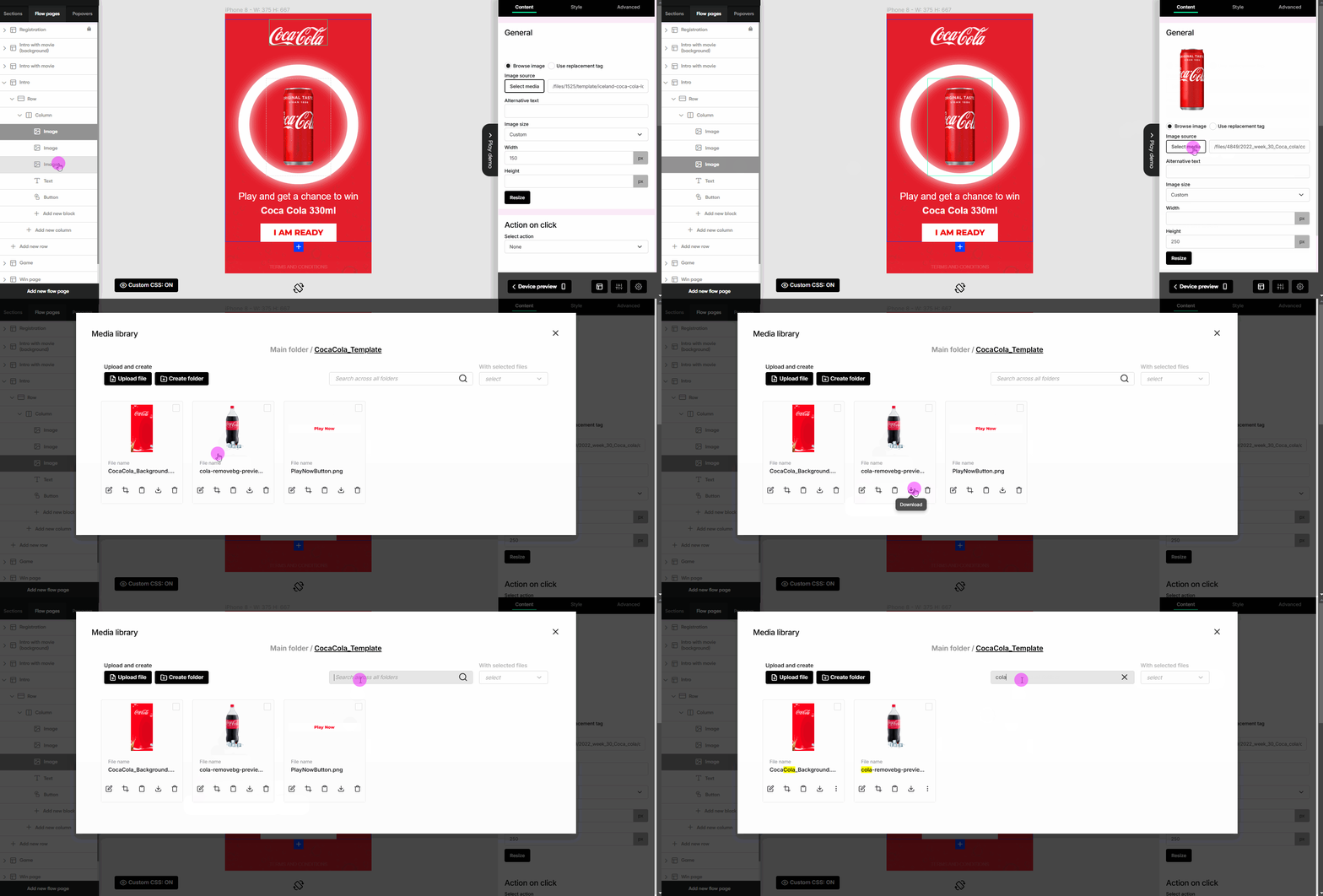
The Media library keeps your images and other files, such as sounds, in one place. You can then use them again in other games. In the Media library, you can:- upload files, with Upload file
- create folders, with Create folder, and move and rename files
- search across all your folders
- crop or resize an image
- copy a file’s path
- download or delete a file
Fonts
Google fonts
Every Google font is ready to use in the Gameplay Editor.Custom fonts
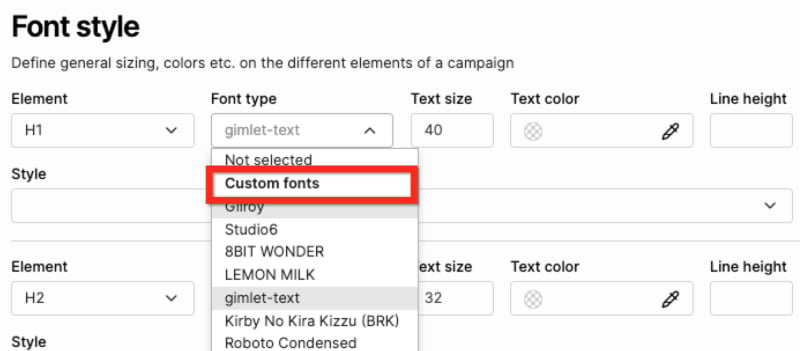
To use a font that isn’t a Google font, send Lobyco its font files. Lobyco then adds the font to the Gameplay Editor for you.- Send the files as TTF, WOFF, WOFF2 or SVG. If your font is in another format, convert it with a font converter, such as Transfonter.
- Once it’s added, it’s in the Font type list, in the Custom fonts group. You pick it there when you build a page, and in the gameplay’s layout settings. Edit a gameplay explains the layout settings.
- If you send several styles of one font, such as normal, bold and italic, the list shows the font only once. The editor uses the right style when you make text bold or italic.
Related
- Edit a gameplay — open the Gameplay Editor, and find your way around its pages and layout settings.
- Gameplay add-ons, video and sound — the add-ons for a page, and how to add video and sound.
- Luck game settings, Skill game settings and Knowledge game settings — the image sizes and other settings of each game type.
- Design a game — start a gameplay from a template in Gameplay design, and publish it.