

Before you start, save the game in its campaign with all its rewards, so that every reward has an ID.
Get the reward IDs
- In Campaigns, open the game in its campaign.
- Open its Reward settings tab.
- Note down the Id of each reward, from the Id column of its table, and which reward it belongs to.
Add the reward ID to the Registration page
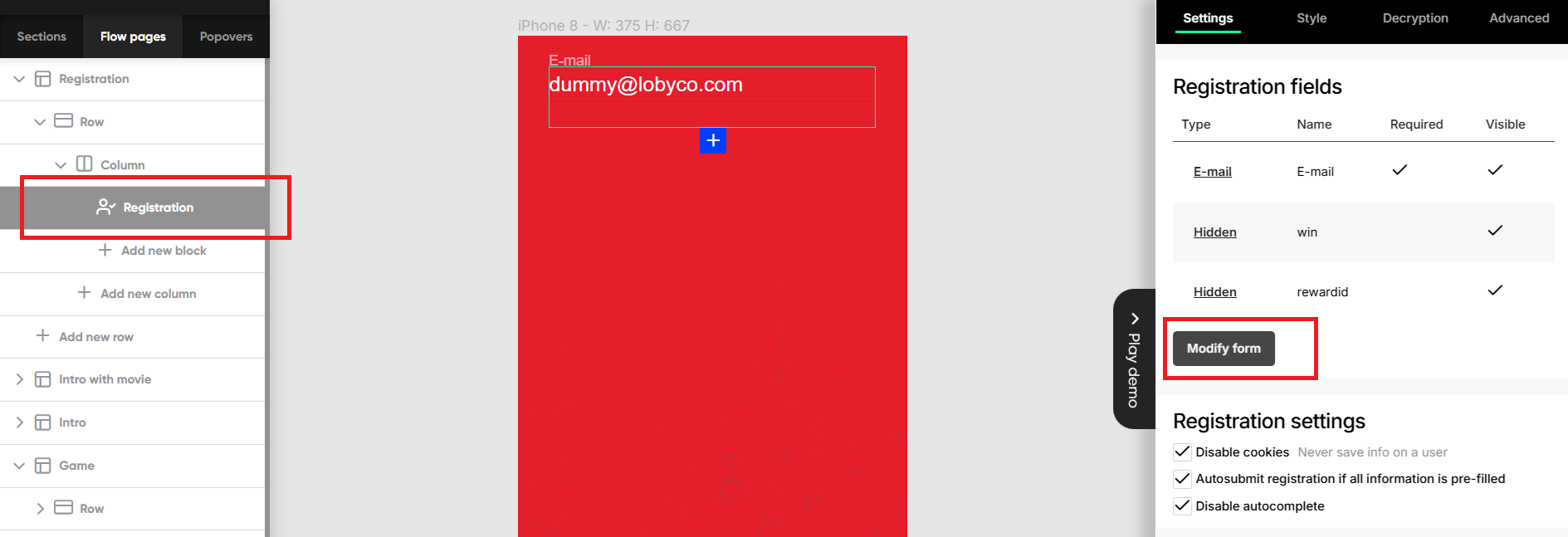
The gameplay picks the right Win page from a hidden field on the Registration page. Add that field first.- In the Game Navigator, on the Flow pages tab, select the padlock beside Registration to unlock it.
- Select the Registration element on the page.
- On the Settings tab of the Game menu, select Modify form.
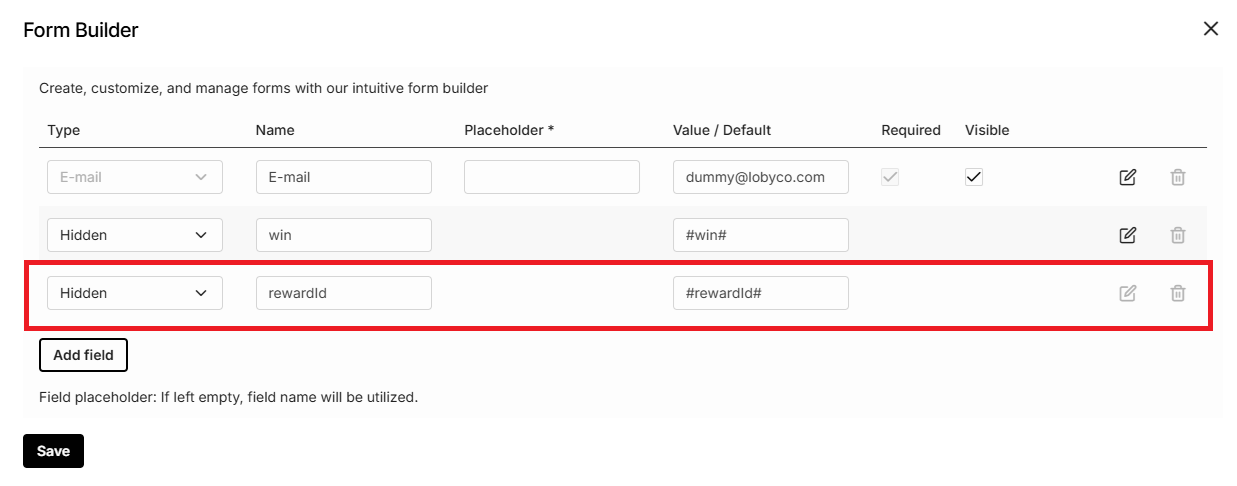
- Select Add field, and fill in the new row.
- Select Save, and close the form.
win field that’s already in the form. The prize settings below use it too.
Choose what the Game page shows
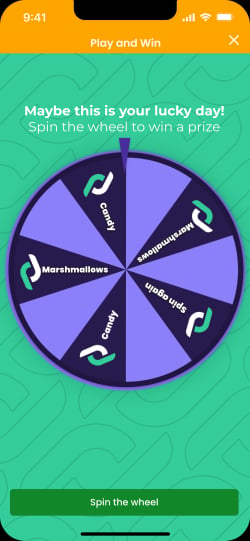
This step is for luck games only. For a skill or knowledge game, go on to Make a Win page for each reward. A luck game’s Game page can show the prizes in one of two ways.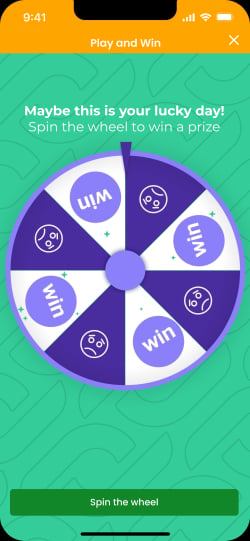
Add a bulk prize for each reward
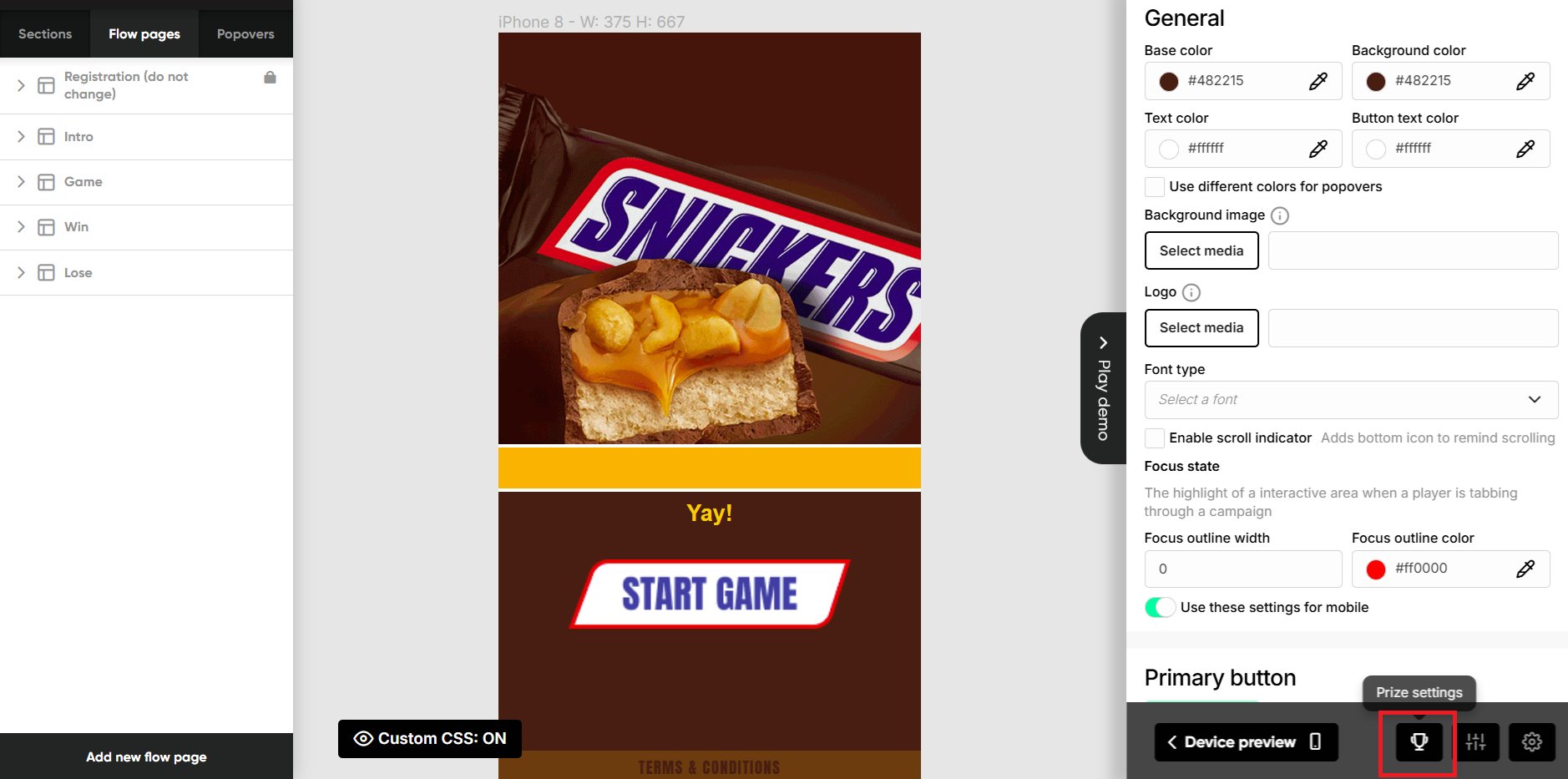
Do this for a luck game whose Game page shows every prize. A bulk prize is how the gameplay knows which picture to land on for each reward.- Select Prize settings, the trophy icon in the bar at the bottom of the editor.
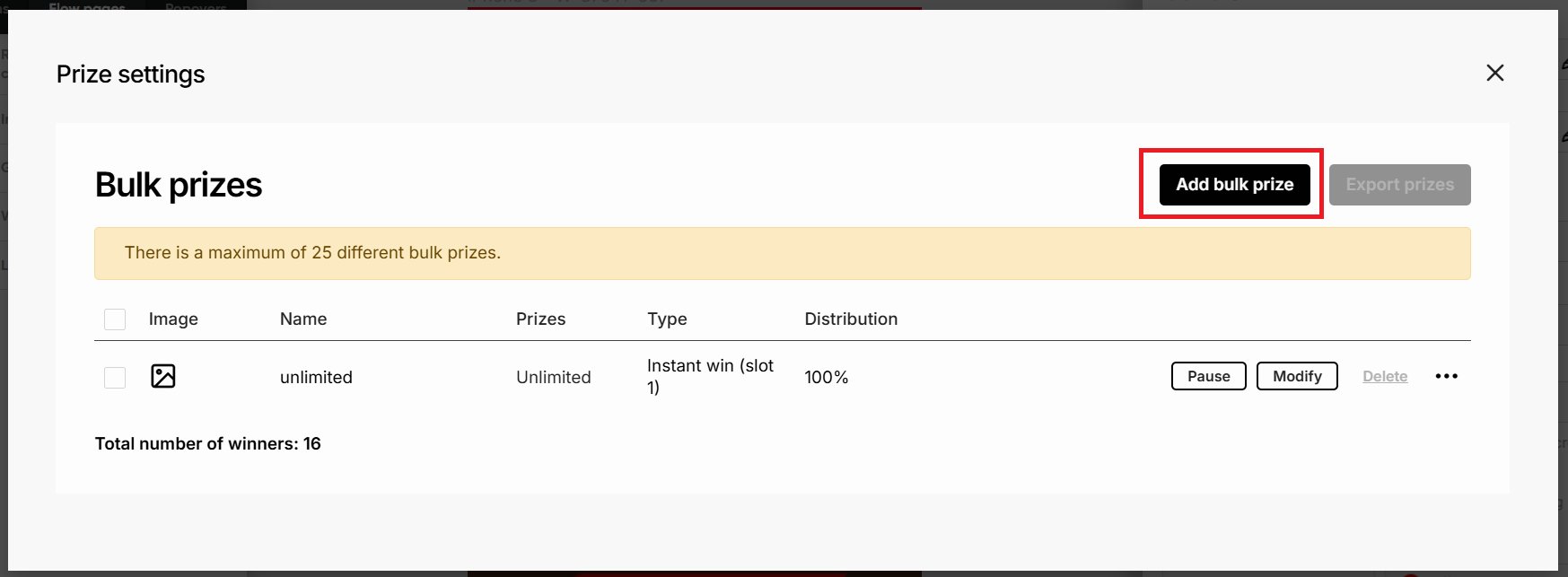
- Select Add bulk prize.
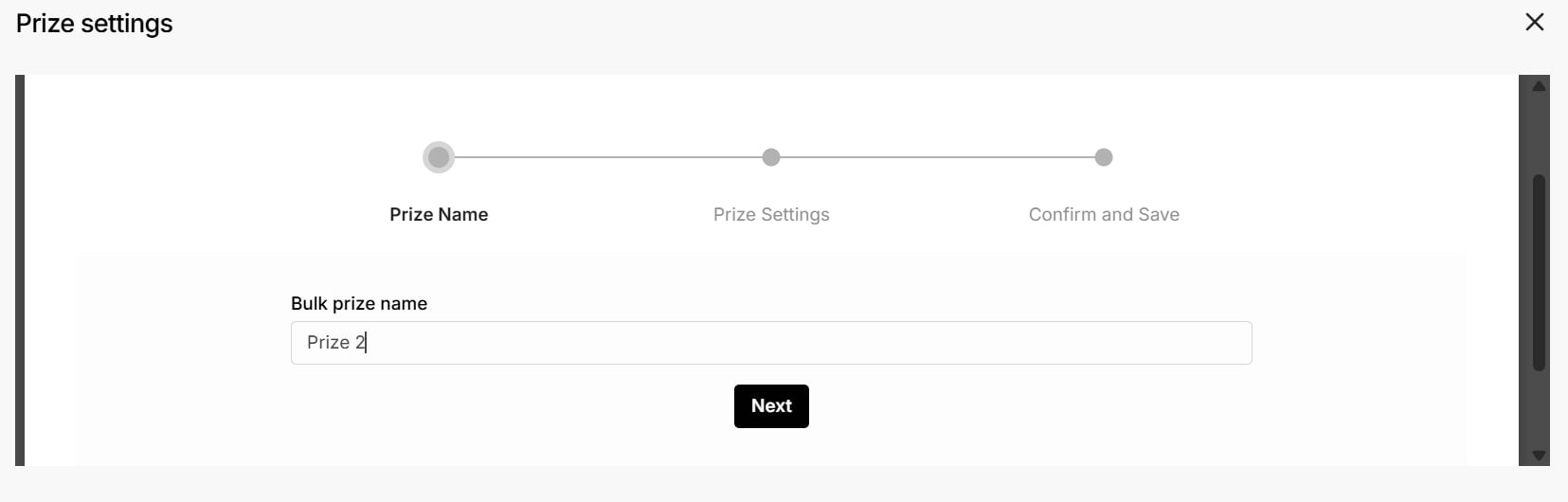
- Enter a Bulk prize name, such as the name of the reward, and select Next.
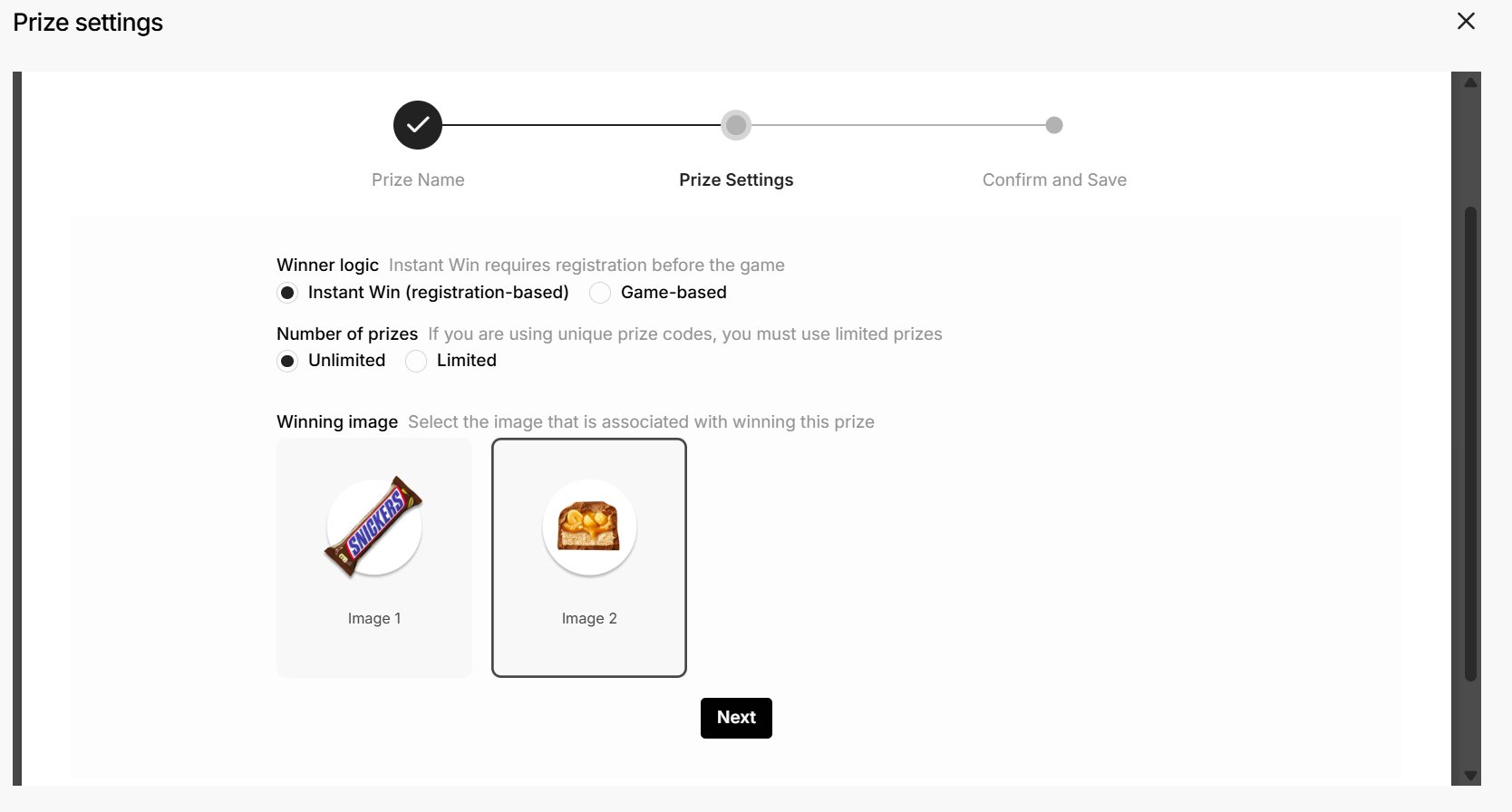
- Set the prize settings, and select Next.
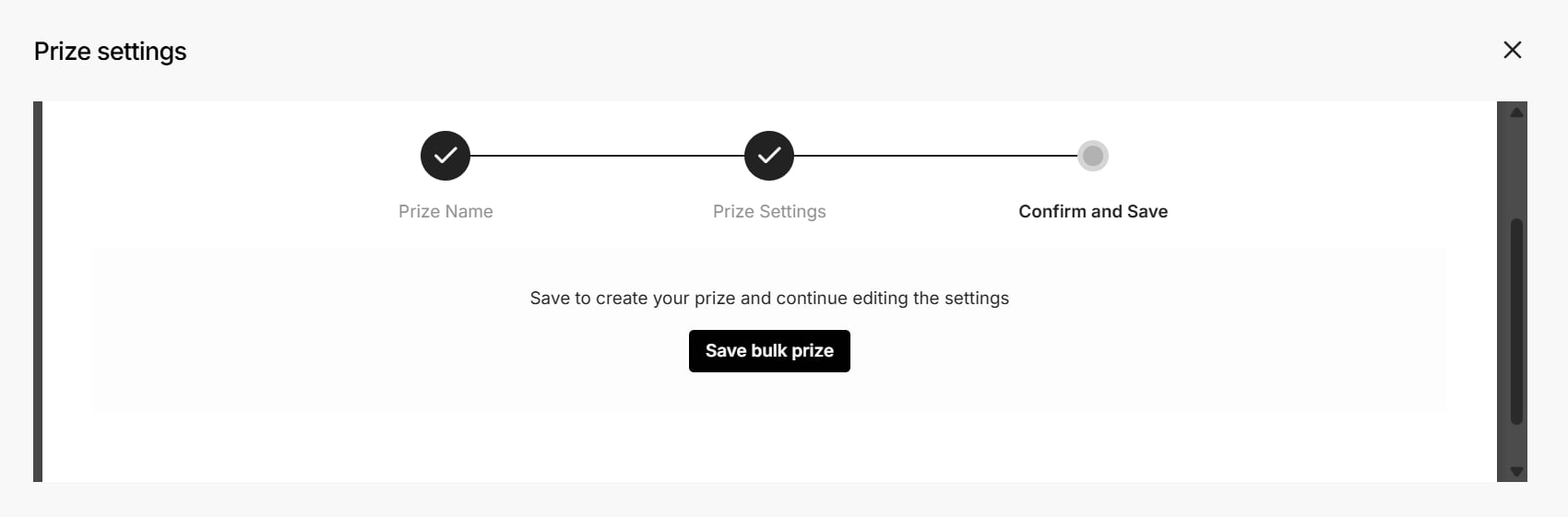
- Select Save bulk prize. The bulk prize’s full settings open.
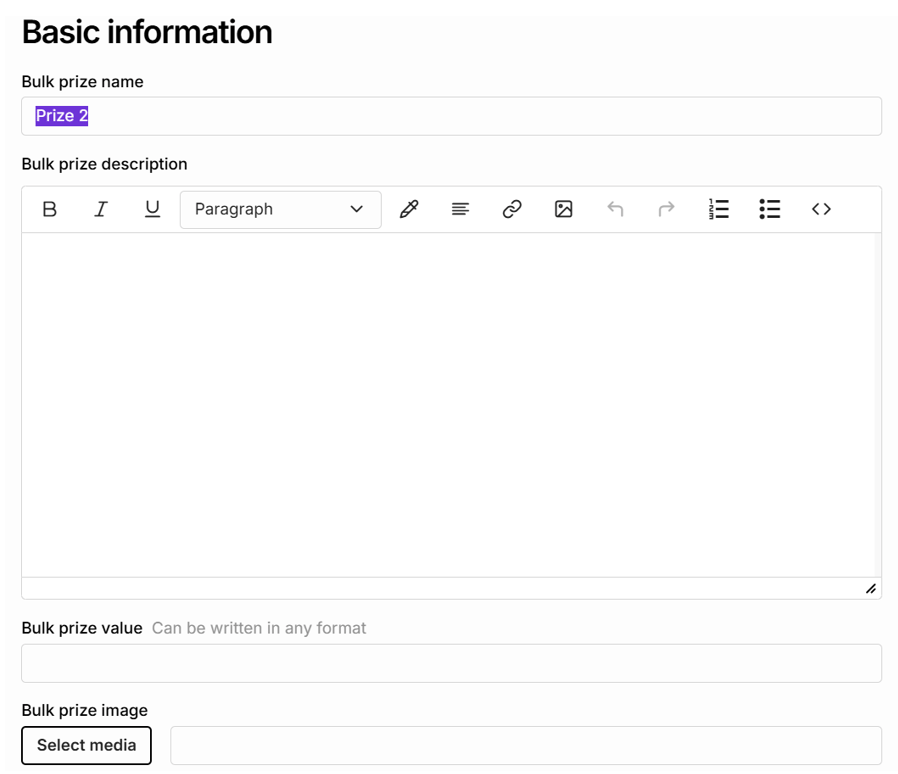
- Under Basic information, check the Bulk prize name. You can add a Bulk prize description, a Bulk prize value and a Bulk prize image too. To show the name on a Win page, type
#bulk_prize_name#in a text block there. A text block’s Content tab lists the other tags under Replacement tags.
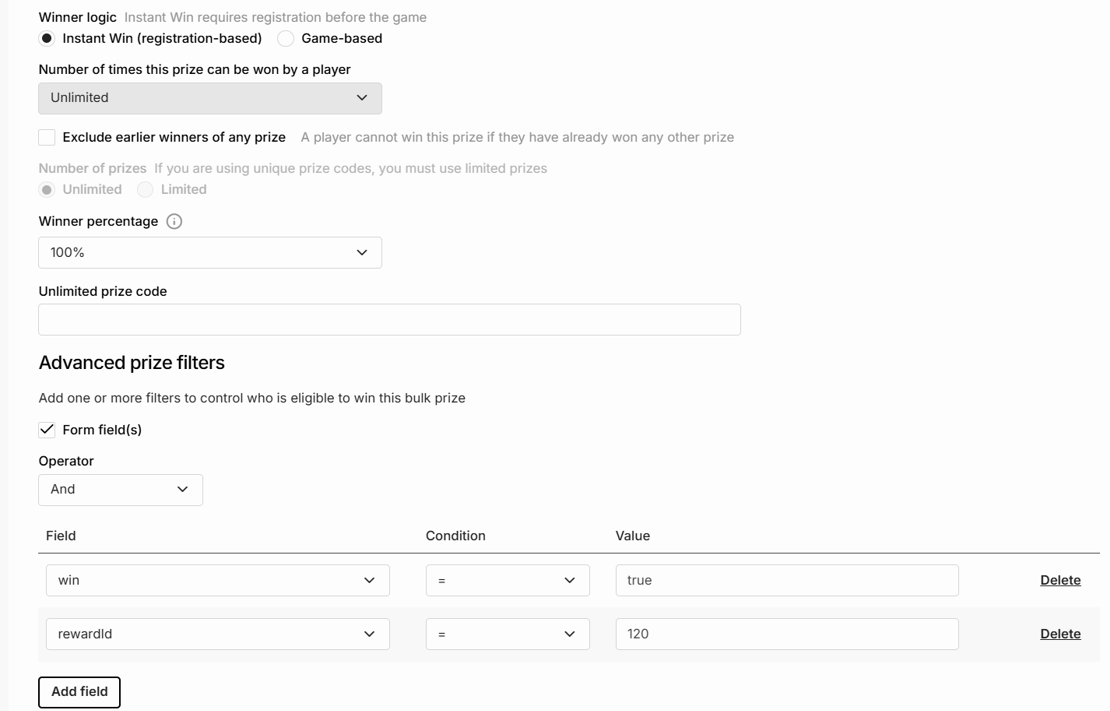
- Set the win conditions. Lobyco decides who wins and which reward they get, from the game’s settings in its campaign. These conditions let the gameplay follow that choice, so the bulk prize goes to every winner of its reward.
If the filter rows aren’t there, select Add field for each one.
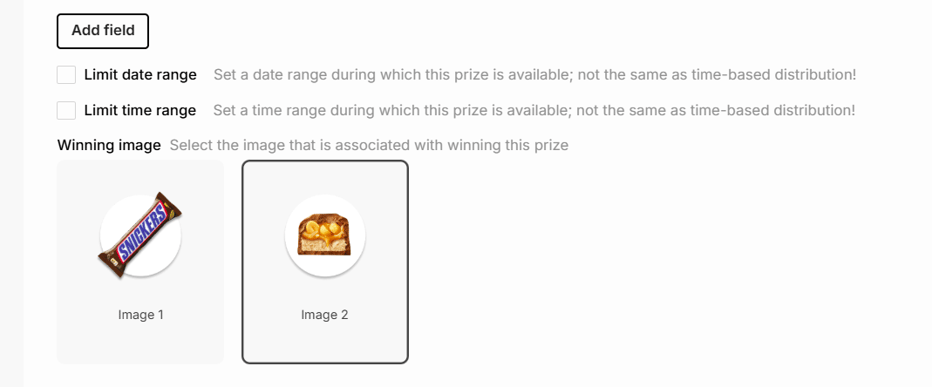
- Under Winning image, check that the reward’s picture is selected.
Make a Win page for each reward
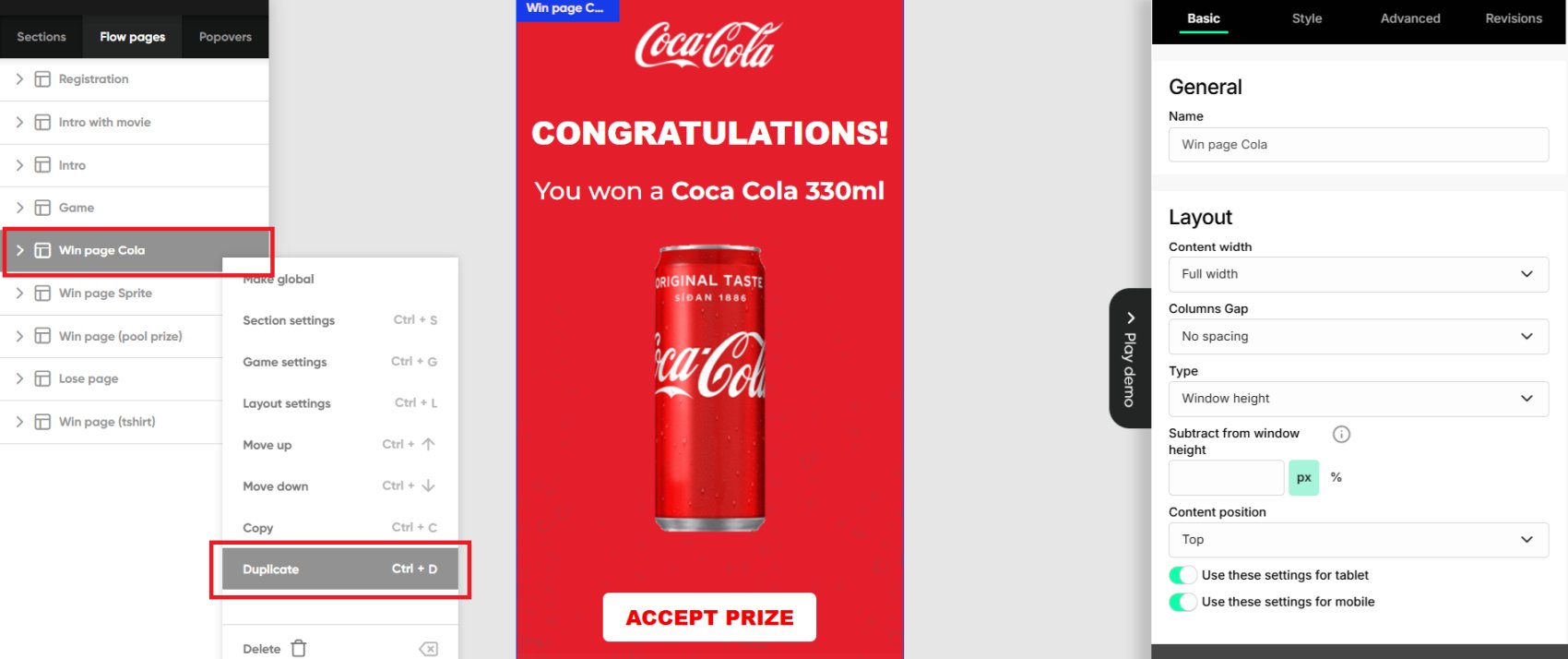
- In the Game Navigator, on the Flow pages tab, right-click the Win page and select Duplicate.
- Select the copy, and change its Name on the Basic tab to the reward’s name.
- Change the copy so it shows that reward. Change an element in the Game menu explains how.
Show each Win page only to that reward’s winners
Each Win page needs a visibility condition with its reward’s ID. Otherwise every winner sees the same Win page.- Select the Win page for a reward in the Game Navigator.
- Open the Advanced tab in the Game menu.
- Under Visibility condition, set Group to Winners, if it isn’t set already.
- Tick Form field(s).
- Set Field to
rewardId, Condition to=and Value to the reward’s ID.
Show extra pages to some winners
You can give any page a visibility condition like this one. For example, add a page after the Win page for winners of a custom reward, with how their prize is delivered. Set Group to Winners, tick Form field(s), and set Field torewardId, Condition to = and Value to that reward’s ID.
Refresh the gameplay
Go back to Gameplay design and select Refresh, so customers see your changes straight away. Design a game explains how. To check it worked, play the live game until you’ve won each reward once. Every win shows the Win page for its own reward. Show each winner the right reward says what that test uses up. To test before customers play, limit the game to test customers. Test before customers play explains how.Troubleshooting
Why does every winner see the same Win page?
Why does every winner see the same Win page?
Check the hidden field on the Registration page. Its Name has to be
rewardId and its Value / Default #rewardId#, with a capital I in both. Then check that every Win page has its own visibility condition, set to Winners and its own reward’s ID.Related
- Design a game — where each reward’s ID comes from, and how to refresh the gameplay.
- Create a game — choose the game’s rewards in its campaign.
- Edit a gameplay in the Gameplay Editor — find your way around the editor’s pages and menus.
- Luck game settings — the Game settings of each luck game, such as a wheel.