

At a glance
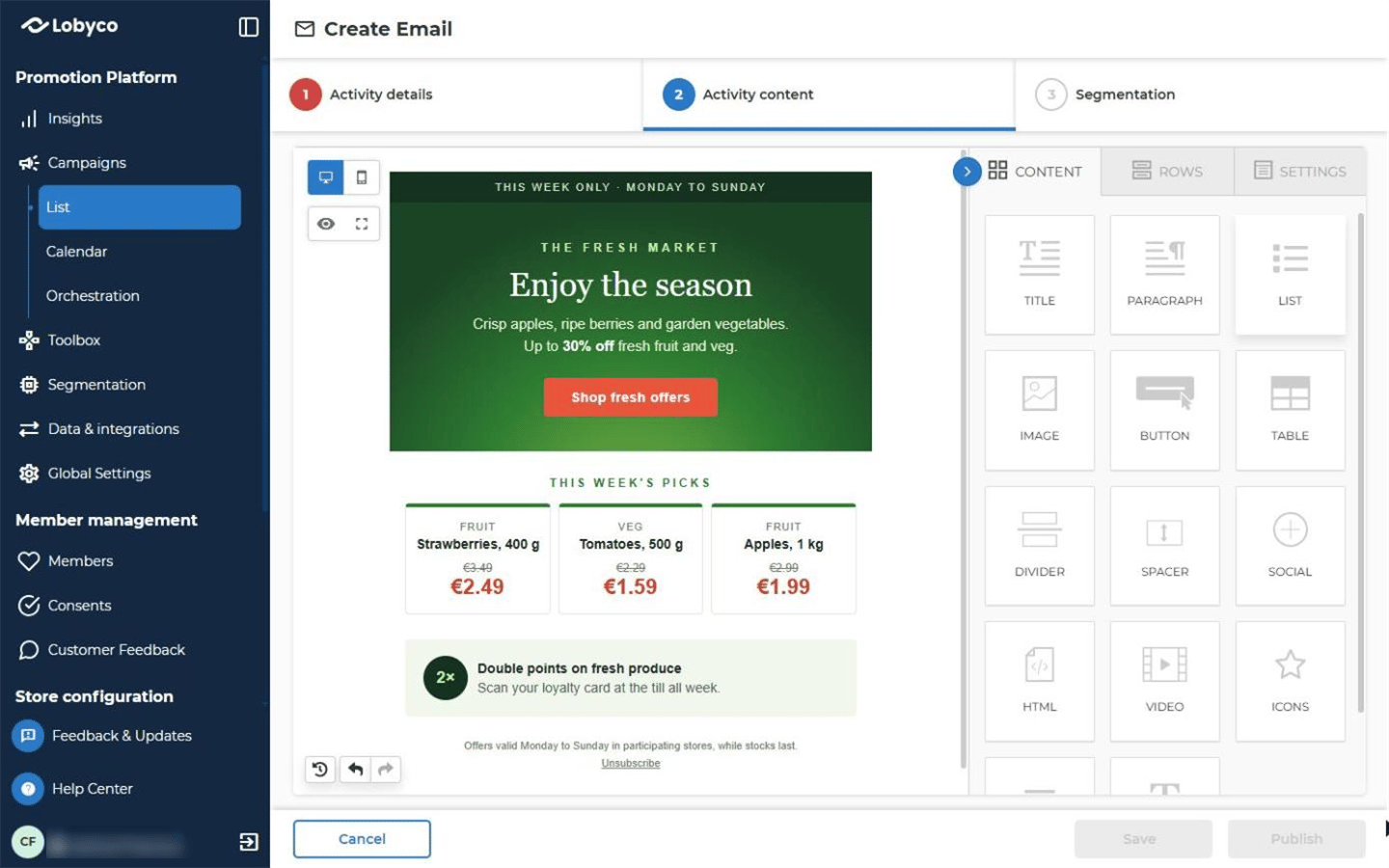
Email content editor
The email content editor is the working area. It shows the email as you build it.- Drag rows and blocks onto it to place them.
- Use the move controls on a row or block to change its order.
- Every change shows in the email content editor straight away.
Content blocks
Blocks are the pieces your email is made of. Open the Content tab and drag a block into a row in the email content editor. Select a block to change its settings. The blocks include these. The list isn’t complete, and each block has more settings than the table names.
Most blocks also have padding, which sets the space around them. The settings above are the main ones, not the full list.
The largest image you can upload is set for your programme by Lobyco. To find out what it is, contact Lobyco support. A larger file shows an error and isn’t added. Make the image smaller, or save it at a lower quality, and upload it again.
Rows
A row is the layout that holds your blocks. Open the Rows tab and drag one into the email content editor, then fill its columns with blocks.- Empty rows are blank layouts. They come as one column, or as two, three or more columns, with different column widths.
- Saved rows are layouts with their blocks already in them. Headers, footers and promotional sections are common ones. Drag one into the email content editor and edit it there.
Settings
The Settings tab sets the look of the whole email. A setting on a block overrides it for that block. The main settings are:Preview
Select the eye at the top left of the editor to see the email as customers will. You can’t edit in preview, and the eye and full-screen buttons are hidden while you’re in it. The button beside the eye opens the editor full screen.- Switch between light and dark mode.
- Switch between desktop, tablet and mobile.
- Enter a width and height to try a specific screen size.
History and undo
The editor tracks the changes you make while you edit, so you can look back and undo one. Lobyco adds no history screen of its own. The history belongs to the editing session, so use it before you save and close, not after.When the email is locked
The editor opens read-only when the email can’t be changed. That is when its campaign is read-only, when the email is Expired, or when it’s an Active email sent to an Audience. The Content, Rows and Settings tabs are hidden, and you can’t add, move, resize or delete anything. You can still preview it. Lifecycle covers what you can change after you publish.Related
- Emails — the whole email form, including tags and the Unsubscribe Link in the editor.
- Deliverability — how the content of an email affects whether it reaches the inbox.
- Lifecycle — what you can change once an email is published.