

A bonus always belongs to a campaign, so create or open the campaign first.
Add a bonus to your campaign
- Go to Campaigns and open the campaign the bonus belongs to, or create a new one.
- Select Add activity.
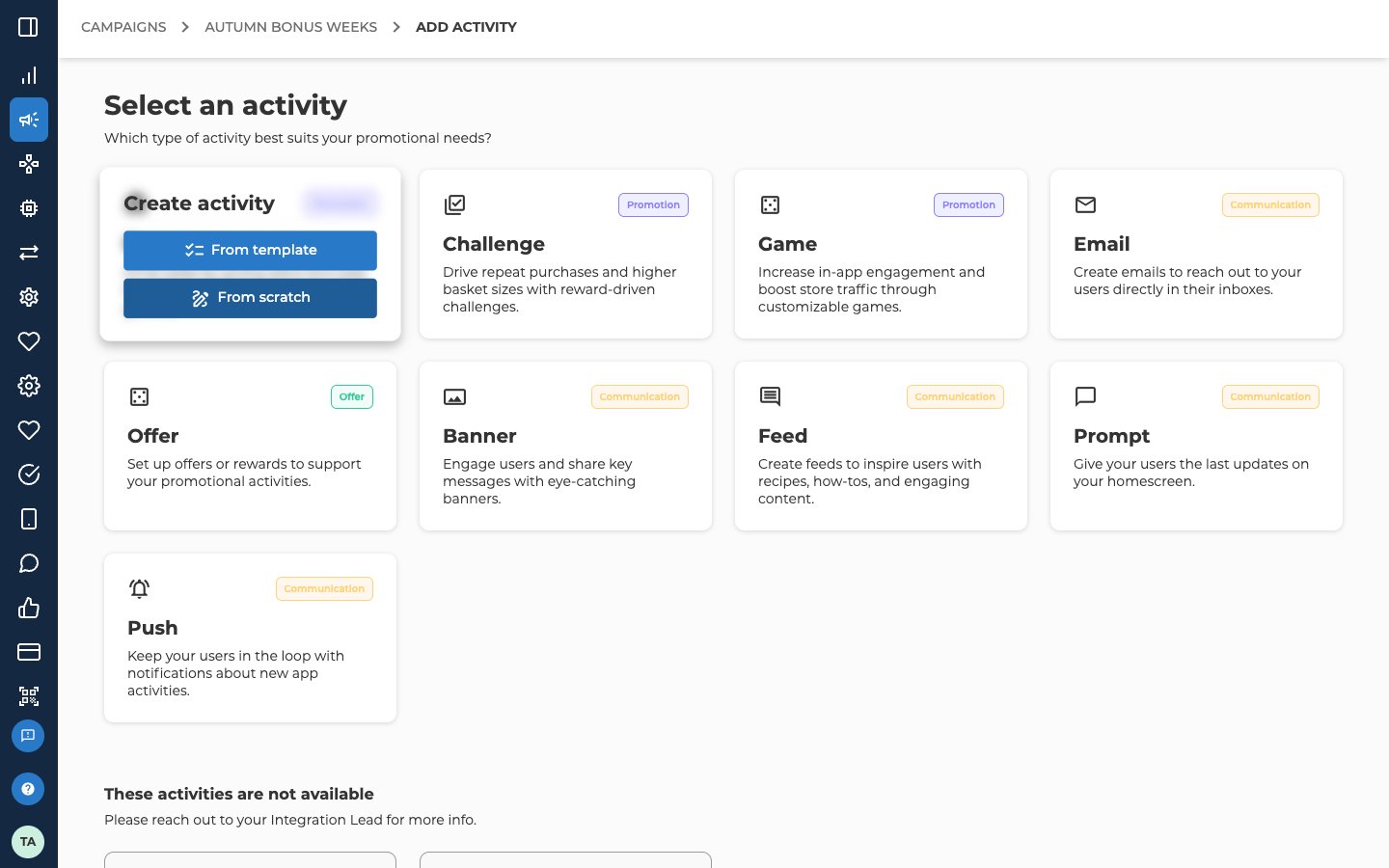
- On the Select an activity page, point at the Bonus tile and select From scratch. To start from a saved bonus instead, select From template. Reuse with templates explains how.
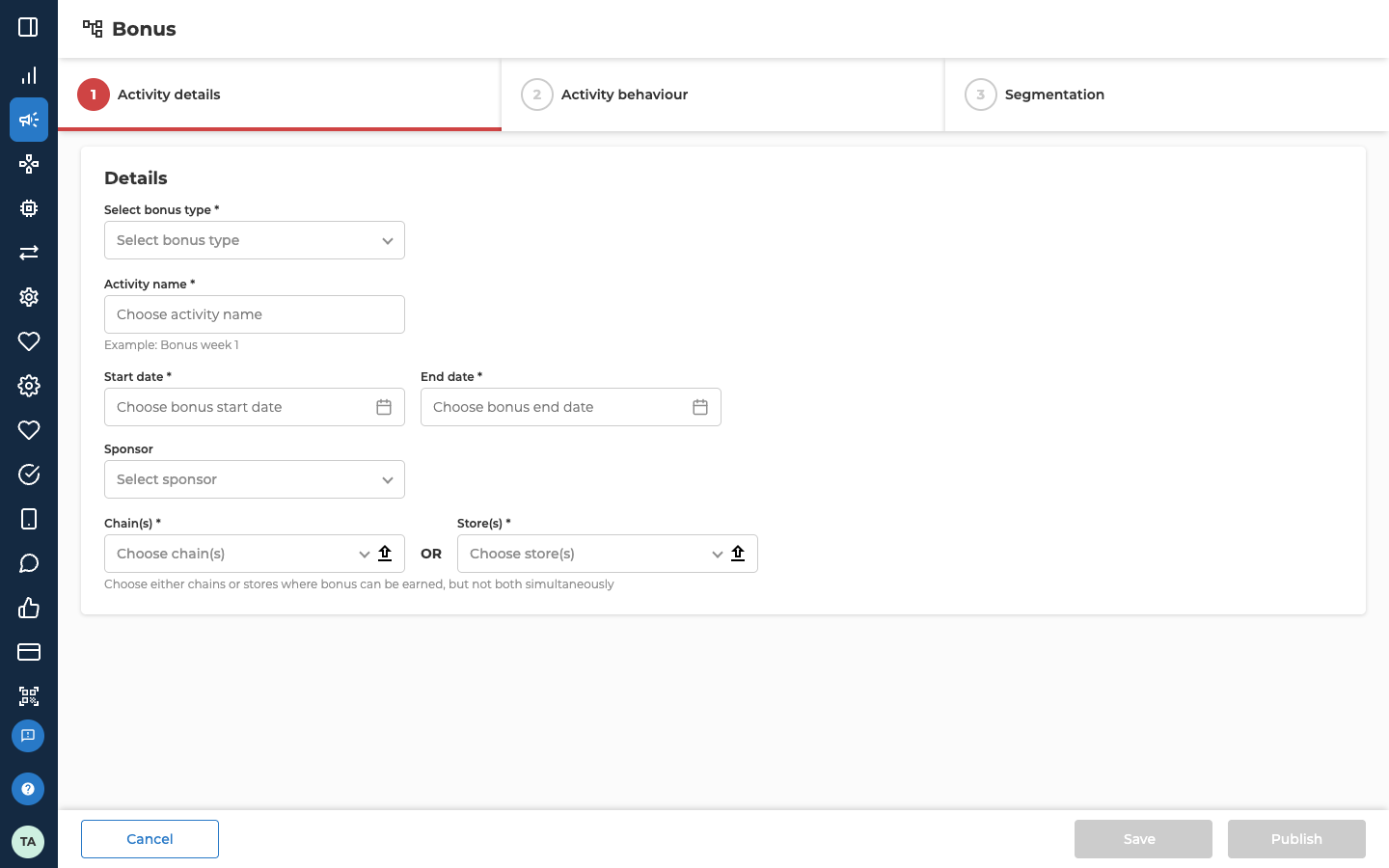
Fill in Activity details
Start by picking the bonus type. It decides how the extra bonus is worked out, and which fields the next tab shows. Bonus types explains each one.
A Redemption Bonus has no dates, chains or stores on this tab. Its dates are on the next tab. It isn’t tied to a chain or store, because it’s based on the customer’s balance, not on a purchase. If you switch to Redemption Bonus after filling in this tab, the dates, chains, stores and sponsor are cleared.
Set how the bonus behaves
Open Activity behaviour. For every type except Redemption Bonus, the tab starts with these fields.
Leave both redemption dates empty and the bonus works like any other bonus the customer earns.
Below these, the tab shows the fields for your bonus type. A Redemption Bonus shows only its two redemption dates and the Redemption bonus field, which sets the percentage of the balance to add. Its redemption dates are required, and they set when the extra bonus is added and when it expires. Bonus types lists the fields for a Product Bonus, Basket Bonus, Local Bonus, Multiplier Bonus and Redemption Bonus.
Choose who gets the bonus
Open Segmentation.
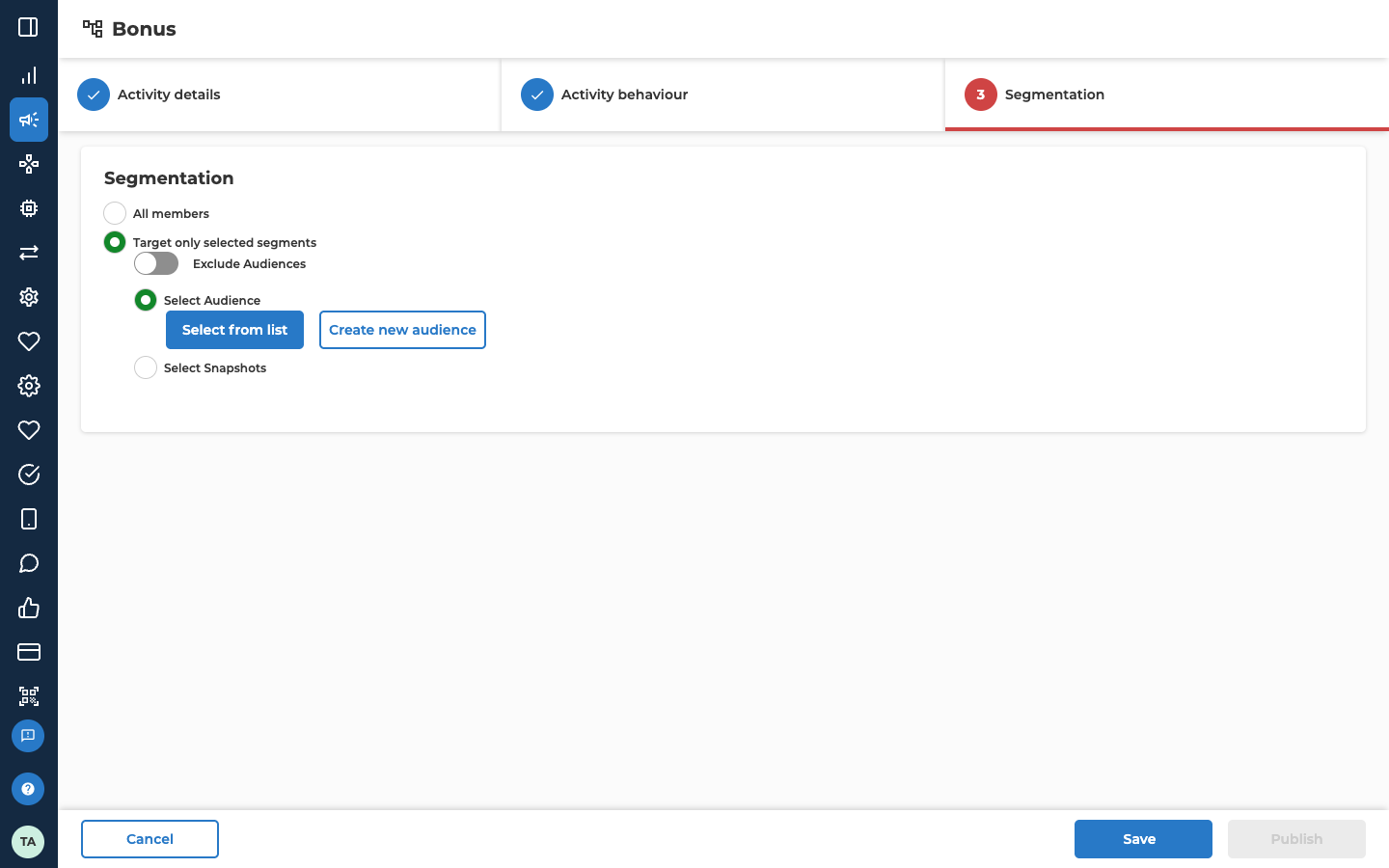
When you choose Target only selected segments, more options open:
- Turn on Exclude Audiences to leave out the customers in the audiences you pick. Everyone else can earn the bonus.
- Select Audience picks saved audiences. Select Select from list to choose one, or Create new audience to make one.
- Select Snapshots picks a snapshot of an audience instead. A snapshot is a copy of the audience at one moment, so its customers don’t change after that.
Save or publish the bonus
- Save keeps the bonus as a draft. It stays greyed out until the bonus has a bonus type, a name and its dates.
- Publish stays greyed out until every required field on all three tabs is filled in. Nexus asks you to confirm first.
Troubleshooting
Why is my product file rejected?
Why is my product file rejected?
It doesn’t match the layout for its field. Bonus types shows the layout for a Product Bonus file, and for the include or exclude files on a Basket Bonus or Local Bonus.
Why won't my Product Bonus save?
Why won't my Product Bonus save?
Another published Product Bonus already gives a different bonus on the same product, in the same chain or store, at the same time. Change the dates, the products, or the chains or stores so they don’t meet. Or give the product the same bonus in both.
Related
- Bonus types — what each bonus type gives the customer, and its fields in full.
- Edit, unpublish or reuse a bonus — what you can still change once the bonus is live.
- Reuse with templates — start a new bonus from a saved one.