

What you can change, and when
To change a bonus, open it from its row in the campaign’s activity list. The row’s ⋯ menu has the other actions on this page too.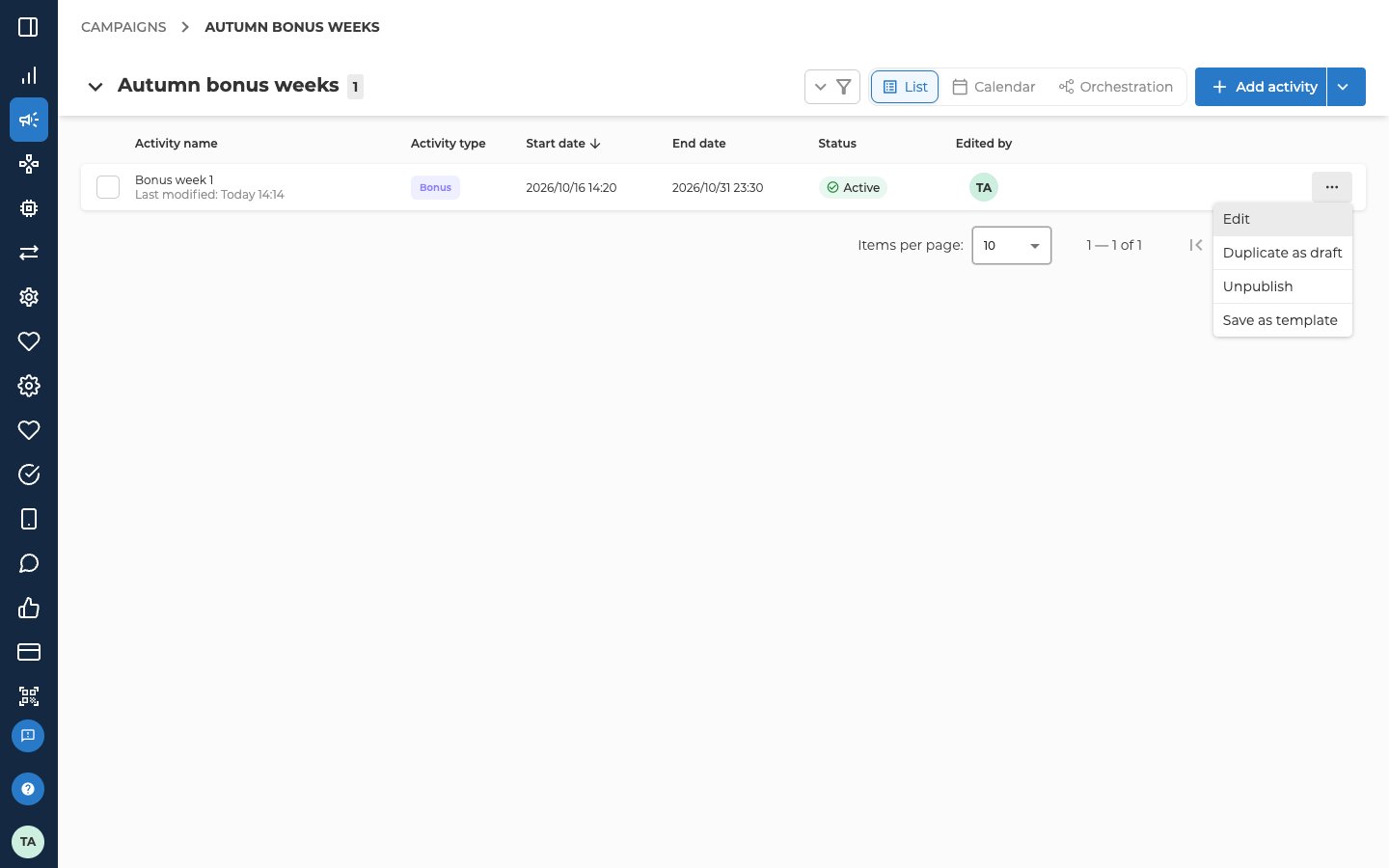
A change you save to an active bonus reaches customers straight away, so Nexus asks you to confirm. Select Update.
To change anything else on an active bonus, unpublish it first, or make a copy.
Stop a bonus
You can stop a scheduled or active bonus.- Open the ⋯ menu on the bonus’s row and select Unpublish. Or select Unpublish at the bottom of the bonus form.
- In the dialog, select Disable.
Delete a draft
You can only delete a draft. To delete a live bonus, stop it first. Deleting can’t be undone.- Open the ⋯ menu on the bonus’s row and select Delete. Or select Delete at the bottom of the bonus form.
- In the dialog, select Delete.
Duplicate a bonus
To start a new bonus from one you already have, make a copy.- Open the ⋯ menu on the bonus’s row and select Duplicate as draft.
- In the dialog, select Duplicate as draft.
Save as template
You can save a bonus as a template, and then use it as the starting point for new bonuses. The bonus has to be saved before you can do this. Select Save as template in the row’s ⋯ menu. Or select it in the ▾ menu beside Save, at the bottom of the form. There’s no dialog. You’ll know it worked when the row shows a TEMPLATE tag. To undo it, select Remove from templates in the row’s ⋯ menu. A bonus you create from a template starts as a draft named Copy of the original. It takes the campaign’s dates, and it keeps the chains or stores and the segmentation. The bonus type and sponsor are cleared, so pick them again. Reuse with templates walks you through the whole flow.Related
- Create a bonus — every field this page mentions, tab by tab.
- Bonus types — the product files you can still change on an active bonus.
- Reuse with templates — finding, using and removing templates across every activity type.