

You need access to Data import, under System configuration in the menu, or to Bonus import, under Toolbox. Bonus import is the same screen, for bonus adjustments only. If you see neither, ask your admin.
Prepare the file
Your file has one row for each adjustment. Customers are called members in the file, so the customer’s ID goes inMemberId.
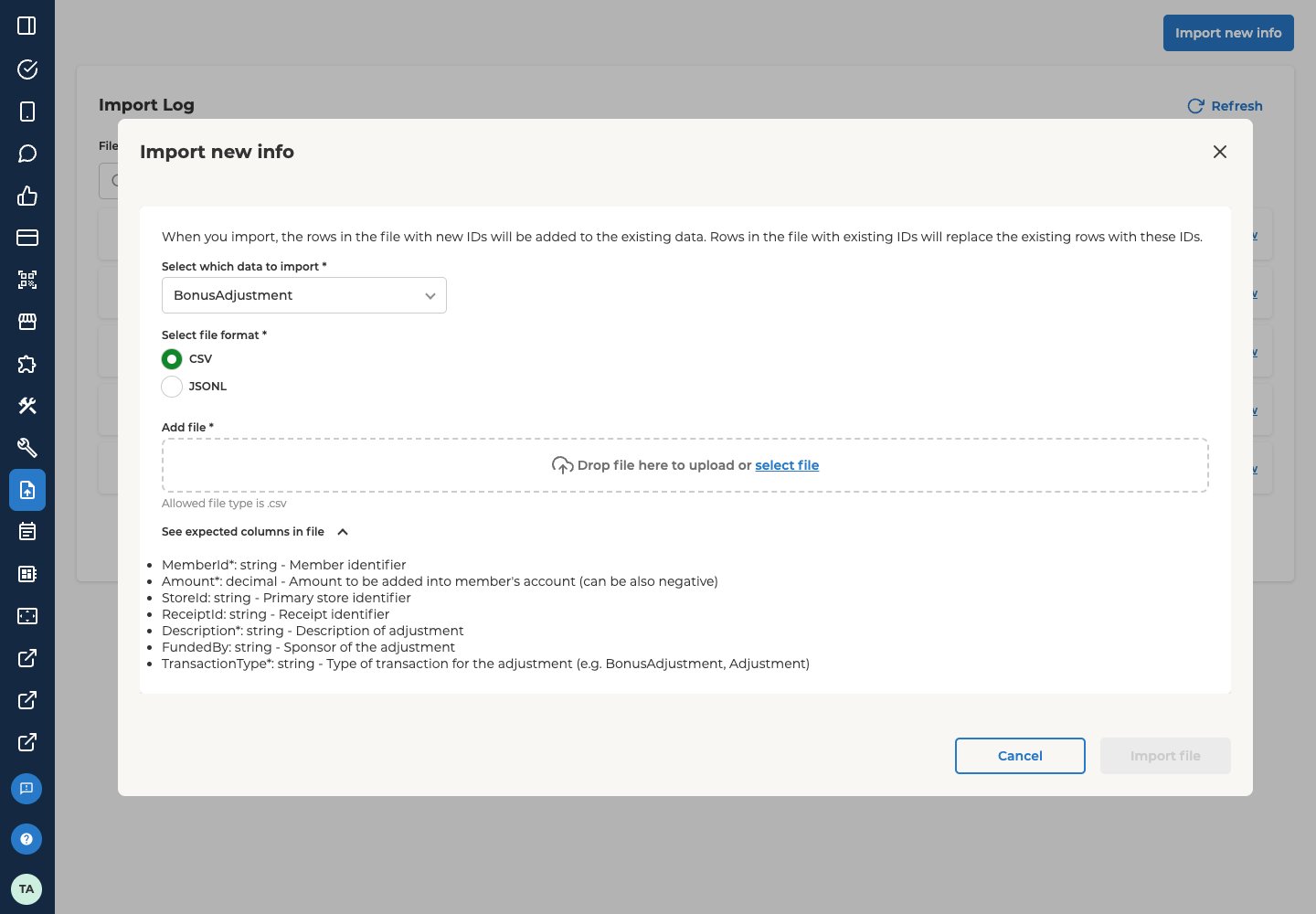
The import dialog shows the same list, apart from
ExpirationDate. Choose BonusAdjustment, then select See expected columns in file.
A bonus runs out at the start of its ExpirationDate, not at the end. Lobyco takes it away in the first nightly run after midnight UTC on that date. So to let customers use the bonus up to and including 31 January, enter 2026-02-01.
Save the file as a .csv file. The first row holds the column names, spelled as in the table. Separate the values with commas, and use a dot for decimals. A description that contains a comma goes in double quotes. You can leave out the optional columns you don’t need.
Import the file
- In the menu, under System configuration, select Data import. If you have Bonus import instead, select it under Toolbox. The Import Log opens, with the imports made so far.
- Select Import new info, at the top right.
- In Select which data to import, choose BonusAdjustment.
- Under Select file format, keep CSV, or choose JSONL.
- Drag your file onto Add file, or choose select file to pick it.
- Select Import file.
Check the import
Your import appears in the Import Log, with its file name and your initials under Imported by. Its Status shows how it went.- Select Refresh to update the list while the import runs.
- Select View on its row to see the details of the import.
- Select the download icon beside the file name to get a copy of the file you imported.
For Successful and Verification needed, check the number after the slash. It should match the number of rows in your file, not counting the header row. If it’s lower, part of the file wasn’t processed. Select View and look at the Error type.
- If it’s
ChunkCreatingFailedEvent, follow Import the rows that were never read. - If it’s
ChunkImportIncomplete, follow Fix a failed import.
Get the rows that failed
When an import needs verification, these steps give you a file with only the rows that failed. You need it to fix the import, or to undo it.- Select View on the import’s row. The details list each error, with its Error type and a Description.
- If View shows a
TransactionCannotBeSavederror, stop here, and don’t fix or undo the import yourself. Some rows couldn’t be saved. The error’s Description asks you to retry the import, but don’t. The index it gives can point to the wrong row. Contact Lobyco support with the file name and the date of the import. - Select Download rows that requires verification. You get a file named Errors_ plus your file’s name, with the rows that failed.
- If View shows an error about
TransactionTypeorFundedBy, the file can hold the wrong rows. Delete any row that no error in View describes, because it went through. When a customer has more than one row, check that each row you keep has the problem its error describes. AFundedByOptionsAreNotConfigurederror means every row with aFundedByvalue failed. - If so, look in your own file for the rows with the
TransactionTypeorFundedByvalues those errors name. For aFundedByOptionsAreNotConfigurederror, that’s every row with aFundedByvalue. Copy the missing ones into the Errors_ file.
Fix an import that needs verification
The rows that went through are already on the customers’ balances. So import only the rows that failed. The dialog suggests importing your corrected file again. If that file still holds the rows that went through, those customers get the change twice.- Get the rows that failed, in an Errors_ file.
- Correct the rows you can. Delete the rows you can’t fix, for example a customer with no active account.
- Import the Errors_ file as a new import.
- it has no
MemberIdorDescription, or itsAmountis 0 - its
TransactionTypeisn’t one your organisation has set up - its
FundedBydoesn’t match one of your organisation’s sponsors - its
StoreIdis missing or unknown, in an organisation that needs one - the customer has no active account
- a deduction would take the customer’s balance below zero
- an addition would take the balance above the highest balance the customer’s account allows
Fix a failed import
Select Refresh first. A file the import couldn’t read all the way through can show Failed before its first rows are imported. If it no longer shows Failed, follow Check the import instead. Select View on the import’s row and look at the Error type.- If it’s
ChunkImportIncomplete, the import stopped partway, and some rows may already be on the customers’ balances. Don’t import the file again. Contact Lobyco support. - If it’s only
ChunkCreatingFailedEvent, the import couldn’t read your file, and nothing was imported. Check that the file matches the format you chose and has rows below the header. In a CSV file, also delete any double quote inside a value, such as the one in5" screen. Keep the double quotes around a description that contains a comma. Then import the file again. - Otherwise, nothing was imported. Check that the file has the columns above and matches the format you chose, then import it again.
Import the rows that were never read
When the number after the slash is lower than the number of rows in your file, and View shows aChunkCreatingFailedEvent error, the import stopped reading your file partway. It read only the rows at the top, as many as the number after the slash. For example, Successful (5000/5000) for a file of 7,000 rows means it read the first 5,000. It never read the last 2,000.
- Copy the rows it never read into a new file. In a CSV file, copy your header row above them.
- If the new file is a CSV file, delete any double quote inside a value, such as the one in
5" screen. It stops the import from reading the file. Keep the double quotes around a description that contains a comma. - Import the new file as a new import.
Undo an import
To undo an import, import the rows that went through again, with each amount reversed.- If View shows a
ChunkImportIncompleteerror, follow Fix a failed import instead. - If the import needed verification, get the rows that failed first.
- Make a copy of your file.
- If View shows a
ChunkCreatingFailedEventerror, the import read only the rows at the top of your file, as many as the number after the slash. Delete the rows below them from the copy. - If the import needed verification, remove the rows in your Errors_ file from the copy. They never went through.
- Make the positive amounts negative, and the negative ones positive.
- Import the copy as a new import.
Related
- Bonuses — how a bonus adjustment differs from a bonus activity.
- Create a bonus — give customers extra bonus on their purchases while it runs, instead of a one-off change.