

You need the Customer Feedback admin role to see Customer Feedback in the menu. Measure explains what customers see in the app.
Open Customer Feedback
In Lobyco Nexus, go to Member management → Customer Feedback in the left menu. It has two tabs, Predefined options and Thank you messages. Each tab lists what’s already there, with a filter above each column. The Status column shows whether each one is a Draft or Published. The rows that start with Default come from Lobyco. You can’t change the default predefined options. You can edit the default thank-you messages, as Create a thank-you message explains.Create a predefined option
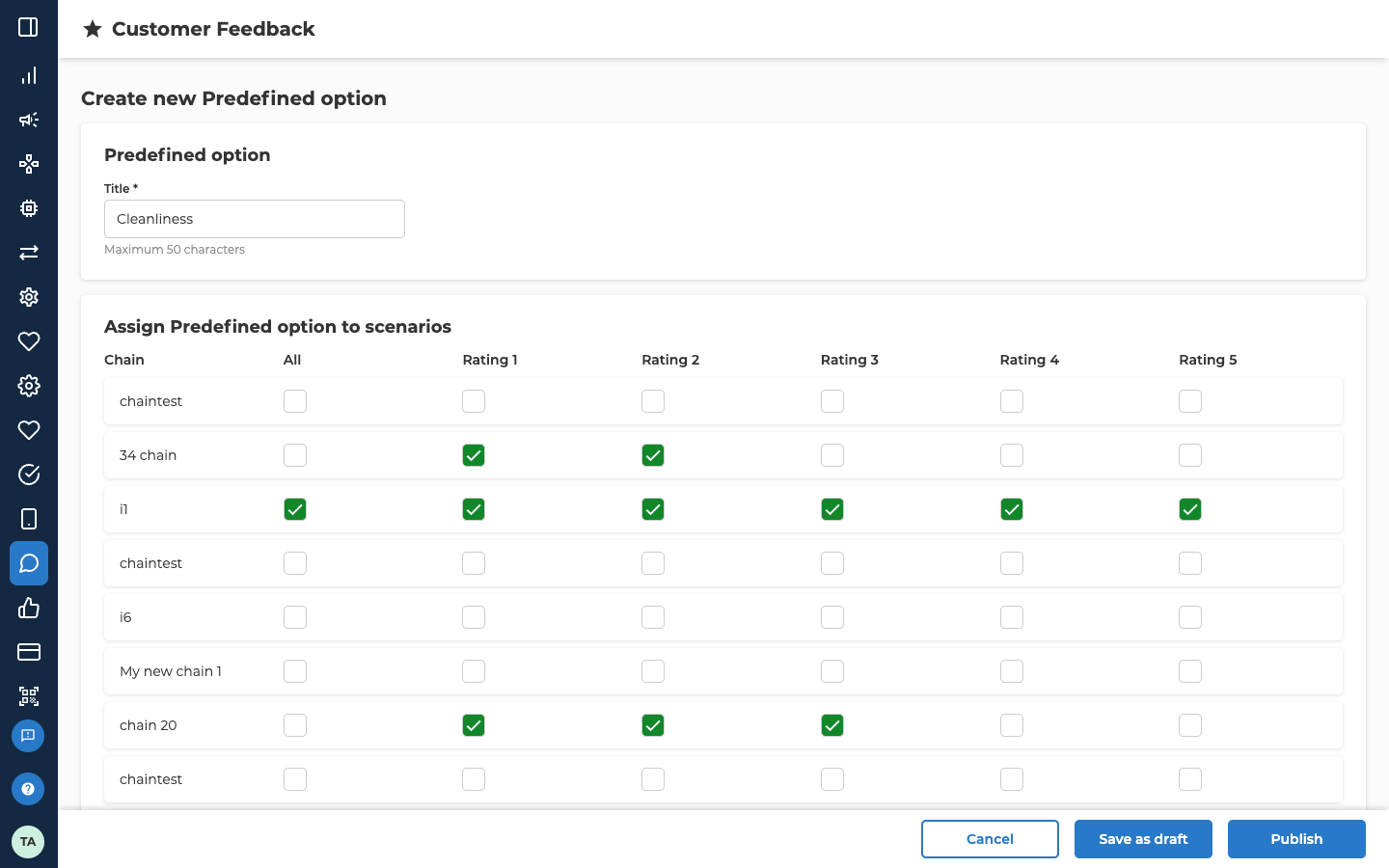
A predefined option is one thing customers can say their rating is about, such as cleanliness, prices or staff. On the Predefined options tab, select Create new.
Customers pick options after they choose a rating, so tick at least one rating before you publish.
Keep the list short, about 10 options at most, so customers can pick quickly. Change the options rarely, so your feedback stays comparable over time.
Save or publish the option
- Save as draft keeps the option without showing it in the app. It only needs a title.
- Publish shows the option in the app, for the chains and ratings you ticked. Confirm in the dialog that opens.
Create a thank-you message
A thank-you message is what the app shows a customer after they send their feedback. Each message belongs to one predefined option, and to the chains and ratings you choose. When a customer picks an option that has no message for their chain and rating, they see Lobyco’s general default message. On the Thank you messages tab, select Create new.
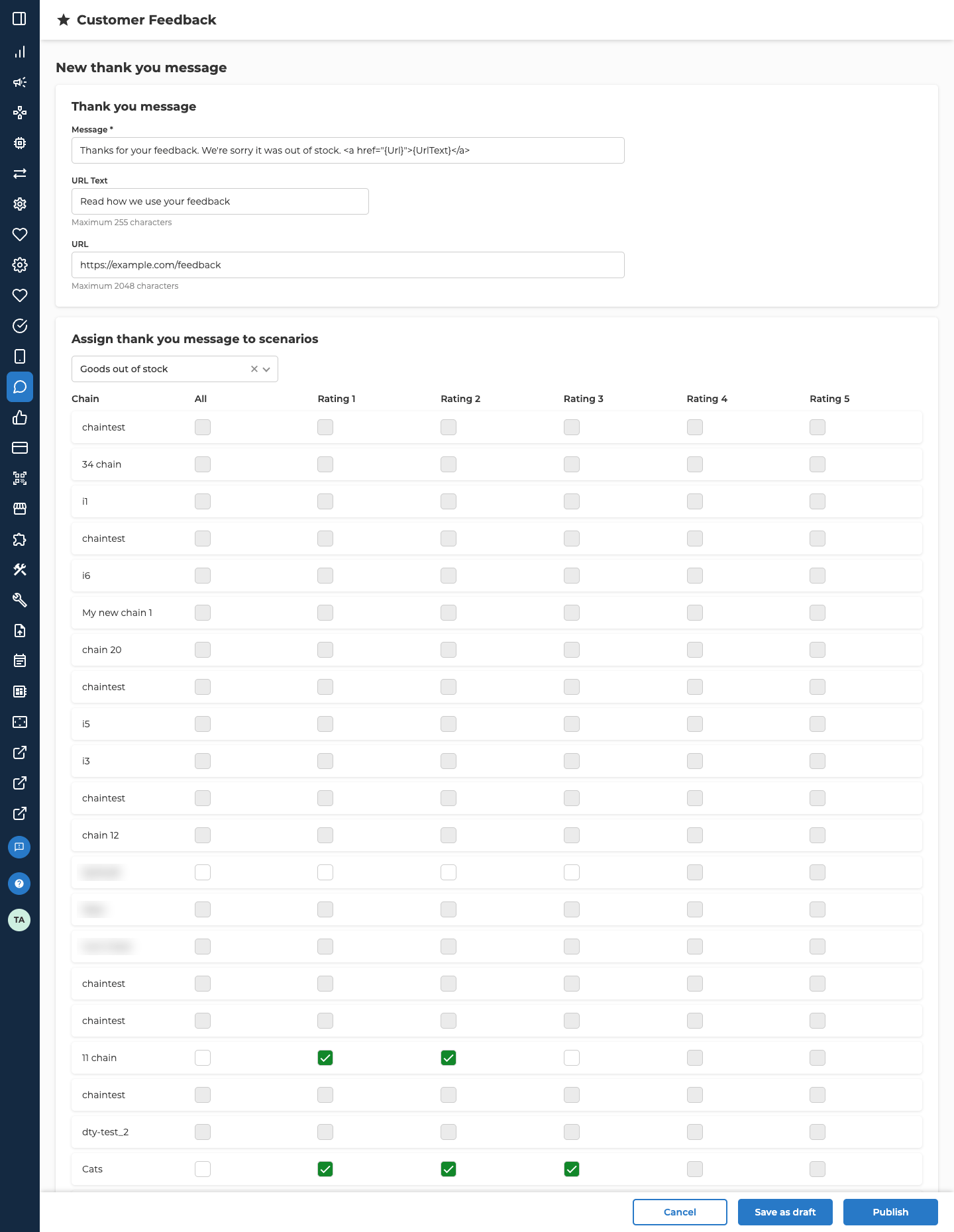
To show the link, type the whole of
<a href="{Url}">{UrlText}</a> into Message where the link should go, with your own words around it. Lobyco swaps {UrlText} and {Url} for what you typed in URL Text and URL. Write them exactly like that, with the capitals. If you write {url} in lowercase, Lobyco doesn’t replace it, so the link doesn’t work.
Then choose who sees the message, under Assign thank you message to scenarios.
When a customer sends feedback, the app picks one message.
The default messages are worth editing, for example to add a link to your FAQ. Open one from the list with Edit, change it, then select Update and confirm. Default messages stay published, so your change shows in the app as soon as you confirm.
Save or publish the message
- Save as draft keeps the message without showing it in the app.
- Publish shows the message in the app. Confirm in the dialog that opens.
Change or remove an option or message
In either list, select … at the end of a row.Troubleshooting
Why can't I publish my predefined option?
Why can't I publish my predefined option?
Check two things. The Title must be filled in and not used by another option. If it is, the form says The predefined option with specified title already exists. At least one rating must be ticked in Assign Predefined option to scenarios.
Why can't I change a default predefined option?
Why can't I change a default predefined option?
The options that start with Default come from Lobyco, and their buttons are switched off. Create your own option instead.
Why can't I tick some boxes for my thank-you message?
Why can't I tick some boxes for my thank-you message?
You can only tick the chains and ratings the predefined option is assigned to. Edit the option to add them there first, then come back to the message.
Why doesn't the link in my thank-you message work?
Why doesn't the link in my thank-you message work?
Check three things:
- Message holds the whole of
<a href="{Url}">{UrlText}</a>, where the link should go. {UrlText}and{Url}are written exactly like that, with the capitals. Otherwise Lobyco doesn’t swap in your link.- Both URL Text and URL are filled in.
Related
- Customer feedback reports — how you get the feedback customers send, and what’s in it.
- Measure — how feedback works in the app, from the rating to the thank-you message.