This page helps you understand households before you set up shared offers and challenges. A household groups customers of your loyalty programme so they can earn and use benefits together. Family members who shop separately can fill the same stamp card, work towards the same challenge and use the same coupon. Without households, a benefit belongs to whoever earned it. Households don’t replace personal benefits. You set up each offer and challenge as either shared, so it belongs to the household, or individual, so it belongs to one customer. Both kinds can run side by side. Shared benefits explains how. Your app can call the feature something else, such as Family Club. This page says household.

Where households are managed

Customers manage their own household in your app. They invite people, accept invitations, change roles and leave. In Lobyco Nexus you do three things with households:
  • Choose whether each offer and challenge is shared or individual.
  • Find customers by what their household bought, in the Member segment block.
  • Help customers with their household, from their page in Members.
Lobyco switches households on for your programme and sets it up. See Settings.

Core rules

Who can do what

When someone leaves or is removed, they’re never left without a household. They get a new household of their own straight away, as its owner.

Invitations

An invitation is a link that works once. An owner shares it from the app, for example in a message. The link opens the household page in your app. An invitation is valid for 2 days, unless Lobyco sets another lifetime for you. It stops working when:
  • someone accepts it
  • the person who opened it declines it
  • an owner deletes it
  • it expires
  • its household no longer has anyone in it
A pending invitation takes a seat in the household. When it’s deleted, declined or expires, the seat is free again straight away. When every seat is taken, owners can’t send another invitation until they delete a pending one or remove someone. Resending an invitation shares the same link again. It doesn’t create a new invitation, and it doesn’t give the invitation more time.

What the invited customer sees

When a customer who is alone in their household accepts an invitation, any invitations they had sent stop working. That’s because their old household no longer has anyone in it.

What customers see in the app

Customers manage their household from a page in your app. They reach it from a Household row in the app’s menu, or from a link that opens the household page or an invitation. What the page shows depends on the customer:
  • A customer alone in their household sees an invitation page, with the benefits of joining and a button to send an invitation.
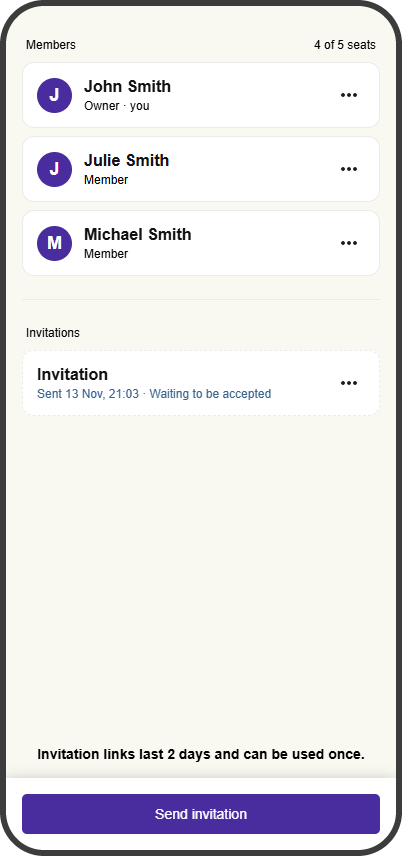
  • An owner of a household with other people in it sees everyone in the household and their roles, the seats used, and pending invitations with when each was sent. There are actions for each person and each invitation. When the household is full, the invite button is disabled, and the page says whether people or open invitations fill the seats.
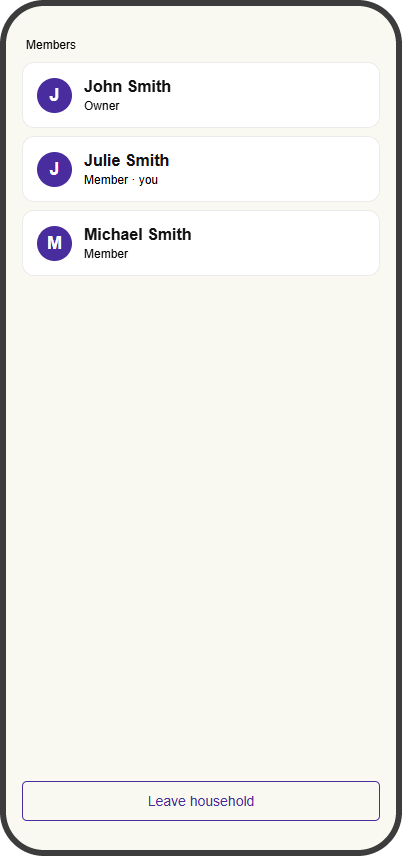
  • A customer with the Member role sees everyone in the household and their roles, and a way to leave. Members don’t see management actions, the number of seats or invitations.
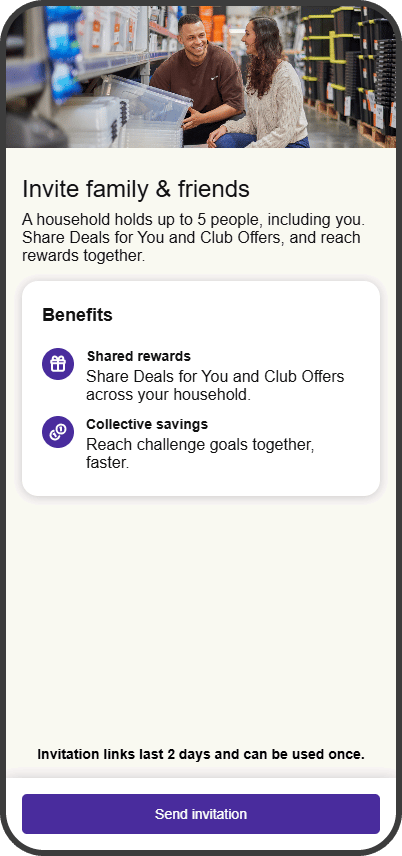
The household page in the app, seen by a customer who is alone in their household. Under a header photo, the title Invite family & friends says a household holds up to 5 people, including you. A Benefits card lists Shared rewards and Collective savings. At the bottom is the note Invitation links last 2 days and can be used once, and a Send invitation button.Seen by a customer alone in their household
The household page in the app, seen by an owner. Under Members, with 4 of 5 seats on the right, are three people: John Smith, Owner · you, Julie Smith, Member, and Michael Smith, Member, each with a three-dot options button. Under Invitations is one row, Invitation, Sent 13 Nov, 21:03 · Waiting to be accepted, with its own options button. At the bottom is the note Invitation links last 2 days and can be used once, and a Send invitation button.Seen by an owner
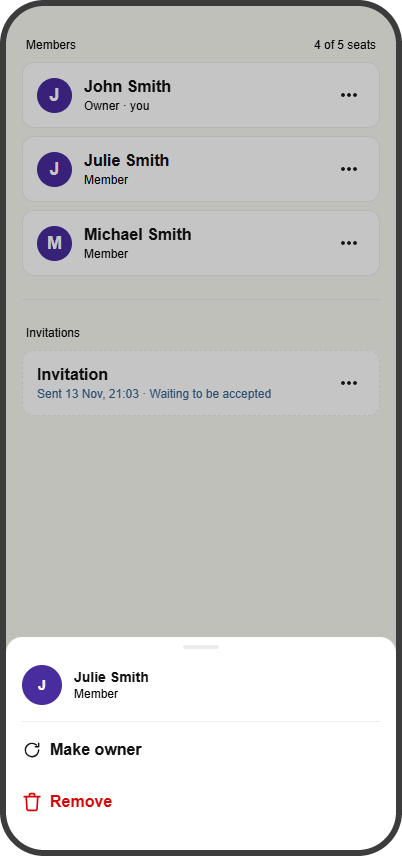
The same household page, seen by the owner, with the options menu for Julie Smith open as a sheet at the bottom of the screen. The sheet shows Julie Smith, Member, then two actions: Make owner, and Remove in red. The page behind it is dimmed.An owner’s options for someone in the household
The household page in the app, seen by a customer with the Member role. Under Members are John Smith, Owner, Julie Smith, Member · you, and Michael Smith, Member. There's no seat count, no invitations, no options button on anyone and no Send invitation. A Leave household button is at the bottom.Seen by a member

Help a customer with their household

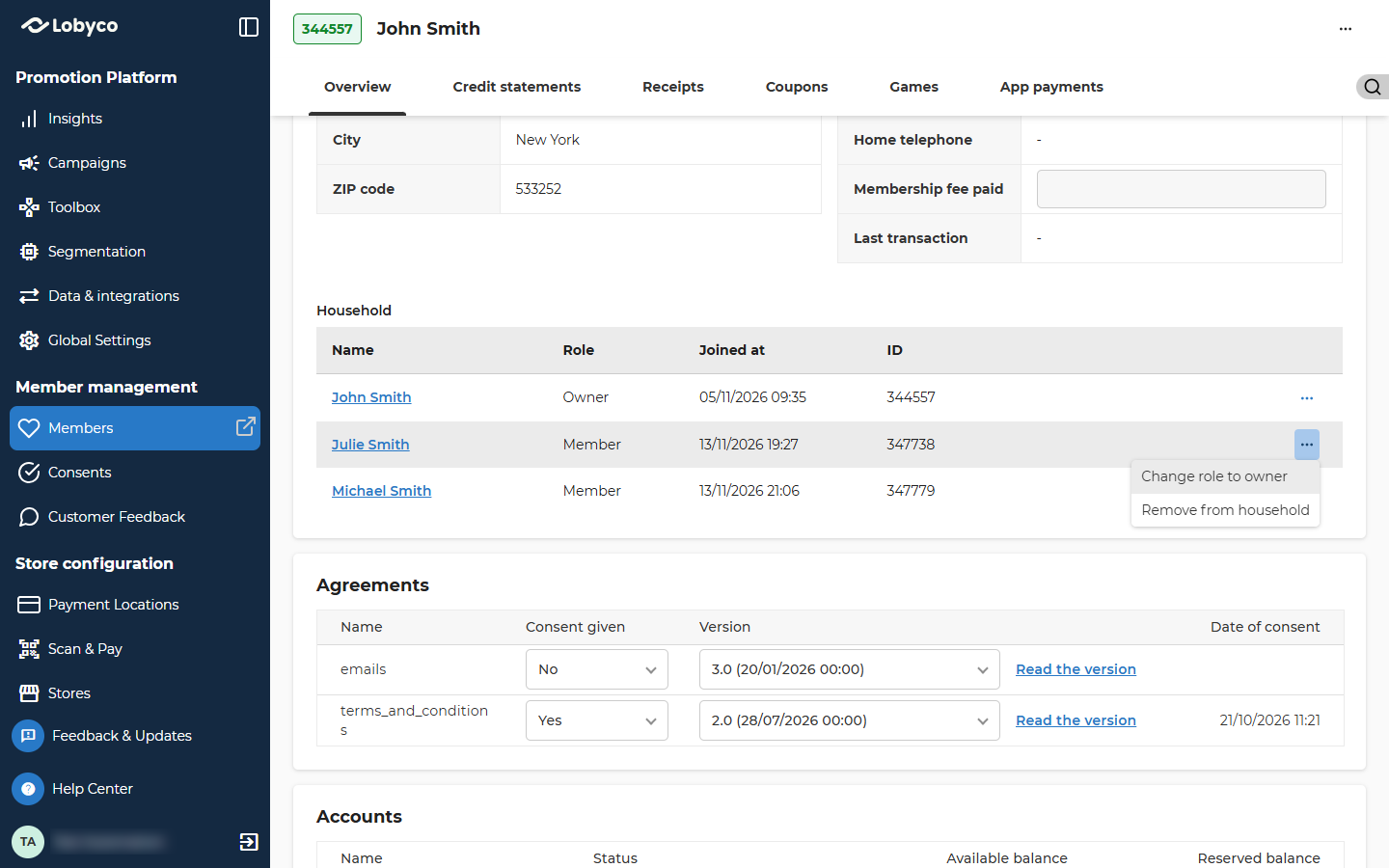
When households are on, a customer’s Overview tab in Members has a Household section, under their details. Find a customer shows how to open a customer’s page. A customer's Overview tab in Members, scrolled to the Household section under the customer's details. The Household table has the columns Name, Role, Joined at and ID, and three rows: John Smith, Owner, joined 05/11/2026 09:35, ID 344557, Julie Smith, Member, joined 13/11/2026 19:27, ID 347738, and Michael Smith, Member, joined 13/11/2026 21:06, ID 347779. Each name is a link. The actions menu on Julie Smith's row is open, showing Change role to owner and Remove from household. The Agreements section starts below. The Household section, with a member’s actions menu open The section lists everyone in the household, in the order they joined. Each row shows the person’s role and the date they joined, and links to that customer’s own page. The actions menu on each row has these actions: As in the app, you can’t make the only owner a member, or remove them. Those actions are disabled, and the reason is shown.
What happens when

“Straight away” means as soon as the change is made. “The next day” means after the nightly refresh of household data.

Someone joins or leaves

A customer’s account changes

Settings

Households are switched off unless your programme asks for them. Lobyco switches them on and sets these values on request.

Next steps

Last modified on November 18, 2026