- Lobyco IDP is used as local identity provider: users sign in to application with their email/phone number and password. All identity information is stored in Lobyco IDP.
- Lobyco IDP connects to external IDP via OpenID connect: users sign in to application using their current credentials from an external identity provider. (e.g. Azure B2C, OKTA, Auth0 etc.)
Lobyco IDP is used as identity provider
This option is ideal for customers who either don’t have a membership program with user credentials or are experiencing difficulties or limitations with their current identity solution and would like to migrate to a new one.- Identity information (phone, email, password) is stored in Lobyco Identity provider.
- Users can sign in using either their phone number or email as their username.
- Lobyco white-label sign-up/sign-in flow in mobile app.
- Existing customer websites can be integrated with Lobyco IDP to provide a unified sign-up and sign-in experience.
- Supports phone verification via sms.
Lobyco IDP connects to external identity provider via OpenID connect
This option is ideal for customers who already have an existing membership program with user credentials. It allows for seamless integration by leveraging their current login details, streamlining the process and enhancing user convenience without requiring new account creation. Lobyco IDP callback url needs to be registered in external IDP:
Each environment has its own host. Contact Lobyco for the exact callback URLs.
Configuration values that are needed from external identity provider to be registered in Lobyco identity provider
- Application Id
- ClientSecret
- Authorization endpoint url
- Token endpoint url
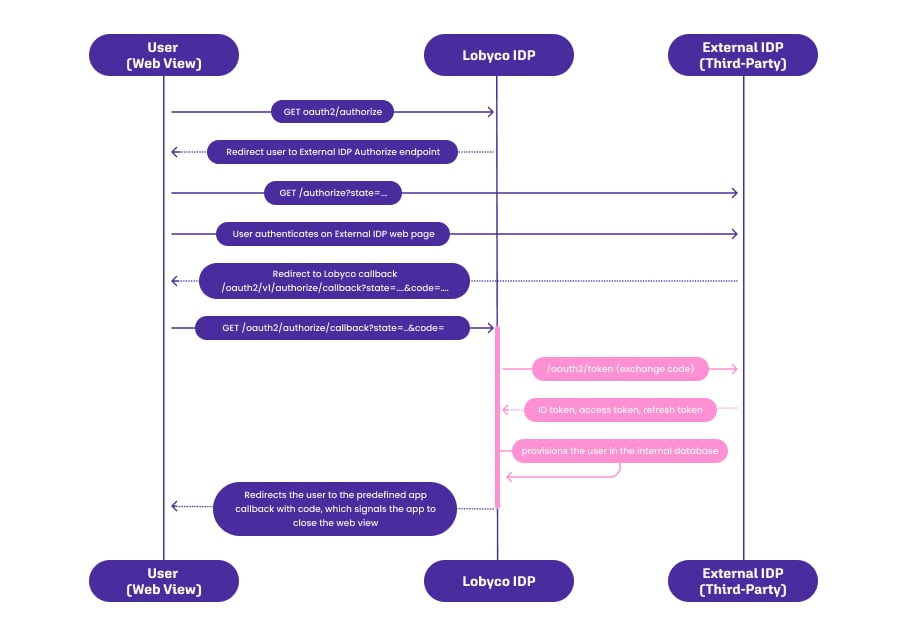
Sign-in process via external IDP
The sign-in flow begins at the /authorize endpoint, continues through the configured external identity provider, and then returns to the application:1
In the app, the user taps the Sign in button.
2
The app opens a web view and redirects the browser to the Lobyco Identity Provider (IDP).
3
When running in External mode, the Lobyco IDP redirects the browser to the configured external IDP.
4
The user signs in with the external IDP.
5
The external IDP redirects the browser back to the Lobyco IDP.
6
The Lobyco IDP validates the sign-in response, provisions the user in the internal database, and finalizes authentication.
7
The Lobyco IDP redirects the browser back to the app’s home screen.